How to Customize Chatbot Appearance
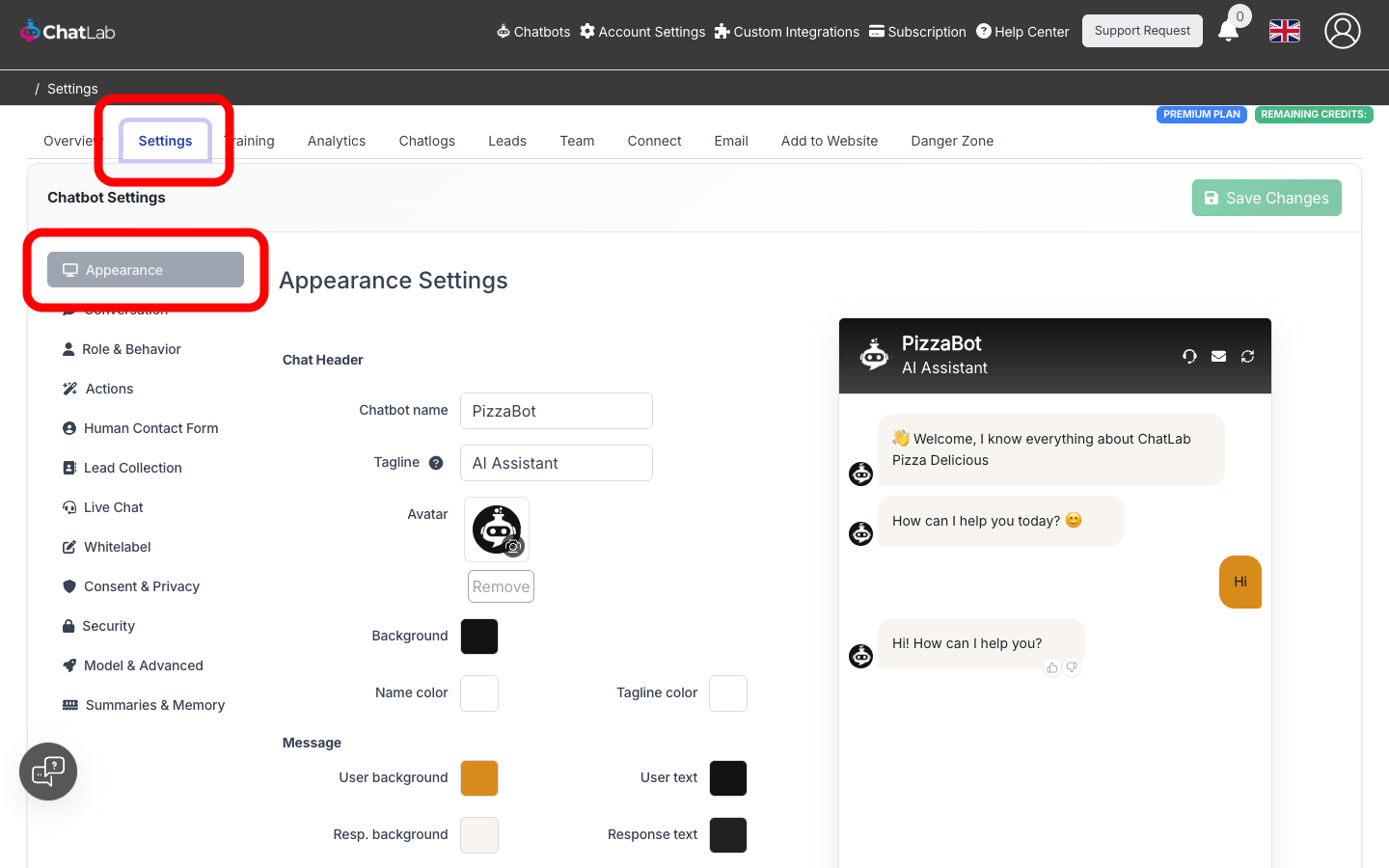
Where to Find Appearance Settings
From the main ChatLab administration page, select Chatbots in the main menu, click on the selected chatbot, select the Settings tab and choose Appearance in the left menu.
Chat Header
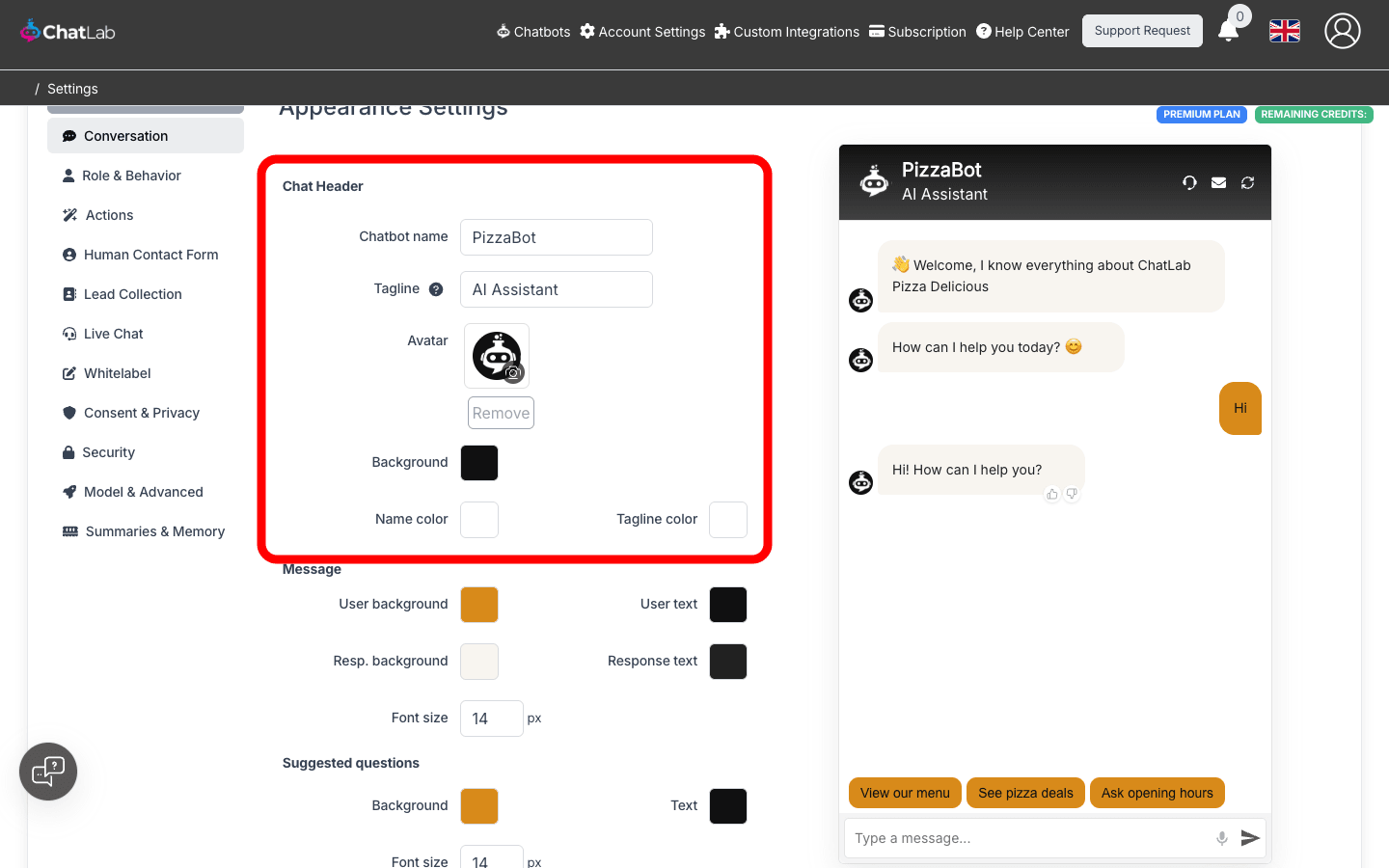
Configure how the top section of your chat widget looks:
- Chatbot name - the display name shown in the chat header (max 60 characters)
- Tagline - optional subtitle displayed below the chatbot name (max 60 characters)
- Avatar - upload a custom image that customers see while interacting with the chatbot
- Background - background color of the header area
- Name color - color of the chatbot name text
- Tagline color - color of the tagline text
Message Colors and Font Size
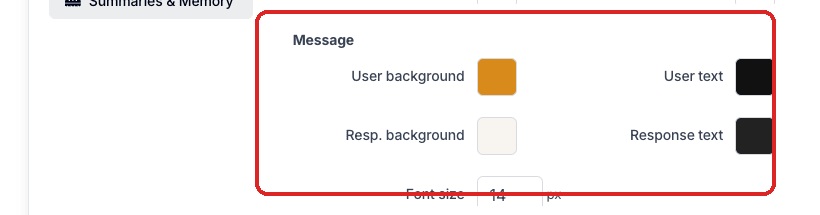
Customize the look of conversation messages:
- User background - background color of messages sent by the visitor
- User text - text color of visitor messages
- Resp. background - background color of chatbot responses
- Response text - text color of chatbot responses
- Font size - size of message text (12-24 px)
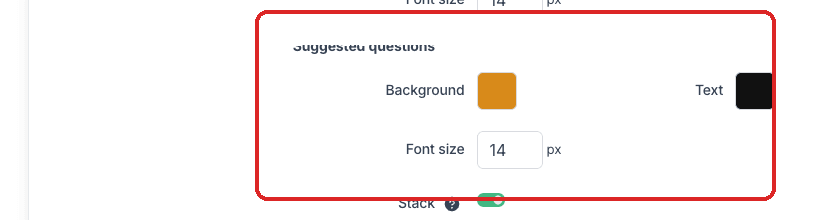
Suggested Questions
Style the suggested question buttons that appear in the chat:
- Background - background color of suggested question buttons
- Text - text color of suggested question buttons
- Font size - size of suggested questions text (12-24 px)
- Stack - when enabled, longer suggested questions stack vertically instead of showing a horizontal scrollbar
Minimized-Mode Settings
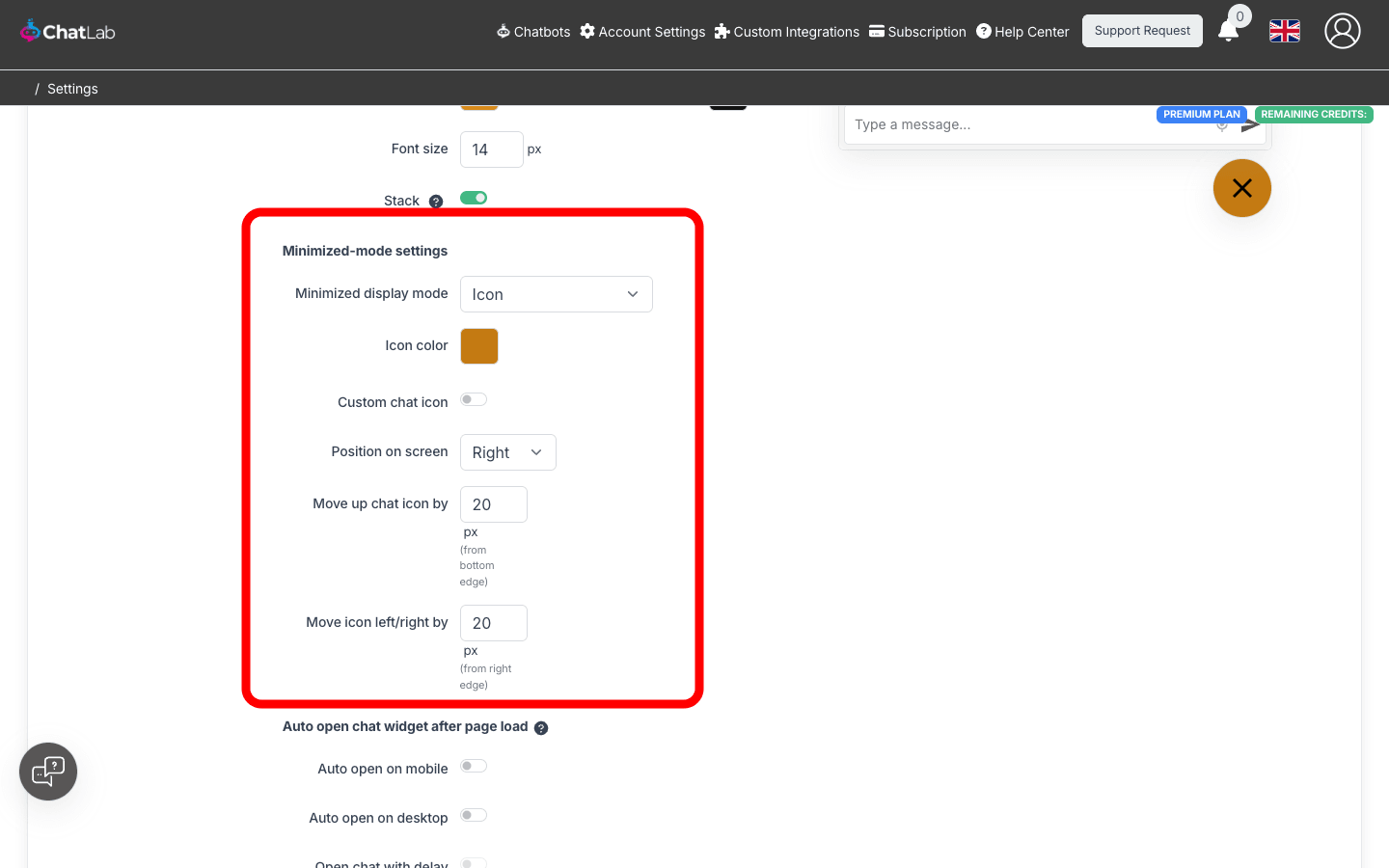
Control how the chat widget appears when minimized (before the user opens the chat):
- Minimized display mode - choose between:
- Icon - standard circular chat launcher icon (default)
- Minified chat bar - compact text input bar displayed at the bottom of the page
- Icon color / Mini bar color - color of the launcher icon or mini bar background
- Custom chat icon (icon mode only) - enable to upload custom open/close chat icons
- Position on screen - place the widget on the left or right side of the screen
- Move up chat icon/bar by - vertical offset in pixels from the bottom edge
- Move icon/bar left/right by - horizontal offset in pixels from the nearest screen edge
Auto Open Chat Widget After Page Load
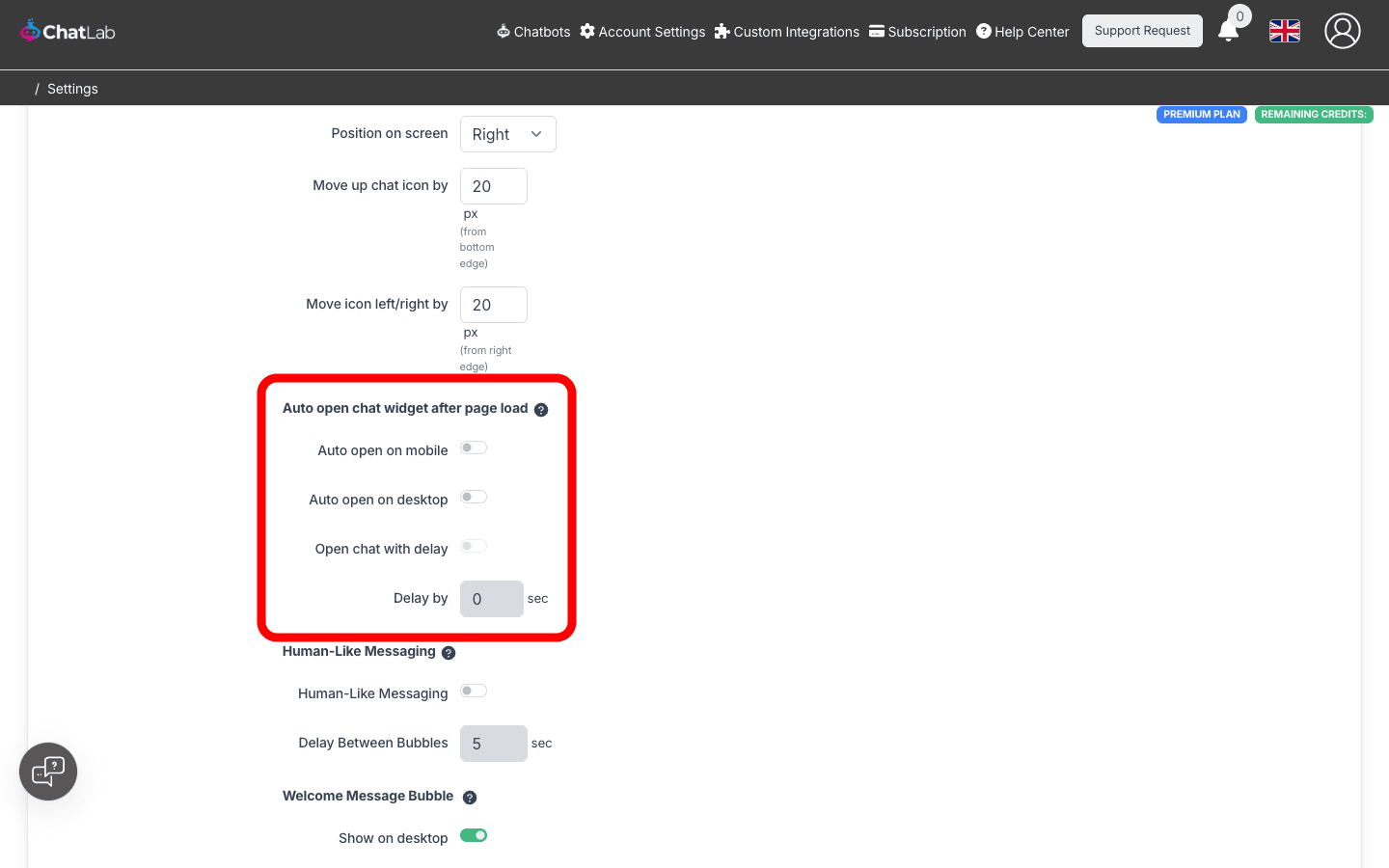
Configure the chat to automatically expand when visitors load the page:
- Auto open on mobile - automatically opens the chat on mobile devices
- Auto open on desktop - automatically opens the chat on desktop screens
- Open chat with delay - enables a delay before auto-opening (only available when auto open is enabled)
- Delay by - number of seconds to wait before opening (0-60 seconds)
Human-Like Messaging
Simulates human-like typing by splitting responses into multiple message bubbles, shown gradually sentence by sentence:
- Human-Like Messaging - toggle to enable/disable the feature
- Delay Between Bubbles - time in seconds between displaying each message bubble (0-200 seconds)

Welcome Message Bubble
Display the welcome message in a bubble above the chat launcher icon to help visitors notice the chat. This feature is only available in icon mode and does not work in iframe mode or when auto-open is enabled.
- Show on desktop - display the welcome message bubble on desktop
- Show on mobile - display the welcome message bubble on mobile devices
- Delay - number of seconds after page load before showing the bubble (0-60 seconds)
If you have multiple welcome messages, they will appear stacked above the chat icon.

Voice Input
Allow users to interact with the chatbot using their voice. This feature uses the Web Speech API, supported in most modern browsers and devices. The voice input language is determined by the browser's and device's language settings.
- Enable voice input - toggle to show/hide the microphone button in the chat input area

Other Appearance Settings
- Widget Shadow - enable or disable a shadow around the chat widget container
- Open links in - choose whether links in chat messages open in a new tab or the same tab

Custom Chat Footer
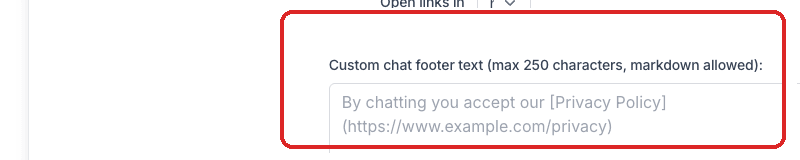
Add custom text displayed at the bottom of the chat widget (max 250 characters). Markdown is supported for inserting links. Common use: linking to your privacy policy or terms of service.
Example markdown:
By chatting you accept our [Privacy Policy](https://www.example.com)
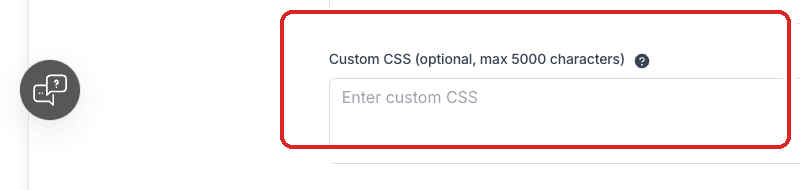
Custom CSS
Add custom CSS styles to further customize the look of your chat widget (max 5000 characters):