Deleting a chatbot permanently removes it and all associated data from ChatLab. This action cannot be undone.
What Gets Deleted
When you delete a chatbot, the following data is permanently removed:
- Training datasets (website content, files, Q&A, text entries)
- Conversation history and summaries
- Collected leads
- Sharing invitations and team access
- Chatbot settings and configuration
How to Delete a Chatbot
- Open your chatbot and click the Danger Zone tab.

- Scroll down to the Delete chatbot section and click Delete chatbot.
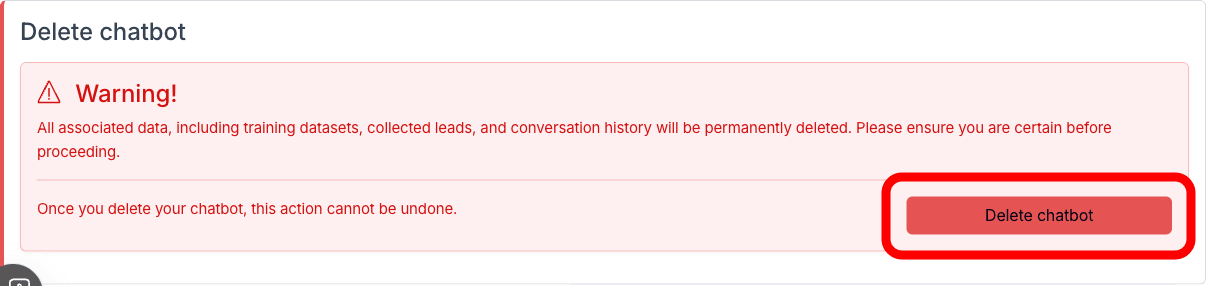
- A confirmation prompt appears. Click Yes to permanently delete the chatbot.
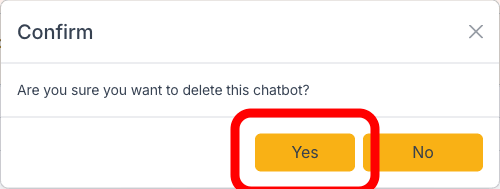
After confirmation, the chatbot and all its data are permanently erased and you are redirected to the bot list.
Important: Only the bot owner can see the Danger Zone tab and delete a chatbot. Team members with shared access do not have this option.