Deleting a chatbot removes the chatbot and its associated working data. There is no user-facing undo. Export any conversations or leads you need before proceeding; some connected-service cleanup is processed separately.
What Gets Deleted
When you delete a chatbot, the following data is permanently removed:
- Training datasets (website content, files, Q&A, text entries)
- Conversation history and summaries
- Collected leads
- Sharing invitations and team access
- Chatbot settings and configuration
How to Delete a Chatbot
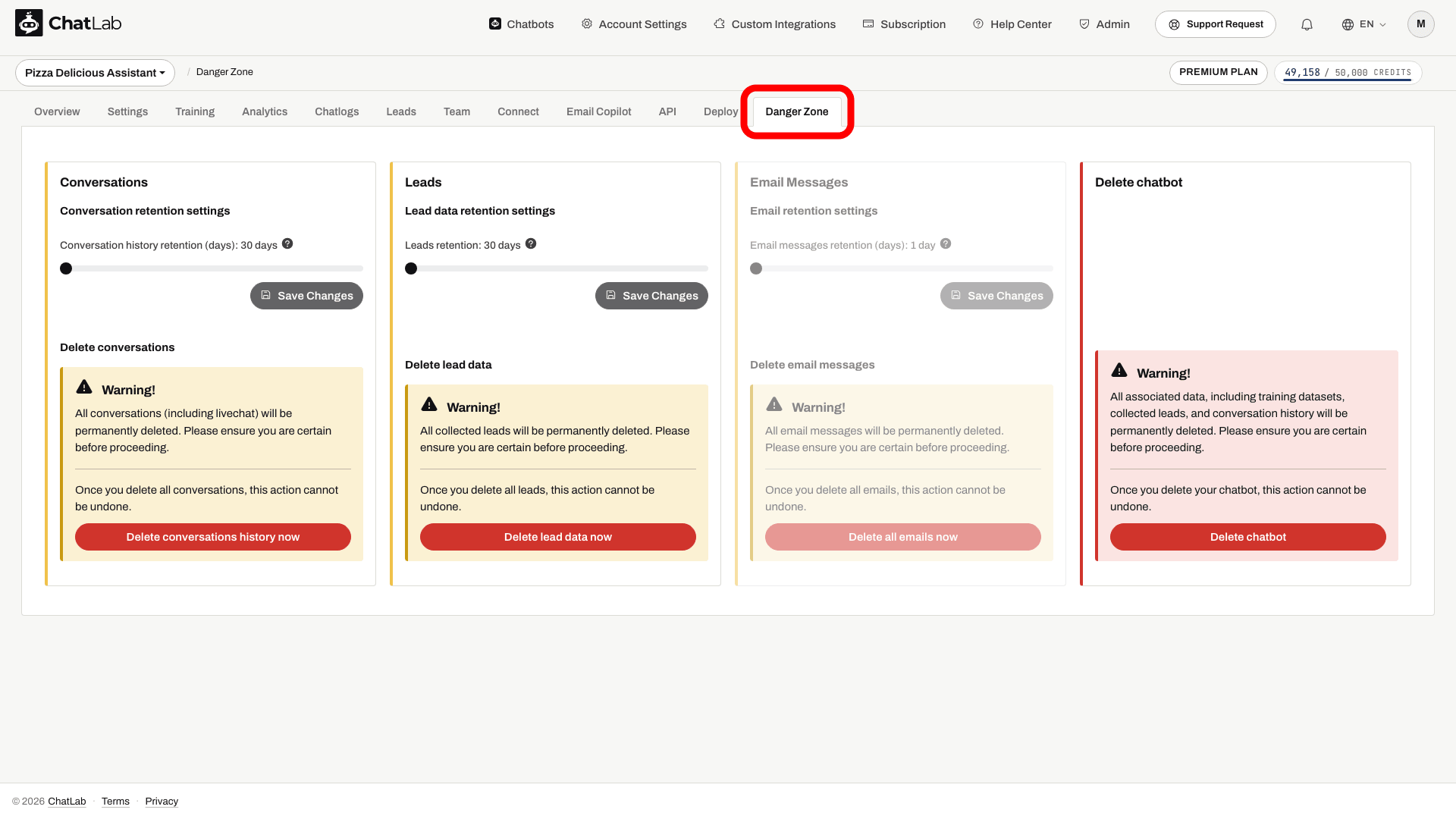
- Open your chatbot and click the Danger Zone tab.
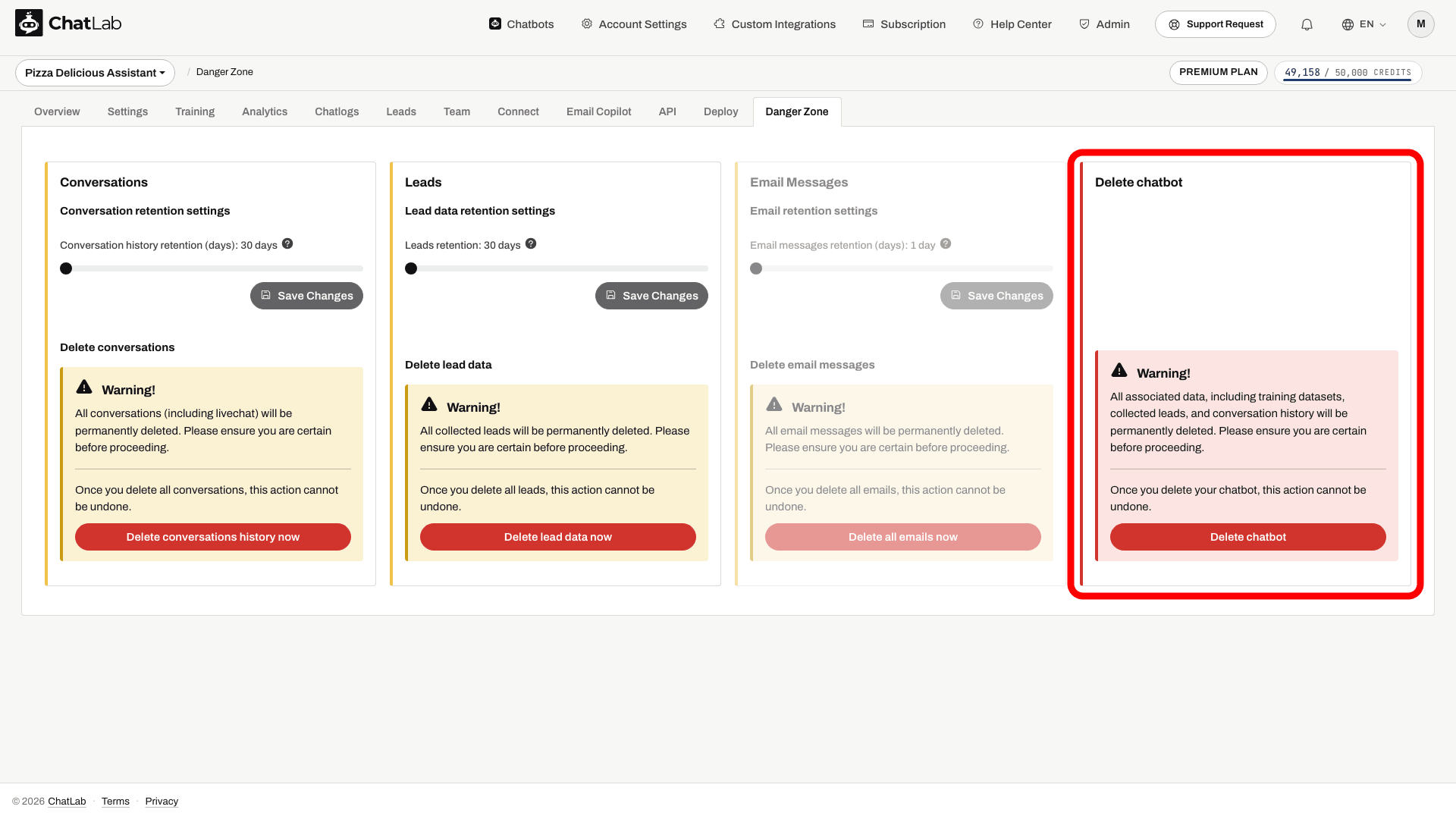
- Scroll down to the Delete chatbot section and click Delete chatbot.
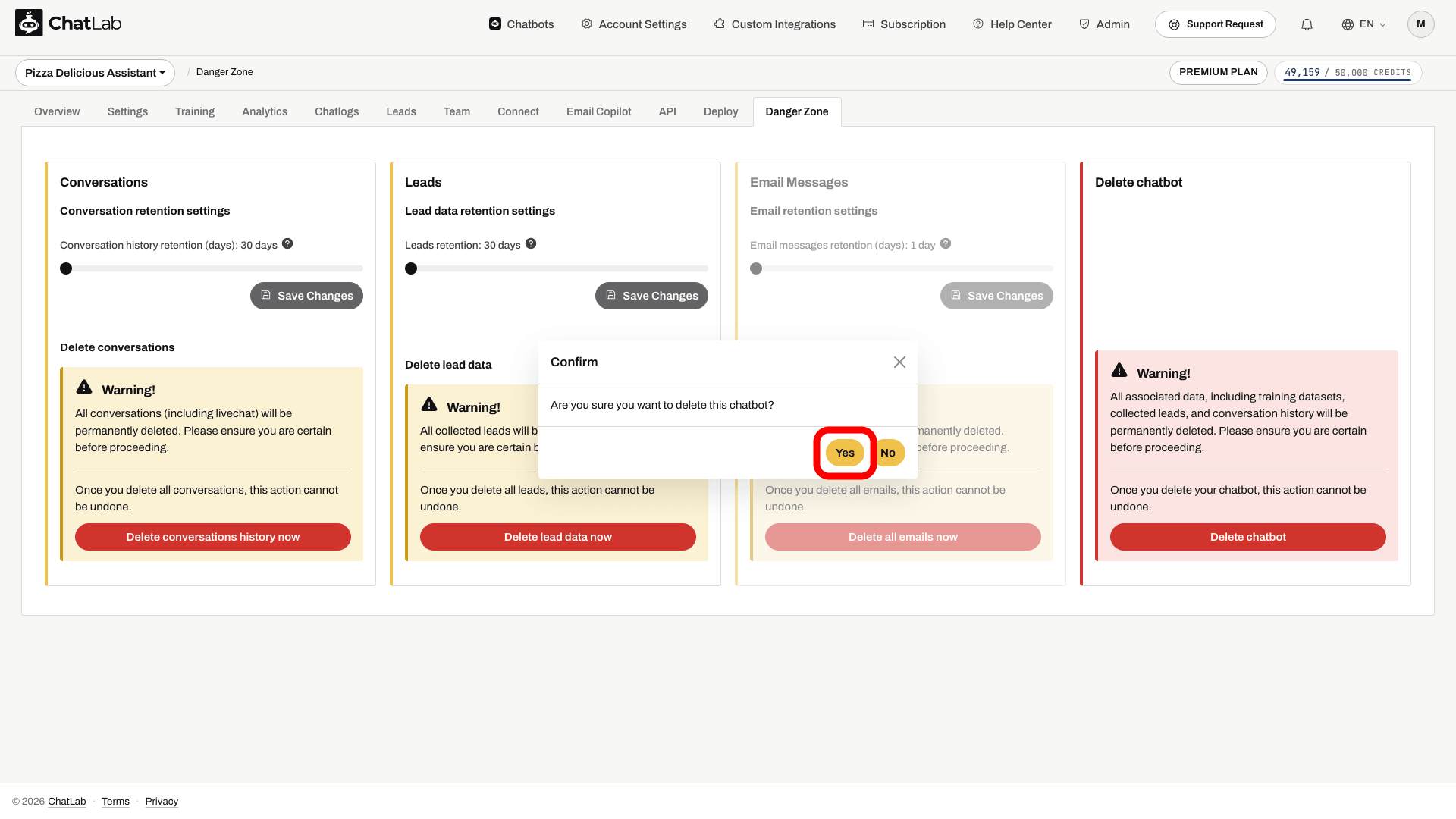
- A confirmation prompt appears. Click Yes to permanently delete the chatbot.
After a successful deletion, you are redirected to the bot list. Confirm the chatbot is no longer listed, then remove its installation code from your website. Deleting a chatbot does not cancel your account subscription. External copies, such as exported files or data previously sent to another system, need separate handling.
Important: Only the chatbot owner can delete the chatbot. Team members with FULL access may see Danger Zone, but deletion is still owner-only. Team members with LIMITED access do not see the tab. Learn more about access levels in Inviting administrators.
Related Articles
- Deleting your data - manage retention periods or delete conversations and leads without deleting the whole chatbot
- How to create your first ChatLab chatbot