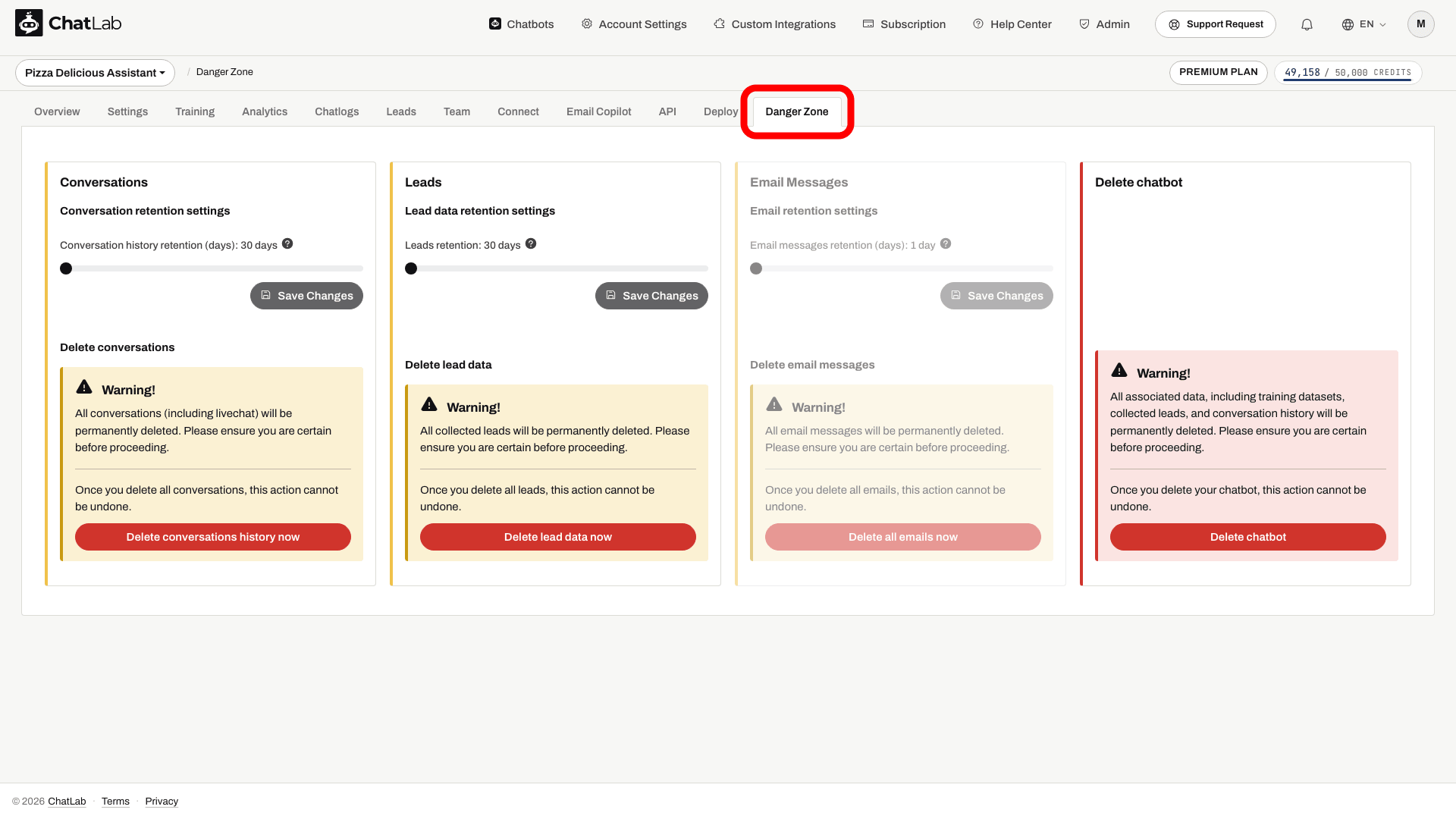
The Danger Zone tab lets you manage data retention periods and permanently delete conversations or leads for a specific chatbot. These actions are irreversible, so proceed with caution.
To access these settings, open your chatbot and click the Danger Zone tab.
Export any conversations or leads you need before deleting them. Retention and deletion controls support your data-management process, but do not by themselves establish legal compliance. Exported files, your connected mailbox, and data already delivered to external integrations need separate handling. These instructions do not promise immediate erasure of every backup or legally retained record.
Conversation Retention Settings
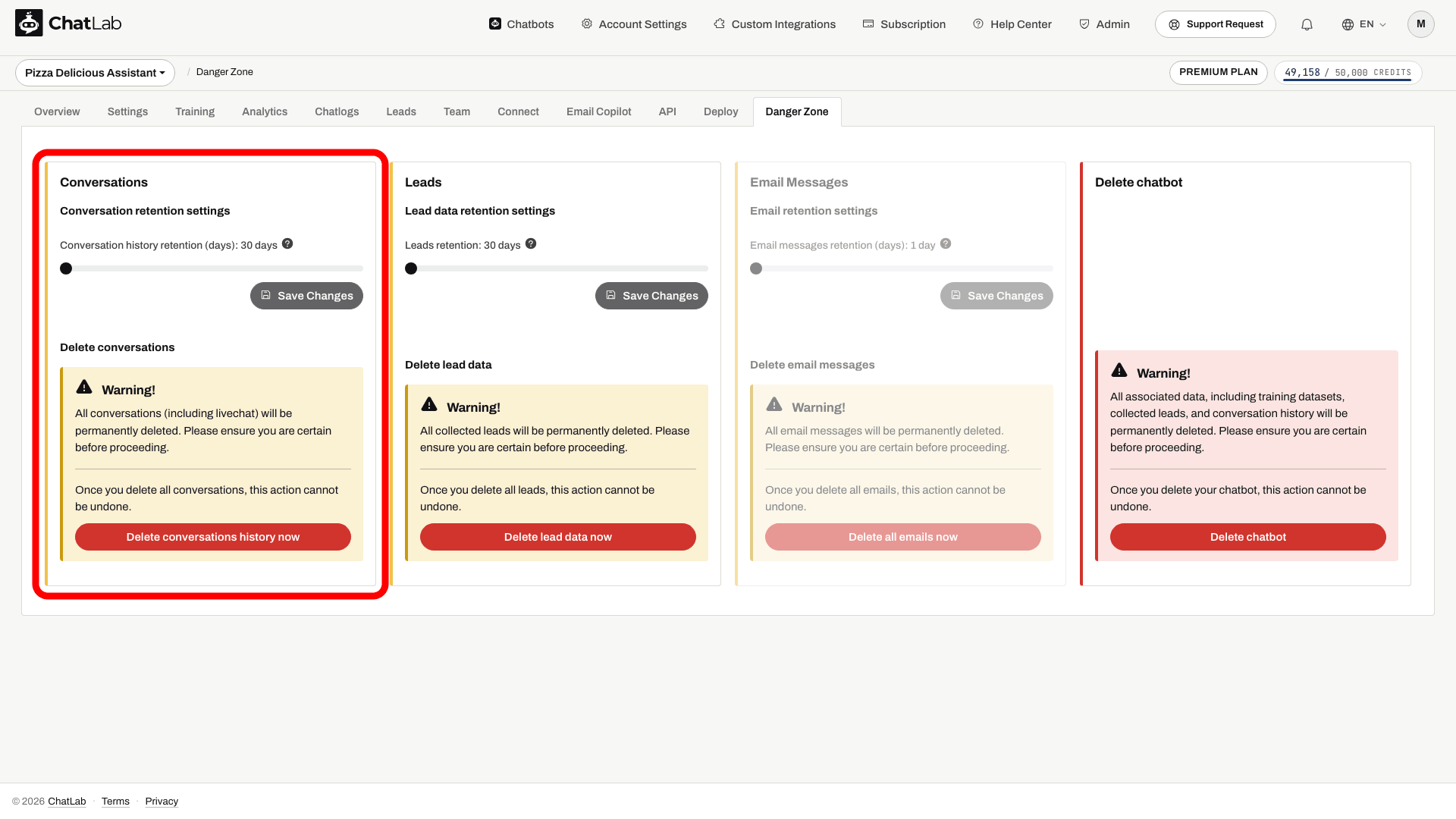
You can configure how long conversation history is kept before it is automatically deleted. The retention period can be set between 30 and 180 days in 10-day steps (default: 30 days).
-
In the Conversations section, drag the Conversation history retention (days) slider to your preferred value.
-
Click Save Changes.
Conversations whose last update is older than the configured period are removed by the daily cleanup job. The longest period offered by this control is 180 days.
Delete All Conversations
To immediately delete all conversations for this chatbot:
- In the Conversations section, click Delete conversations history now.
- A confirmation prompt appears. Click Yes to proceed.
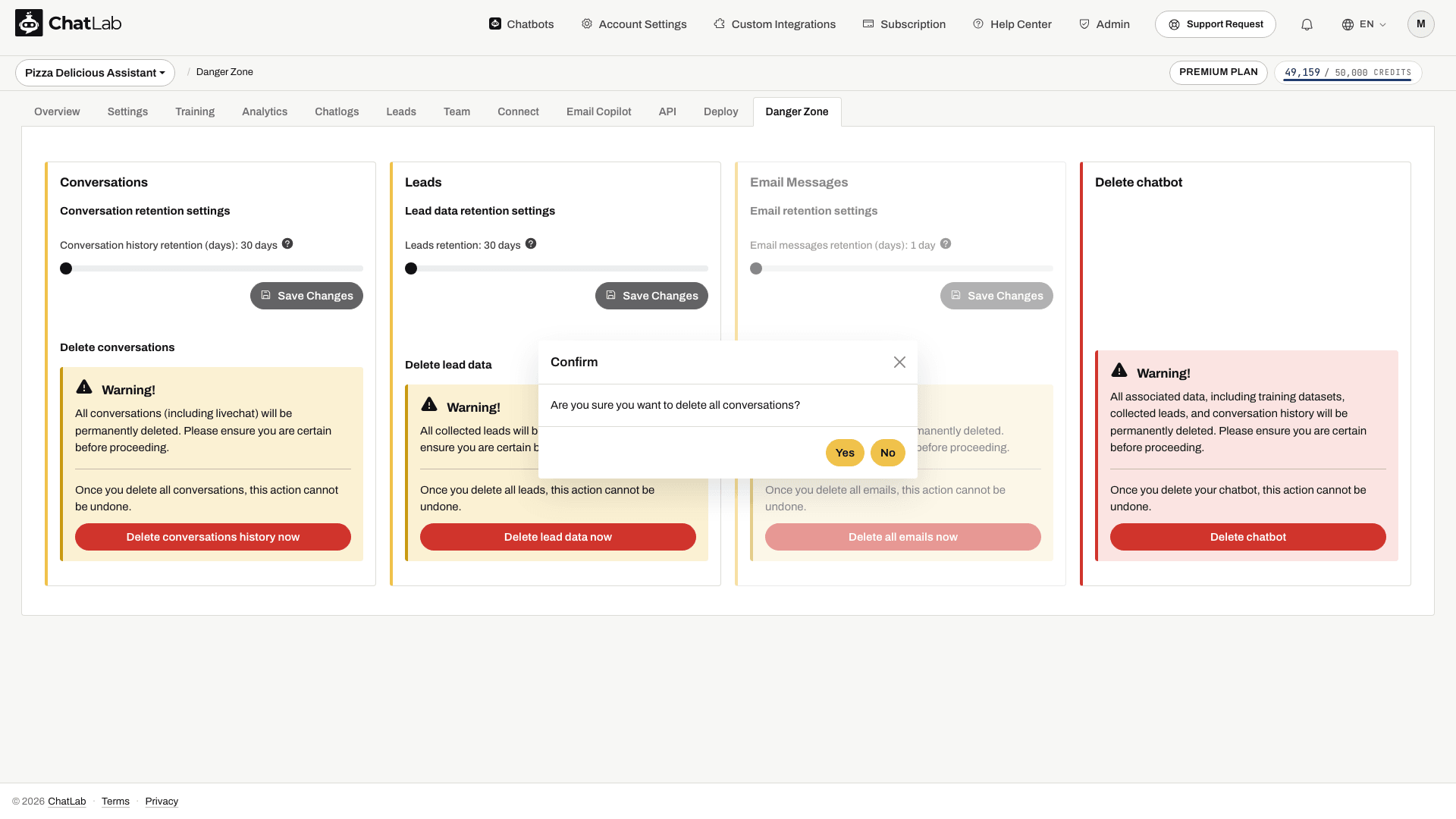
All conversations, including live chat messages, are permanently erased. This action cannot be undone.
After the success notification, open Chatlogs and refresh to check the result.
Lead Data Retention Settings
You can configure how long collected lead data is kept before it is automatically deleted. The retention period can be set between 30 and 180 days in 10-day steps (default: 30 days).
-
In the Leads section, drag the Leads retention slider to your preferred value.
-
Click Save Changes.
Lead data older than the configured period is permanently removed on a daily basis. The longest period offered by this control is 180 days.
Delete All Leads
To immediately delete all collected leads for this chatbot:
- In the Leads section, click Delete lead data now.
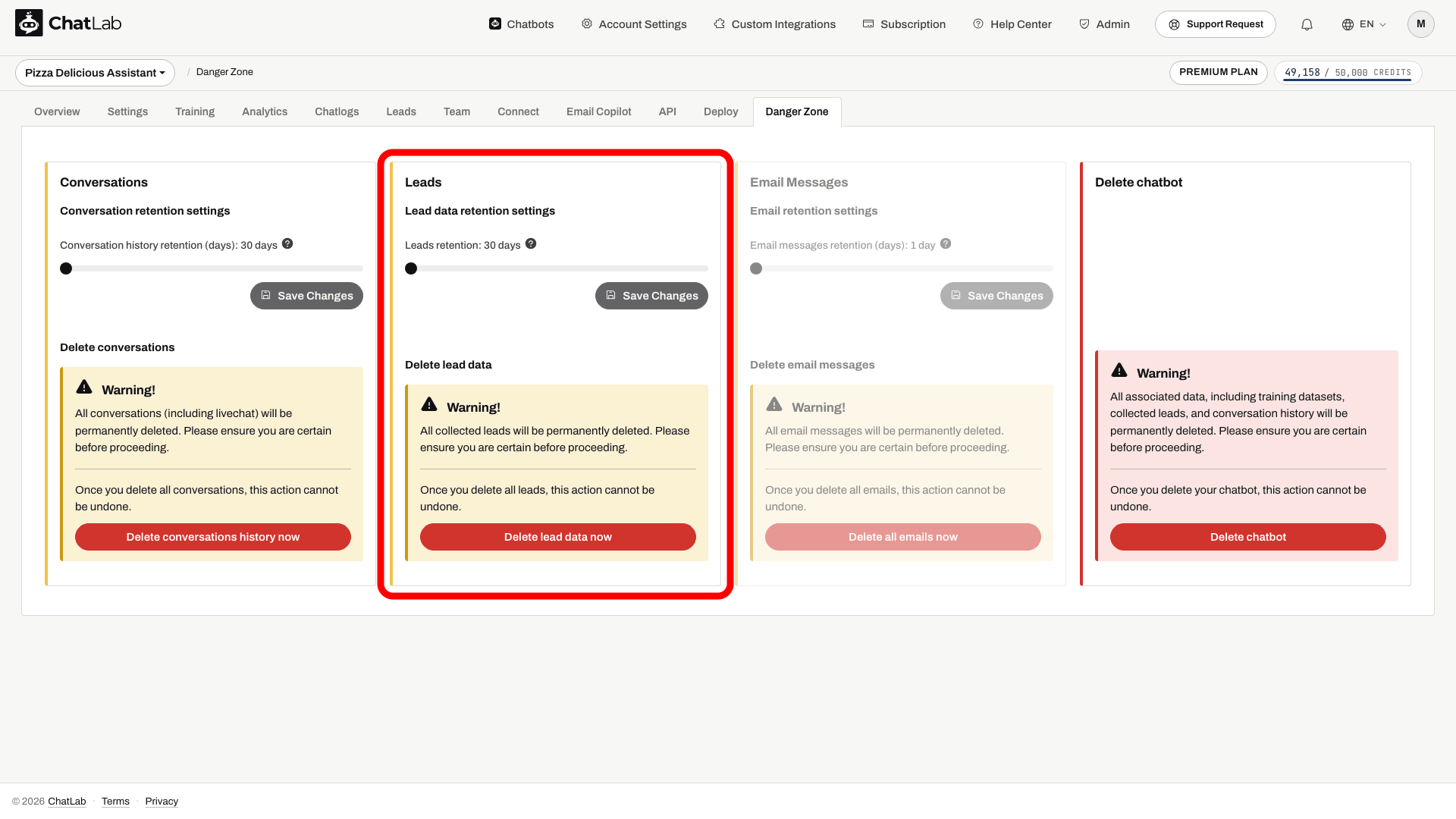
- Confirm your choice when prompted. All lead data for this chatbot is permanently removed.
Email Messages Retention Settings
If you have an email account connected via Email Copilot, you can configure how long ChatLab's stored email copies are kept. The retention period can be set between 1 and 10 days (default: 1 day). A maximum of 500 emails are stored per account - older emails are removed even if within the retention period.
If no email account is connected yet, the Email Messages section appears greyed out with a "Configure an email account first" notice.
- In the Email Messages section, drag the Email messages retention (days) slider to your preferred value.
- Click Save Changes.
Delete All Emails
To immediately delete all stored emails for this chatbot, click Delete all emails now in the Email Messages section and confirm. This action cannot be undone.
For more details on Email Copilot limits, see Limits, Credits and Retention.
Important: The Danger Zone tab is visible to the bot owner and to team members invited with FULL access. Team members with LIMITED access do not see it. Learn more about access levels in Inviting administrators.
Deleting Your Account
If you want to permanently delete your entire ChatLab account and all associated data, you can do so from Account Settings.
-
Click Account Settings in the top navigation bar.
-
Select User Account Settings.
-
Click the Delete account button.
-
A confirmation prompt appears warning that this action is irreversible. Click Yes to proceed.
Deleting your account permanently removes:
- All your chatbots and their configurations
- All training data and knowledge base content
- All conversation history
- All collected leads
- All connected email accounts and stored emails
- Cancellation of your active subscription
- Your ChatLab login credentials
This action cannot be undone. Review the subscription and no-refund warning in the confirmation dialog before proceeding. Account deletion is broader than deleting a single chatbot, which does not cancel your subscription.
Related Articles
- Deleting your chatbot - permanently remove a single chatbot and all its data
- Email Copilot - Limits, Credits and Retention
- Lead Collection