The Danger Zone tab lets you manage data retention periods and permanently delete conversations or leads for a specific chatbot. These actions are irreversible, so proceed with caution.
To access these settings, open your chatbot and click the Danger Zone tab.

Conversation Retention Settings
You can configure how long conversation history is kept before it is automatically deleted. The retention period can be set between 30 and 180 days.
-
In the Conversations section, drag the Conversation history retention (days) slider to your preferred value.
-
Click Save Changes.
Conversations older than the configured period are permanently removed on a daily basis to ensure data management and compliance. The maximum retention period is 180 days -- conversations older than 180 days are always automatically deleted regardless of your settings.
Delete All Conversations
To immediately delete all conversations for this chatbot:
- In the Conversations section, click Delete conversations history now.
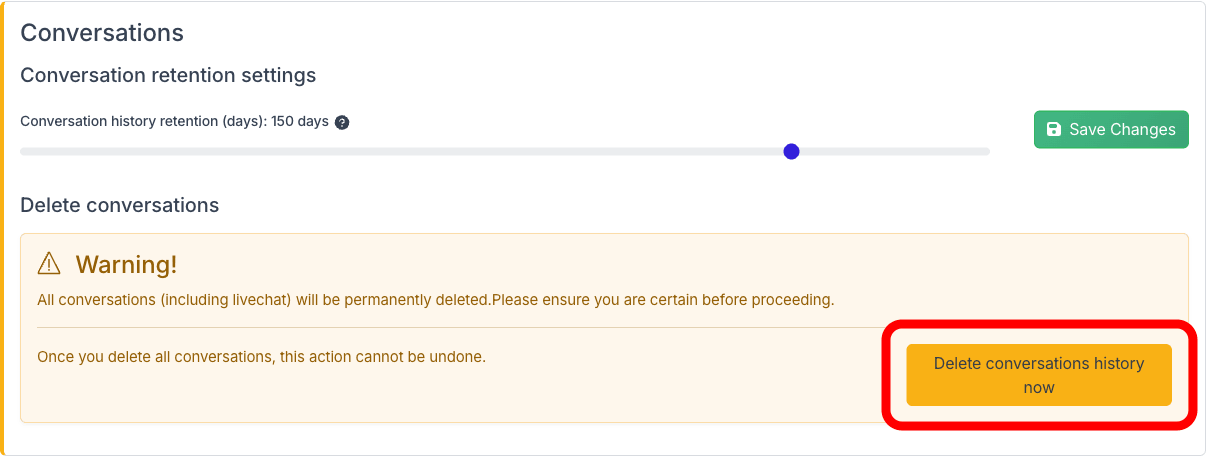
- A confirmation prompt appears. Click Yes to proceed.
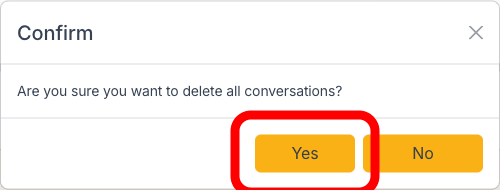
All conversations, including live chat messages, are permanently erased. This action cannot be undone.
Lead Data Retention Settings
You can configure how long collected lead data is kept before it is automatically deleted. The retention period can be set between 30 and 180 days.
-
In the Leads section, drag the Leads retention slider to your preferred value.
-
Click Save Changes.
Lead data older than the configured period is permanently removed on a daily basis. As with conversations, leads older than 180 days are always automatically deleted to ensure data compliance.
Delete All Leads
To immediately delete all collected leads for this chatbot:
- In the Leads section, click Delete lead data now.
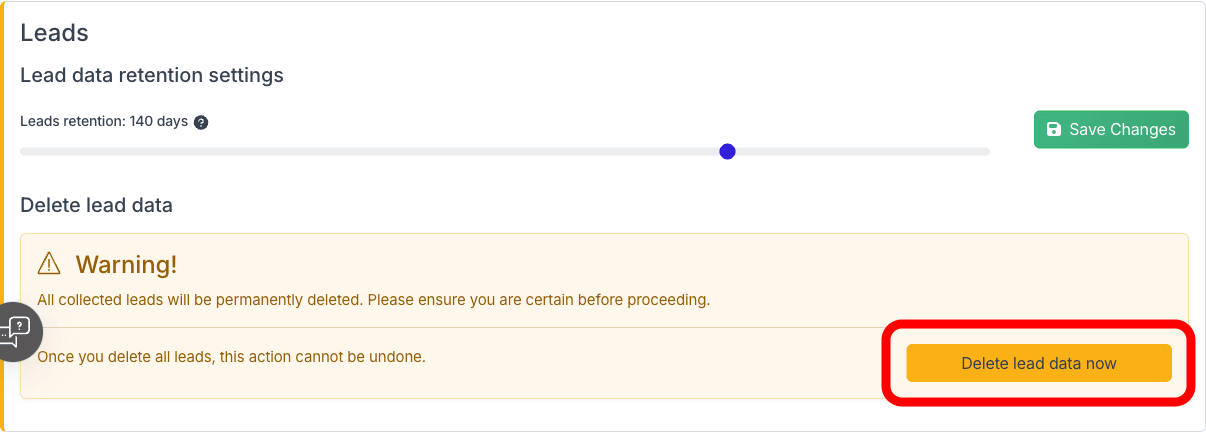
- Confirm your choice when prompted. All lead data for this chatbot is permanently removed.
Email Messages Retention Settings
If you have an email account connected via Email Copilot, you can configure how long emails are kept. The retention period can be set between 1 and 10 days (default: 1 day). A maximum of 500 emails are stored per account -- older emails are removed even if within the retention period.
- In the Email Messages section, drag the Email messages retention (days) slider to your preferred value.
- Click Save Changes.
Delete All Emails
To immediately delete all stored emails for this chatbot, click Delete all emails now in the Email Messages section and confirm. This action cannot be undone.
For more details on Email Copilot limits, see Limits, Credits and Retention.
Important: Only the bot owner can access the Danger Zone tab. Team members with shared access do not have this option.
Deleting Your Account
If you want to permanently delete your entire ChatLab account and all associated data, you can do so from Account Settings.
-
Click your profile icon in the top-right corner and select Account Settings.
-
Select User Account Settings.
-
Click the Delete account button.
-
A confirmation prompt appears warning that this action is irreversible. Click Yes to proceed.
Deleting your account permanently removes:
- All your chatbots and their configurations
- All training data and knowledge base content
- All conversation history
- All collected leads
- All connected email accounts and stored emails
- Your active subscription (no refund for remaining period)
- Your ChatLab login credentials
This action cannot be undone. If you have a paid subscription, it will be cancelled immediately and no refund will be issued for the remaining billing period.