Enhancing the performance of your ChatLab chatbot involves fine-tuning its settings and training methodologies. Here are some key strategies:
Custom Role Instructions for Fine-Tuning Responses
Custom Role Instructions allow you to define specific guidelines for your chatbot's behavior and tone, tailoring it to meet the needs of your audience. Here's how to implement and utilize this feature effectively:
-
Define the Bot's Role: Clearly specify the role the chatbot should assume. For example, "customer support agent," "sales assistant," or "technical advisor."
-
Set Behavioral Guidelines: Include instructions on tone, language, and response style. For example:
- Tone: Friendly, professional, or formal.
- Language: Use simple explanations for non-technical users or technical jargon for expert audiences.
-
Incorporate Context-Specific Details: Add instructions related to your business or domain. For example:
- "If a user asks about delivery options, prioritize mentioning free shipping if available."
- "When discussing pricing, always include details about bulk discounts if applicable."
-
Test and Iterate: Test how the chatbot responds with the new role instructions, refine them based on user interactions, and adjust as needed to achieve the desired response style and accuracy.
Configure this in Settings > Role & Behavior. Learn more about role and behavior settings.
Upgrade to "Full" AI Model
By default your chatbot is configured to use "mini" model - ie GPT-5-mini. Switching to the "Full" model ie GPT-5 - significantly improves the chatbot's contextual understanding, accuracy, and ability to handle complex queries.
If you prefer Google's AI, Gemini 2.5 Flash is a budget-friendly alternative at just 1 credit per message, while Gemini 3 Flash (3 credits per message) brings improved reasoning at the same speed. For maximum quality with Google AI, Gemini 3 Pro delivers top-tier reasoning capabilities. If you prefer Anthropic, Claude Haiku 4.5 (5 credits) offers a fast and cost-efficient option, Claude Sonnet 4.6 (10 credits) is the flagship balanced model, and Claude Opus 4.7 (15 credits) is Anthropic's top-tier reasoning model for the most demanding tasks.
Change your model in Settings > Model & Advanced. Learn more about selecting AI models.
Optimize Knowledge Base
Use ChatLab's Knowledge Base Optimizer to analyze which sources are being referenced for responses. This tool helps you identify and refine the most frequently used content, ensuring that responses are consistent with verified data.
Find this tool in Settings > Knowledge Base Optimizer. Learn more about using the Knowledge Base Optimizer.
Additionally, reducing the creativity of the model can make responses more precise and on-topic. Lowering creativity settings ensures that the chatbot adheres closely to the knowledge provided without introducing speculative or irrelevant information. You can adjust this in Settings > Conversation using the Creativity slider. Learn more about conversation settings.
Context Expansion
Expanding a chatbot's context is crucial for delivering better and more informed responses. A larger context allows the AI to process a greater amount of material, leading to significantly better-informed and more accurate answers.
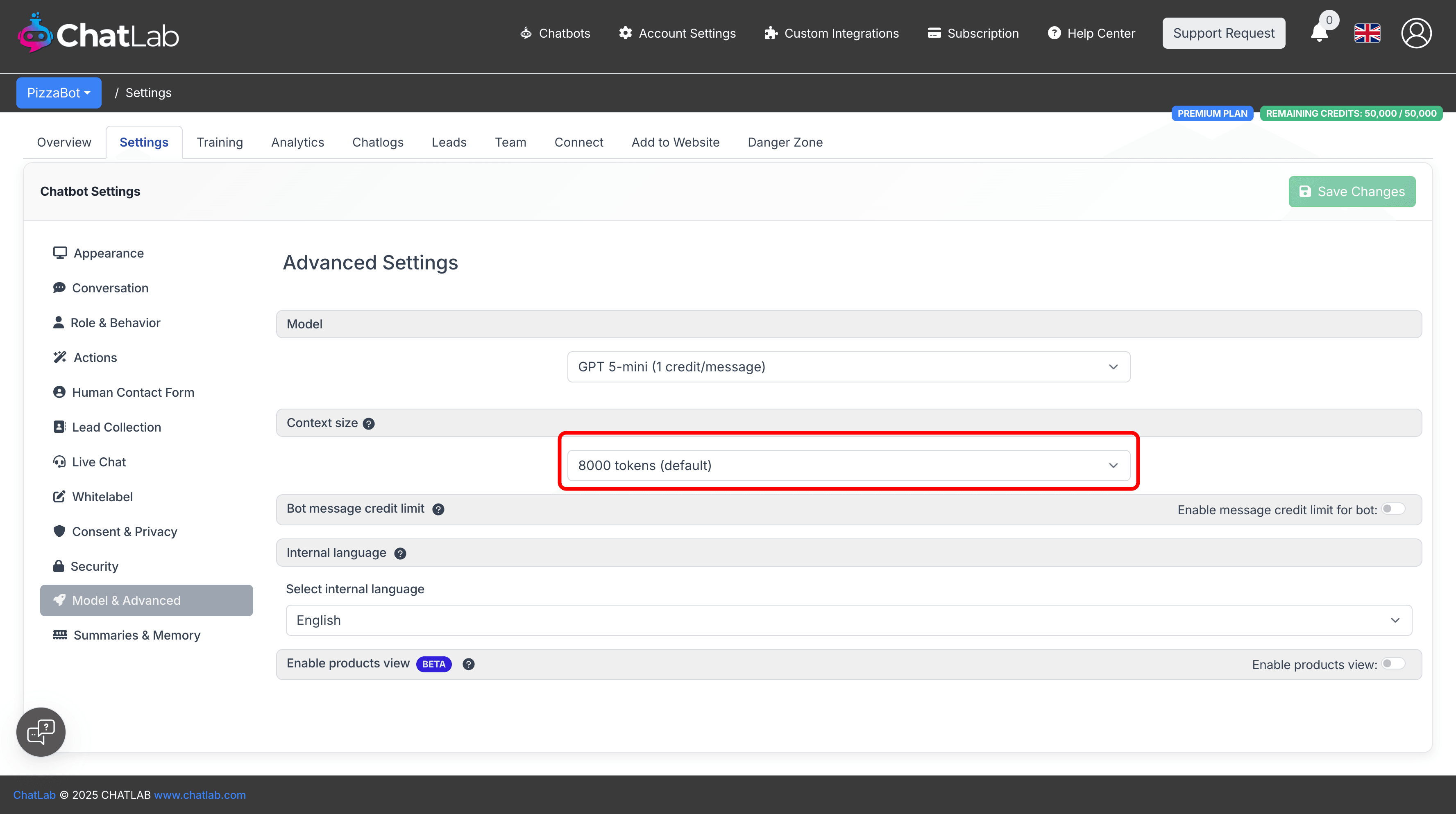
ChatLab offers three different context sizes: 8,000, 16,000, or 32,000 tokens, directly impacting the chatbot's ability to retain and utilize information. Choosing the appropriate context size is a balance between desired response quality and operational budget.
Configure context size in Settings > Model & Advanced. Learn more about extending chat context size.
Focused Training - Less is More
One of the most effective ways to improve response quality is to reduce irrelevant content in your training data. ChatLab uses RAG (Retrieval-Augmented Generation) architecture, which searches for the most relevant chunks of information when answering questions. Too much generic or repetitive content creates noise that can confuse the retrieval process.
Why focused training helps:
- RAG scores chunks of content for relevance - irrelevant content dilutes search quality
- Repetitive elements (menus, footers, headers) on every page flood the knowledge base with noise
- The AI may retrieve low-value chunks instead of specific, helpful answers
How to focus your training:
- Use sitemap scanning instead of full website crawls
- Exclude repetitive page elements like headers and footers
- Filter out irrelevant URL sections (news, images, press releases)
- Focus on valuable content: product pages, FAQs, support articles, policy documents
For detailed instructions on optimizing your website scans, see how to reduce training characters when scanning a website.
Preferred Format for Training Files
When training your chatbot, text files are preferred over spreadsheets or CSVs for several reasons:
-
Text files allow you to include contextually associated terms.
-
They ensure flexibility in structuring information.
For example, when adding a price table for products, include associated terms:
- Price Table Terms: "cost", "pricing", "rates", "fees", "charges", "quote"
This approach ensures that queries like "What are your charges?" or "Show me the cost details" are handled effectively.
Add Corrections from Chatlogs
Review your chatbot's conversation history and add corrections when you spot incorrect or suboptimal responses. This teaches the chatbot from its mistakes and improves future answers to similar questions.
Go to the Chatlogs tab, find conversations with issues, and click the edit icon next to any bot response to add a correction. Learn more about adding and editing corrections.