The Human Support Contact Form gives your website visitors a way to reach your support team directly from the chat widget. When a visitor submits the form, an email with their message and (optionally) the conversation transcript is sent to your support email address.
Where to find the settings
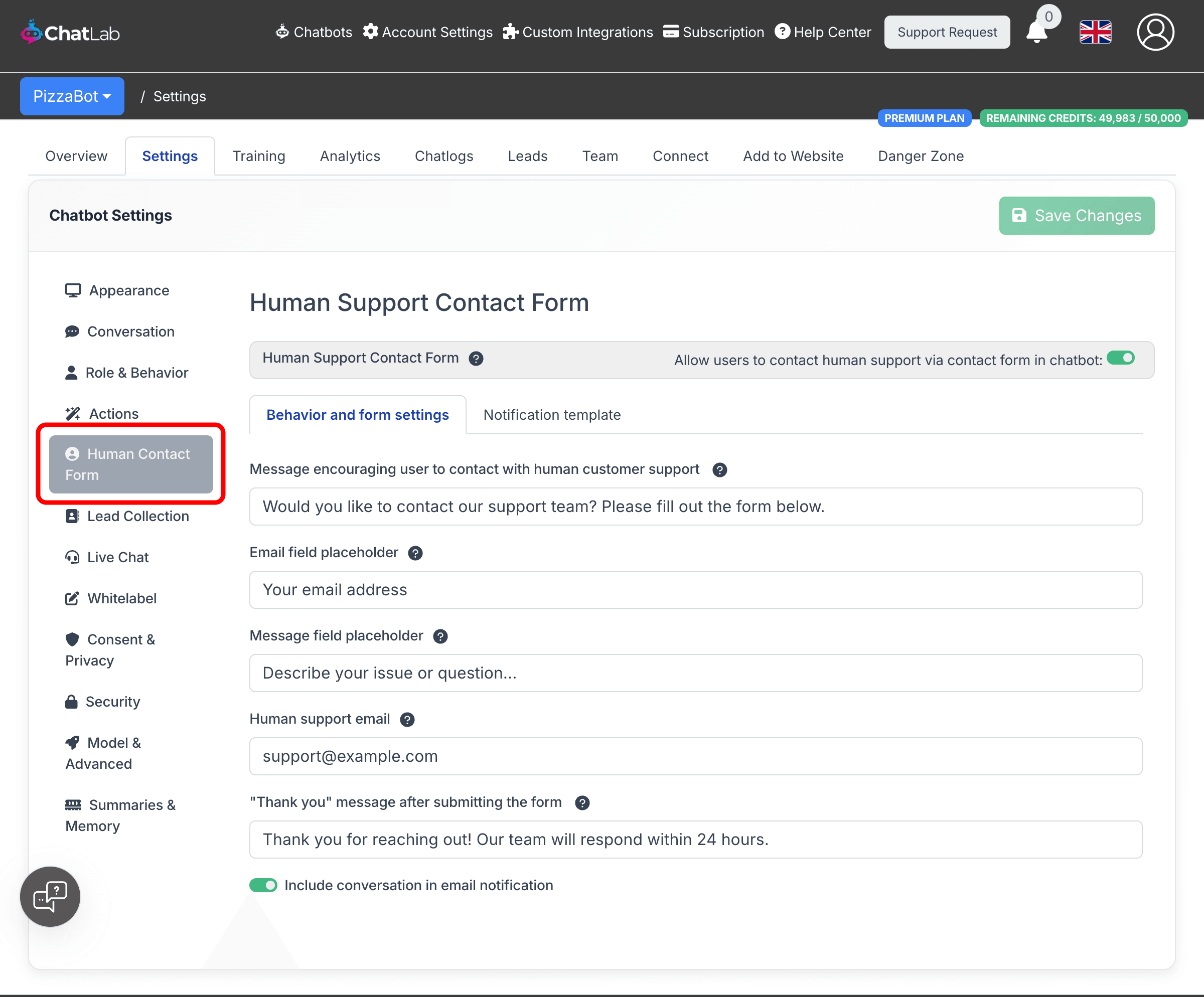
Select your chatbot, click the Settings tab, then select Human Contact Form in the left sidebar.
Enable the contact form
Toggle on Allow users to contact human support via contact form in chatbot at the top of the page. When enabled, two configuration tabs appear below: Behavior and form settings and Notification template.
Behavior and form settings
- Message encouraging user to contact with human customer support -- the text displayed at the top of the contact form. Supports markdown for links.
- Email field placeholder -- placeholder text shown in the email input field (e.g. "Your email address").
- Message field placeholder -- placeholder text shown in the message textarea (e.g. "Describe your issue or question...").
- Human support email -- the address where form submissions are sent. You can enter multiple email addresses separated by commas.
- "Thank you" message after submitting the form -- the confirmation message displayed after the visitor submits. Supports markdown.
- Include conversation in email notification -- when enabled, the full conversation transcript is included in the email sent to your support address.
Notification template
Click the Notification template tab to customize the email your support team receives when a visitor submits the form.
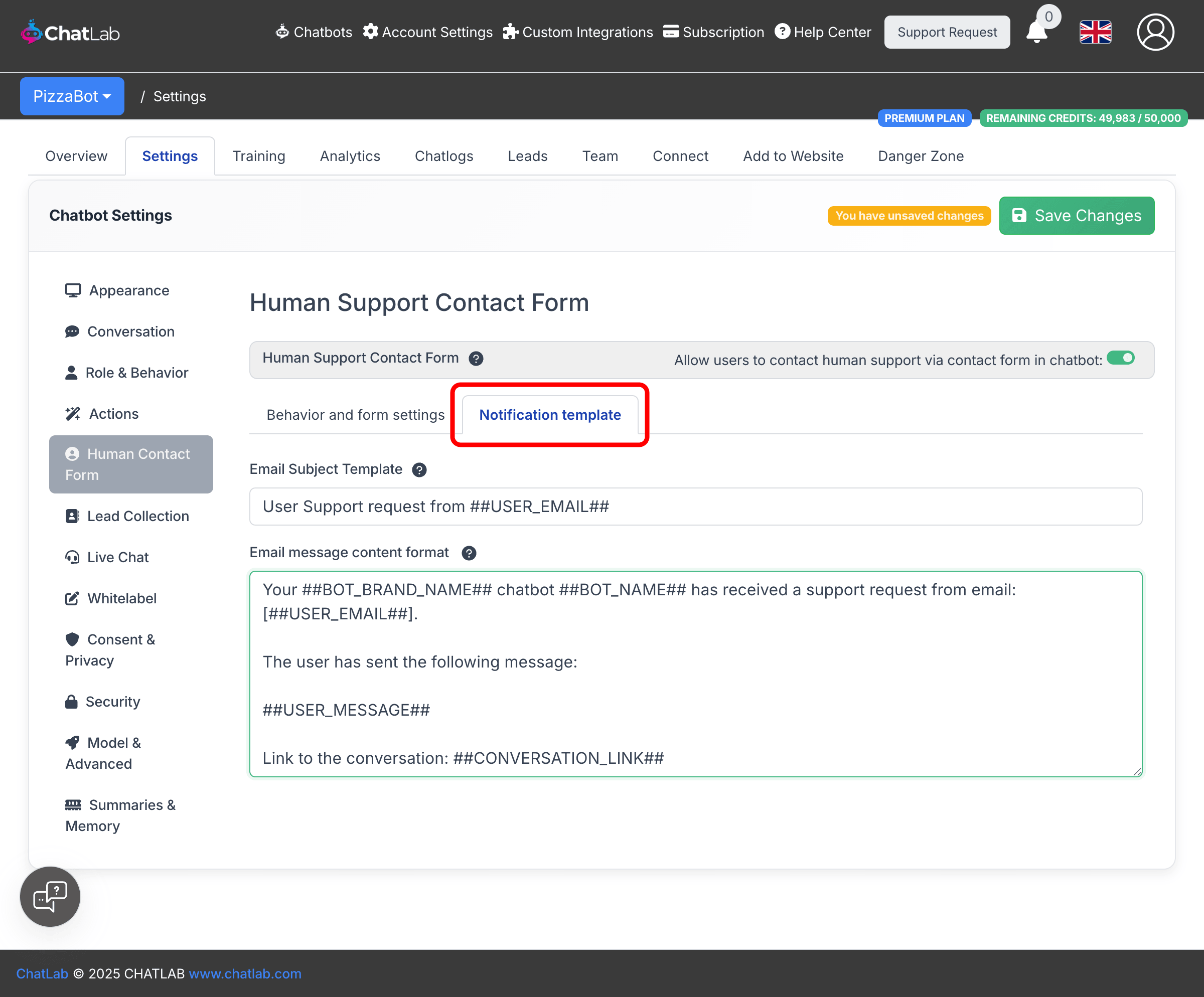
- Email Subject Template -- the subject line of the notification email.
- Email message content format -- the body of the notification email.
Both fields support the following placeholders:
##BOT_BRAND_NAME##-- your brand name (e.g. "ChatLab")##BOT_NAME##-- the chatbot's name##USER_EMAIL##-- the visitor's email address##USER_MESSAGE##-- the message the visitor typed##CONVERSATION_LINK##-- a direct link to the conversation in your Chatlogs
When the form appears to visitors
There are three ways the contact form can appear in the chat widget:
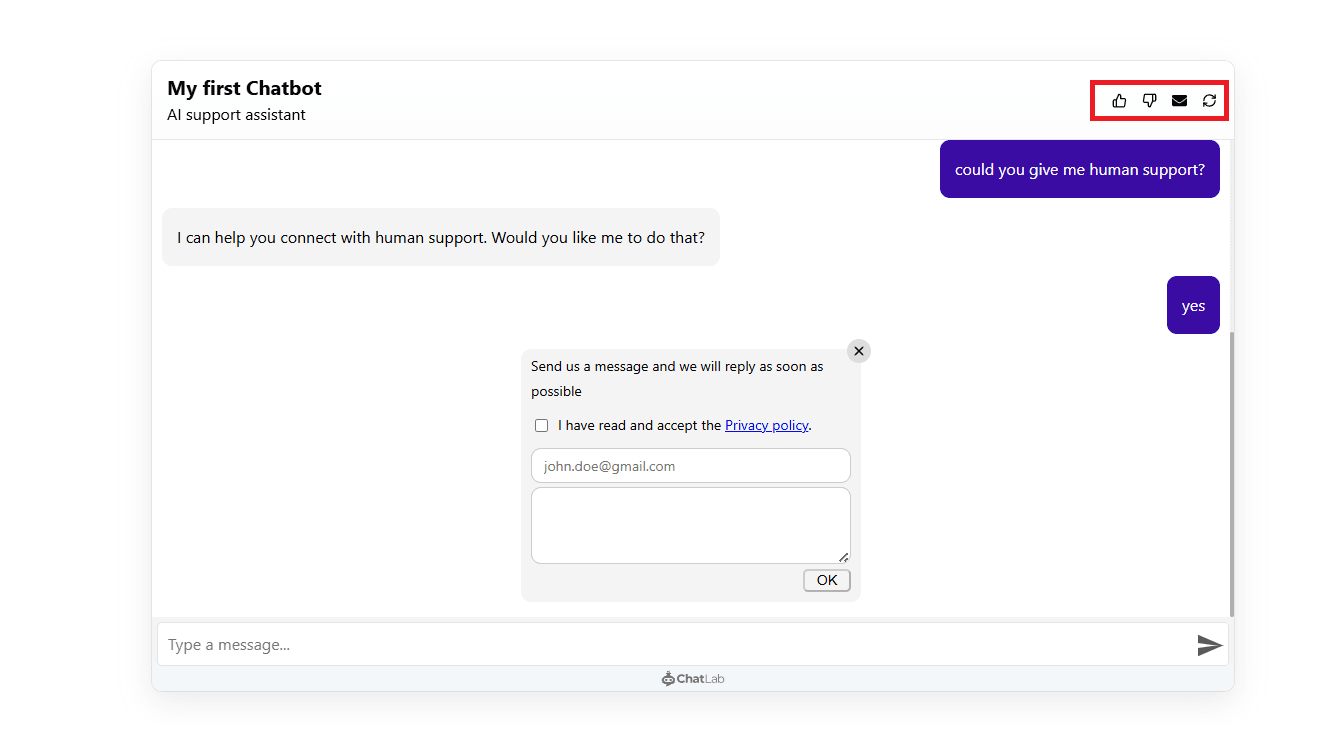
- Envelope icon -- when the contact form is enabled, an envelope icon appears in the chat widget header. Visitors can click it at any time to open the form.
-
AI-driven trigger -- the chatbot automatically detects when a visitor needs human help (for example, when it cannot answer a question or when the visitor explicitly asks) and displays the form. This is configured in Settings > Actions.
-
After X messages -- the form appears automatically after a set number of messages in the conversation. This is also configured in Settings > Actions.
AI-powered actions for human support
To configure automatic triggers, go to Settings > Actions and filter by Human Support.
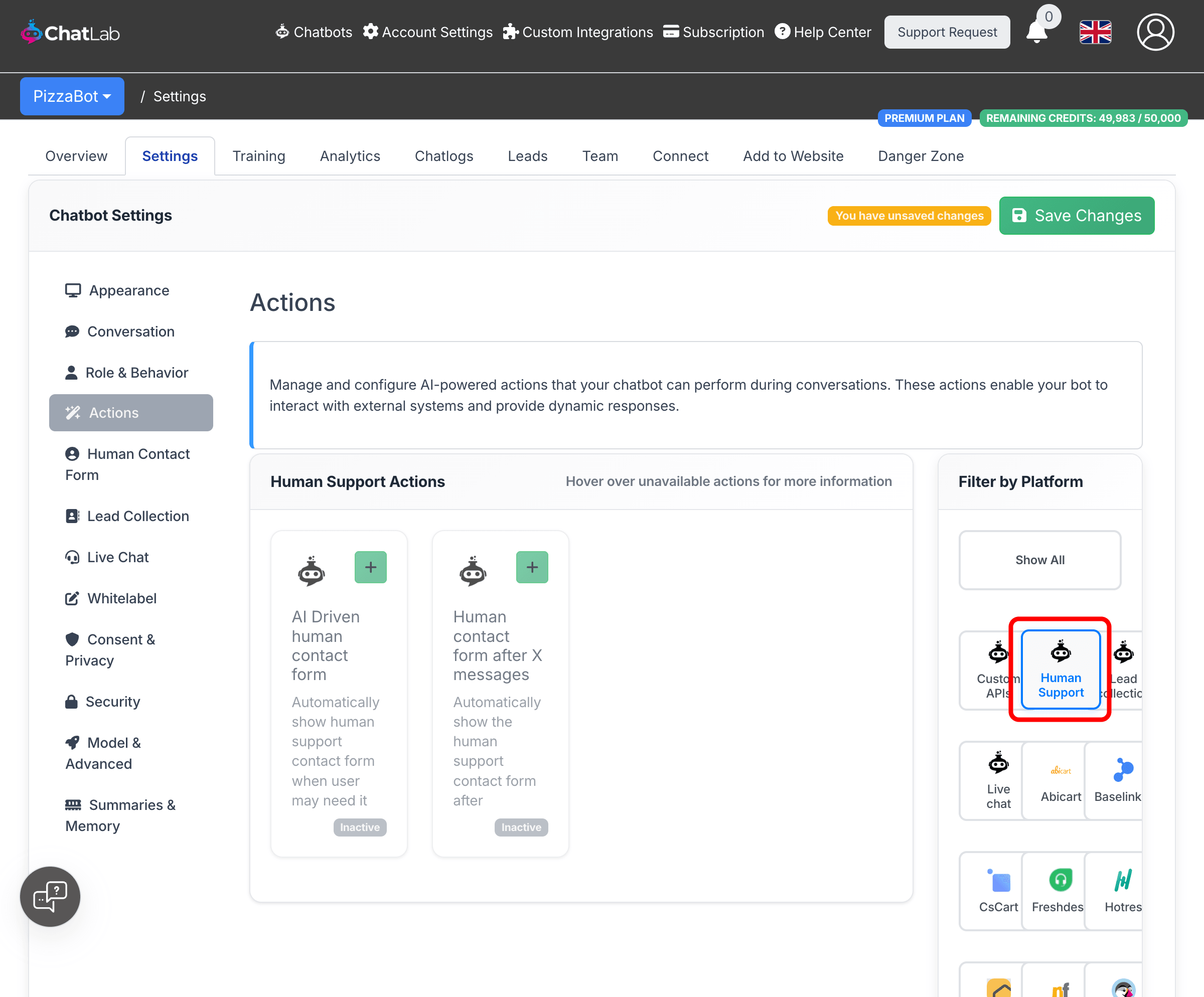
- AI Driven human contact form -- uses AI to detect when the visitor needs human assistance and automatically suggests the contact form. The form also appears when the visitor explicitly asks to speak with a person.
- Human contact form after X messages -- automatically displays the contact form after a specified number of messages in the conversation.
How the form looks to visitors
When the contact form is triggered, visitors see a form inside the chat widget with an email field, a message field, and an OK button. If privacy policy consent is required, a checkbox appears above the email field.
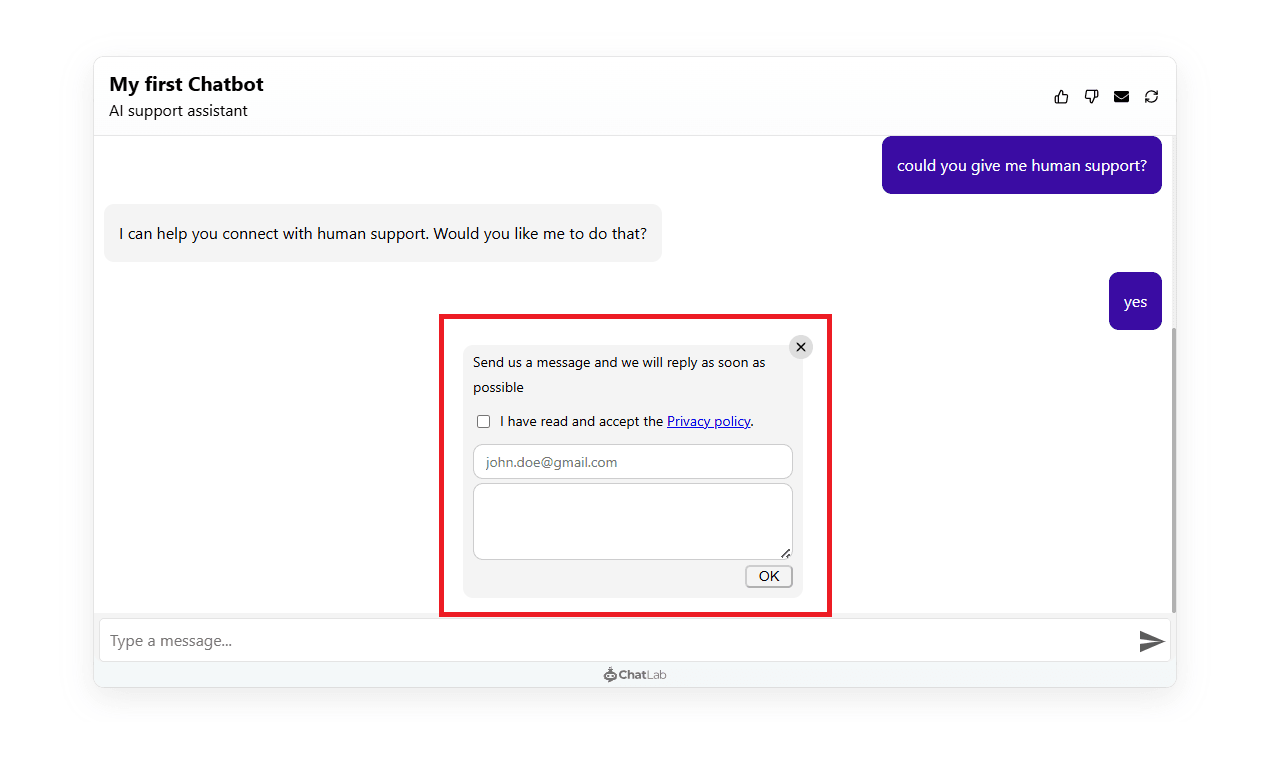
Privacy policy consent
You can require visitors to accept a privacy policy before submitting the contact form. This is configured separately in Settings > Consent & Privacy -- toggle on Require Privacy Policy consent for human support and customize the consent label with a link to your policy.
Related articles
- Live Chat -- real-time conversations with human operators
- Lead collection -- capturing visitor contact details automatically