You can pause your chatbot at any time without losing any settings or training data. When paused, the chatbot remains fully configured but will not appear on your website, even though the installation code is still in place.
How to Pause Your Chatbot
-
Navigate to your chatbot (Chatbots > Select Bot > Overview).
-
Find the Status row and click Pause.
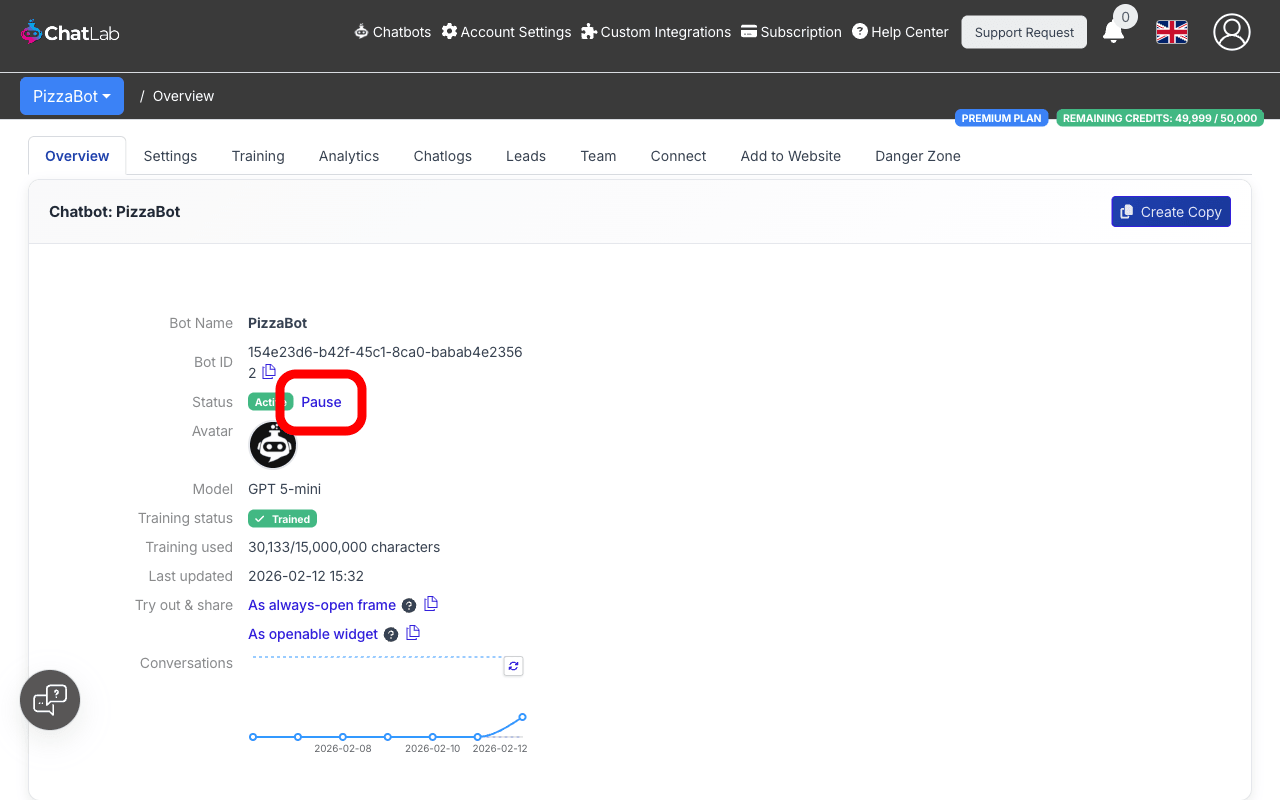
The status changes from Active to Paused and the chatbot immediately stops responding to visitors on your website.
Unpausing Your Chatbot
-
Navigate to your paused chatbot (Chatbots > Select Bot > Overview).
-
Find the Status row and click Unpause.
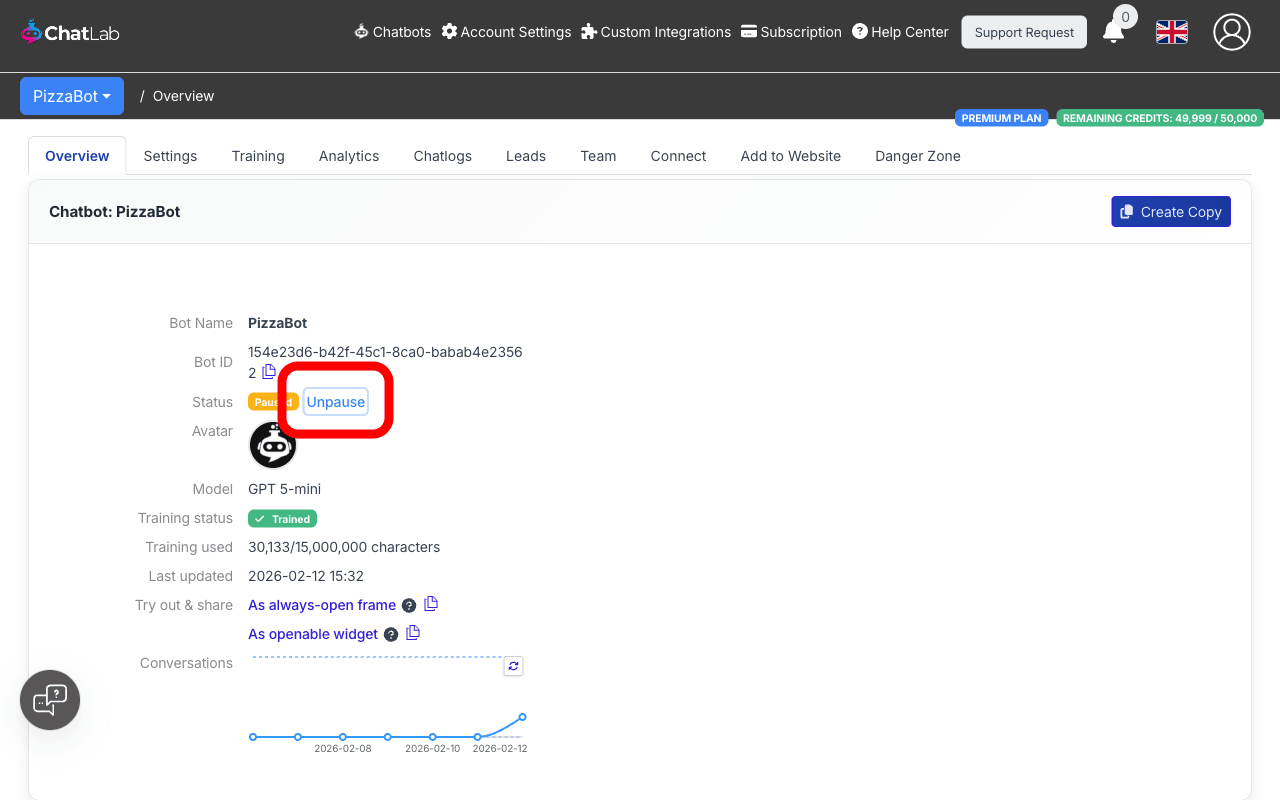
The chatbot is restored instantly -- all settings, training data, and conversation history are preserved.
Automatic Pausing
The system may automatically pause your chatbot when you downgrade your subscription plan and the chatbot exceeds the limits of the new plan. This happens when:
- The amount of training data exceeds the limit of your current plan.
- The total number of active chatbots exceeds the allowed maximum.
- The number of training links surpasses the allowed maximum.
How to Resolve Automatic Pausing
When a chatbot is automatically paused due to exceeded limits, the Unpause option is hidden until the issue is resolved. To unpause:
- Check which limits are exceeded -- hover over the info icon next to the paused status for details.
- Adjust your chatbot's settings to comply with your current plan (reduce training data, remove links, or delete unused bots).
- Once within limits, the Unpause link reappears on the Overview tab.