By default, your chatbot can be embedded on any website. Domain restriction lets you control exactly which websites are allowed to display your chatbot, preventing unauthorized use and protecting your message credits.
Where to find this setting
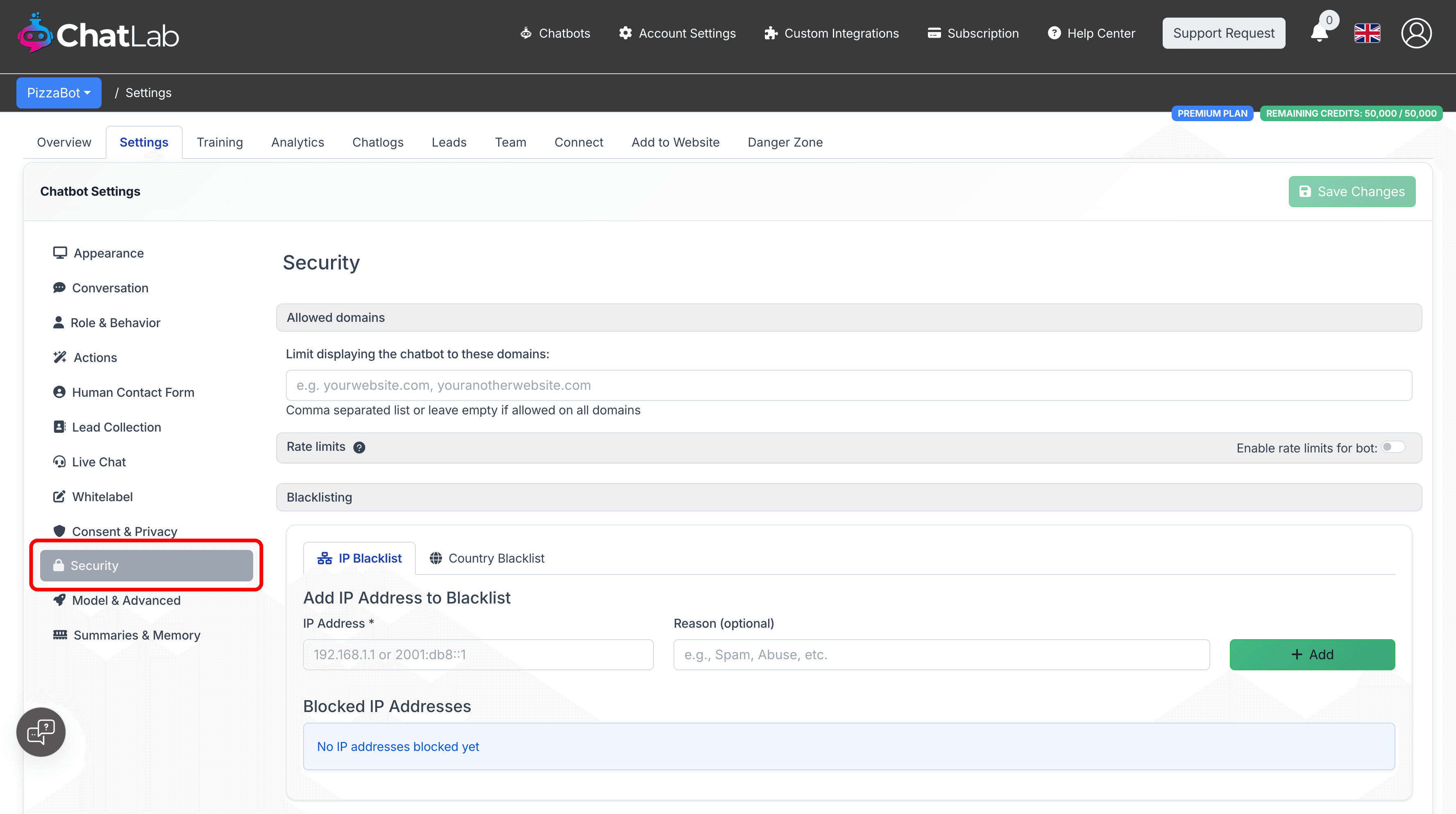
From the main ChatLab dashboard, select Chatbots in the main menu, click on the chatbot you want to configure, go to the Settings tab, and select Security in the left sidebar.
How to restrict domains
- In the Allowed domains section, enter your domain names in the text field, separated by commas
- Click Save Changes
For example, if your chatbot should only appear on your main website and your shop, enter:
mydomain.com, shop.mydomain.com
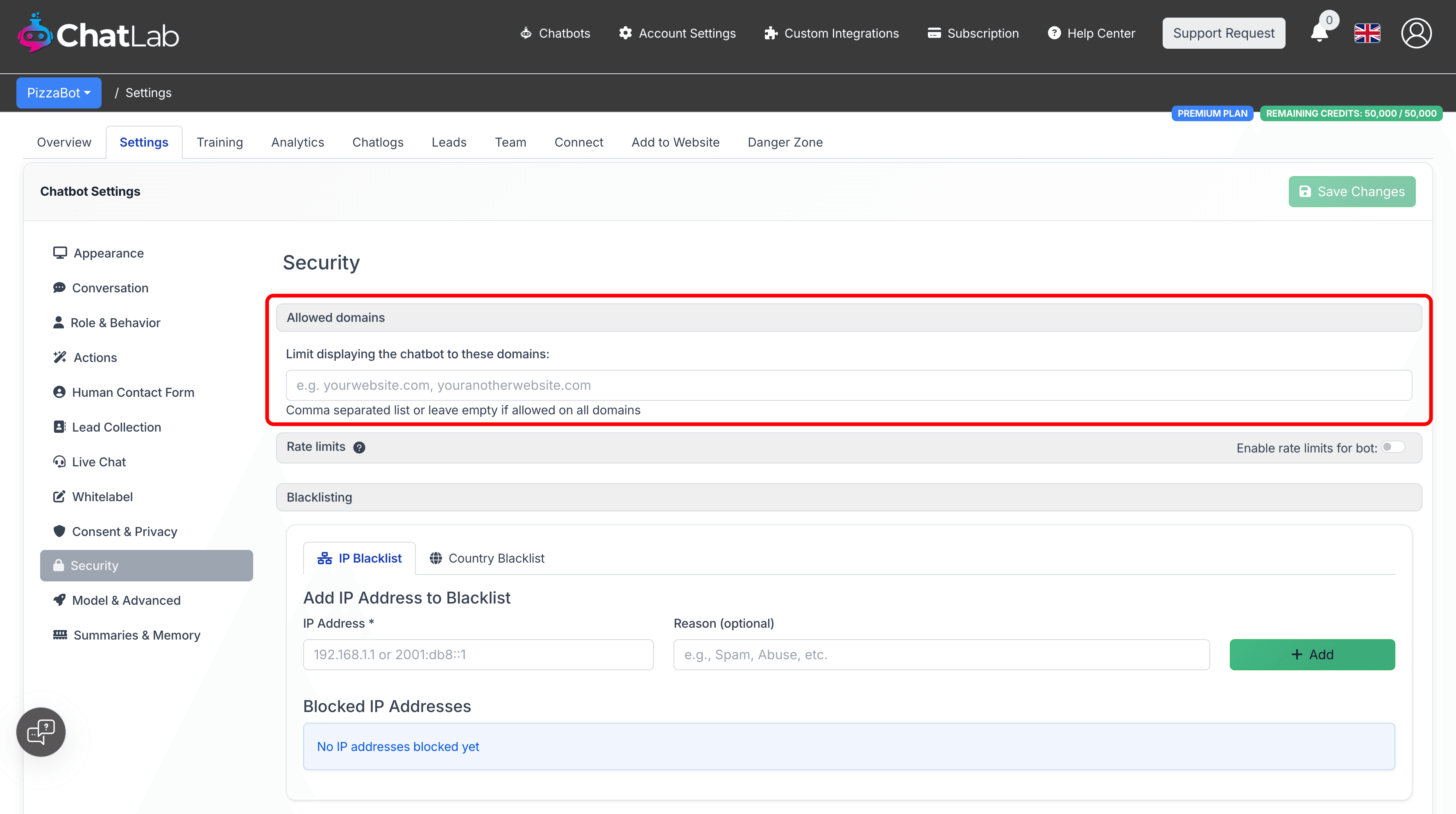
To allow the chatbot on all domains again, clear the field and save.
How domain matching works
- The system automatically strips
http://,https://, andwww.prefixes, so you can enter domains in any format - Trailing paths after the domain name are also removed automatically
- Each domain you enter is matched against the origin of the website loading the chatbot
- Subdomains are treated separately -- if you allow
mydomain.com, you also need to addshop.mydomain.comif your chatbot appears there - Leave the field empty to allow the chatbot on all domains