ChatLab supports 90+ languages. You can configure your chatbot to respond in a single language, automatically detect the visitor's language, or run separate chatbots for each language section of your website.
Language settings overview
There are two language-related settings, each controlling a different aspect:
- Primary language (Settings > Role & Behavior) -- controls which language the chatbot uses when responding to visitors
- Internal language (Settings > Model & Advanced) -- controls which language is used for internal features like conversation summaries and AI Insights
Additionally, all predefined chatbot messages (welcome message, suggested questions, form labels) need to be translated manually in their respective settings sections.
Setting the primary language
Select your chatbot, click the Settings tab, then select Role & Behavior in the left sidebar.
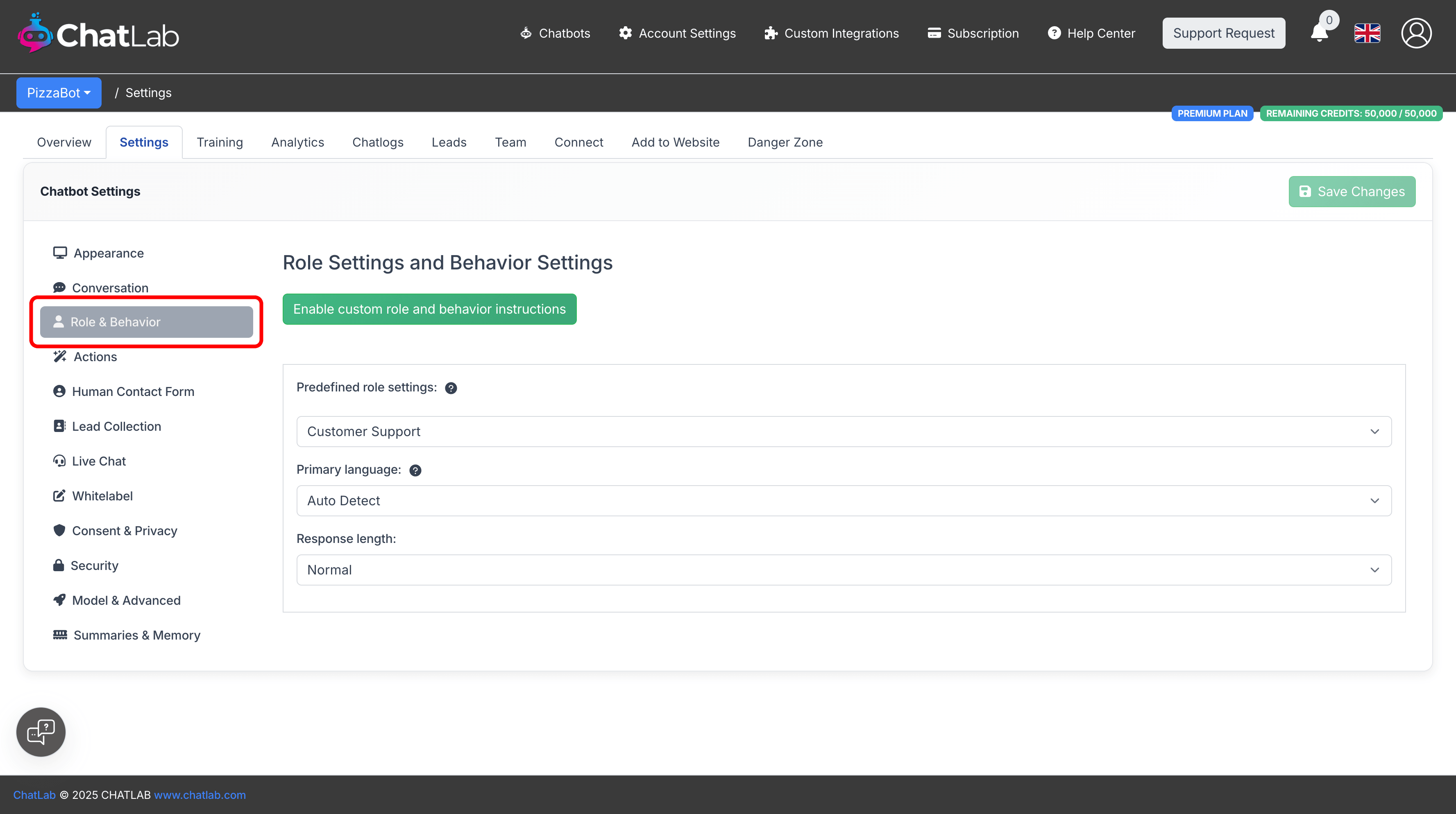
The Primary language dropdown offers two modes:
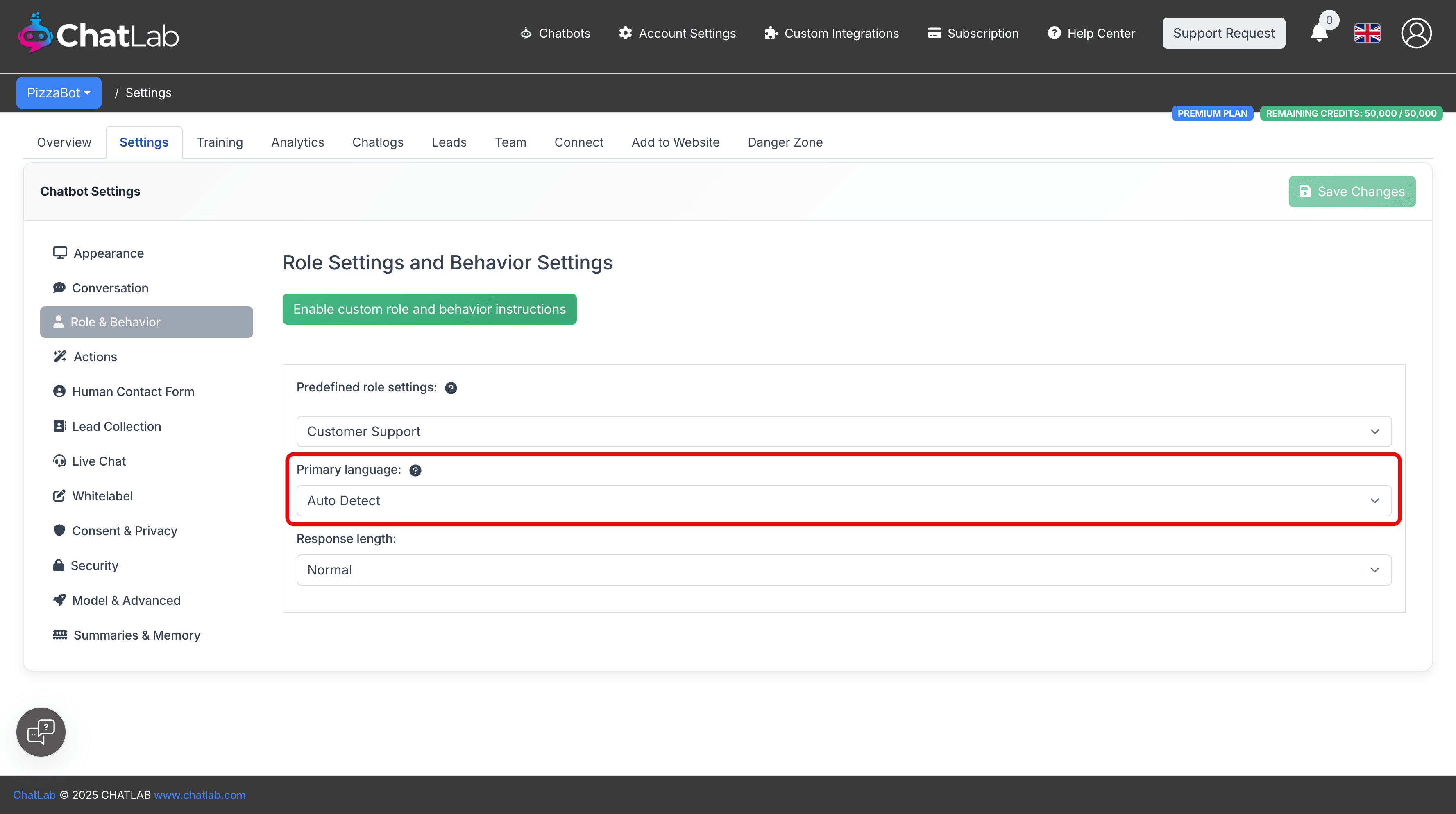
- Auto Detect (default) -- the chatbot recognizes the visitor's language and responds in that same language automatically. This is the best choice for multilingual audiences.
- Specific language (e.g., English, Spanish, German) -- the chatbot uses the selected language by default. It will only switch if the visitor explicitly asks to use another language.
Click Save Changes after adjusting.
Translating chatbot messages
When you set a specific primary language, update all predefined chatbot messages to match. These messages are not translated automatically -- they need to be changed manually.
Key areas to update in Settings > Conversation:
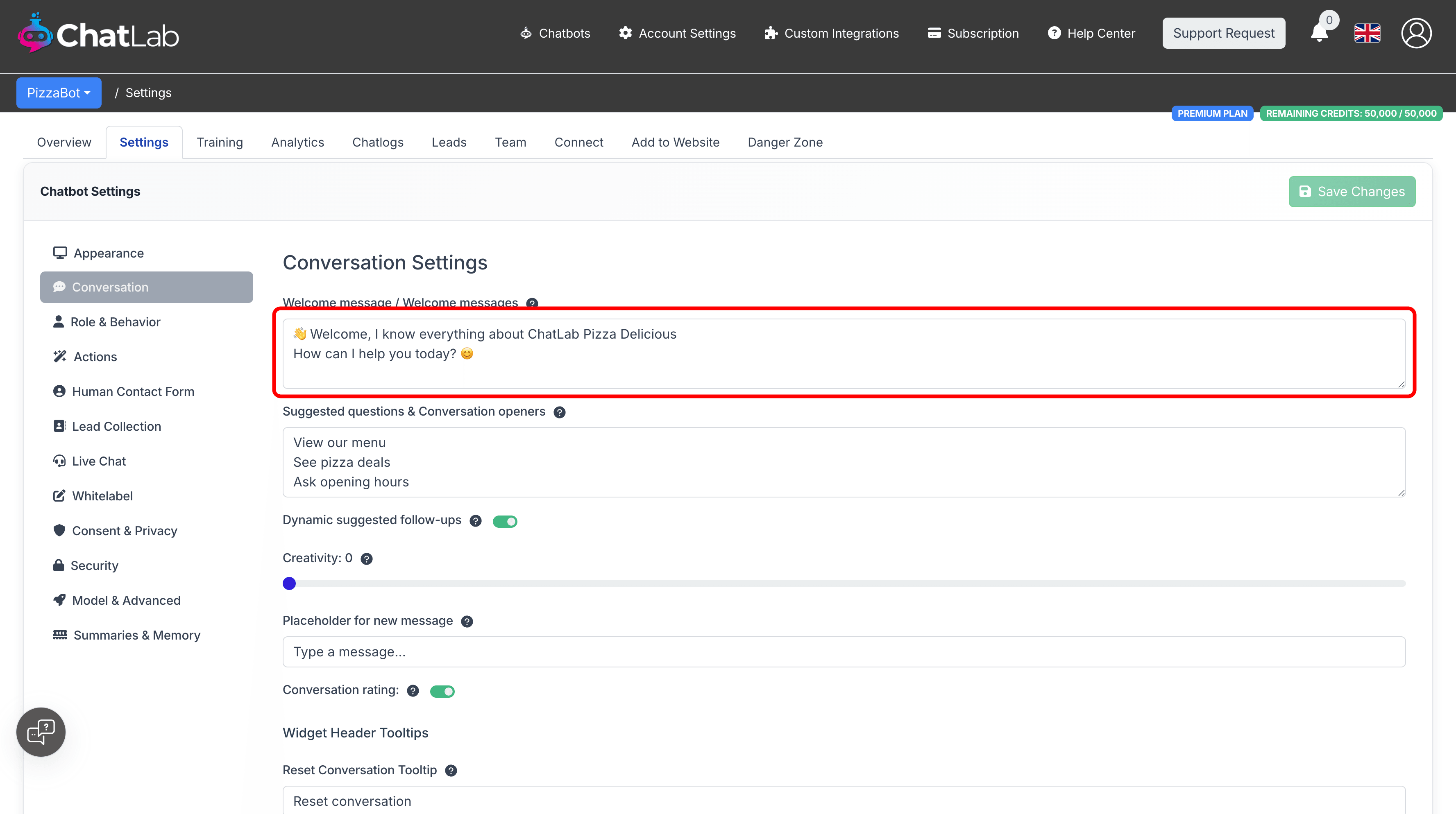
- Welcome message -- the first message visitors see when the chat opens
- Suggested questions -- the conversation openers shown below the welcome message
- Placeholder for new message -- the input field placeholder text
Other sections to check:
- Settings > Appearance -- the chatbot tagline
- Settings > Lead Collection -- form labels and messages (if lead collection is enabled)
- Settings > Human Contact Form -- form labels and messages (if human support is enabled)
- Settings > Live Chat -- all live chat messages (if live chat is enabled)
- Settings > Consent & Privacy -- consent messages (if consent is required)
- Settings > Conversation -- widget header tooltip texts
Using custom instructions for language control
If you need more control over language behavior, switch to custom instructions (Settings > Role & Behavior > click Enable custom role and behavior instructions). In your custom prompt, you can include language rules such as:
- "Always respond in Spanish, even if the user writes in another language"
- "Respond in the user's language, but default to French when unsure"
- "Never switch languages -- always respond in German"
You can write custom instructions in any language, or mix languages. For example, keeping technical terms in English while writing the rest in your target language works well.
For more details on custom instructions, see Bot behavior customization.
Setting the internal language
The internal language controls the language used for behind-the-scenes features that are visible only to you in the admin panel -- not to your visitors.
Navigate to Settings > Model & Advanced and find the Internal language section.
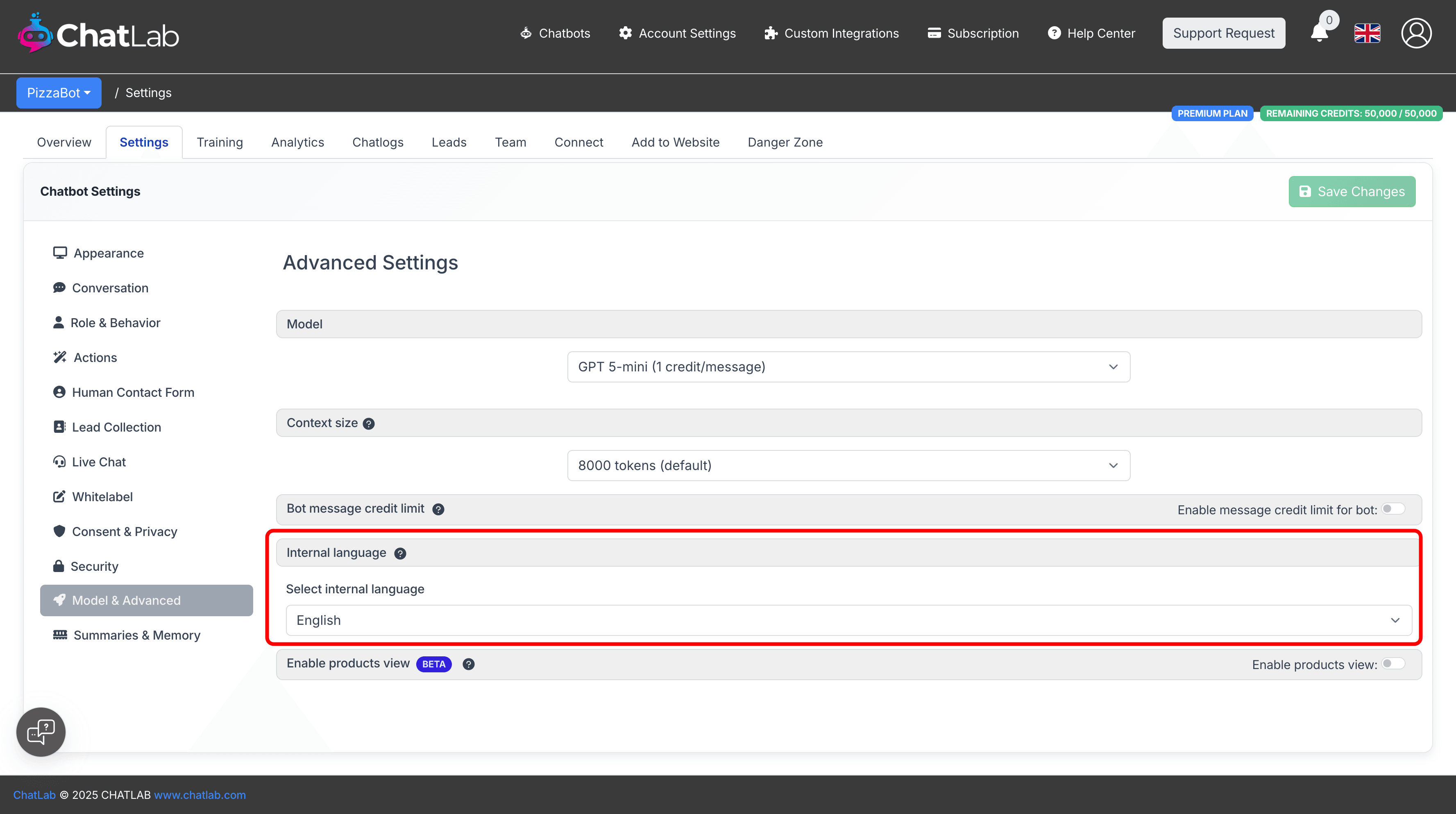
This setting affects:
- Conversation summaries -- the AI-generated summary of each conversation
- Client summaries -- the AI-generated profile of each returning visitor
- AI Conversation Insights -- the periodic AI analysis of conversation patterns
By default, the internal language matches the language of your admin interface. Change it if you want summaries and insights generated in a different language.
Language setup scenarios
Single-language website
Best for websites that serve one language audience.
- Set Primary language to your website's language (Settings > Role & Behavior)
- Translate all chatbot messages to match (see Translating chatbot messages above)
- Set Internal language to your preferred language (Settings > Model & Advanced)
The chatbot will still switch languages if a visitor explicitly asks, but defaults to your chosen language.
Single-language website with multilingual visitors
Best for websites in one language that occasionally receive visitors in other languages.
- Set Primary language to Auto Detect (Settings > Role & Behavior)
- Keep chatbot messages in your website's main language
- Optionally add a custom instruction like: "Default to English, but switch to the visitor's language when they write in another language"
The chatbot will respond in the visitor's language while keeping predefined messages (welcome message, suggested questions) in your main language.
Multilingual website with one chatbot
Best for websites available in multiple languages but using a single chatbot.
- Set Primary language to Auto Detect (Settings > Role & Behavior)
- Keep chatbot messages in your website's primary language
- Train the chatbot with content -- avoid duplicating the same content in multiple languages (see Training tips for multilingual chatbots below)
Fully multilingual website with separate chatbots
Best for websites with distinct language sections (e.g., /en/, /de/, /fr/) where each section needs a fully localized experience.
- Create a separate chatbot for each language
- For each chatbot:
- Set the appropriate Primary language
- Translate all chatbot messages to that language
- Train it only on content from that language section of your website
- Go to Add to Website for each chatbot, copy the embed code, and paste it only in the matching language section of your website
This gives the most complete localized experience, with welcome messages, suggested questions, and all form labels in the correct language.
Training tips for multilingual chatbots
When training a chatbot that serves multiple languages, avoid duplicating the same content across languages. Here is why:
- Limited context window -- the AI can only use a limited amount of training data per response. Duplicate content in multiple languages wastes this capacity.
- Reduced answer quality -- when the same information exists in multiple languages, less room remains for diverse, useful knowledge.
- AI translates automatically -- the chatbot can use content trained in one language to answer questions in another language. For example, training data in English can be used to answer a question asked in Spanish.
When training on a multilingual website, select only the pages in your primary language and exclude translated duplicates. If certain content is unique to a specific language (region-specific information, language-specific promotions), include that content as well.
Frequently asked questions
Do my custom instructions need to be in a specific language?
Custom instructions work in any language. You can write them entirely in your target language, entirely in English, or mix languages. The important thing is that the instructions clearly describe the behavior you want. See Bot behavior customization for details.
Can the chatbot use training data in one language to answer in another?
Yes. The AI can use knowledge from one language to generate responses in another. However, nuanced or culturally specific content may not translate as accurately. For best results, provide training data in the languages your visitors use most frequently.
Can I train my chatbot with content in multiple languages?
Yes, but avoid duplicating the same content across languages. Focus on unique, language-specific information for each language instead of translating identical content multiple times.