When training your chatbot on a website, limiting the amount of scanned data to what's most useful helps reduce character usage, speeds up training, and improves answer quality by focusing only on relevant content.
This guide explains how to optimize your scan using the Advanced settings in the website training modal (Training > Links > Add New Training: Website).
Why Less Training Can Be Better
ChatLab uses RAG (Retrieval-Augmented Generation) architecture. Instead of memorizing all website content, the AI searches for the most relevant pieces of information at the time of each user question and uses them to generate an answer.
The Problem with Too Much Data
More data doesn't always mean better answers. Adding irrelevant or redundant content can confuse the retrieval process:
- RAG scores chunks of content for relevance to the user's question. If your site contains many pages with repetitive, vague, or generic text (menus, footers, press releases, blog tag pages), they dilute the quality of search results.
- When the chatbot retrieves multiple low-value chunks that share keywords but lack helpful context, it may generate inaccurate, overly general, or off-topic answers.
- For example: If your footer contains links like "Home", "Contact", "Privacy", "FAQ" on every page, the bot might respond with a generic paragraph from the footer instead of a helpful phone number or email when a user asks "How can I contact you?"
High Signal, Low Noise = Better Answers
By scanning only useful content, you help the AI retrieve clear, specific, high-quality context for each question. Focus on:
- Product descriptions
- FAQ pages
- Support articles
- Policy documents
- Key landing pages
Use Sitemap Instead of Full Website Scan
Recommended: Use the sitemap option whenever possible.
Full website scan follows all visible links on the page, including links from footers, menus, and sidebars, which often leads to scanning repetitive or non-valuable content. These sections are typically present on every page and rarely include unique information useful for chat answers.
By using a sitemap (usually located at https://yourdomain.com/sitemap.xml), you:
- Avoid crawling unnecessary pages (e.g., legal pages, social links, repeated blog tags)
- Control exactly which URLs are scanned
- Prevent accidental overuse of characters from menus, footers, and headers
Advanced Settings Overview
To access advanced settings, click Add New Training: Website in the Training tab, then expand the Advanced settings section. The settings are organized into four categories:
- URL Filtering - Control which URLs to include or exclude
- Query Parameters - Handle URL parameters
- Content Filtering - Filter specific page elements
- Scraping Behavior - Configure how content is extracted
URL Filtering
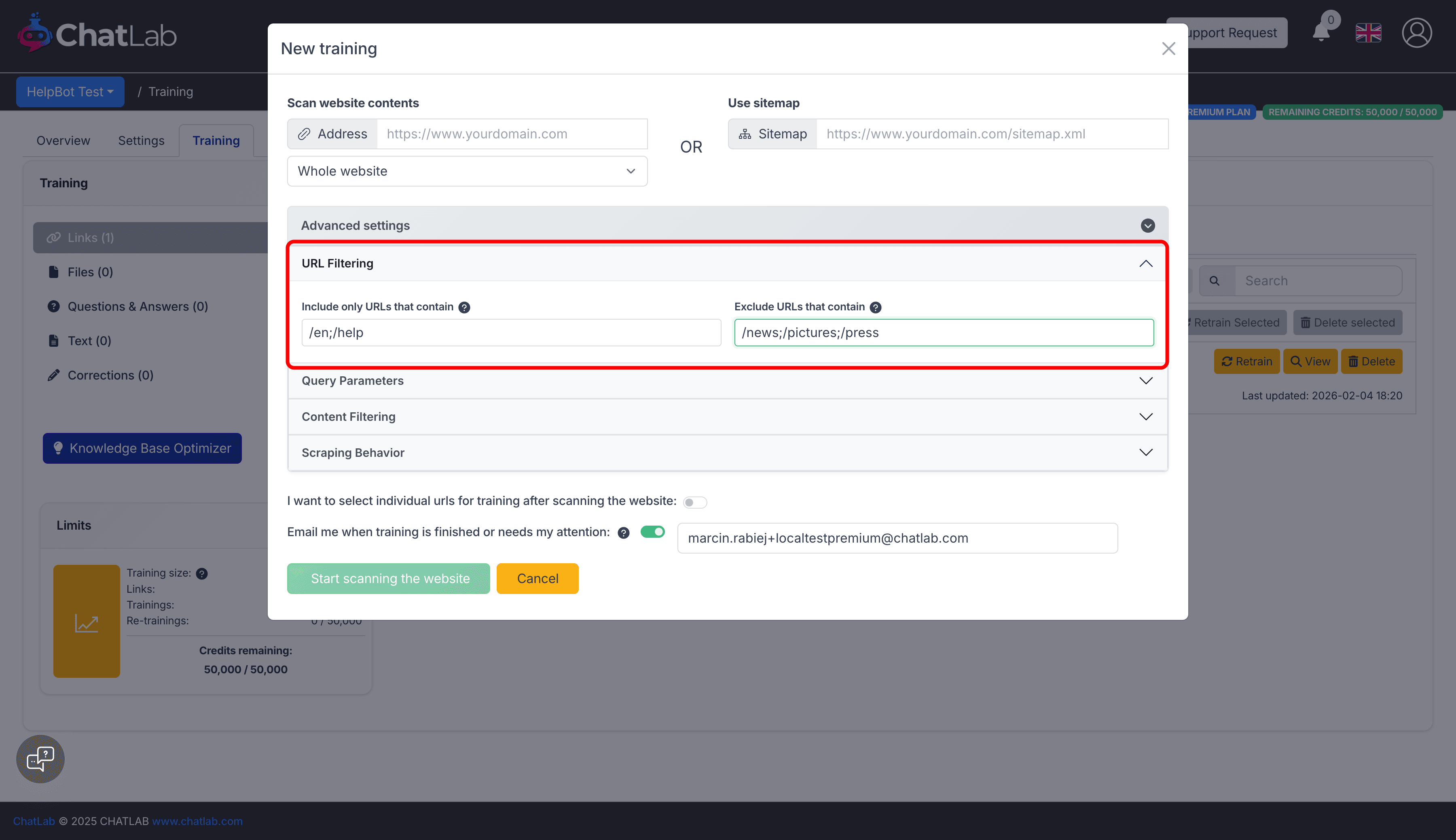
Include Only Specific URLs
Field: Advanced Settings > URL Filtering > Include only URLs that contain
Add semicolon-separated keywords to include only specific URLs in the scan.
Example: To scan only English help pages:
/en;/help
This scans only pages containing /en or help in the URL, saving characters by skipping irrelevant sections.
Exclude Irrelevant URLs
Field: Advanced Settings > URL Filtering > Exclude URLs that contain
Add semicolon-separated keywords to skip sections like blogs, images, or news.
Example:
/news;/pictures;/press
This avoids scanning content-heavy but chatbot-irrelevant sections like news or image galleries.
Query Parameters
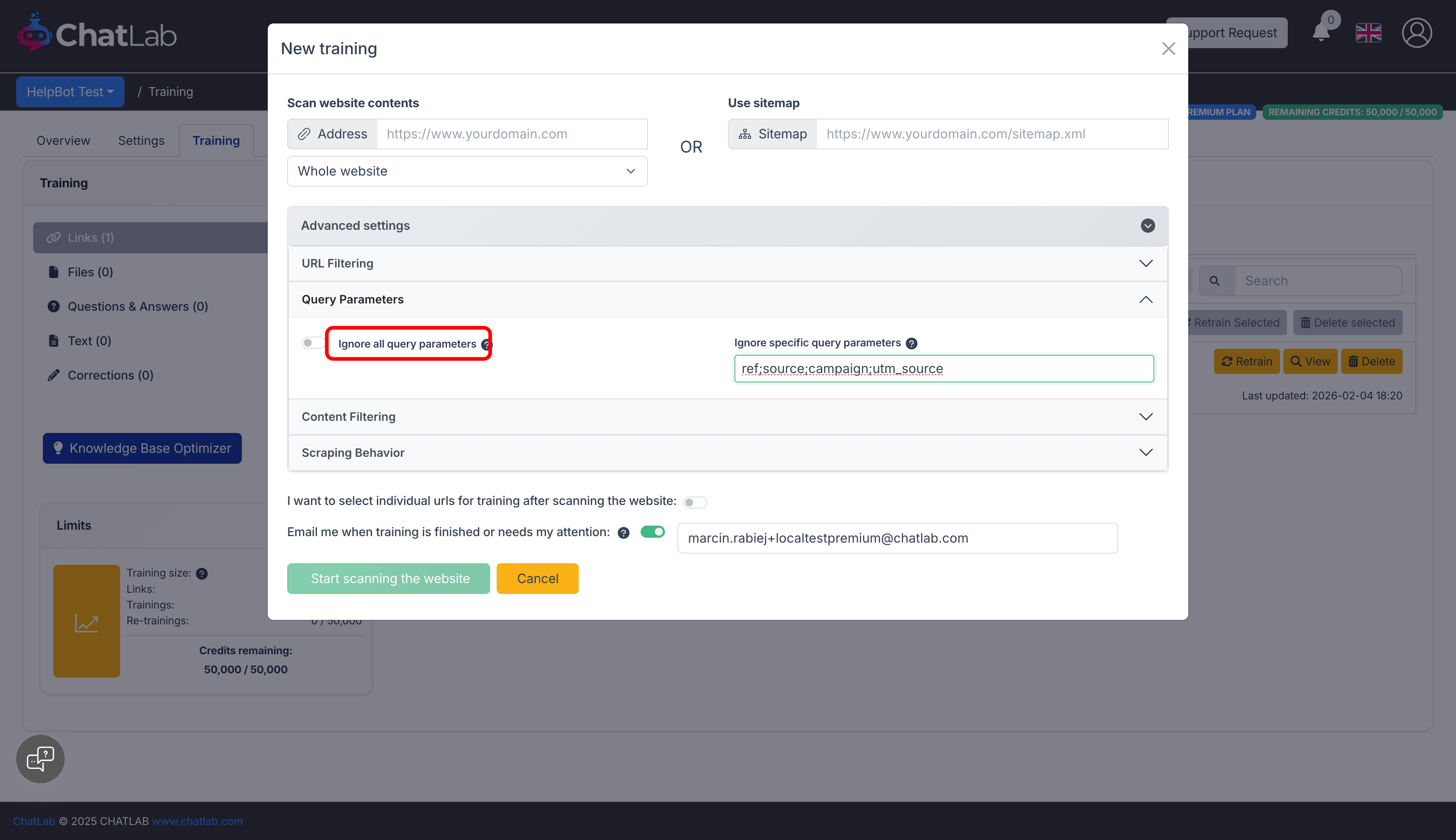
Ignore All Query Parameters
Field: Advanced Settings > Query Parameters > Ignore all query parameters
Enable this checkbox to treat URLs with different query parameters as the same page. This prevents scanning duplicate content.
Ignore Specific Query Parameters
Field: Advanced Settings > Query Parameters > Ignore specific query parameters
Add semicolon-separated parameter names to ignore specific tracking or filtering parameters.
Example:
ref;source;campaign;utm_source
This treats page.html?ref=email and page.html?ref=social as the same URL.
Content Filtering
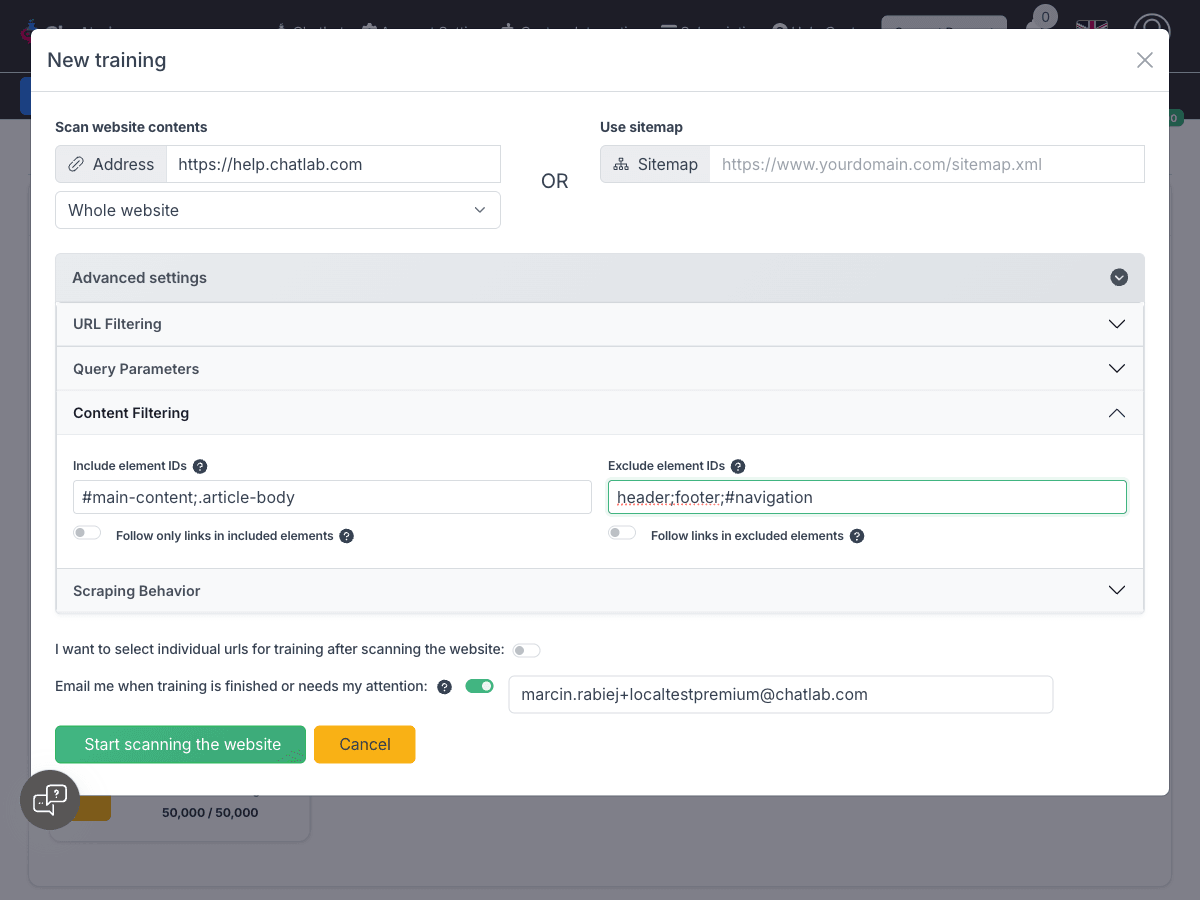
Include Specific Elements
Field: Advanced Settings > Content Filtering > Include element IDs
Add semicolon-separated element identifiers to scan only specific parts of the page.
Example:
#main-content;.article-body
This scans only the main content area and article bodies, ignoring everything else.
Follow Only Links in Included Elements
Field: Advanced Settings > Content Filtering > Follow only links in included elements
This toggle appears when you specify Include element IDs. When enabled, the crawler will only follow links found within the included elements. This is useful when you want to limit crawling to specific sections of the website, such as article content areas, while ignoring navigation menus in headers or footers.
Default: Disabled (all links on the page are followed)
Exclude Page Elements
Field: Advanced Settings > Content Filtering > Exclude element IDs
Prevent scanning of headers, footers, and other layout elements.
Example:
header;footer;#navigation;.sidebar
This removes HTML blocks that are repeated on every page and generally contain no useful content for your chatbot.
Follow Links in Excluded Elements
Field: Advanced Settings > Content Filtering > Follow links in excluded elements
This toggle appears when you specify Exclude element IDs. When enabled, the crawler will still follow links found within excluded elements (like navigation menus in headers) even though the content itself is excluded from training.
Default: Disabled (links in excluded elements are not followed)
Use case: Enable this when you want to exclude header/footer content from training but still need the crawler to discover pages through navigation links in those areas. This gives you the best of both worlds: clean training data without menu clutter, while still crawling your entire site.
Important: If you use full website scan and exclude elements like header without enabling "Follow links in excluded elements", the scanner may not discover deeper links (menus are often inside headers). In this case, either enable the toggle or use a sitemap for the safest and most efficient method.
Scraping Behavior
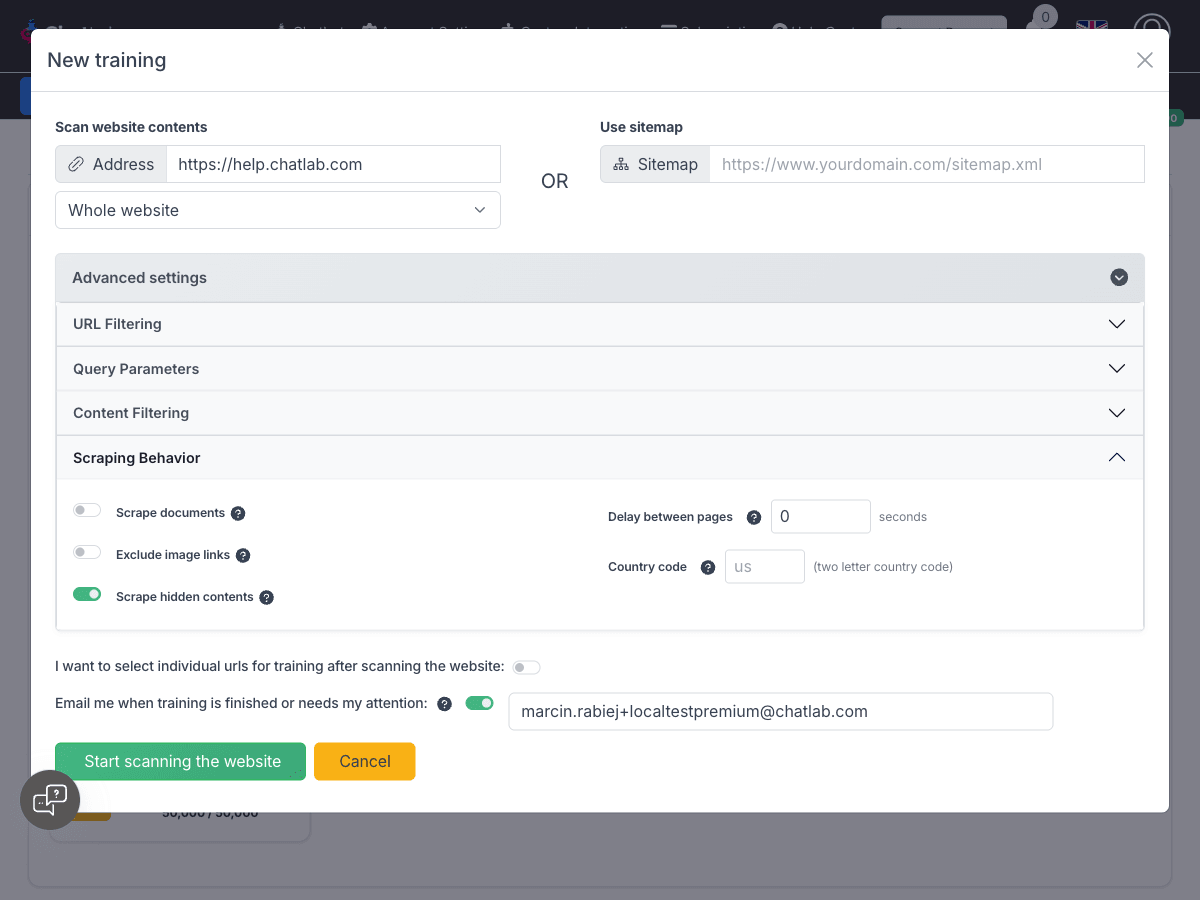
Scrape Documents
Field: Advanced Settings > Scraping Behavior > Scrape documents
When enabled, the system extracts and processes document content found on the website. Currently supports PDF files.
Exclude Image Links
Field: Advanced Settings > Scraping Behavior > Exclude image links
Enable this toggle to exclude all image links from the training dataset. By default, the system extracts all image links, which can significantly increase character count.
Enabling this option can substantially reduce your character count.
Scrape Hidden Contents
Field: Advanced Settings > Scraping Behavior > Scrape hidden contents
When enabled (default), the system extracts content from hidden HTML elements (elements with display:none, visibility:hidden, or similar CSS properties).
Default: Enabled
When to disable: Disable this option to skip hidden content and only scrape visible elements. This is useful when websites contain hidden content like:
- Collapsed accordion sections
- Mobile-only or desktop-only content
- Hidden form fields
- Developer comments or debug information
Disabling this can reduce character count and prevent irrelevant hidden content from entering your training data.
Delay Between Pages
Field: Advanced Settings > Scraping Behavior > Delay between pages
Add a delay (in seconds) between scanning each page to prevent overloading your server. Useful for websites with rate limiting.
Simulate Visit From Specific Country
Field: Advanced Settings > Scraping Behavior > Country code
If your site shows different content depending on visitor location, enter a 2-letter country code (e.g., US, PL, DE) to simulate scanning from that location.
Recommended Configuration for Most Websites
For most websites, the following configuration provides the best balance between comprehensive content and reduced character count:
- Use sitemap when available for precise URL control
- Exclude element IDs:
header;footer;#navigation;.sidebar - Enable "Exclude image links" to remove image URLs from training
- Disable "Scrape hidden contents" if your site has many hidden elements
- Consider "Follow links in excluded elements" if using full scan with excluded headers
This configuration typically reduces character count by 20-40% while keeping all valuable content.
Summary: Best Practices
- Use sitemap instead of full scan for precise control
- Include URLs to target only valuable content
- Exclude URLs to skip irrelevant or heavy pages
- Ignore query parameters to avoid duplicate content
- Exclude element IDs to remove repeated page parts like headers and footers
- Control link following with "Follow only links in included elements" or "Follow links in excluded elements" for fine-grained crawl control
- Exclude image links to reduce character count significantly
- Disable scrape hidden contents if your site has unnecessary hidden elements
- Focus on useful content for your bot (FAQs, product pages, support articles)