Corrections help improve your chatbot's response accuracy by teaching it from its previous mistakes. This is an effective way to fine-tune your bot's understanding of your customers' questions.
Two ways to add corrections
- Through Chatlogs - Review conversations and add corrections directly when you spot incorrect responses
- From the Training menu - Add or edit corrections manually in the Corrections section
Adding corrections through Chatlogs
Select your chatbot and click the Chatlogs tab to access conversation history.
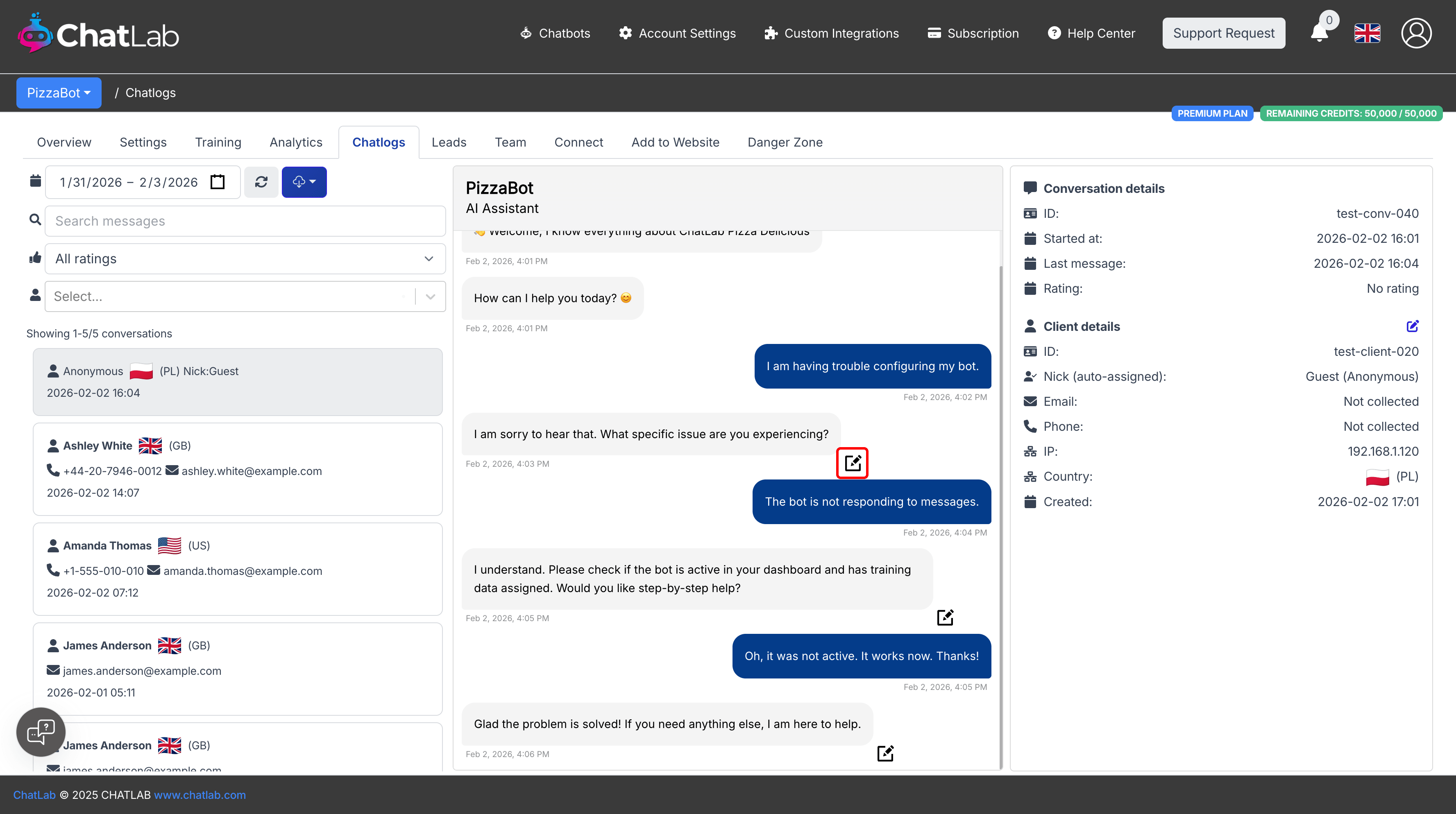
Browse conversations using the filters (date range, ratings, search). Select a conversation to view its messages. When you find a bot response you want to correct, click the edit icon (small box with arrow) next to that response.
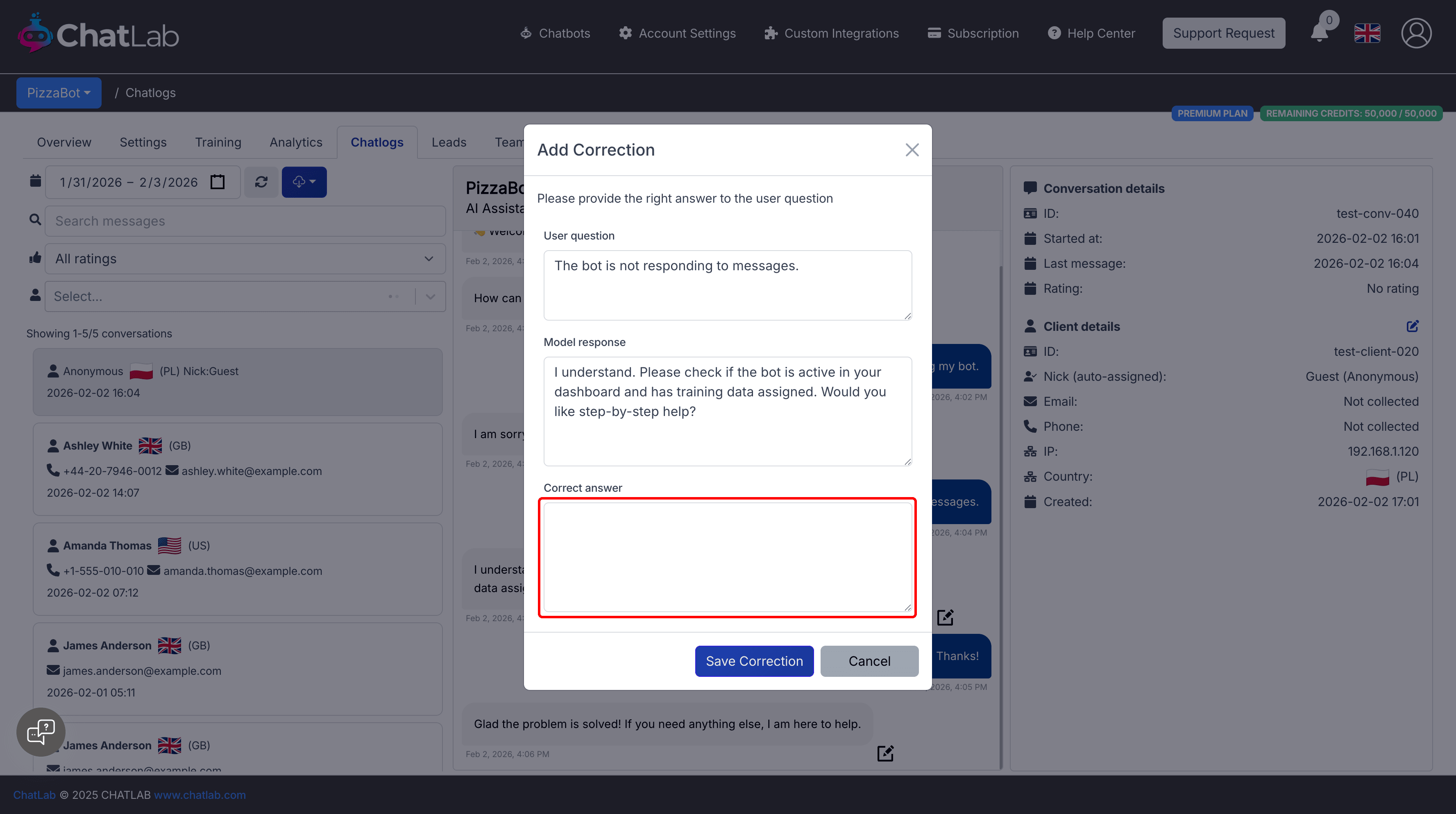
In the Add Correction modal:
- User question shows what the user asked (read-only)
- Model response shows the bot's original answer (read-only)
- Correct answer is where you type the improved response
Click Save Correction to save. The correction will be used to improve future responses.
Adding corrections from Training menu
Select your chatbot, go to the Training tab, then choose Corrections from the left sidebar.
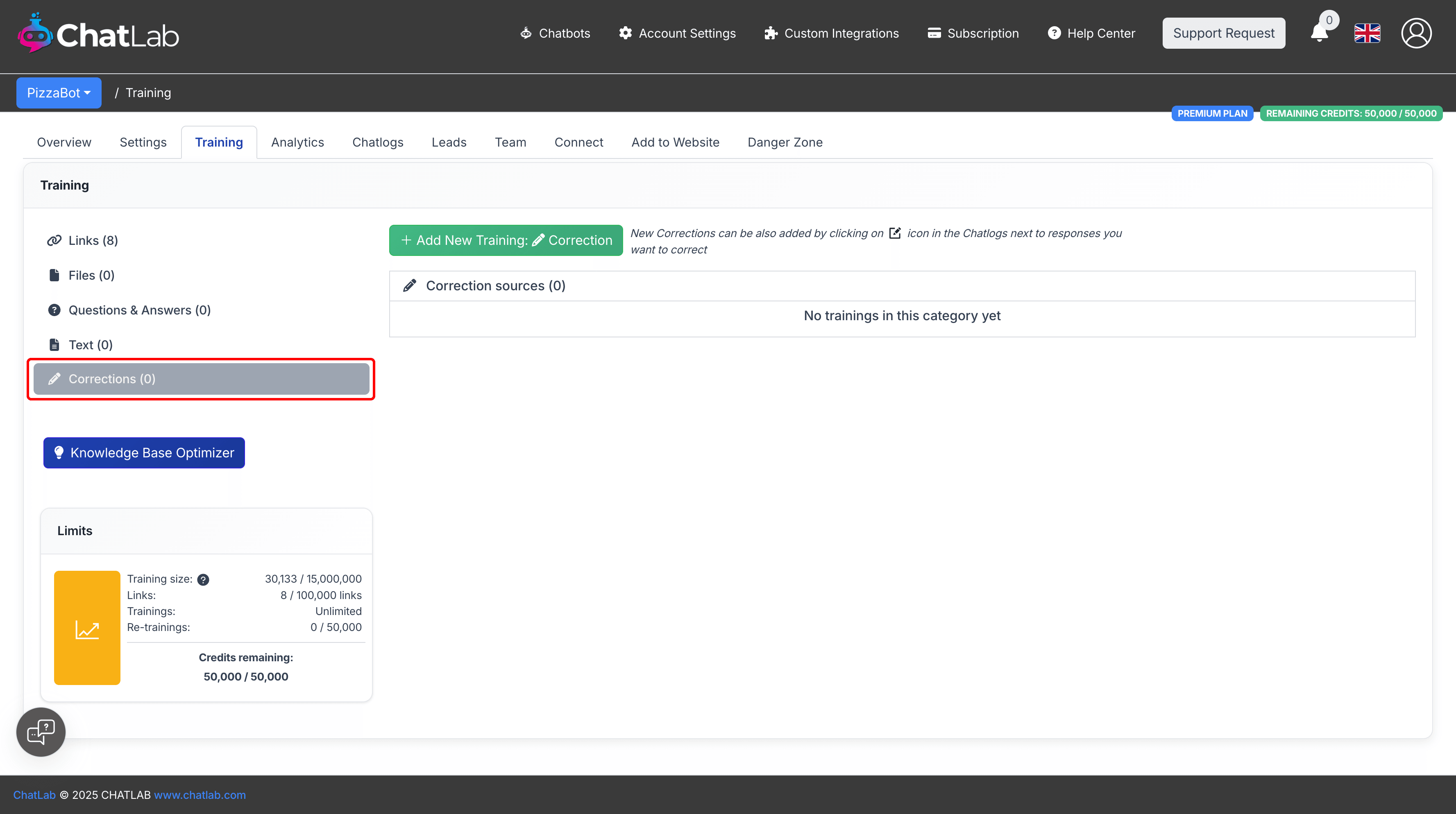
Here you can:
- Click Add New Training: Correction to create a new correction manually
- View and manage all existing corrections
- Edit or delete corrections as needed
Corrections added from Chatlogs will also appear in this list, showing "Correction sources" with the original conversation context.