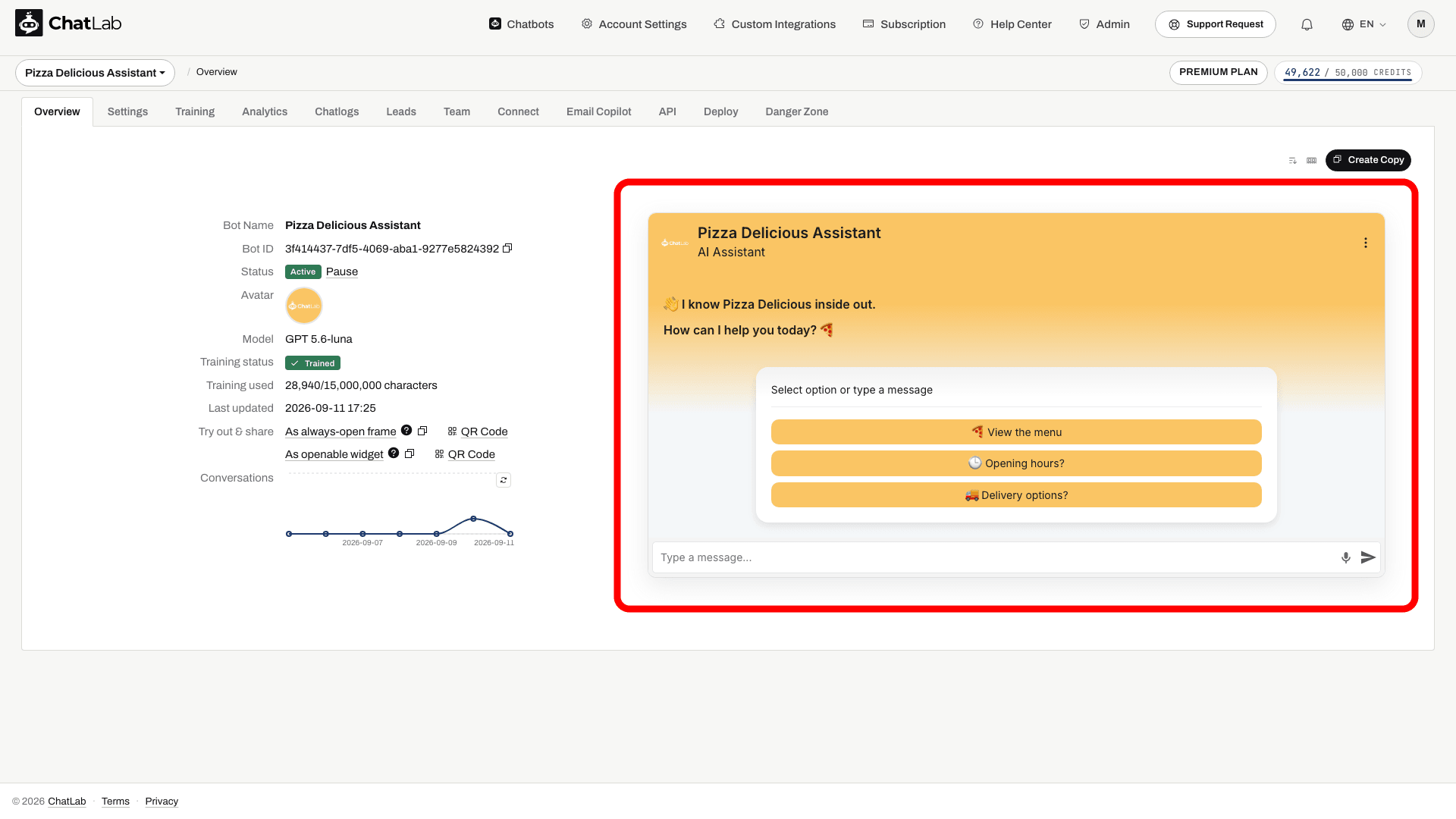
Welcome Screen (Karşılama Ekranı), sohbet widget’ı için alternatif bir açılış düzenidir. Etkinleştirildiğinde, sohbeti ilk kez açan ziyaretçiler pencerenin üst kısmında büyük bir karşılama mesajı ve önerilen soruların butonlar halinde alt alta sıralandığı ortalanmış beyaz bir kart görür. Ziyaretçi ilk mesajını gönderdiği anda - yazarak veya önerilen bir soruya tıklayarak - widget sorunsuz bir şekilde standart sohbet görünümüne geçer.
Welcome Screen devre dışı bırakıldığında (varsayılan durum), sohbet doğrudan standart düzende açılır ve önerilen sorular mesaj giriş alanının üzerindeki alt çubukta yer alır.
Welcome Screen ayarları nerede bulunur?
Chatbot'unuzu seçin, Settings (Ayarlar) sekmesine tıklayın ve ardından sol kenar çubuğundan Appearance (Görünüm) seçeneğini belirleyin. Aşağı kaydırarak Welcome Screen bölümüne gelin.
Welcome Screen'i etkinleştirme
Widget’ı karşılama ekranı moduna geçirmek için Special Welcome Screen (Özel Karşılama Ekranı) seçeneğini açın. Bu ayar varsayılan olarak kapalıdır.
Düğme açık konuma getirildiğinde ek alanlar görünür:
- Suggested questions intro (Önerilen sorular girişi) - karşılama kartında önerilen soruların üzerinde görüntülenen kısa bir etiket. Varsayılan olarak kartta "Select option or type a message" yazar; değiştirmek için kendi metninizi yazabilir veya etiketi gizlemek için alanı boş bırakabilirsiniz. Bu seçeneğin etkinleştirilebilmesi için önerilen soruların Settings > Chat Conversation bölümünde yapılandırılmış olması gerekir.
- Hide Human Contact Form (İnsan İletişim Formunu Gizle) - karşılama ekranı görüntülenirken widget başlığındaki iletişim formu işlemini kaldırır. Ziyaretçi ilk mesajını gönderdiği anda tekrar görünür.
- Hide Live Chat (Live Chat'i Gizle) - karşılama ekranı görüntülenirken widget başlığındaki canlı sohbet işlemini kaldırır. Ziyaretçi ilk mesajını gönderdiği anda tekrar görünür.
Her iki gizleme seçeneği de yeni chatbot'lar için kapalıdır; böylece Live Chat ve iletişim formuna doğrudan karşılama ekranından erişilebilir. 2 Eylül 2026'dan önce oluşturulan chatbot'larda bu seçenekler açıktır ve bu sayede widget’ları önceki görünümlerini birebir korur.
Değişiklikler otomatik olarak kaydedilir - ayarlar sayfasının üst kısmında kısa bir "Saving..." (Kaydediliyor...) göstergesinin ardından "Saved" (Kaydedildi) bildirimi belirir.
Welcome Screen ziyaretçilere nasıl görünür?
Welcome Screen, botun nasıl yapılandırıldığına bağlı olarak üç farklı varyanta sahiptir.
Önerilen sorular ile
Bu, varsayılan Welcome Screen görünümüdür. Beyaz kart, Settings > Chat Conversation bölümünde yapılandırılan önerilen soruları tam genişlikte, alt alta dizilmiş butonlar halinde listeler. Ziyaretçi bir soruya tıklayarak doğrudan gönderebilir veya alt kısımdaki giriş alanına özel bir mesaj yazabilir.

Lead toplama ile
Lead Collection (Lead Toplama) özelliği, formun konuşma başlangıcında doldurulmasını zorunlu kılacak şekilde ayarlandığında (Settings > Lead Collection), beyaz kart önerilen sorular yerine lead formunu içerir. Form, Lead Collection ayarlarında etkinleştirdiğiniz alanları (ad, e-posta, telefon ve isteğe bağlı Gizlilik Politikası onay kutusu) gösterir. Konuşmanın başlayabilmesi için ziyaretçinin formu göndermesi gerekir.

Form alanlarını ve etiketleri yapılandırmayla ilgili ayrıntılar için Lead toplama sayfasına bakın.
Gizlilik Politikası onayı ile
Bot yeni bir konuşmadan önce Gizlilik Politikası onayı gerektirdiğinde (Settings > Consent & Privacy) ve herhangi bir lead formu gerekmediğinde; beyaz kart onay açıklamasını, politikanıza yönlendiren bir bağlantı içeren onay kutusunu ve bir OK (Tamam) butonunu gösterir. Buton, ziyaretçi onay kutusunu işaretlediğinde aktif hale gelir.

Hem lead formu hem de onay gerekiyorsa, lead formu görüntülenir ve Gizlilik Politikası onay kutusu aynı zamanda onay kabulü işlevini görür.
Onay yapılandırmasıyla ilgili ayrıntılar için ChatLab’i GDPR uyumluluğu için yapılandırma sayfasına bakın.
İlk mesajdan sonra
Önerilen bir soruyla başlayın
Karşılama ekranını ve önerilen soruları yapılandırın. Formlar ve onay seçenekleri, görüşme başlamadan önce ön koşullar ekleyebilir.

Öneriler: Teslimat bilgileri, Ürün seçiminde yardım
Örneği oynatın veya aşağıdan okuyun. Gerçek müşteri verisi kullanılmaz.Önerilen sorular ziyaretçilere bir başlangıç noktası sunar.
Bu örnek ekrandan çıktığında oynatma duraklatılır. Bu bir simülasyondur, canlı sohbet değildir. Oynatma içindeki widget kontrolleri etkileşimli değildir.Örneğin tamamını okuyun
- Önerilen sorular ziyaretçilere bir başlangıç noktası sunar.
Öneriler: Teslimat bilgileri, Ürün seçiminde yardım
- Bir soru seçildiğinde görüşme başlar.
Ziyaretçi: Teslimat bilgileri
- Bot, yapılandırdığınız mağaza bilgilerine dayanarak yanıt verir.
Asistan: Bu örnek mağaza için teslimat seçenekleri ödeme adımında gösterilir.
Ziyaretçi ilk sohbet mesajını gönderdiğinde widget standart sohbet düzenine geçer. Gerekli formlar ve onaylar ön adımlardır: bunları göndermek adımı tamamlar ve ziyaretçinin devam etmesini sağlar; chatbot'a soru sormakla aynı şey değildir. Yukarıdaki iki seçenek tarafından gizlenen başlık işlemleri bu noktada görünür.
Karşılama Ekranı (Welcome Screen) yalnızca yeni bir oturumun başında görünür. Devam eden bir konuşma sırasında tekrar görünmez ve ziyaretçi mevcut bir konuşma geçmişiyle sohbeti yeniden açtığında tekrar gösterilmez.
Yeni bir konuşmayı test etme
Karşılama metninizi ve önerilen sorularınızı Sohbet konuşması ayarları sayfasından yapılandırın. Ayarlar Saved olarak göründükten sonra Overview (Genel Bakış) sekmesini açın ve test konuşmasını sıfırlayın. Açılış kartını kontrol edin, gerekli tüm form veya onay adımlarını tamamlayın ve geçişi doğrulamak için bir soru gönderin. Mevcut konuşma geçmişi açılış düzenini atlar.
İlgili makaleler
- Görünüm ayarları - tüm sohbet widget görünüm seçenekleri
- Konuşma ayarları - karşılama mesajlarını ve önerilen soruları yapılandırma
- Lead toplama - ziyaretçi iletişim bilgilerini toplama
- ChatLab’i GDPR uyumluluğu için yapılandırma - Gizlilik Politikası onayını zorunlu kılma