ChatLab gives you several ways to remove ChatLab branding from the chat widget and replace it with your own. The available options depend on your subscription.
Where to find whitelabel settings
Open any chatbot, go to the Settings tab, and select Whitelabel in the left sidebar.
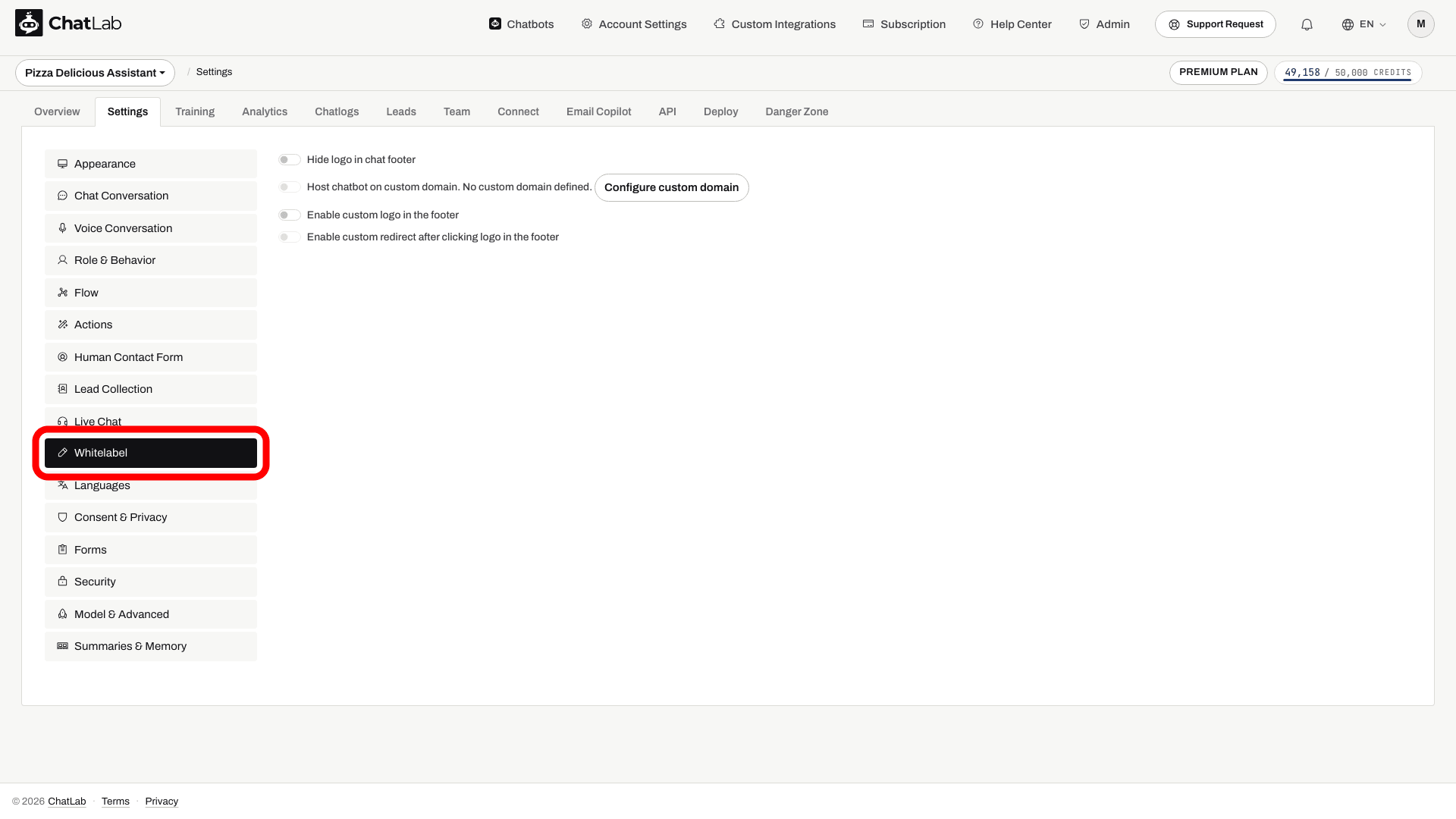
The options visible inside this tab depend on your subscription level.
Hide the ChatLab logo from the chat footer
Turning on Hide logo in chat footer removes the small "Powered by ChatLab" badge that appears at the bottom of the widget.
This is available as a premium feature. If it is unavailable, check Subscription for an eligible plan or the Remove ChatLab logo add-on. After changing the toggle, wait for the saved indicator and check the visitor-facing widget.
Host the chatbot on your custom domain
Instead of loading the chat widget script from script.chatlab.com, you can serve it from your own subdomain (for example chat.yourcompany.com). Calls from the widget will route through your API subdomain too.
This requires the corresponding premium feature on your account. Setup is a one-time DNS-level change - no software needs to run on your servers.
To set it up:
- Go to Account Settings > Custom Domain and configure your script, API, and admin subdomains.
- After the domain is approved, open Settings > Whitelabel and enable Host chatbot on custom domain.
- Wait for the saved indicator, copy the updated code from Deploy and replace the website's existing snippet.
- Test the widget on the published page.
Step-by-step instructions are in the Custom domains article.
Replace the widget logo with your own
You can replace the small ChatLab logo inside the widget footer with your own image (recommended size 100x17px), and optionally make it link to your website.
This requires the corresponding premium feature on your account. To enable it:
- Open Settings > Whitelabel.
- Turn on Enable custom logo in the footer and upload your image.
- Optionally enable Enable custom redirect after clicking logo in the footer and enter the destination URL.
- Wait for the saved indicator, then check the footer and its link in the visitor-facing widget.
Note: this option is disabled when Hide logo in chat footer is on. Choose either to hide the logo entirely or to replace it with your own.
Agency Package - full white-label platform
The Agency Package provides a fully branded chatbot platform for agencies that resell ChatLab to their own clients. It combines all the options above with:
- Custom domains for the script, API and admin app
- Branded client portal where your clients log in under your brand
- Your logos in the chat widget, admin interface, and emails
- Independent client billing - you set your own prices and keep all revenue
For full details and setup steps, see How does the agency program work?.
Related articles
- Custom domains - DNS setup for hosting the script and API on your domain
- Custom user portal - branded admin login and registration for your clients
- How does the agency program work? - full white-label reseller package