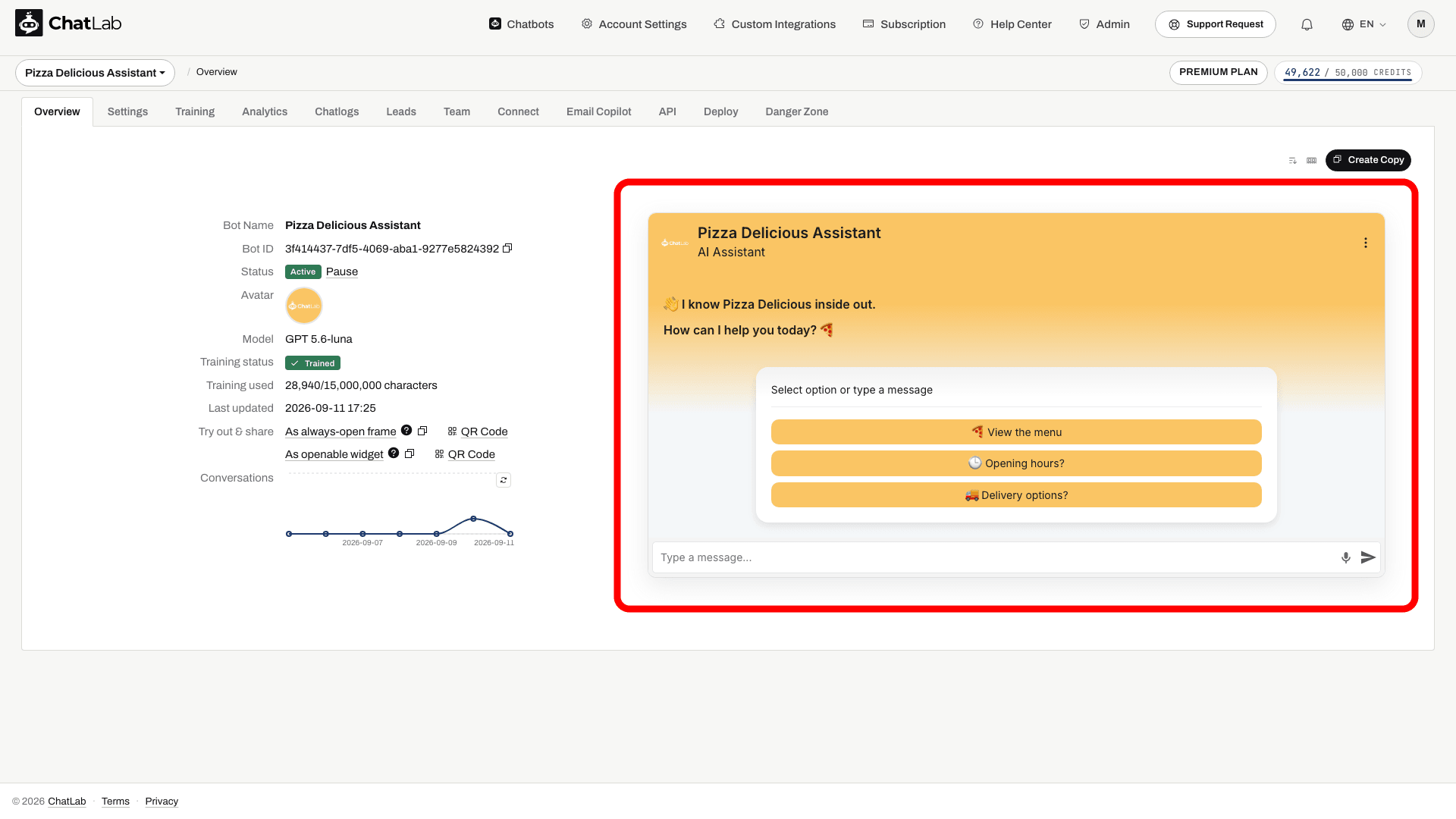
The Welcome Screen is an alternative opening layout for the chat widget. When enabled, visitors who open the chat for the first time see a large welcome message at the top of the window and a centered white card with the suggested questions stacked as buttons. As soon as the visitor sends their first message - by typing or by clicking a suggested question - the widget smoothly transitions to the standard chat view.
When the Welcome Screen is disabled (the default), the chat opens directly in the standard layout, with suggested questions in the bottom bar above the message input.
Where to find the Welcome Screen settings
Select your chatbot, click the Settings tab, then choose Appearance in the left sidebar. Scroll down to the Welcome Screen section.
Enable the Welcome Screen
Turn on Special Welcome Screen to switch the widget into welcome screen mode. The setting is off by default.
When the toggle is on, additional fields appear:
- Suggested questions intro - a short label displayed above the suggested questions on the welcome card. By default the card shows "Select option or type a message"; type your own text to replace it, or clear the field to hide the label. This option requires suggested questions to be configured in Settings > Chat Conversation to be enabled.
- Hide Human Contact Form - removes the contact form action from the widget header while the welcome screen is showing. It comes back as soon as the visitor sends their first message.
- Hide Live Chat - removes the live chat action from the widget header while the welcome screen is showing. It comes back as soon as the visitor sends their first message.
Both hide options are off for new chatbots, so live chat and the contact form are reachable straight from the welcome screen. Chatbots created before 2 September 2026 have them on, which keeps their widget looking exactly as it did.
Changes are saved automatically - a short "Saving..." indicator followed by "Saved" appears at the top of the settings page.
How the Welcome Screen looks to visitors
The Welcome Screen has three variants depending on how the bot is configured.
With suggested questions
This is the default Welcome Screen view. The white card lists the suggested questions configured in Settings > Chat Conversation as stacked, full-width buttons. The visitor can click a question to send it, or type a custom message in the input at the bottom.

With lead collection
When Lead Collection is set to require the form at conversation start (Settings > Lead Collection), the white card holds the lead form instead of the suggested questions. The form shows the fields you enabled in Lead Collection settings (name, email, phone, and the optional Privacy Policy checkbox). The visitor must submit the form before the conversation can begin.

For details on configuring the form fields and labels, see Lead collection.
With Privacy Policy consent
When the bot requires Privacy Policy consent before a new conversation (Settings > Consent & Privacy) and no lead form is required, the white card shows the consent description, the consent checkbox with a link to your policy, and an OK button. The button becomes active once the visitor ticks the checkbox.

If both a lead form and consent are required, the lead form is displayed and the Privacy Policy checkbox doubles as the consent acceptance.
For details on configuring consent, see Setting up ChatLab for GDPR compliance.
After the first message
Start from a suggested question
Configure the Welcome Screen and suggested questions. Forms and consent options can add prerequisites before a conversation begins.

Suggestions: Delivery information, Help choosing a product
Play the example or read it below. No real customer data is used.Suggested questions give visitors a starting point.
Playback pauses when this example leaves the screen. This is a simulation, not a live chat. Widget controls inside the playback are not interactive.Read the complete example
- Suggested questions give visitors a starting point.
Suggestions: Delivery information, Help choosing a product
- Choosing a question starts the conversation.
Visitor: Delivery information
- The bot answers from your configured store information.
Assistant: For this example store, delivery options are shown at checkout.
When the visitor sends the first chat message, the widget transitions to the standard chat layout. Required forms and consent are preliminary steps: submitting them completes that step and lets the visitor continue; it is not the same as asking the chatbot a question. Any header actions hidden by the two options above appear at this point.
The Welcome Screen only appears at the start of a new session. It does not reappear while a conversation is in progress, and it does not show again when the visitor reopens the chat with existing conversation history.
Test a new conversation
Configure your welcome text and suggested questions in Chat Conversation settings. After the settings show Saved, open Overview and reset the test conversation. Check the opening card, complete any required form or consent step and send a question to verify the transition. Existing conversation history skips the opening layout.
Related articles
- Appearance settings - all chat widget appearance options
- Conversation settings - configure welcome messages and suggested questions
- Lead collection - capture visitor contact details
- Setting up ChatLab for GDPR compliance - require Privacy Policy consent