Multilingual chatbots let you serve every visitor in their own language. When multi-language support is on, the chat interface, welcome messages, suggested questions, forms and buttons are translated automatically, visitors are detected from their browser and can switch language with a manual switcher in the chat window. AI answers already adapt to the language of the conversation, so this feature focuses on everything around them. Over 70 languages are supported.
How to access
Select your chatbot and navigate to Settings > Languages.
The Languages menu is available to everyone. At the top you will always see the AI language card, where you set the Response language (the language the bot replies in, or Auto Detect) and the Reporting language (the language used for summaries, insights and reports you see in the admin panel).
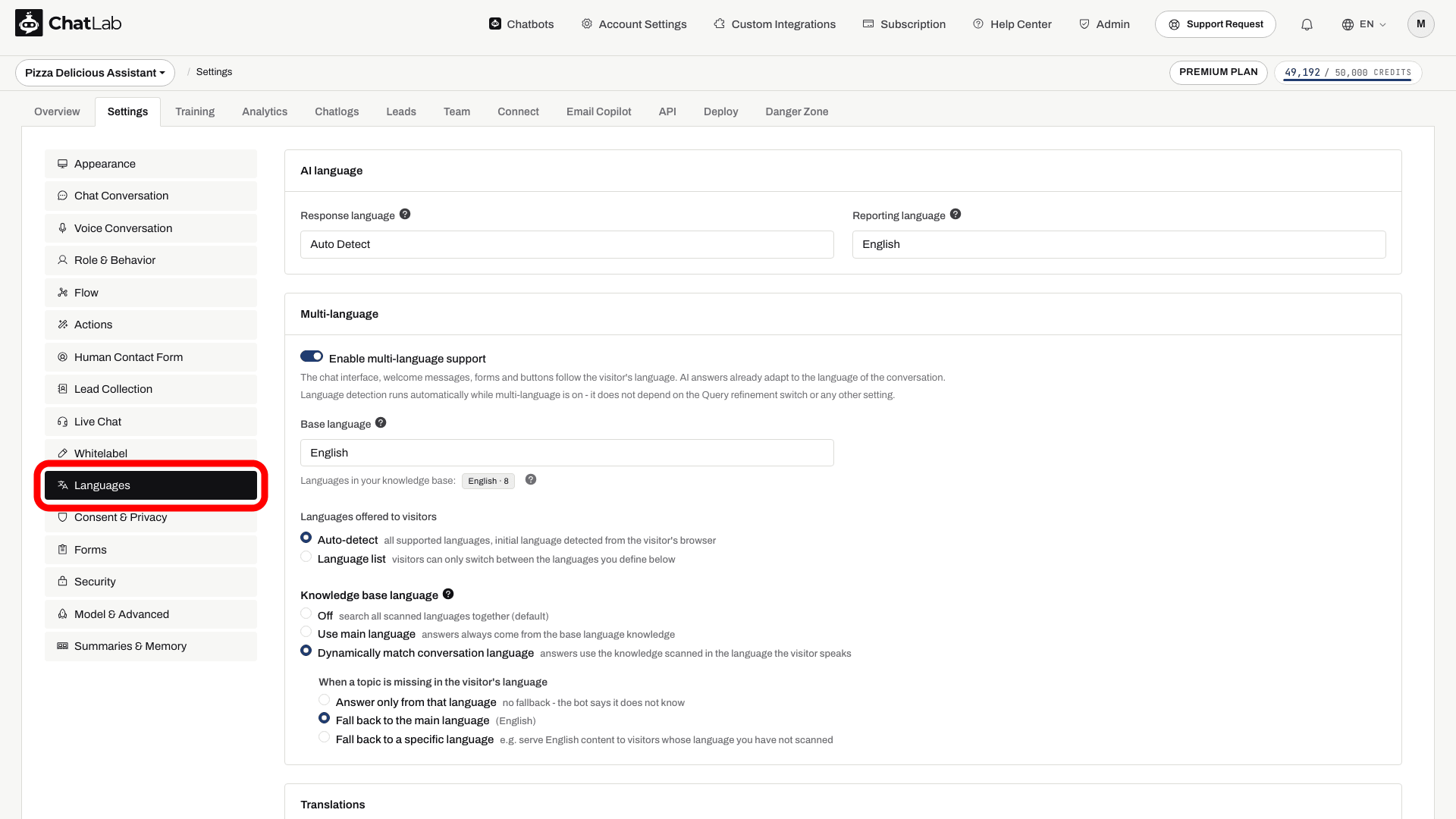
Below the AI language card is the Multi-language card. This is a premium feature. If your plan does not include it, an upgrade prompt appears above a disabled preview of the settings.
Enable multi-language support
In the Multi-language card, turn on Enable multi-language support.
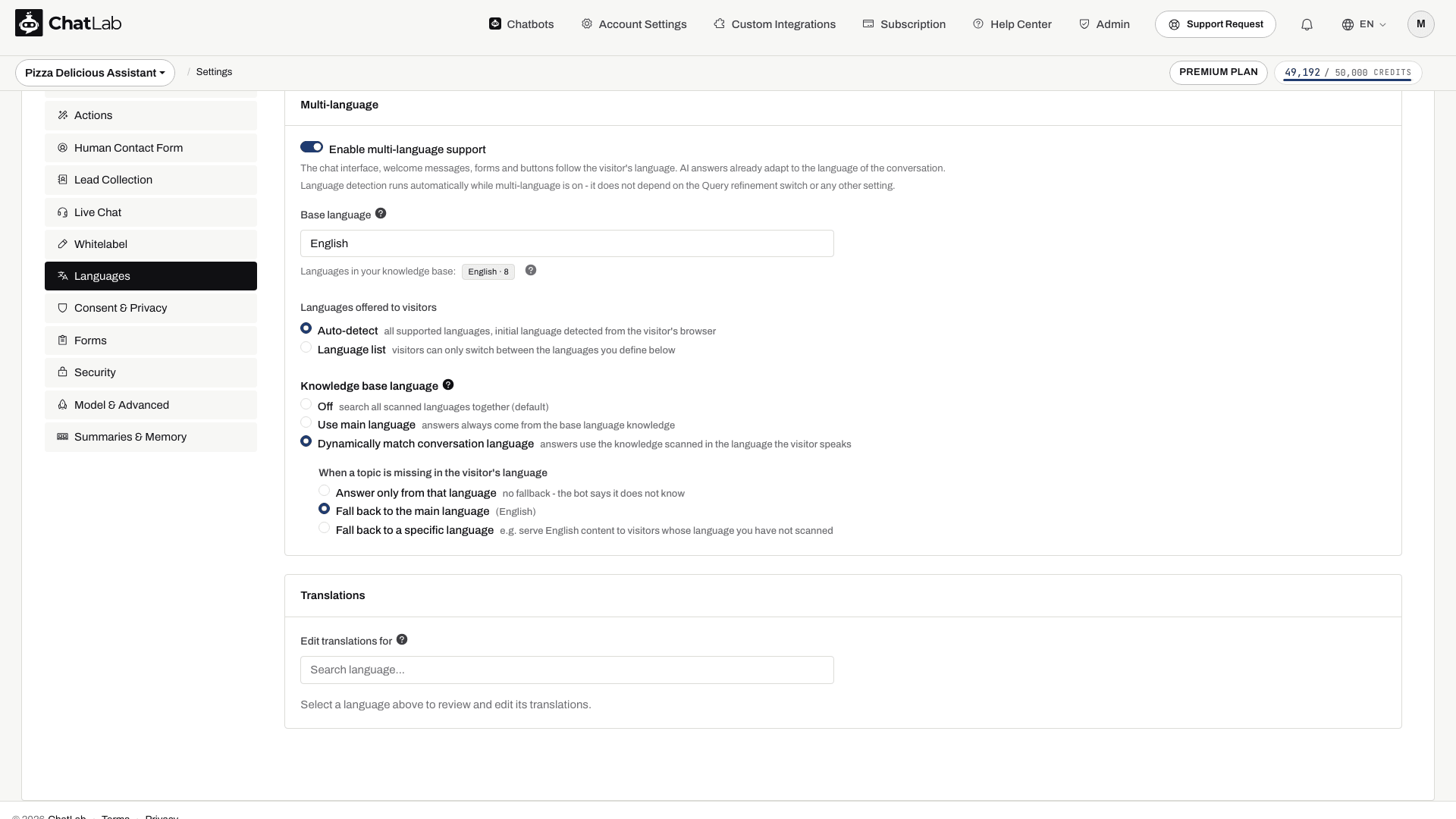
Language detection runs automatically while multi-language is on. It does not depend on the query refinement setting or any other setting - once enabled, ChatLab detects each visitor's language on its own.
Turning the switch on selects Dynamically match conversation language with Fall back to the main language. Check the base language and retrieval options after enabling it, especially if you previously used Off. The following options appear.
Base language
The Base language is the language your bot's own texts - welcome message, form labels, buttons and similar - are currently written in. All translations are generated from these base-language texts, so set it to match the language you originally wrote your bot content in.
Languages offered to visitors
Choose how visitors pick their language:
- Auto-detect - all supported languages are available. The starting language is detected from the visitor's browser, and visitors can switch to any supported language.
- Language list - visitors can only switch between the languages you define. Add languages as chips using the search box, and remove them with the small close icon on each chip. The base language is always included and shown as "base".
Knowledge base language
This setting controls which language version of your scanned knowledge is used to build answers:
- Off - search all scanned languages together.
- Use main language - answers always come from the base-language knowledge.
- Dynamically match conversation language - answers use the knowledge scanned in the language the visitor speaks. Under When a topic is missing in the visitor's language, choose Answer only from that language, Fall back to the main language, or Fall back to a specific language.
The Use main language and Dynamically match conversation language modes need sources that were scanned with language detection. Older sources may not have this information and may need retraining. See Adding new website sources for how to scan and retrain sources.
Translations
When multi-language support is enabled, a Translations section appears where you can review and fine-tune every translated text.
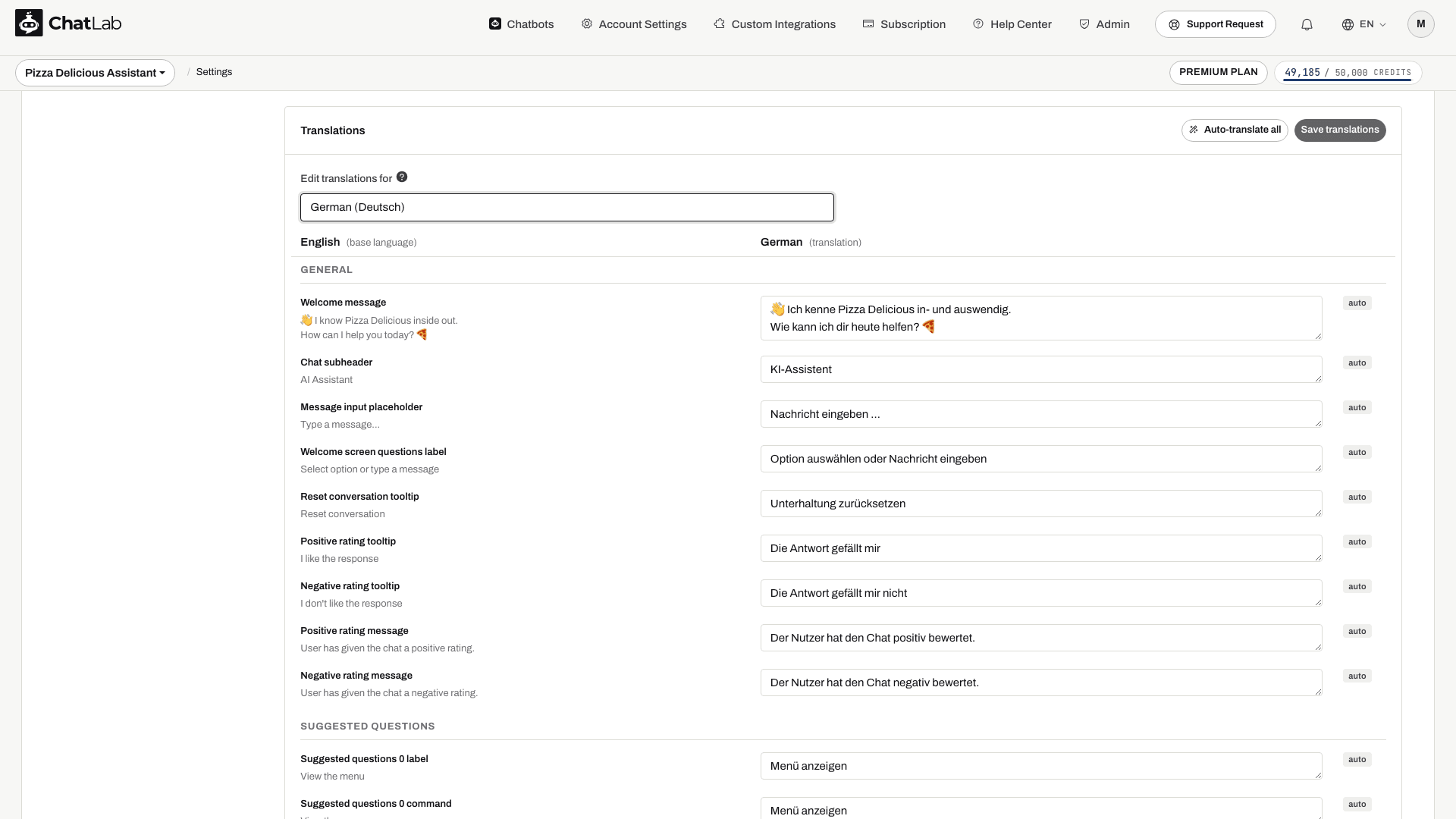
Pick a language under Edit translations for. The editor then shows two columns - the base language text on the left and the translated text on the right - grouped into sections: General, Suggested questions, Human Contact Form, Lead Collection, Live Chat, Consent, Custom forms and Widget interface.
Each translated field carries a badge that tells you where it came from:
- auto - generated automatically.
- manual - you edited and saved this field.
- edited - you have unsaved changes in this field.
- outdated - your saved text no longer matches the current base text and may need a refresh.
You can:
- Edit any field to override the automatic translation. Your version is kept even when translations are regenerated.
- Click Auto-translate all to regenerate every translation for the selected language.
- Click Save translations to store your edits.
- Use the reset button on a field to revert it back to the automatic translation.
Test the translations
Answer in the visitor language
This demonstrates reply language, not changing the widget interface. Configure offered interface languages separately under Languages.

Visitor: Wie kann ich meine Bestellung verfolgen?
Play the example or read it below. No real customer data is used.A visitor asks in German.
Playback pauses when this example leaves the screen. This is a simulation, not a live chat. Widget controls inside the playback are not interactive.Read the complete example
- A visitor asks in German.
Visitor: Wie kann ich meine Bestellung verfolgen?
- The bot replies in German.
Assistant: Bitte nennen Sie Ihre Bestellnummer und die beim Kauf verwendete E-Mail-Adresse.
- Another question can use Spanish.
Visitor: ¿Dónde encuentro el número de pedido?
- The reply follows the new language.
Assistant: Lo encontrará en el correo de confirmación del pedido.
Wait for Saved after changing language settings; the translation editor has its own Save translations button. Open Overview, switch the visitor language and check the welcome text, questions and enabled forms. Ask about a topic available only in one trained language to check your fallback. Automatic translations can take time to appear; review the translated fields when loading finishes.
Setting the language from your page
If your website exists in several languages, tell the widget which one the visitor is reading so the chat opens in that language instead of the browser's. Call setLanguage() on the widget's JavaScript API, or set window.aichatbotLanguage before the script loads. A language the visitor picks in the widget's own menu is remembered, but stops applying once your page language changes. See Chat API for the code.
Related articles
- Chat API - control the widget from your page, including switching its language.
- Chatbot Language Setup - set the response language, reporting language and per-language chatbots.
- Adding new website sources - scan and retrain sources so knowledge base language modes work correctly.