ChatLab provides automated email reports that keep you informed about your chatbot's activity. You can choose between daily reports (covering the last 24 hours) and weekly reports (a summary of the past week), each configurable per chatbot.
Daily Report
Configuration
-
Log in to your account
-
Go to Account Settings > Reports
-
Click the Daily tab
-
Enable the daily report toggle for each chatbot you want to monitor
-
Enter one or more recipient email addresses (comma-separated)
-
Click Save Daily Reports preferences
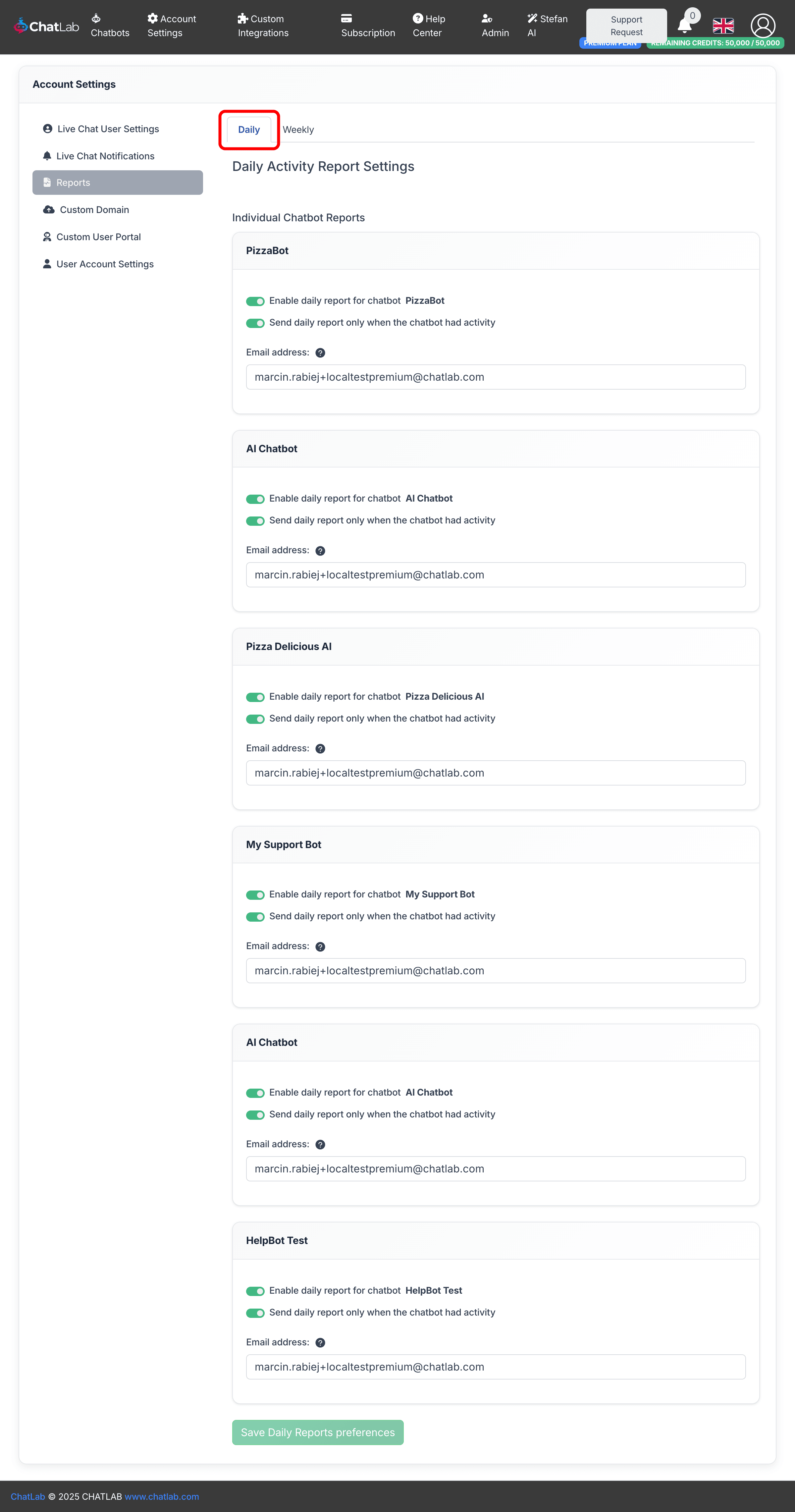
You can also toggle Send daily report only when the chatbot had activity to skip reports on quiet days.
What's inside?
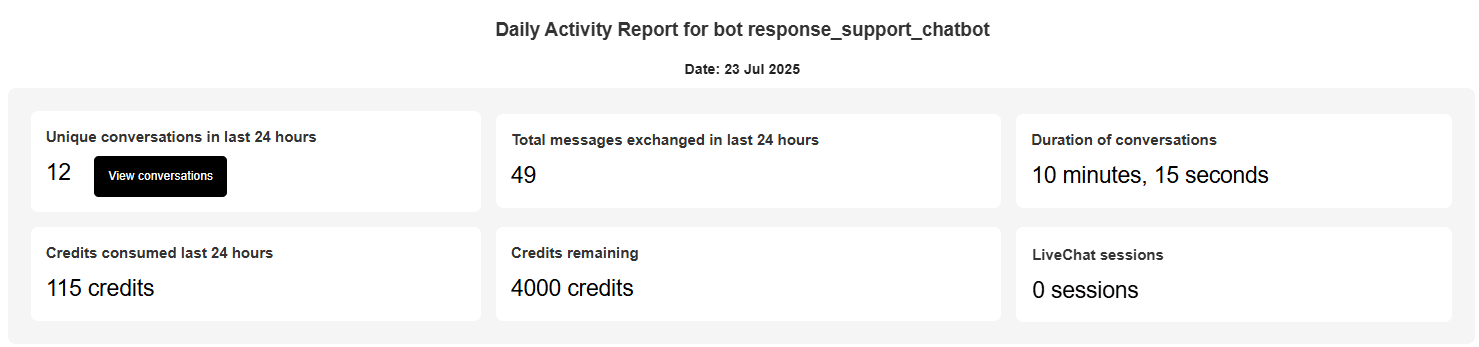
Inside the daily email, you'll find a concise summary of your chatbot's activity over the last 24 hours. This includes the number of unique conversations, the total messages exchanged, the duration of conversations, credits consumed and remaining, and an overview of your LiveChat sessions.
You can send daily summary emails to as many email addresses as you want.
Conversation insights
The daily report can include AI-generated conversation insights based on dialogues with your chatbot. These insights are updated once a week and are organized into three sections:
- Lack of Knowledge Areas - instances where the chatbot encountered difficulties or the user was not satisfied with the answer
- Most Frequent Questions - a summary of the most commonly asked questions and topics from the last week
- Other Key Insights - additional valuable patterns the AI identified from user conversations
Here is the link to read more about AI Conversation Insights: /help/ai-conversation-insights
Weekly Report
The weekly report provides an automated summary of your chatbot's conversation activity over the past week, delivered by email on the day you choose.
Configuration
-
Log in to your account
-
Go to Account Settings > Reports
-
Click the Weekly tab
-
Enable the weekly report toggle for each chatbot you want to monitor
-
Choose your Preferred day of week (Monday through Sunday)
-
Enter one or more recipient email addresses (comma-separated)
-
Click Save Weekly Reports preferences
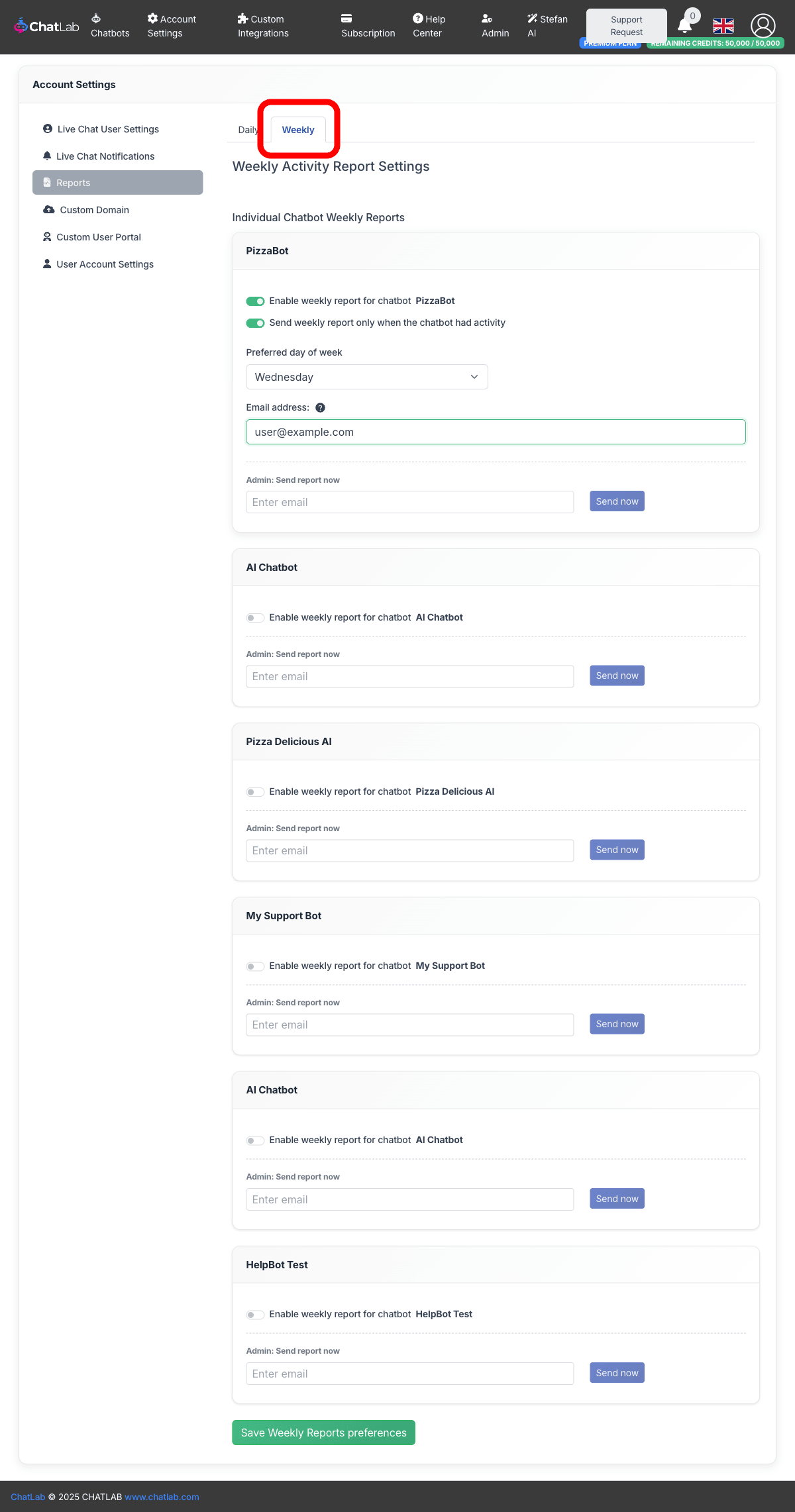
You can also toggle Send weekly report only when the chatbot had activity to skip reports for weeks with no conversations.
You can send weekly reports to as many email addresses as you want, just like daily reports.