Chatbot analytics shows how visitors use your chatbot and which conversation actions they trigger. Use it to compare periods and identify topics to investigate in Chatlogs.
Open analytics and choose a period
- Select your chatbot and open Analytics > Chatbot analytics.
- Use the chatbot selector to view a particular bot or All chatbots for combined data available to your account.
- Choose the start and end dates. The initial range covers the past week; another range can span up to 31 days.
- Review the updated charts. The refresh control returns to the default date range and reloads the data.
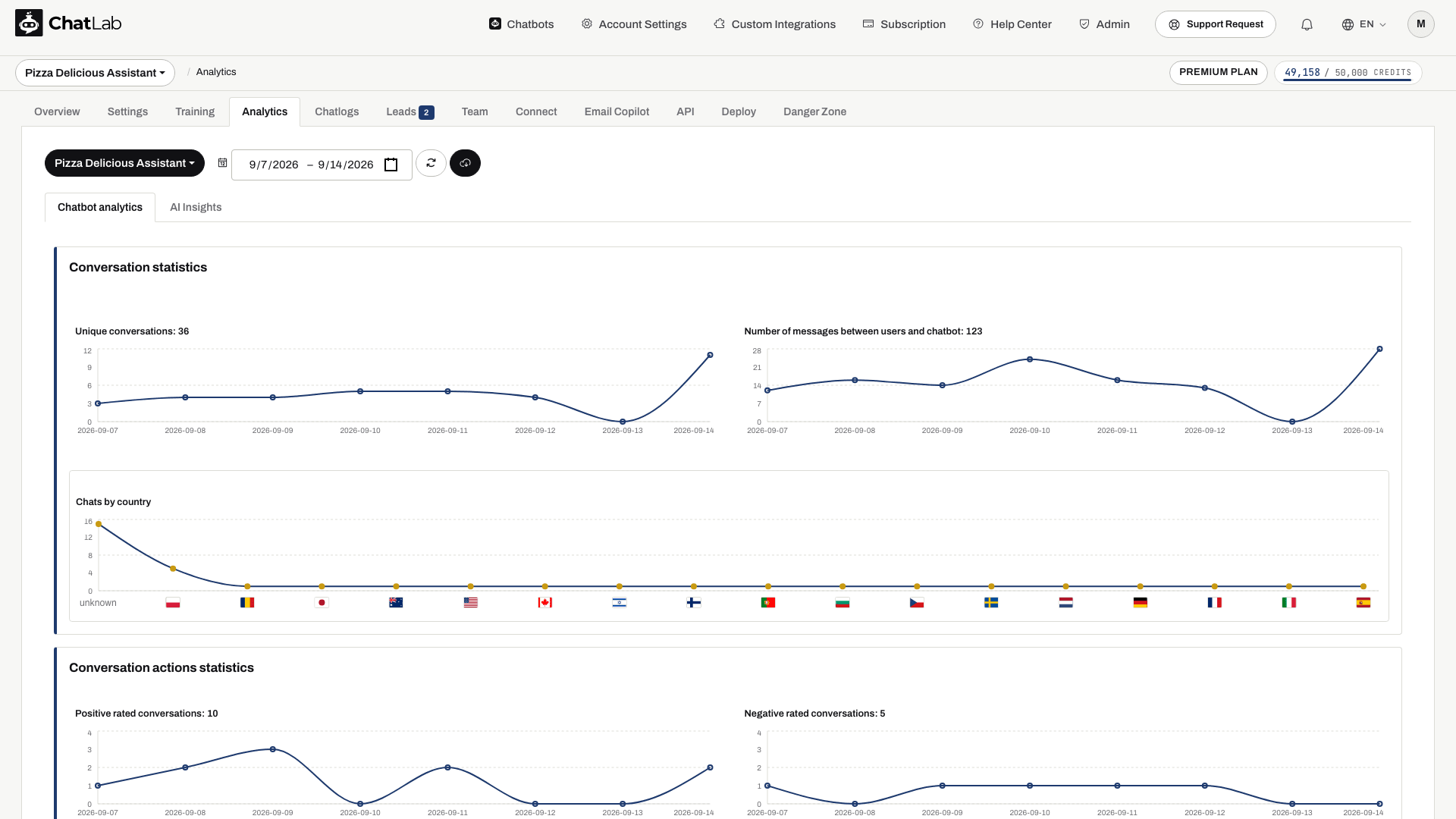
You can select an older period; 31 days is the maximum span of a selection, not a rule that only recent data can be viewed. Availability also depends on the data retained for the chatbot.
Conversation statistics
- Unique conversations counts conversation sessions in the selected period. It is not a count of unique people, since one visitor can start multiple conversations.
- Number of messages between users and chatbot shows message activity. This is not the number of credits charged.
- Chats by country groups conversations by the country information available for the visitor. Some records can have an unknown country.
For billed usage, see Checking credit usage.
Conversation actions statistics
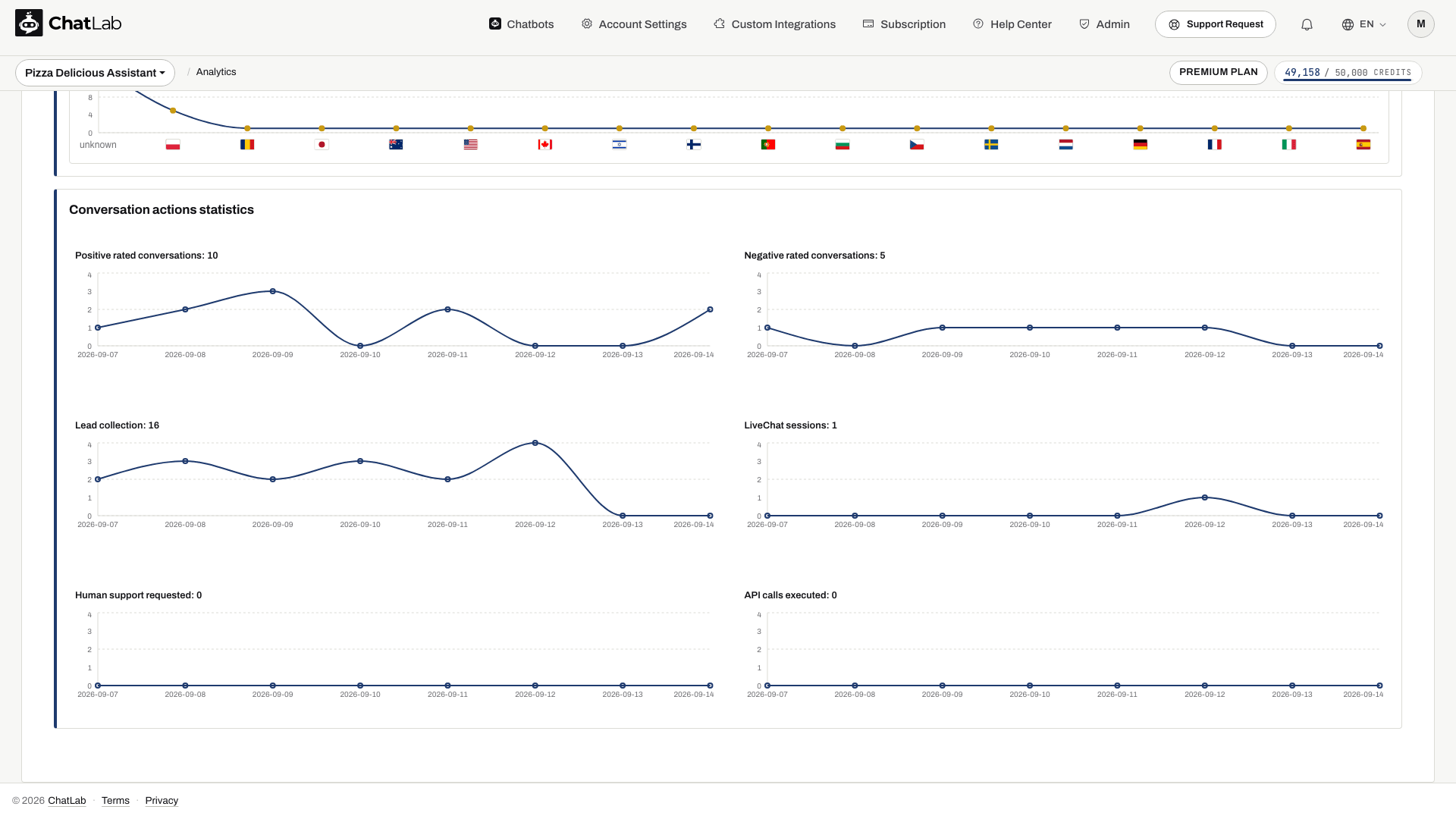
- Positive rated conversations and Negative rated conversations show submitted conversation ratings.
- Lead collection shows collected leads. Review their details in the Leads tab.
- LiveChat sessions shows sessions started with human support, not a count of operator replies.
- Human support requested shows human support request activity.
- API calls executed shows action calls, such as requests made through configured integrations.
A chart can be empty when the feature is not configured or no matching activity occurred during the period. Select a different date range or inspect an example in Chatlogs before treating a zero as a problem.
Export analytics
Use the download control beside the date selector to export the selected chatbot analytics to CSV. Wait for the data to finish loading before exporting. The export control is available on Chatbot analytics, not the AI Insights tab.
AI Insights
Open Analytics > AI Insights for the automatically generated analysis of knowledge gaps, common questions and other patterns. Select one chatbot; insights are not combined for All chatbots.
AI Insights is available as a premium feature. Its generated date and source period are separate from the chart date selector. Read AI Conversation Insights for timing and language options.