What is conversation rating?
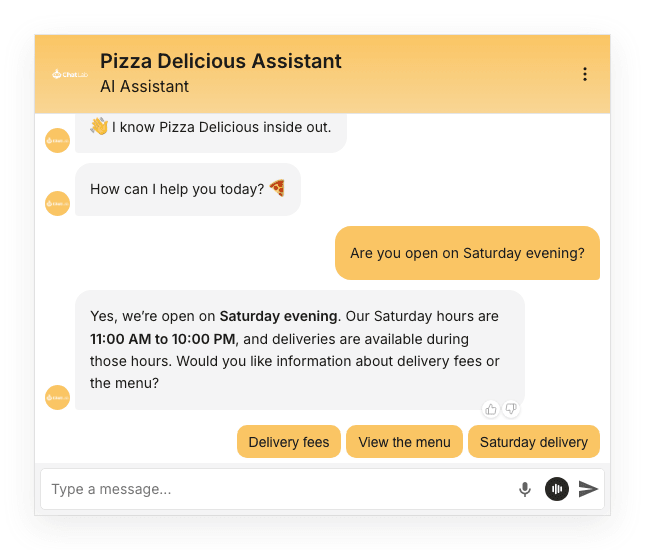
Conversation rating lets your website visitors give feedback on the conversation using thumbs up and thumbs down buttons below the chatbot's latest text response. This feedback helps you find answers that need improvement.
How to enable conversation rating
- From the main dashboard, select your chatbot.
- Navigate to Settings > Chat Conversation.
- In the Conversation behavior section, toggle Conversation rating on.
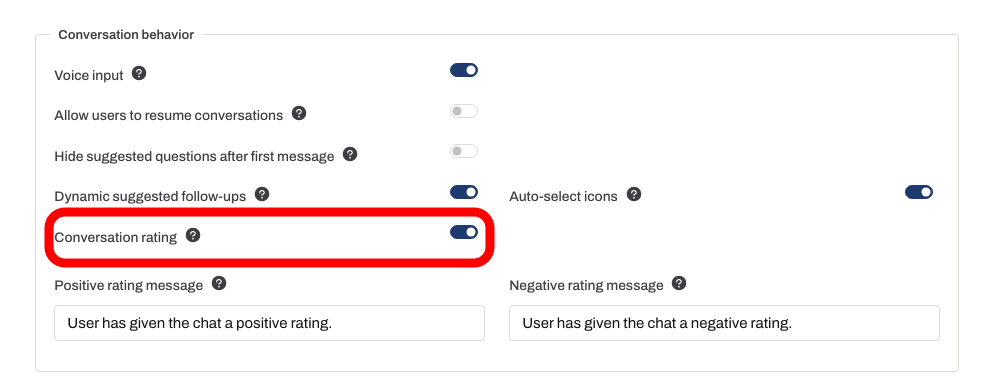
Settings save automatically. Wait for Saved, then open Overview, send a question and check the buttons below the answer. Use Positive rating message and Negative rating message on the settings page to customize the confirmation text (up to 255 characters each).
Tooltip text
Rating buttons use default tooltip texts:
- Positive rating: "I like the response"
- Negative rating: "I don't like the response"
These tooltips are no longer editable in the admin interface. If you previously set custom tooltips for your bot, they are still saved and continue to display in the widget.
The reset conversation tooltip is configured separately under Settings > Appearance > Chat Header > Reset conversation tooltip.
How it looks to your visitors
Rate a conversation
Enable conversation rating. The configured confirmation follows the visitor choosing thumbs up or thumbs down.

Assistant: You can find your invoice in the order confirmation email.
Play the example or read it below. No real customer data is used.The bot finishes an answer.
Playback pauses when this example leaves the screen. This is a simulation, not a live chat. Widget controls inside the playback are not interactive.Read the complete example
- The bot finishes an answer.
Assistant: You can find your invoice in the order confirmation email.
- Rating controls are offered for the conversation.
Rating controls are offered for the conversation.
- Example: the visitor chooses a positive rating.
Example: the visitor chooses a positive rating.
- Show the configured confirmation.
Assistant: Thank you for your feedback.
When conversation rating is enabled, thumbs up and thumbs down buttons appear below the latest chatbot text response, after the visitor has sent a message.
View the static screenshot
When a visitor clicks one of the rating buttons, a confirmation message appears in the conversation.
View the static screenshot
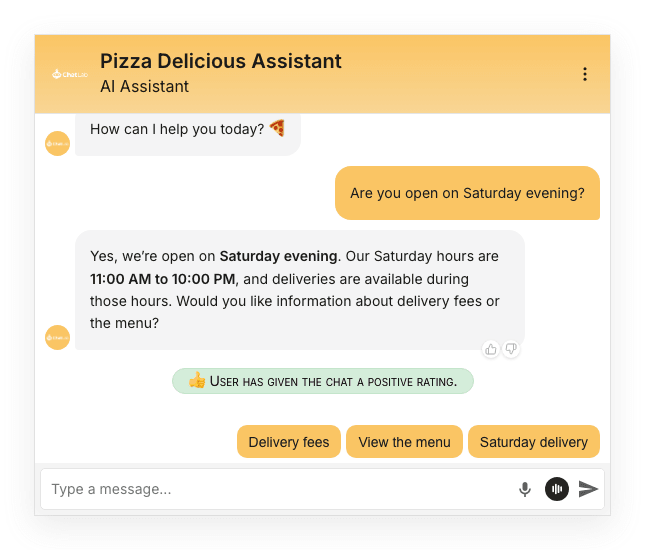
Users can change their rating at any time by clicking the other button.
Reviewing ratings in Chatlogs
You can filter conversations by rating in the Chatlogs tab. Use the rating dropdown to show only conversations rated as Positive or Negative. The rating is also displayed in the Conversation details panel on the right side of each conversation.
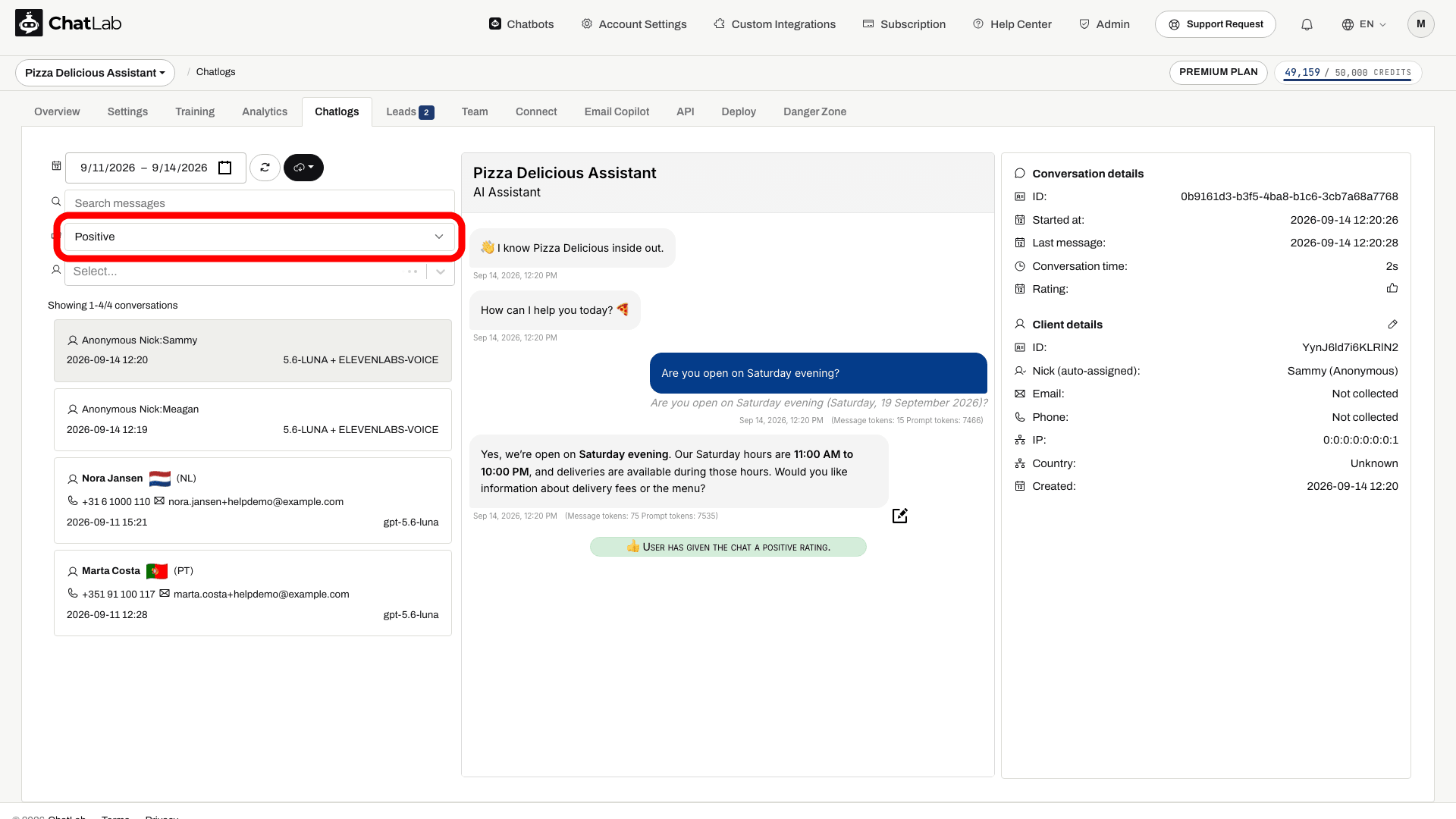
If you find conversations with negative feedback, you can add corrections to improve your chatbot's responses. Learn more about adding and editing corrections.