What are Offer Cards
From a question to visual offers
Cards change presentation, not the source or freshness of the data. They do not require a store integration.

Visitor: Show me dresses under $100.
Play the example or read it below. No real customer data is used.Ask for an offer covered by the knowledge base or catalog.
Playback pauses when this example leaves the screen. This is a simulation, not a live chat. Widget controls inside the playback are not interactive.Read the complete example
- Ask for an offer covered by the knowledge base or catalog.
Visitor: Show me dresses under $100.
- The response contains structured offer items.
Emerald wrap dress, $79. Viscose, midi length. Cobalt satin midi, $69. Viscose, midi length.
- A product link leads to the store; it does not place an order.
Assistant: Open a product page to see the details and complete your purchase in the store.
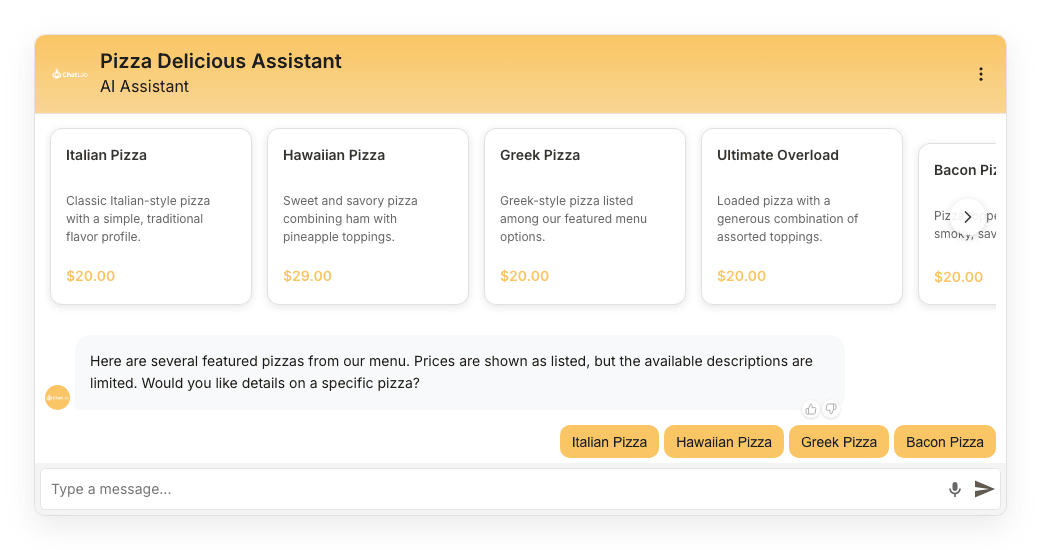
Offer Cards change how your chatbot presents product-like information. Instead of listing items as plain text, the chatbot displays them as visual cards in a horizontal scrollable carousel. Each card shows:
- Product image (when available)
- Product name
- Short description
- Price (when available)
- Clickable link to the product page
When there are more products than can fit in the chat widget, visitors can scroll horizontally through the results or use the navigation arrows.
Products displayed this way can come from a connected e-commerce integration or from product-like content found in your regular training data - no store integration is required.
View the static screenshot
How to enable it
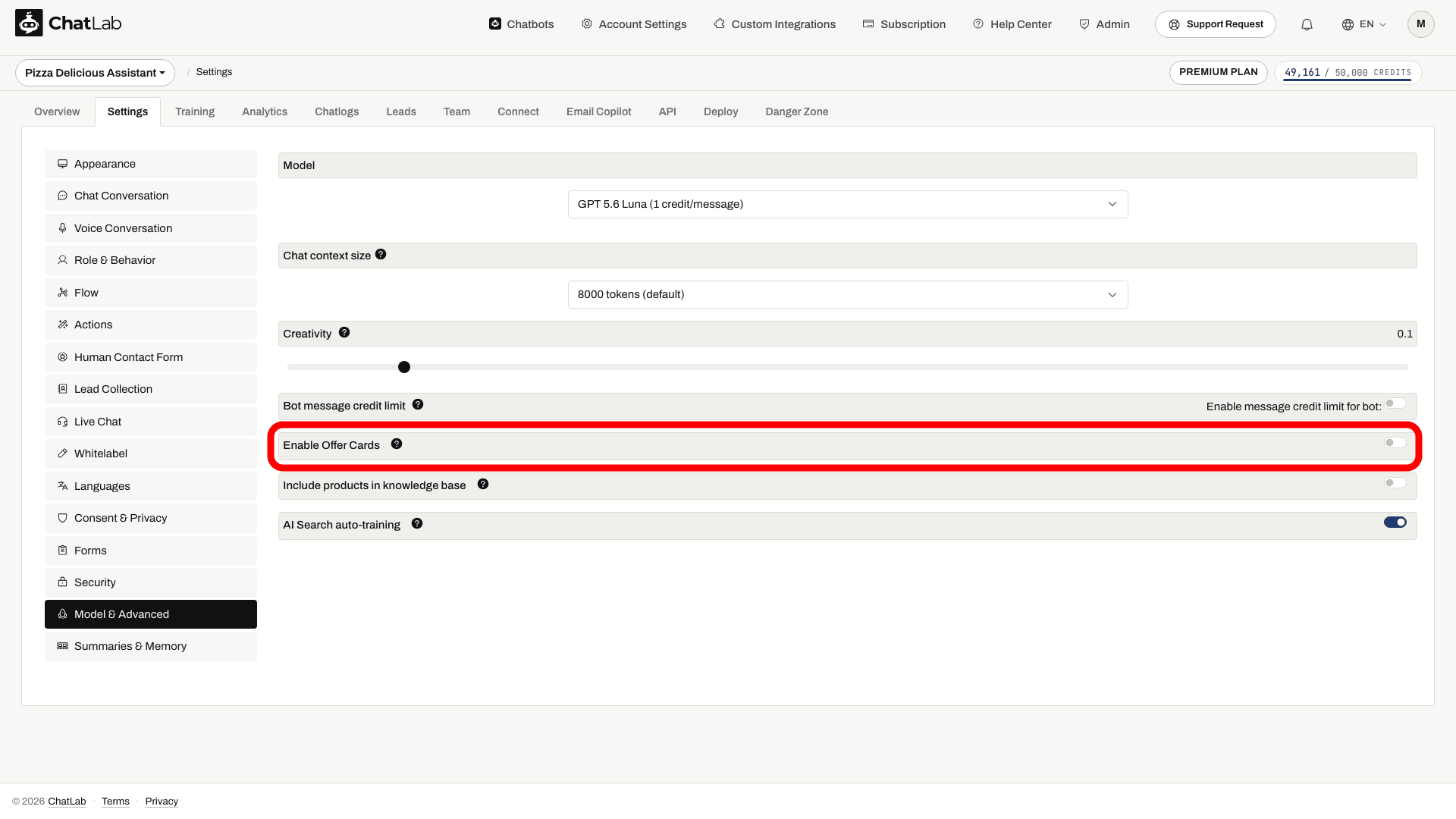
- Select your chatbot and navigate to Settings > Model & Advanced.
- Find the Enable Offer Cards row near the bottom of the Advanced Settings list.
- Turn on the Enable Offer Cards toggle. Changes save automatically.
Offer Cards are available as a premium feature - if your plan does not include it, the toggle stays disabled until you upgrade.
How it works
When Offer Cards are enabled, the AI structures its responses so that product-like items are extracted and displayed as visual cards. Cards appear when the response includes structured offer items. Enabling the feature does not guarantee that every answer mentioning a product becomes a card; relevant product information and links must be available.
Offer Cards work in two scenarios:
-
With an e-commerce or hotel integration - When your bot has a Shopify, WooCommerce, or other e-commerce integration connected (via the Connect tab), product search results from the integration are displayed as cards. The same applies to hotel reservation systems such as Beds24, Hostfully, Hotres, IdoBooking and KWHotel, where available rooms and rates come back as cards. Items load progressively, appearing one by one as the integration returns results.
-
Without an integration - Offer Cards also recognize offer-like content from your training data. If your website contains property listings, room descriptions, service packages, or any structured offers, the chatbot presents them as cards when relevant.
Where synced catalog items appear
When your bot has an e-commerce integration connected, the items pulled from that store are listed under Training > E-commerce catalog. This sub-tab has two views - Products and Categories - where you can search and browse everything synced from the connected integration. Use it to confirm which products the chatbot can present as cards.
Clicking a product card
When a visitor clicks a product card, the product page opens according to the link target setting configured in Settings > Appearance > Open links in (new tab or same tab). On mobile devices, a non-fullscreen widget minimizes before opening an ordinary product link. Fullscreen mode and integration-specific actions can behave differently.
All product links include a utm_source=aichatbot parameter so you can track chatbot-driven traffic in your analytics.
Model compatibility
Offer Cards require an AI model that supports structured output. The Enable Offer Cards toggle is disabled for an incompatible model. Choose a compatible model in Settings > Model & Advanced; changing to an incompatible one can turn Offer Cards off after a warning. Not sure which model to pick? See Selecting AI model.
Test the result
First train your chatbot on offer descriptions with valid links and image URLs, or connect a supported integration. After enabling cards, open Overview and ask for a relevant product or offer. Check names, images, links and any prices against the source. A scraped price is a snapshot; verify it on the destination page.