Connect your ChatLab chatbot with your WooCommerce store to give customers real-time access to product information, category browsing, and order tracking directly in the chat.
Important: E-Commerce Best Practices
After completing the integration below, read the comprehensive guide on optimizing your chatbot for e-commerce: How to set up ChatLab for your E-commerce store
What the Integration Provides
Product Search -- Customers can search your WooCommerce catalog by entering a phrase. The chatbot searches across product titles and descriptions, returning the top 5 matching published products with:
- Product ID, name, and description
- Price and SKU
- Product image and direct link to the product page
Product Search by SKU -- Customers can look up products using a specific SKU, reference number, or product code. This is useful when customers already know the exact product identifier - for example, from a printed catalog, a previous order, or a recommendation. Returns the same product fields as the standard product search.
Product Search in Category -- A more targeted search that combines a keyword with a specific product category. The chatbot first identifies the correct category, then searches within it for matching products. Returns the same product fields as the standard product search.
Get Categories -- The chatbot can retrieve a list of product categories available in your store, helping customers navigate your catalog or narrowing down product searches. Each category includes:
- Category ID, name, and slug
- Category description
Order Details -- Customers can check their order status by providing an order ID and email address. Both values are validated against your WooCommerce store records. The chatbot returns:
- Order number, total, and status (e.g., processing, completed, cancelled)
- Shipping address with recipient first and last name, company, full address (street, city, state, postal code, country)
- Ordered items with names, quantities, individual prices, and line totals
Prerequisites
Before starting the WooCommerce integration, make sure:
- Your chatbot is already added to your WordPress website -- see Installing Chatbot on a WooCommerce Store
- You have access to your WooCommerce store's WordPress admin panel
Step 1: Generate API Keys in WooCommerce
- Log in to your WordPress admin panel
- Go to WooCommerce > Settings
- Click the Advanced tab
- Select REST API
- Click Add Key
- Enter a description (e.g., "ChatLab Integration")
- Select the user to assign the key to - this must be a user with Administrator or Shop Manager role (other roles like Customer or Subscriber do not have the required permissions to access WooCommerce data)
- Set the permissions to Read
- Click Generate API Key
- Copy the Consumer Key and Consumer Secret -- store them securely, as the Consumer Secret cannot be viewed again
Step 2: Connect WooCommerce in ChatLab
- Log in to ChatLab and select your bot
- Go to the Connect tab
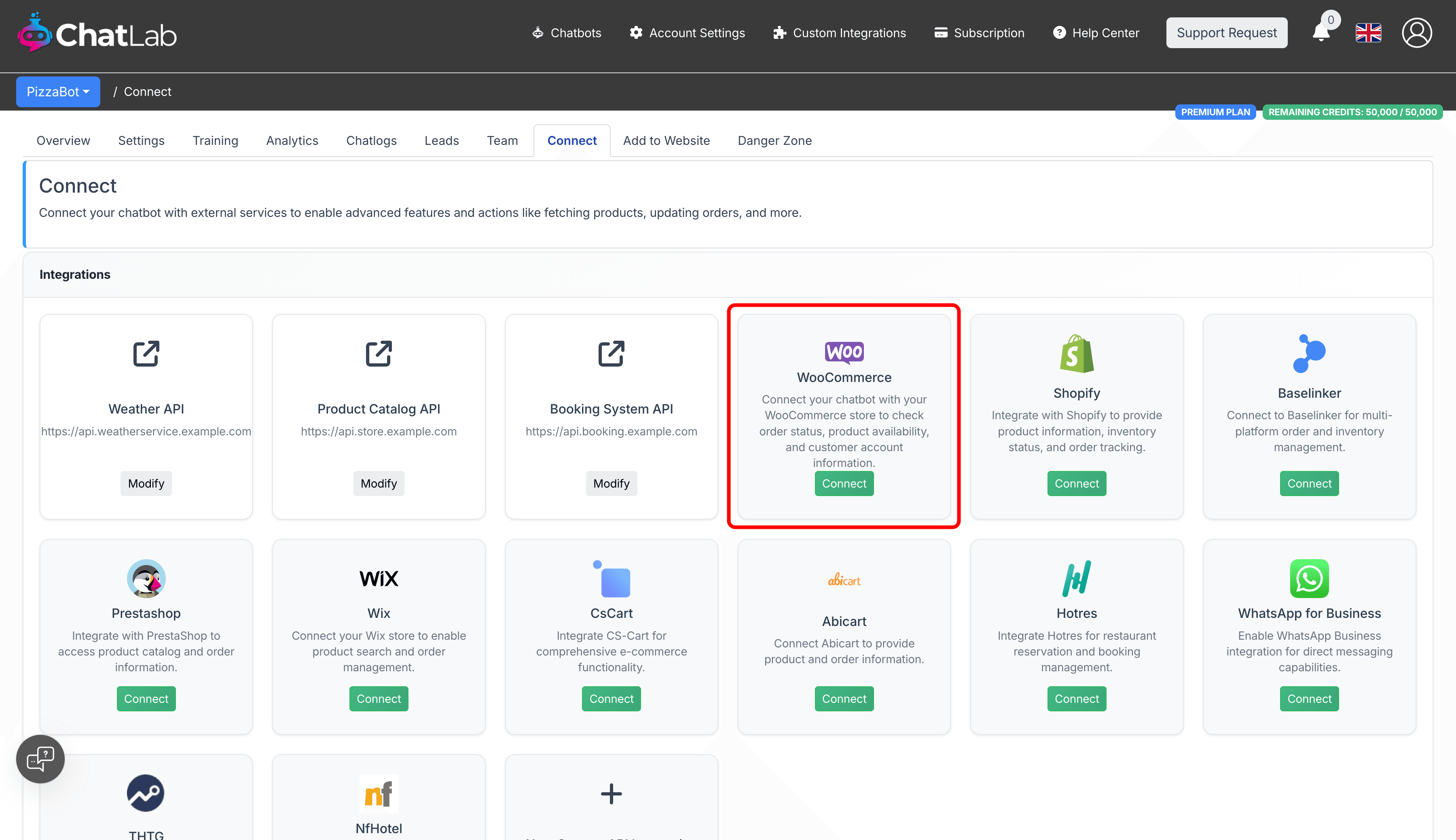
- Click Connect on the WooCommerce tile
- Enter the URL of WooCommerce store (your full store URL, e.g.,
https://www.mystore.com) - Enter the Customer Key (Consumer Key from Step 1)
- Enter the Customer Secret (Consumer Secret from Step 1)
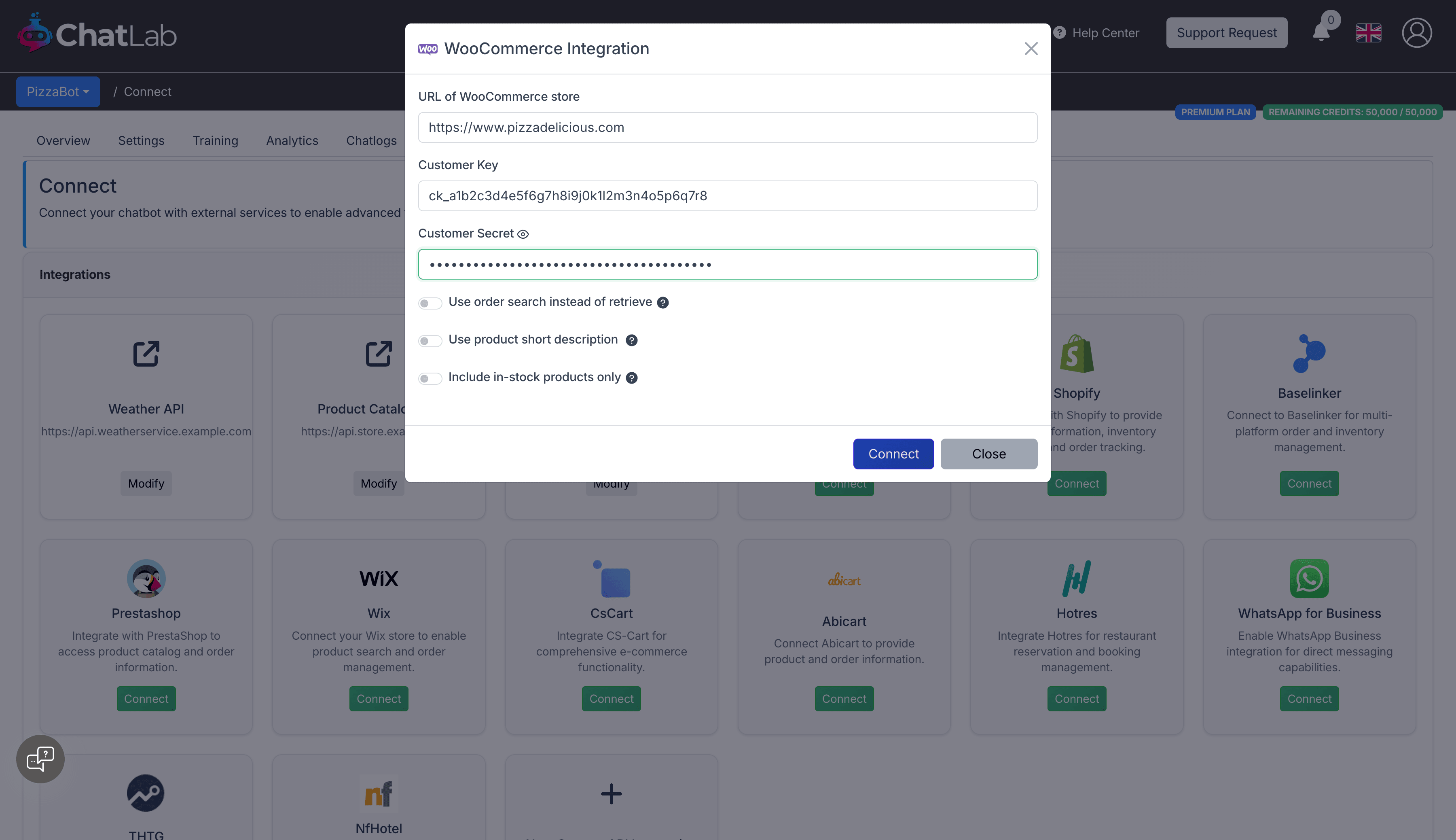
- Click Connect
ChatLab automatically tests the connection by verifying that your API credentials have the required access. If successful, you will see a confirmation message.
Connection Options
The WooCommerce connection form includes additional settings:
- Use order search instead of retrieve -- Enable this if your store uses custom order number plugins. It uses a search-based lookup instead of direct retrieval, which is compatible with modified order numbering.
- Use product short description -- When enabled, product search results return the WooCommerce short description instead of the full description. Useful for stores with very long product descriptions.
- Include in-stock products only -- When enabled, product search results only include items that are currently in stock.
Step 3: Configure WooCommerce Actions
After connecting, you can enable and customize individual AI actions. Navigate to Settings > Actions and filter by the WooCommerce platform.
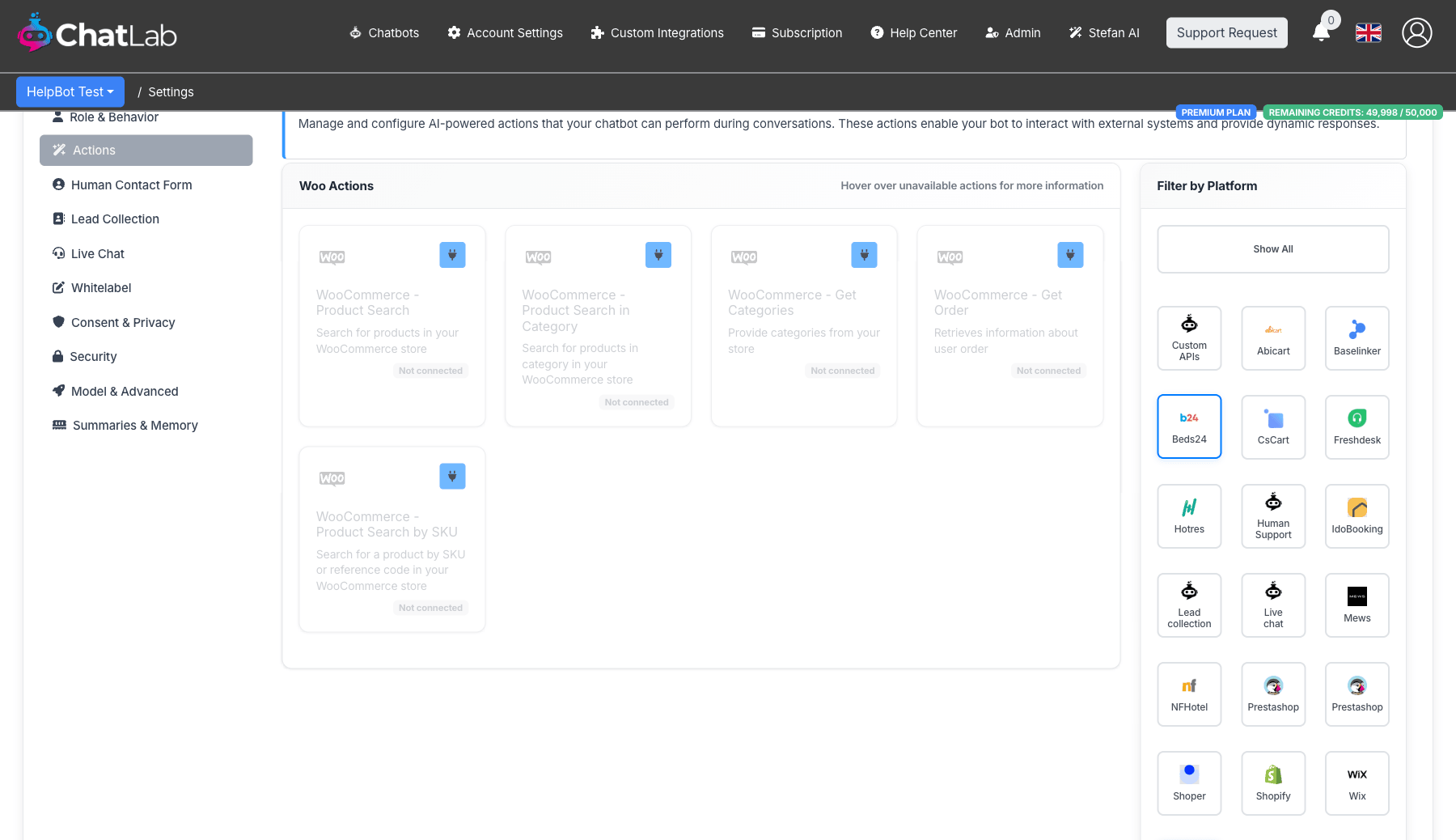
Five actions are available:
- WooCommerce - Product Search -- enables the chatbot to search your product catalog by keyword
- WooCommerce - Product Search by SKU -- enables the chatbot to find products by their SKU, reference number, or product code
- WooCommerce - Product Search in Category -- enables the chatbot to search within a specific product category
- WooCommerce - Get Categories -- enables the chatbot to list product categories in your store
- WooCommerce - Get Order -- enables the chatbot to look up order information by order ID and email
Click the activate button on each action to enable it. You can also customize the action label (the message shown to users while the action runs) and the instructions that guide how the AI uses each action.
Testing Your Integration
After activating the actions, open your chatbot widget and try:
- "Show me running shoes" (tests product search)
- "I'm looking for product SKU WH-1234" (tests product search by SKU)
- "What categories do you have?" (tests get categories)
- "Show me shoes in the Sportswear category" (tests product search in category)
- "What's the status of my order #1001?" (tests order details)
Verify that the responses match data from your WooCommerce store and that product links open correctly.
Install Chatbot on Your WooCommerce Store
To add the chat widget to your WordPress/WooCommerce site, see the detailed guide: Installing Chatbot on a WooCommerce Store
View Demo
You can see a live WooCommerce integration in action: https://yourwear.chatlab.com/shop