Connect your ChatLab chatbot with your BaseLinker account to give customers real-time access to order tracking directly in the chat.
Example conversation
Check an order
Requires a connected store and its enabled order action. Available fields depend on the integration. Matching an email address is not proof of identity.

Visitor: Where is my order?
Play the example or read it below. No real customer data is used.The customer asks about an existing order.
Playback pauses when this example leaves the screen. This is a simulation, not a live chat. Widget controls inside the playback are not interactive.Read the complete example
- The customer asks about an existing order.
Visitor: Where is my order?
- The default lookup needs both identifiers.
Assistant: Please give me your order number and the email address used at checkout.
- Use fictional data in this example.
Visitor: 41982, anna@example.com
- The action queries the connected store.
Checking order 41982...
- Report only information returned by the store.
Assistant: Order 41982 is marked as shipped. The carrier is DPD. Please check the tracking page for delivery updates.
The example illustrates the customer experience. The available actions and returned information depend on this integration and your configuration.
Before you start
Create or select a chatbot first. You need permission to manage its integrations and access to the external account's connection settings. If the Connect tile shows an upgrade or contact prompt, check that your subscription includes this integration. Keep API credentials private; never paste them into website embed code.
Important: E-Commerce Best Practices
After completing the integration below, read the comprehensive guide on optimizing your chatbot for e-commerce: How to set up ChatLab for your E-commerce store
What the Integration Provides
Order Details - Customers can check their order status by providing an order number and email address. Both values are validated against your BaseLinker store records. The chatbot returns:
- Order status and payment method
- Ordered items with names, prices, quantities, SKU, and attributes
- Order date
- Delivery method, recipient full name, and delivery address
- Shipping number and delivery company
- Customer phone
- External order ID (for orders from platforms like eBay or Allegro)
Step 1: Get Your BaseLinker API Token
- Log in to your BaseLinker account
- Click your profile name in the top-right corner and select My account
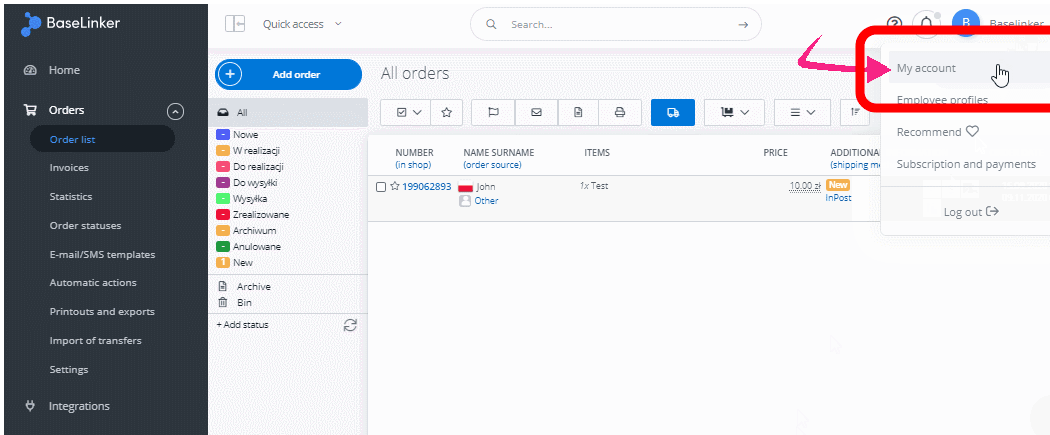
- Go to the API tab
- Copy the API token using the Copy to clipboard button
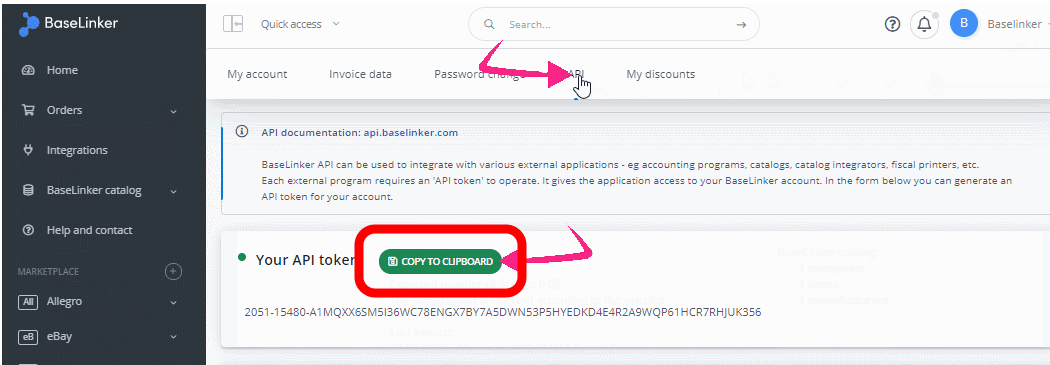
Step 2: Connect BaseLinker in ChatLab
- Log in to ChatLab and select your bot
- Go to the Connect tab
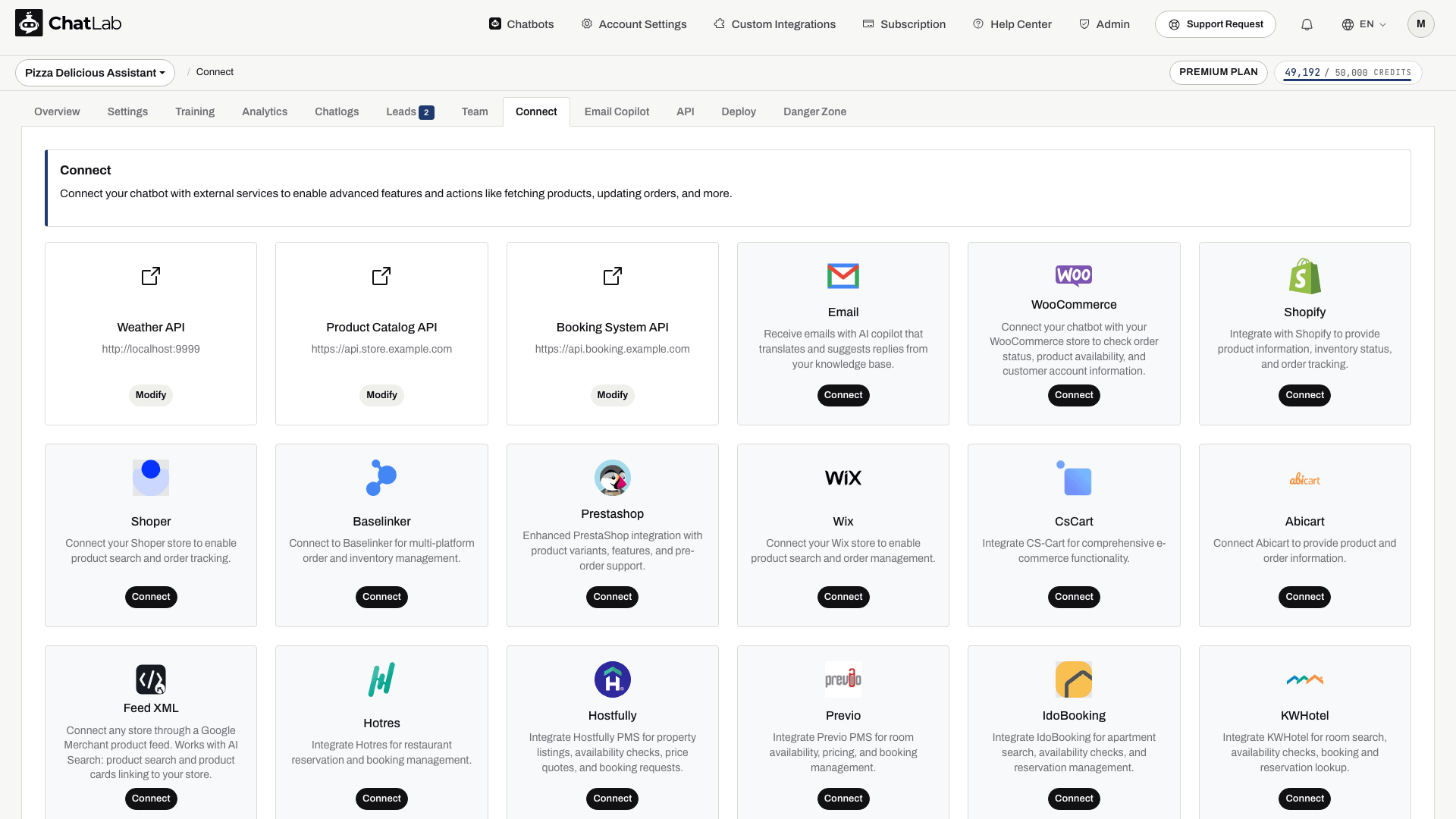
- Click Connect on the BaseLinker tile
- Fill in the connection form:
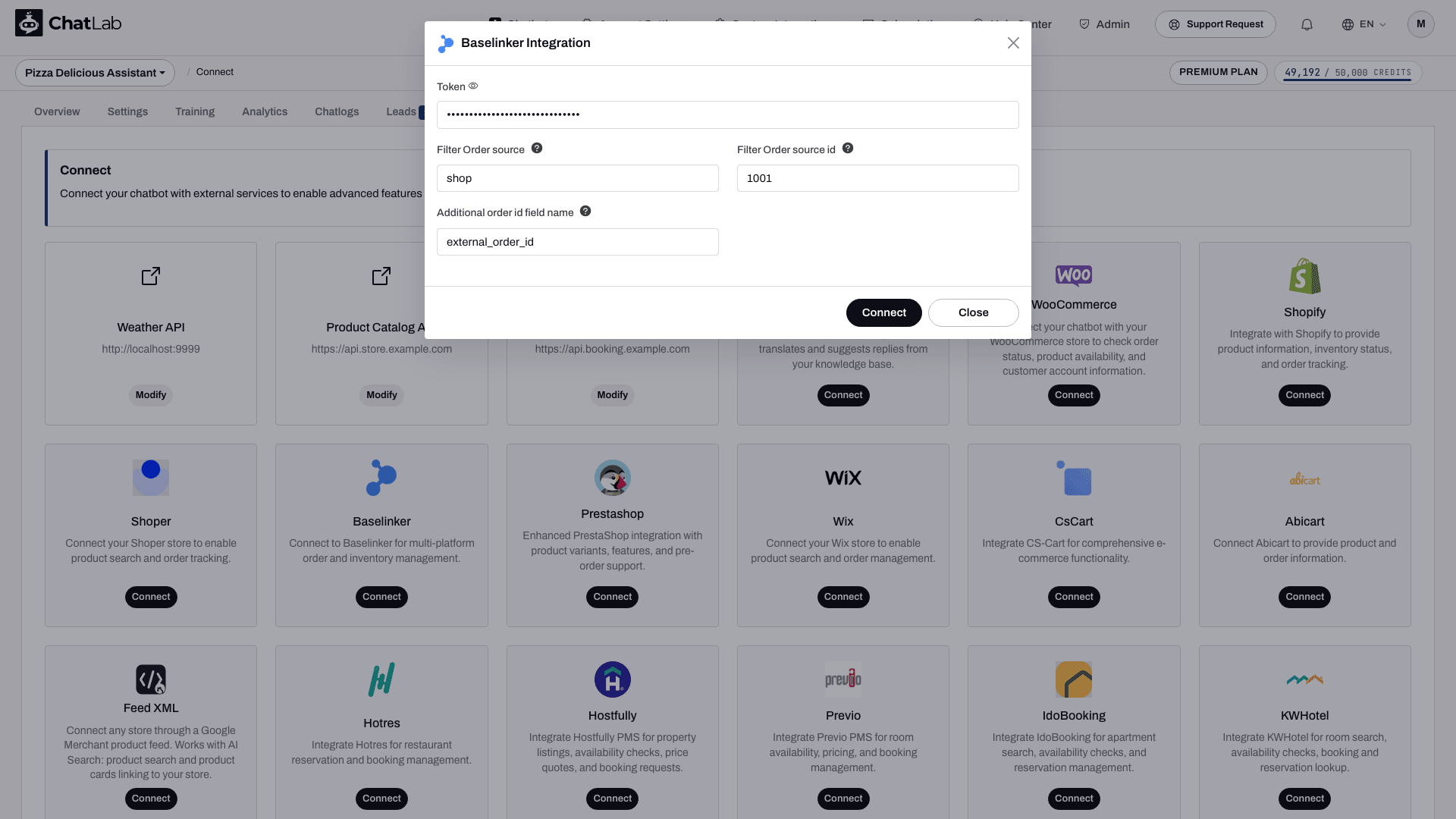
- Token - paste the API token copied from BaseLinker
- Filter Order source - the order source type to filter by (e.g.,
shop,ebay,amazon). This displays only orders that come from the specified source - Filter Order source id - the numeric identifier for the specific store within the selected order source. You can find this value in your BaseLinker panel under Integrations
- Additional order id field name (optional) - if you use BaseLinker extra fields (like
extra_field_1orextra_field_2) to store external order numbers from platforms such as eBay or Allegro, enter that field name here
- Click Connect
ChatLab automatically tests the connection by verifying that your API token is valid and that the configured order source exists in your BaseLinker account. If successful, you will see a confirmation message.
Step 3: Configure BaseLinker Actions
After connecting, you can enable and customize the order details AI action. Navigate to Settings > Actions and filter by the BaseLinker platform.
One action is available:
- Baselinker - order details - enables the chatbot to look up order information when customers ask about their orders
Connection setup enables this action. Review its status, open it to edit the instructions, and use Enable or Update in its dialog. You can also customize the action label (the message shown to users while the action runs) and the instructions that guide how the AI uses the action.
Test the Selected Order Source
Open Overview and ask for the status of a known order using its matching email address. Use only an order you are authorized to access. Confirm that it belongs to the configured source and that status and tracking details match BaseLinker. If you configured an additional order ID field, test that exact external ID too. This integration supplies order lookup, not product search. Install the widget separately through Deploy.