Beds24 is a cloud property management system, channel manager and booking engine used by hotels, guesthouses and vacation rentals. Connecting it to ChatLab lets your chatbot answer questions about rooms, dates and prices from your live Beds24 data instead of from static text you have to keep updating.
Note: Beds24 requires the corresponding integration feature. If your plan does not include them, opening the Beds24 tile shows a short note with a link to contact us instead of the connection form.
Example conversation
From travel dates to room offers
Requires a supported accommodation integration and enabled availability action. An offer or enquiry does not confirm a reservation.

Visitor: A room for two adults, 14 to 16 August.
Play the example or read it below. No real customer data is used.Collect the stay requirements.
Playback pauses when this example leaves the screen. This is a simulation, not a live chat. Widget controls inside the playback are not interactive.Read the complete example
- Collect the stay requirements.
Visitor: A room for two adults, 14 to 16 August.
- Ask for missing date details before searching.
Assistant: Which year would you like to stay?
- The guest supplies the year.
Visitor: 2027.
- Query the connected accommodation system.
Checking room availability...
- Present the offers returned for that stay.
Sea-view double, €280 / stay. Example offer for two adults, two nights.
- Continue using the booking route supported by your integration.
Assistant: Review the booking page for the final price and conditions. No reservation has been made in this demonstration.
The example illustrates the customer experience. The available actions and returned information depend on this integration and your configuration.
What the integration provides
Once connected, the chatbot gets three booking actions. A separate AI room search action is available when the chatbot has the corresponding room-search capacity.
Beds24 - get properties - lists every room and room type in your property. For each one the chatbot can show the room name, description, photo, maximum number of adults and children, and the price it starts from.
Beds24 - find available rooms - the visitor gives a date range and the number of guests, and the chatbot returns the rooms that are free for those dates, with prices and, if configured, a booking link per room.
Beds24 - check room availability - the visitor asks about one specific room. The chatbot matches the room either by its Beds24 room id or by its name, then returns availability and pricing for the requested dates, plus a booking link.
Dates are understood from natural language, so a visitor can write "next weekend" or "12-15 June" rather than a strict date format.
Before you start
You need a chatbot to connect the integration to. If you have not created one yet, follow How to create your first ChatLab chatbot first.
Then collect two values from Beds24:
- Invite code - in your Beds24 control panel go to Settings > Marketplace > API, generate an invite code and select the scopes
read:propertiesandread:inventory. Select read access to properties and inventory; the integration does not create bookings in Beds24. See Beds24 API authentication and scopes. - Property ID - the identifier of the property you want the chatbot to answer for.
Optionally, prepare a third value:
-
Booking URL format - the address of your own booking page, with placeholders that ChatLab fills in for each answer:
{roomId}- the Beds24 room id{arrival}- check-in date{departure}- check-out date
For example:
https://yourdomain.com/book?room={roomId}&arrival={arrival}&departure={departure}If you leave this field empty the chatbot still answers about availability and prices, it just does not add a booking link.
Step 1: Connect Beds24
- Select your chatbot and navigate to the Connect tab.
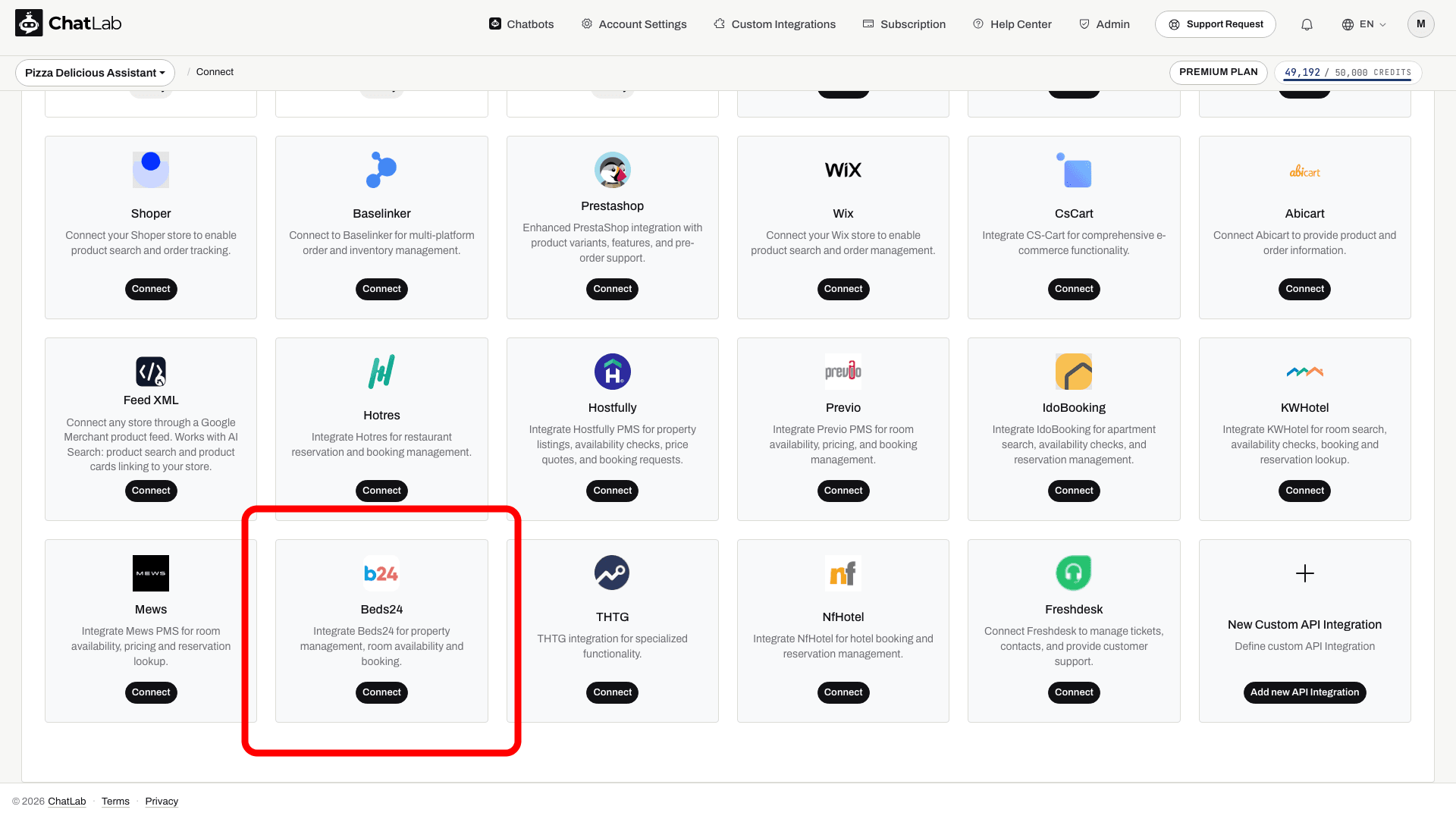
- Click the Beds24 tile.
- Paste your Invite Code, enter your Property ID, and optionally the Booking URL format.
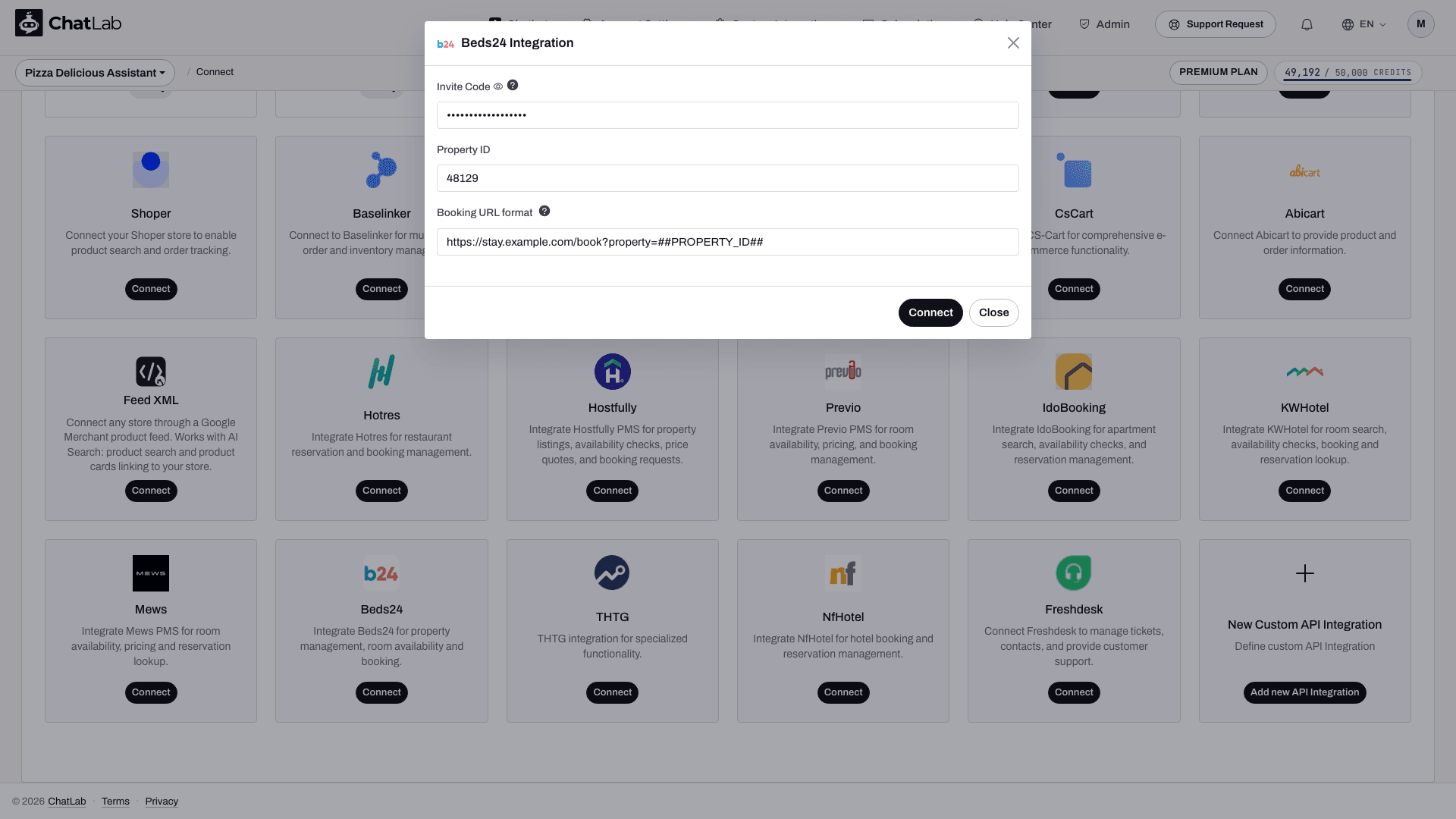
- Click Connect.
ChatLab exchanges the invite code for an access token and a refresh token, saves them with the bot, and then runs a test call against your Beds24 property. If the invite code is invalid or expired, or the property cannot be read, the integration is switched back off and the error is shown in the form, so a broken connection is never left half enabled.
The invite code is used only during this step. Once the integration is connected the field disappears from the form and only Property ID and Booking URL format remain editable. ChatLab renews the access token on its own using the refresh token, as long as the saved credentials remain valid. Revocation or expiry can require a new invite code.
Step 2: Review the Beds24 actions
Connecting switches all three Beds24 actions on for you, so the chatbot is ready to answer immediately. To review or adjust them, navigate to Settings > Actions and look at the Beds24 Actions group. You can also click Beds24 in the Filter by Platform panel on the right to show only this group:
- Beds24 - get properties - default action label "Loading rooms..."
- Beds24 - find available rooms - default action label "Checking availability..."
- Beds24 - check room availability - default action label "Checking room..."
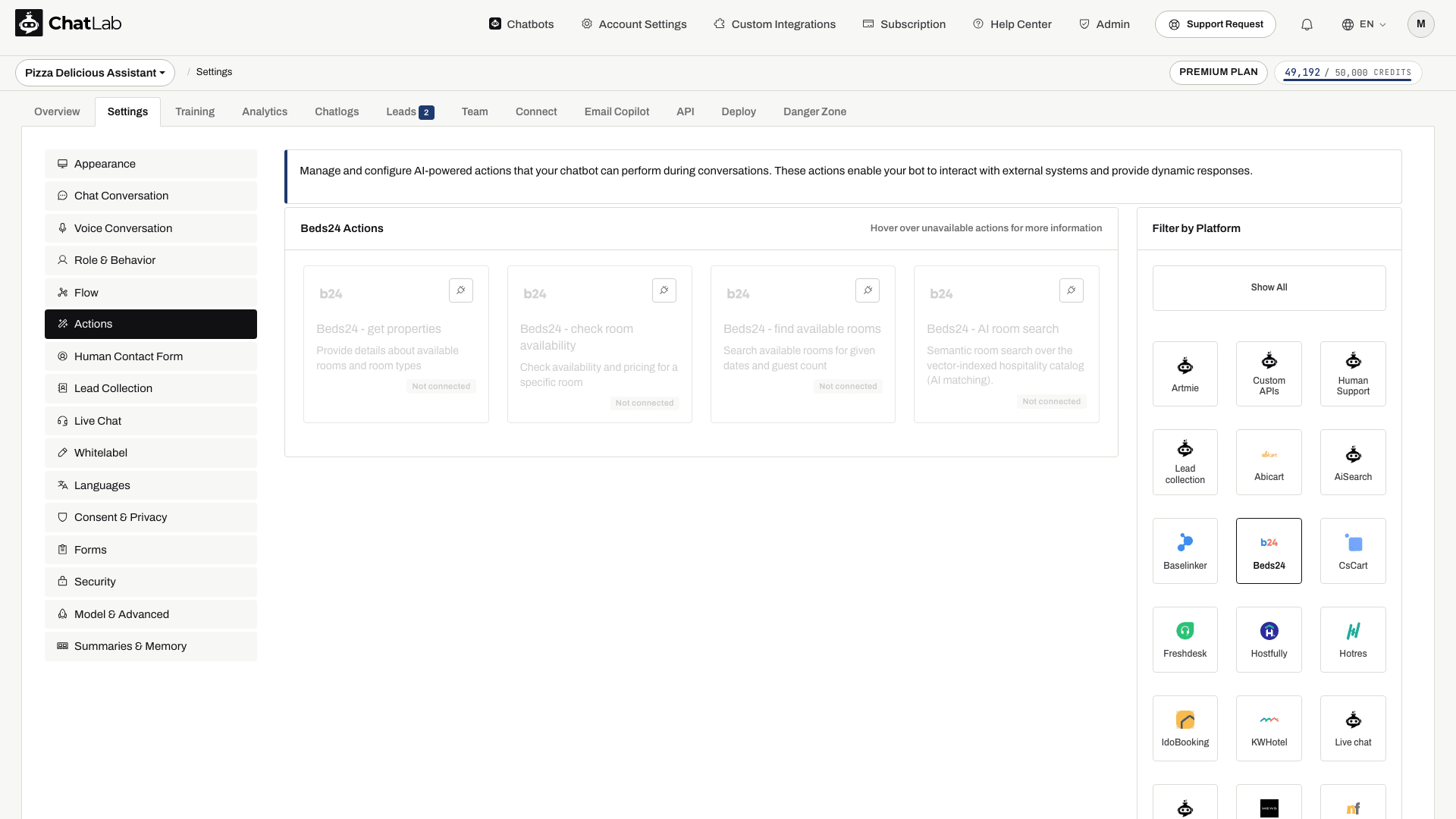
The screenshot above shows the group before the integration is connected: the booking actions and optional AI room search are listed, but marked Not connected and unavailable to the chatbot. The booking actions switch on when connected. AI room search depends on room capacity and catalog auto-indexing; it is not guaranteed to activate with every connection.
For each action you can edit:
- Action Label - the short message the visitor sees in the chat while the action runs.
- Instructions - what the action does, which the AI uses to decide when to call it.
- User Instructions - your own rules on top of that, for example asking for the number of guests before searching, or mentioning your minimum stay.
You can also switch an individual action off if you do not want it. For example, you can leave the room list and the availability search on but turn off the single-room check.
The availability-search action also has a result-count setting: 1 to 10 rooms, with a default of 5. It limits the returned list, so an answer is not necessarily a complete list of every available room.
Step 3: Test it
Open Overview, start a new test conversation and try questions that map to each action:
- "What rooms do you have?" - triggers Beds24 - get properties
- "What is free from 12 to 15 June next year for 2 adults?" - triggers Beds24 - find available rooms
- "Is the Deluxe Suite free next weekend?" - triggers Beds24 - check room availability
Check that the room names and prices match your Beds24 data, and that any booking links open your booking page with the dates already filled in.
Managing the integration
Updating settings - open the Beds24 tile in the Connect tab, change the Property ID or Booking URL format, and save. You do not need a new invite code for this.
Disconnecting - open the Beds24 tile and disconnect. The three Beds24 actions stop being available to the chatbot. To connect again later, generate a fresh invite code in Beds24, because the original one is already used.
Tips
- Keep training your bot on your website content. The Beds24 actions cover rooms, dates and prices; everything else a guest asks about (breakfast, parking, check-in hours, pets) comes from your knowledge base. See Training your chatbot - basics and limits.
- Put booking rules such as minimum stay or a deposit policy into the action's user instructions, so the chatbot mentions them together with availability instead of leaving the guest to find out at checkout.
- Add suggested questions like "Check availability" or "Show rooms" so visitors discover what the chatbot can do.
- Each answer that calls a Beds24 action uses message credits like any other chatbot reply. See What is a message credit.
Related articles
- Integration with Hotres
- Integration with IdoBooking
- Integration with KWHotel
- Training your chatbot - basics and limits
- What is a message credit
Room Catalog and Hotel Overview
If your account shows the Hotel tab, use Hotel > Rooms to review the room catalog and training status. AI room search is separate from date-based availability checks: it matches room descriptions, while availability actions check a requested stay. Automatic room indexing depends on catalog auto-indexing and assigned room capacity; otherwise, use Train rooms when available. Review the enabled actions and wait for training to finish before relying on AI room search.