Connect your ChatLab chatbot with your WooCommerce store to give customers real-time access to product information, category browsing, and order tracking directly in the chat.
Example conversation
Check an order
Requires a connected store and its enabled order action. Available fields depend on the integration. Matching an email address is not proof of identity.

Visitor: Where is my order?
Play the example or read it below. No real customer data is used.The customer asks about an existing order.
Playback pauses when this example leaves the screen. This is a simulation, not a live chat. Widget controls inside the playback are not interactive.Read the complete example
- The customer asks about an existing order.
Visitor: Where is my order?
- The default lookup needs both identifiers.
Assistant: Please give me your order number and the email address used at checkout.
- Use fictional data in this example.
Visitor: 41982, anna@example.com
- The action queries the connected store.
Checking order 41982...
- Report only information returned by the store.
Assistant: Order 41982 is marked as shipped. The carrier is DPD. Please check the tracking page for delivery updates.
The example illustrates the customer experience. The available actions and returned information depend on this integration and your configuration.
Important: E-Commerce Best Practices
After completing the integration below, read the comprehensive guide on optimizing your chatbot for e-commerce: How to set up ChatLab for your E-commerce store
What the Integration Provides
Product Search - Customers can search your WooCommerce catalog by entering a phrase. The chatbot searches across product titles and descriptions, returning the top 5 matching published products with:
- Product ID, name, and description
- Price and SKU
- Product image and direct link to the product page
Product Search by SKU - Customers can look up products using a specific SKU, reference number, or product code. This is useful when customers already know the exact product identifier - for example, from a printed catalog, a previous order, or a recommendation. Returns the same product fields as the standard product search.
Product Search in Category - A more targeted search that combines a keyword with a specific product category. The chatbot first identifies the correct category, then searches within it for matching products. Returns the same product fields as the standard product search.
Get Categories - The chatbot can retrieve a list of product categories available in your store, helping customers navigate your catalog or narrowing down product searches. Each category includes:
- Category ID, name, and slug
- Category description
Order Details - By default, customers provide an order ID and the matching email address. This matches supplied information against store records, not proof that the visitor owns the email. An optional action setting allows lookup by order ID alone. The chatbot returns:
- Order number, total, and status (e.g., processing, completed, cancelled)
- Shipping address with recipient first and last name, company, full address (street, city, state, postal code, country)
- Ordered items with names, quantities, individual prices, and line totals
Prerequisites
Before starting the WooCommerce integration, make sure:
- Your chatbot is created in ChatLab. Installing the storefront widget is separate from connecting store data.
- You have access to your WooCommerce store's WordPress admin panel
Recommended: Connect with the WordPress Plugin
In Connect > WooCommerce, choose Get the WooCommerce plugin for the guided setup. Install the ChatLab plugin, open its WordPress menu, keep Connect WooCommerce integration selected, and click Continue. Sign in to ChatLab and select your chatbot. This connects your store and installs the widget. See the WordPress installation guide.
Choose Continue with manual setup if you need to use your own API keys. The following steps describe that alternative.
Step 1: Generate API Keys in WooCommerce
- Log in to your WordPress admin panel
- Go to WooCommerce > Settings
- Click the Advanced tab
- Select REST API
- Click Add Key
- Enter a description (e.g., "ChatLab Integration")
- Select the user to assign the key to - this must be a user with Administrator or Shop Manager role (other roles like Customer or Subscriber do not have the required permissions to access WooCommerce data)
- Set the permissions to Read
- Click Generate API Key
- Copy the Consumer Key and Consumer Secret - store them securely, as the Consumer Secret cannot be viewed again
Step 2: Connect WooCommerce in ChatLab
- Log in to ChatLab and select your bot
- Go to the Connect tab
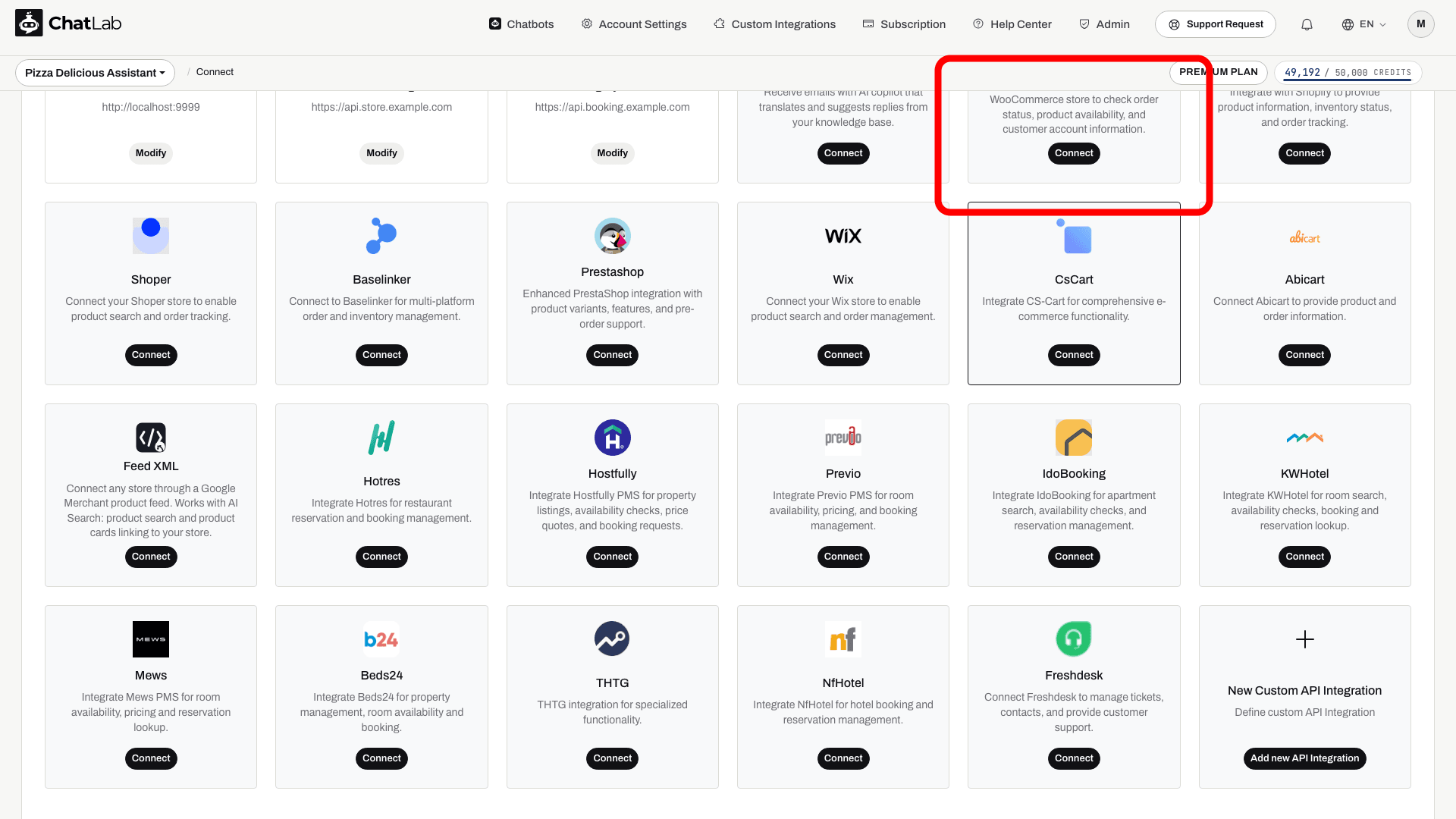
- Click Connect on the WooCommerce tile
- Enter the URL of WooCommerce store (your full store URL, e.g.,
https://www.mystore.com) - Enter the Customer Key (Consumer Key from Step 1)
- Enter the Customer Secret (Consumer Secret from Step 1)
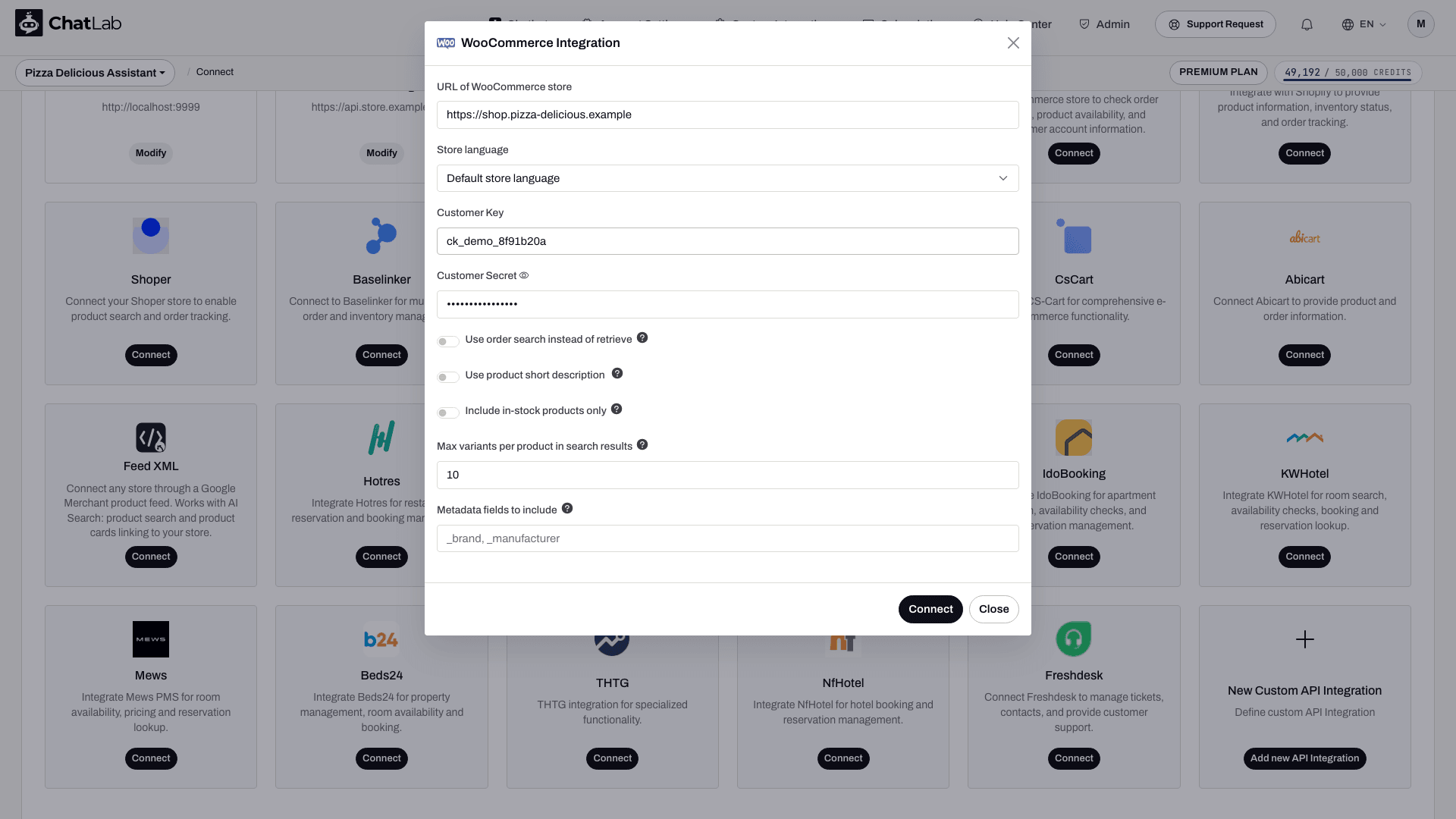
- Click Connect
ChatLab automatically tests the connection by verifying that your API credentials have the required access. If successful, you will see a confirmation message.
Connection Options
The WooCommerce connection form includes additional settings:
- Use order search instead of retrieve - Enable this if your store uses custom order number plugins. It uses a search-based lookup instead of direct retrieval, which is compatible with modified order numbering.
- Use product short description - When enabled, product search results return the WooCommerce short description instead of the full description. Useful for stores with very long product descriptions.
- Include in-stock products only - When enabled, product search results only include items that are currently in stock.
- Store language - choose the language of your product data.
- Custom metadata fields - include only the product fields useful to customers; do not expose private metadata.
- Maximum variants - limits how many variants are returned for a product.
Step 3: Configure WooCommerce Actions
After connecting, you can enable and customize individual AI actions. Navigate to Settings > Actions and filter by the WooCommerce platform.
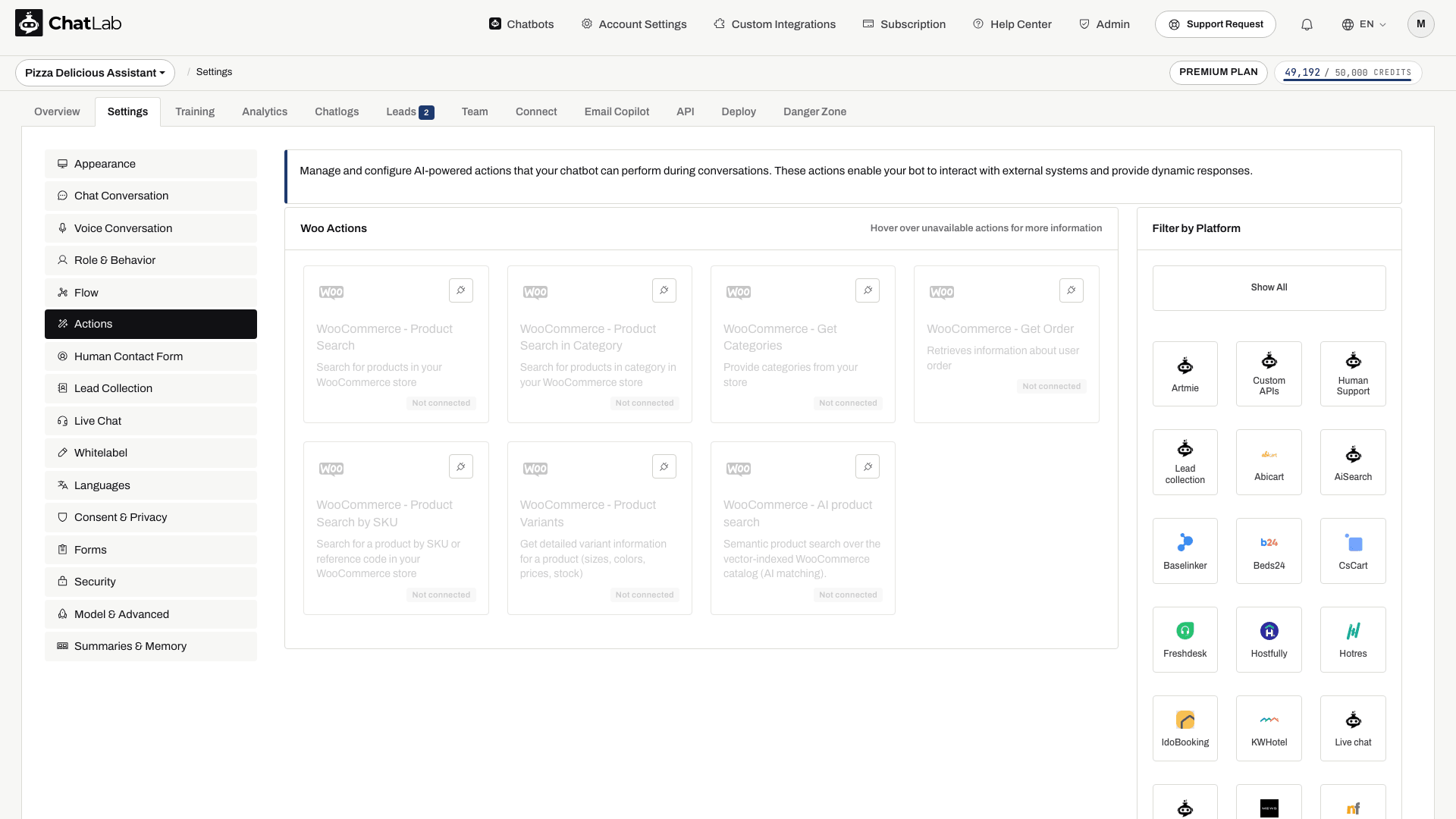
The keyword and order actions include:
- WooCommerce - Product Search - enables the chatbot to search your product catalog by keyword
- WooCommerce - Product Search by SKU - enables the chatbot to find products by their SKU, reference number, or product code
- WooCommerce - Product Search in Category - enables the chatbot to search within a specific product category
- WooCommerce - Get Categories - enables the chatbot to list product categories in your store
- WooCommerce - get product variants - retrieves the available variants of a selected product
- WooCommerce - Get Order - enables the chatbot to look up order information by order ID and email
Connection setup enables order lookup, categories, keyword search, category search, and variants. Product Search by SKU must be reviewed and enabled separately if you want it. Disable actions you do not want customers to use. Open an action to edit it, then use Enable or Update in its dialog. You can also customize the action label (the message shown to users while the action runs) and the instructions that guide how the AI uses each action.
Order lookup and product-search options
In the order action's configuration, Allow order lookup without email verification is off by default. Turning it on exposes order details to anyone who can supply a valid order ID. Leave it off unless your deployment has appropriate access controls.
The ChatLab WooCommerce plugin also supports extended searchable product fields and fuzzy SKU matching. These options need the detected plugin extension; without it, keyword search uses WooCommerce's native search and SKU lookup uses exact matching. Review the relevant product-search action before writing instructions that depend on these options.
AI Product Search and the Shop Tab
For semantic product matching, review AI product search in Settings > Actions. On supported bots, connection setup can enable AI search instead of keyword search and start catalog indexing when auto-indexing is enabled and the required access and capacity are available. Older bots may require manual training. Review Shop > Products or Training > E-commerce catalog, wait for training to finish, and check errors before testing. Keyword-search options do not necessarily apply to AI search.
Testing Your Integration
After activating the actions, open Overview and try:
- "Show me running shoes" (tests product search)
- "I'm looking for product SKU WH-1234" (tests product search by SKU)
- "What categories do you have?" (tests get categories)
- "Show me shoes in the Sportswear category" (tests product search in category)
- "What's the status of my order #1001?" (tests order details; supply the matching email for an order you are authorized to access)
Verify that the responses match data from your WooCommerce store and that product links open correctly.
Install Chatbot on Your WooCommerce Store
To add the chat widget to your WordPress/WooCommerce site, see the detailed guide: Installing Chatbot on a WooCommerce Store
View Demo
You can see a live WooCommerce integration in action: https://yourwear.chatlab.com/shop