When you connect a booking system such as KWHotel, Mews, IdoBooking, Beds24, Hostfully, Hotres or Previo, ChatLab loads your rooms into the room catalog of the chatbot and trains AI room search on them. From that moment a guest can ask for "a quiet apartment for four with a kitchen" and the chatbot answers with matching room cards.
The catch is the data itself. A booking system knows what it needs for a reservation: the room name, how many guests fit in, the bed configuration and maybe a list of equipment. It rarely knows what guests ask a receptionist: how far the apartment is from the main square, whether there is parking, which floor it is on and whether there is an elevator, what the view is like, how check-in works. This article shows how to complete that information so the chatbot can answer from it.
If you have not connected a booking system yet, start with the article for your system, for example Integration with KWHotel, Integration with Mews or Integration with IdoBooking. The room catalog is part of the Hospitality capability - the Hotel tab appears on the chatbot when your plan includes it.
Where to find it
Select your chatbot and open the Hotel tab, then click Rooms in the left column.
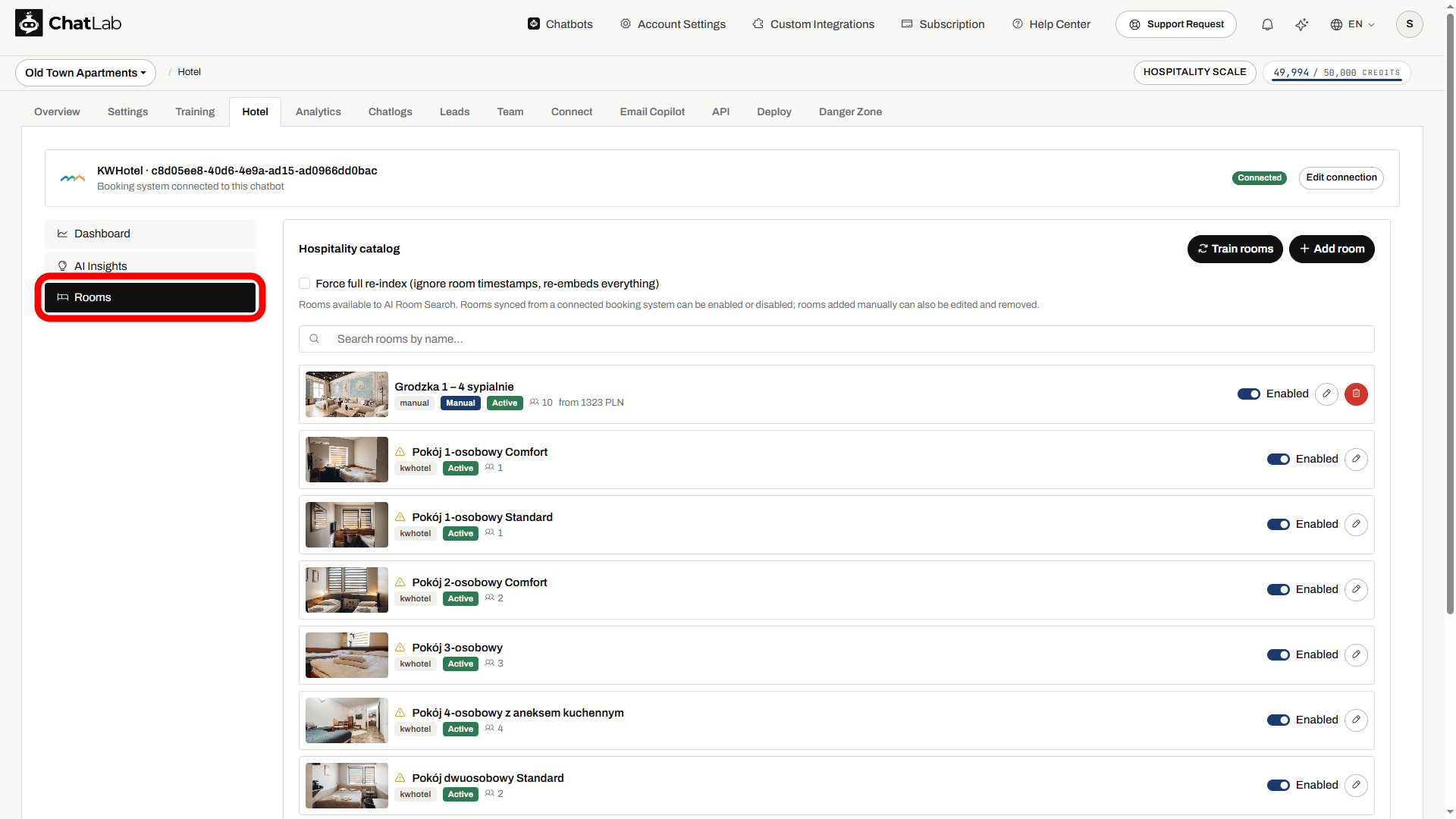
The same section is also available as Training > Hospitality catalog. The connection banner at the top shows which booking system feeds the catalog.
What is loaded automatically
Right after you connect a booking system, ChatLab fetches every room type it exposes, stores it in the catalog and indexes it for AI room search. You do not need to do anything for that to happen - the list in Rooms fills up within a minute or two.
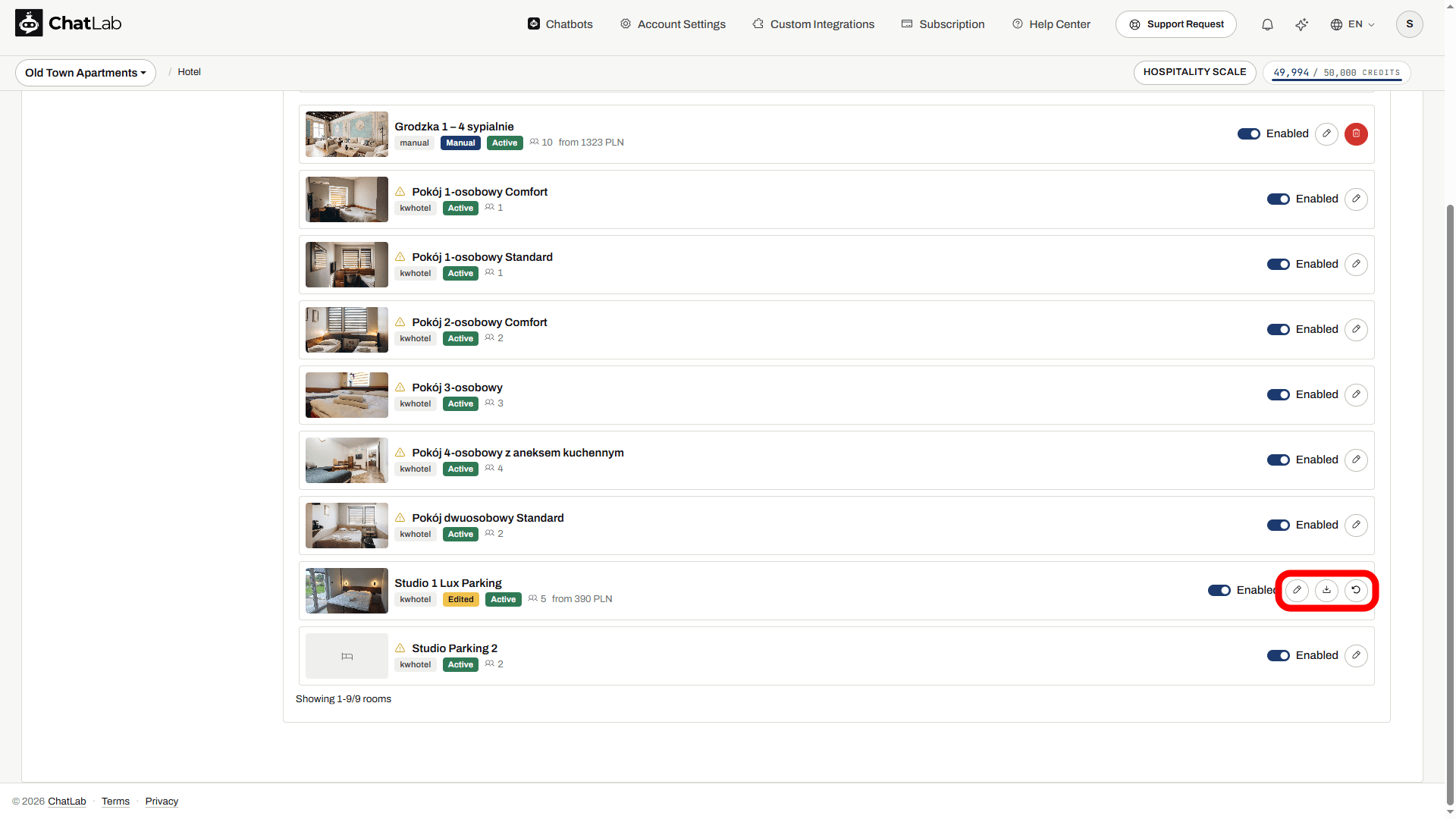
Each row shows the room photo, the name, the source of the room (for example kwhotel), its status and the capacity. A warning triangle in front of the name means this room needs completion - hover over it to see what is missing. In the example below every room arrived without a description and without a link to a page on the website, which is typical for data coming from a booking system.
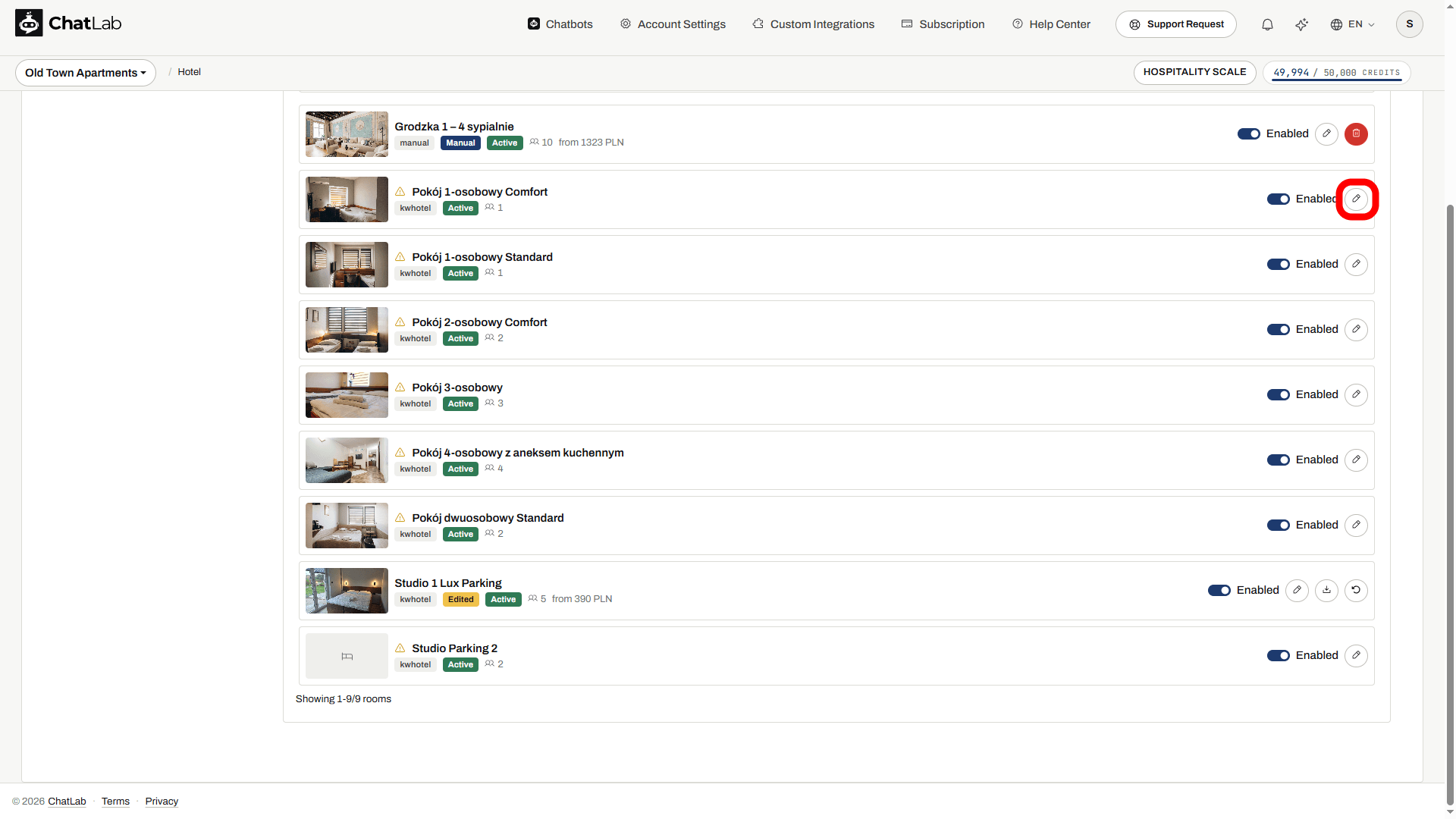
Two buttons at the top of the list manage the catalog as a whole:
- Train rooms - fetches the rooms from the booking system again and re-indexes what changed. Use it after you add or rename room types in the booking system.
- Add room - adds a room that is not in the booking system (see below).
The Enabled switch on each row controls whether the room takes part in AI room search. A disabled room disappears from search results immediately and stops counting toward your room capacity. You can enable it again at any time.
Completing a room by hand
This is the everyday case: the room exists in the booking system, but the chatbot needs to know more about it.
- In Hotel > Rooms click the pencil icon (Edit room) on the room.
- The form opens with the data from the booking system already filled in. A note at the top reminds you that your changes will be kept through future synchronizations.
- Fill in what the booking system left empty. In the example the owner writes a description of a studio in the Old Town, adds the price and a link to the room page.
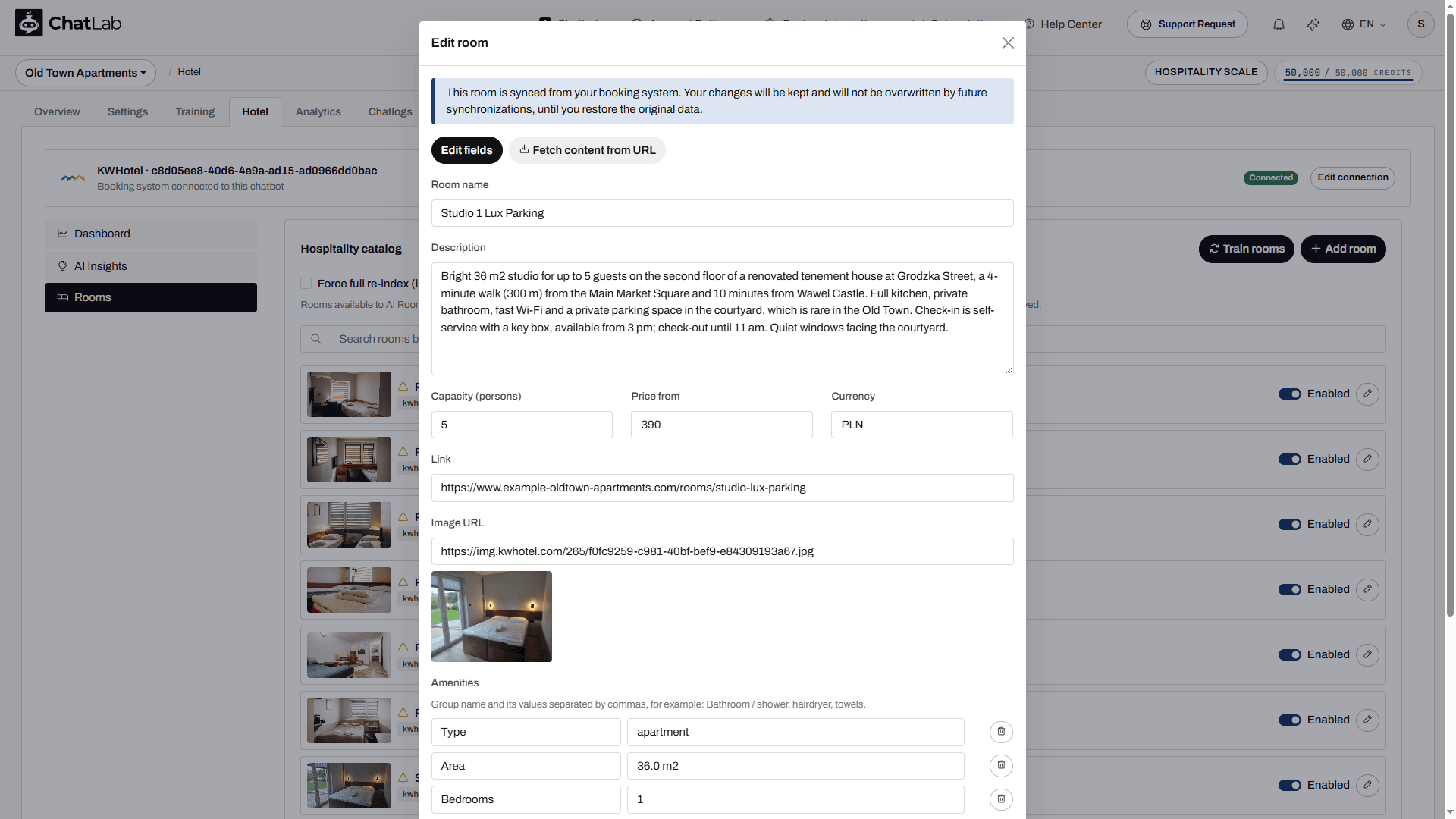
- Scroll down to Amenities. Amenities are groups of short values - the groups that came from the booking system (type, area, beds, equipment) are already there. Click Add amenity group to add your own group, for example Location with values such as "Old Town, 300 m from Main Market Square, 10 min walk to Wawel Castle, private parking, 2nd floor, no elevator".
- Click Save.
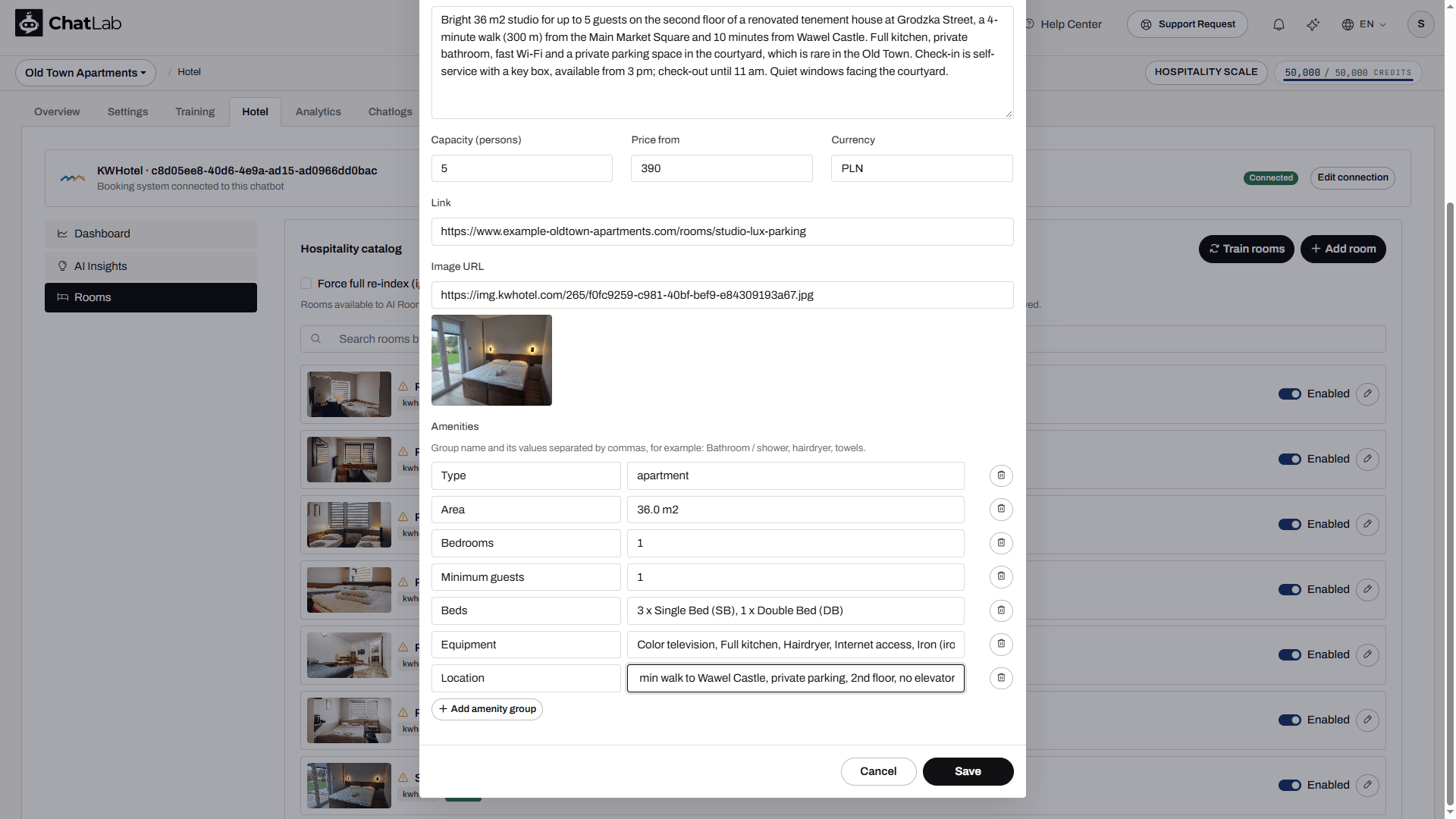
After saving, the room is re-indexed in the background, which takes a few seconds. In the list the room now carries an Edited badge, and two extra icons appear next to the pencil: Fetch content from the room page (when the room has a link) and Restore data from the booking system.
What to put in the description
Write it the way you would answer a guest on the phone. Good candidates, because guests ask about them and booking systems almost never contain them:
- Location - distance and walking time to the main square, the station, the beach, the ski lift; the street; what the windows face.
- Access - floor, elevator, stairs, parking (private, street, paid garage), how to get in (reception, key box, self check-in).
- Rules and times - check-in and check-out hours, quiet hours, pets, smoking, children and extra beds.
- What makes the room different - view, balcony, kitchen, bathtub versus shower, air conditioning, accessibility.
Everything you write becomes searchable. A guest asking "something close to the main square with parking" is matched against the description and the amenity groups, not only against the room name.
Fields in the form
- Room name - shown on the room card in the chat. Required.
- Description - free text, the main source for AI room search and for the text on the room card.
- Capacity (persons) - maximum number of guests. Used when a guest states how many people are travelling.
- Price from and Currency - the "from" price shown on the card. Live prices for specific dates still come from the booking system.
- Link - the page the room card opens when a guest clicks it. Also the page used by Fetch content from URL.
- Image URL - the photo on the room card. A preview appears under the field once the address is valid.
- Amenities - groups of values separated by commas, for example "Bathroom / shower, hairdryer, towels".
Restoring the original data
If you want the booking system's version back, click the restore icon (circular arrow) on the room and confirm. Your edits are discarded, the room is fetched from the booking system again and the Edited badge disappears.
Filling the form from a page on your website
If every room already has its own page on your website, you do not have to retype anything. Both the edit form and the add form can read the page for you.
- Open the room (pencil icon) and click Fetch content from URL.
- Paste the address of the page describing this room and click Fetch.
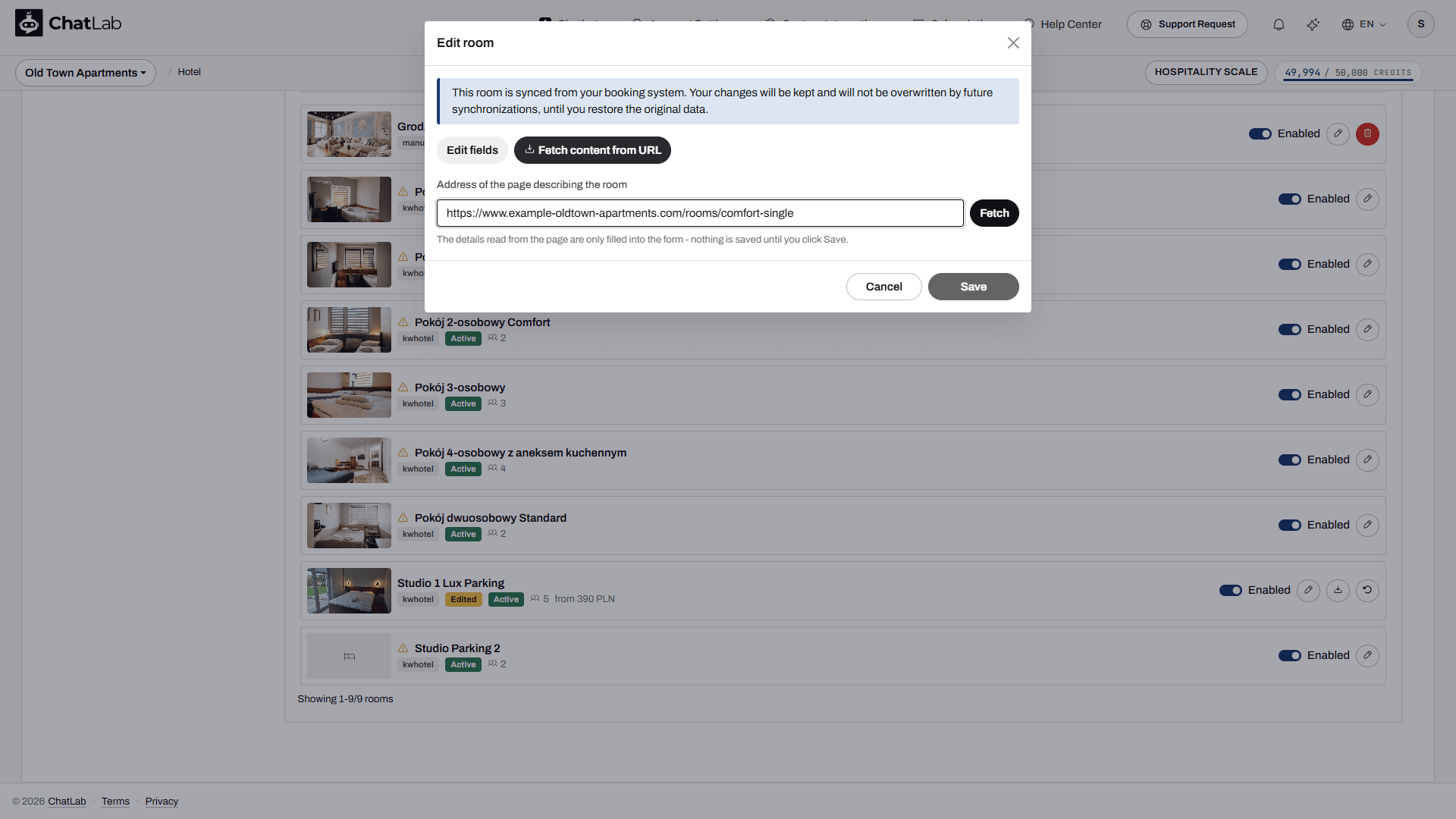
ChatLab fetches the page with the same engine that trains chatbots on websites, so pages rendered by JavaScript work too. It reads the room name, a short guest-facing description, capacity, price, currency, the amenities and the main photo, and fills them into the form. The description from the page replaces the current one; other fields are only filled where they were empty, so values you typed yourself stay. The text comes in the language of the page.
Nothing is saved at this point - the form switches back to Edit fields so you can review the result, correct it and click Save. The same works from the list: the download icon on a room that already has a link fetches the page and opens the form with the result.
Adding a room that is not in the booking system
Some rooms never reach the booking system: a holiday house rented separately, an apartment sold only by phone, a long-stay offer. You can add them to the catalog yourself.
- In Hotel > Rooms click Add room.
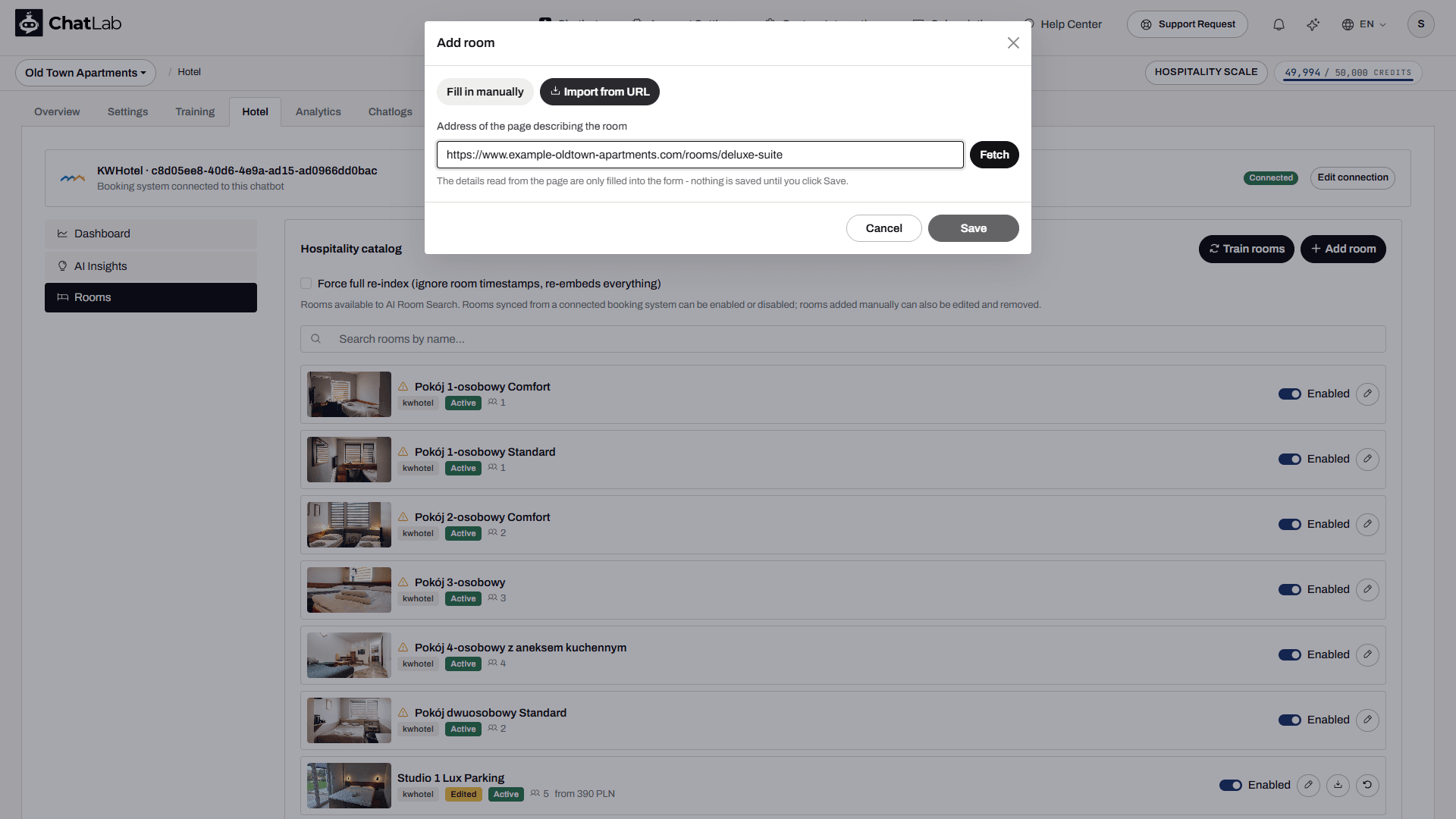
- Choose Fill in manually and complete the form described above, or choose Import from URL, paste the address of the room page and click Fetch.
With the import, the form comes back filled in - name, description, capacity, price, photo and amenity groups read from the page. Review it and click Save.
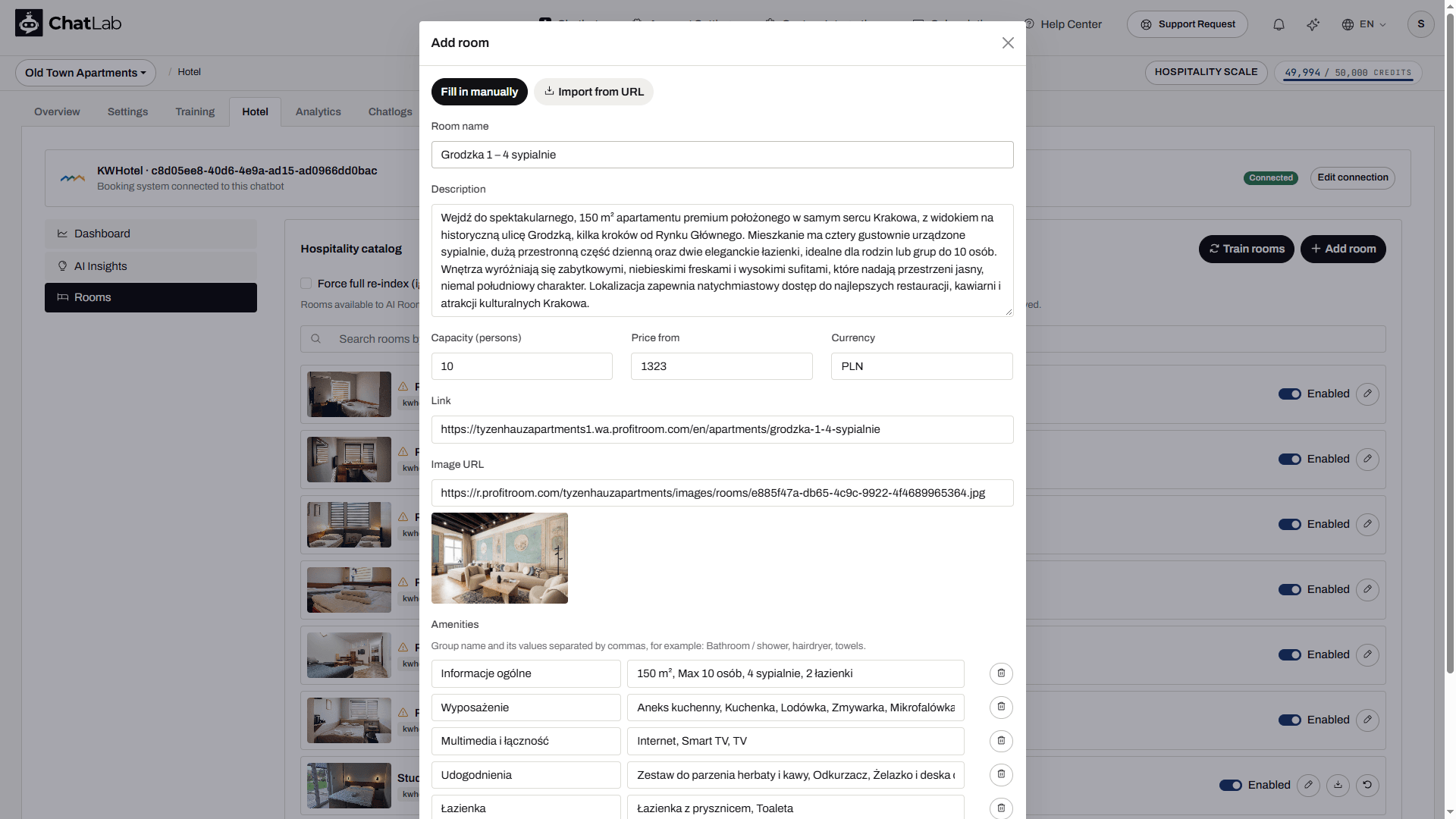
Rooms added this way carry a Manual badge in the list and a red bin icon that removes them for good. They take part in AI room search exactly like synced rooms. Because they have no booking system behind them, the chatbot cannot check live availability for them - it describes them and points guests to the link you entered.
Every room in the catalog, synced or manual, counts toward the room capacity of your plan. The current usage is shown under Training in the Limits box as Rooms. When the catalog is full, Add room is greyed out until you disable or remove a room or extend the capacity with an AI Rooms Pack.
Checking that AI room search is on
The catalog is used by the AI room search action. ChatLab enables it automatically when a booking system is connected, so normally there is nothing to do. To verify, open Settings > Actions and find the card named after your booking system, for example KWHotel - AI room search - it should be marked Active. The pencil on the card lets you change how many rooms a single search returns (1 to 10, default 5) and the label shown to the guest while the search runs.
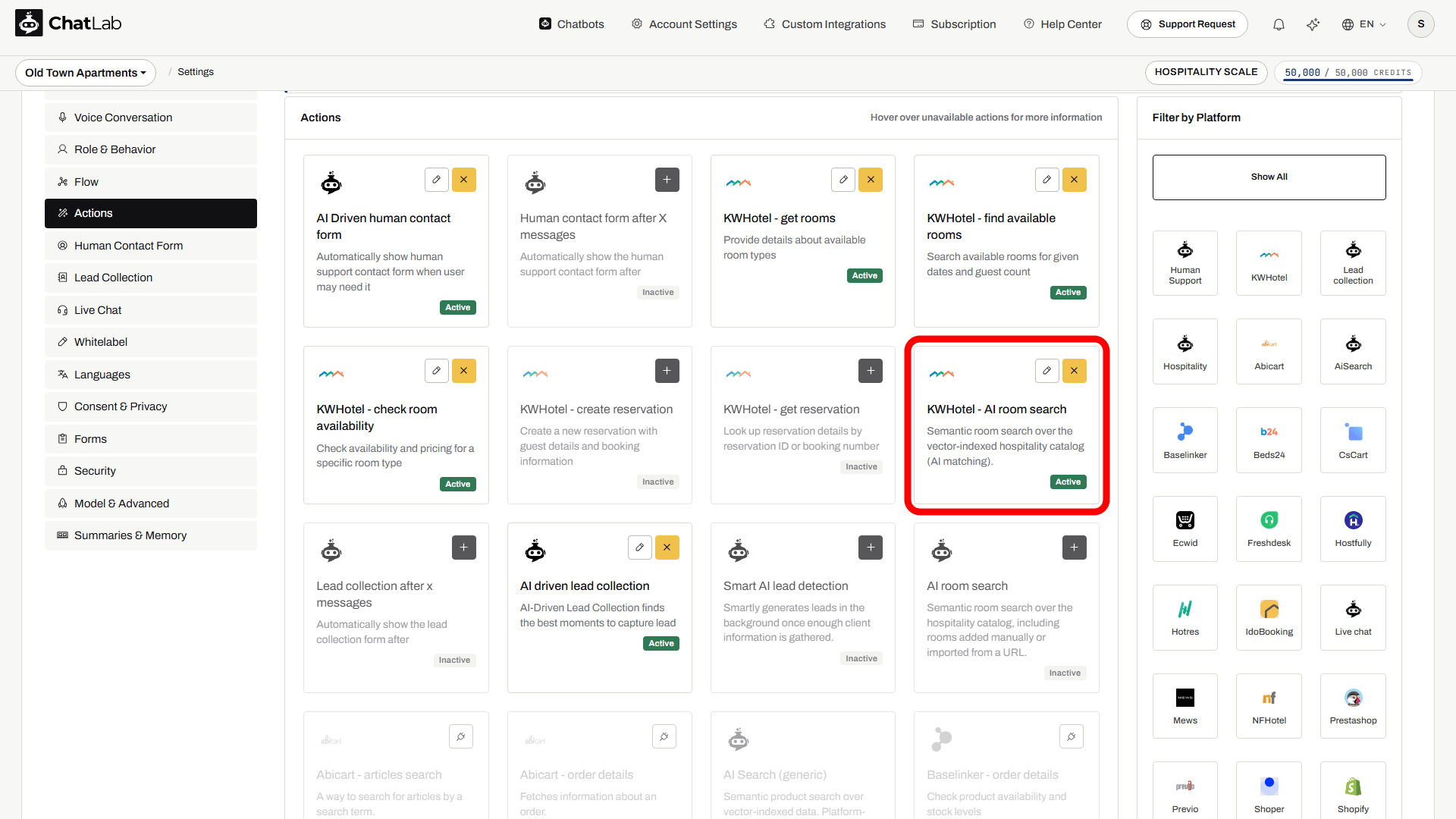
AI room search finds rooms by what they are like. Checking whether a room is free on specific dates is a separate action of the booking system integration, described in the article for your system. The description and photo you add to a room are used on the cards of both.
How it looks to the visitor
Open Overview and ask the chatbot the kind of question your guests ask. With the studio from the example completed, "Do you have an apartment for 4 people close to the Main Market Square, ideally with parking?" returns the studio with its card and an answer built from the description you wrote - the distance to the square, the parking in the courtyard, the second floor without an elevator and the price.
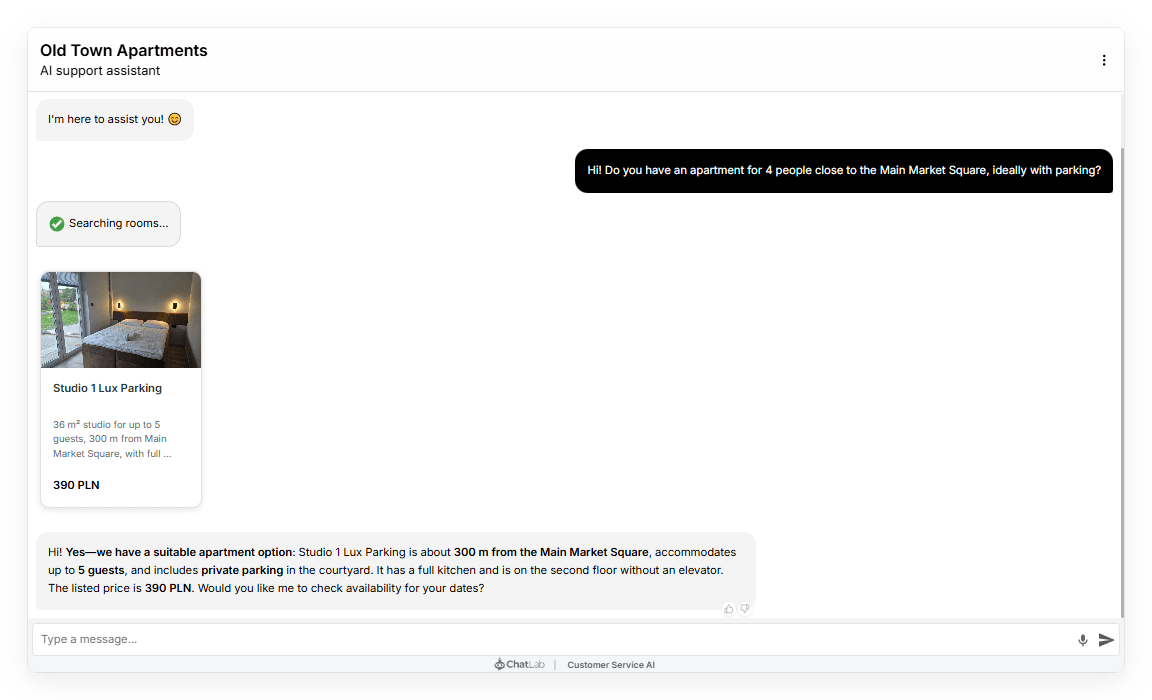
If a room does not come up as expected, open it and check that the detail you are asking about is actually written in the description or an amenity group, then wait a few seconds after saving for the re-index to finish.