Connect your ChatLab chatbot with your Shopify store so customers can find products and check their orders directly in the chat. Products are found through AI Search, which searches your indexed Shopify catalogue by meaning, or through live store search, which queries the store API.
Example conversation
Check an order
Requires a connected store and its enabled order action. Available fields depend on the integration. Matching an email address is not proof of identity.

Visitor: Where is my order?
Play the example or read it below. No real customer data is used.The customer asks about an existing order.
Playback pauses when this example leaves the screen. This is a simulation, not a live chat. Widget controls inside the playback are not interactive.Read the complete example
- The customer asks about an existing order.
Visitor: Where is my order?
- The default lookup needs both identifiers.
Assistant: Please give me your order number and the email address used at checkout.
- Use fictional data in this example.
Visitor: 41982, anna@example.com
- The action queries the connected store.
Checking order 41982...
- Report only information returned by the store.
Assistant: Order 41982 is marked as shipped. The carrier is DPD. Please check the tracking page for delivery updates.
The example illustrates the customer experience. The available actions and returned information depend on this integration and your configuration.
Before you start
Create or select a chatbot first. You need permission to manage its integrations and access to the external account's connection settings. If the Connect tile shows an upgrade or contact prompt, check that your subscription includes this integration. Keep API credentials private; never paste them into website embed code.
Important: E-Commerce Best Practices
After completing the integration below, read the comprehensive guide on optimizing your chatbot for e-commerce: How to set up ChatLab for your E-commerce store
How the Chatbot Finds Products on Shopify: AI Search and Live Store Search
There are two ways a ChatLab chatbot finds products in a Shopify store. A chatbot uses one or the other, never both.
AI Search (recommended) - ChatLab keeps its own index of your Shopify catalogue and the chatbot searches it by meaning.
- Customers ask in plain language, for example "a red dress under 300". A price range is applied as a strict filter, and exact product codes (SKU, EAN) are matched too.
- Price, stock and variants are read live from Shopify at the moment of answering, so customers see current data even between index refreshes.
- Results appear as product cards in the chat, up to 5 per answer.
- Indexing starts by itself when the store is connected. The catalogue does not use training characters.
- Plan you need: every E-commerce plan includes it (Free 100 products, Start 2,000, Grow 5,000, Scale 20,000). On a Universal plan, add the E-commerce integrations add-on ($30 a month) plus an AI Search product pack ($29 a month, 5,000 products) assigned to the chatbot.
Live store search - the chatbot passes the customer's phrase to the Shopify search through the store API and answers with what the store returns.
- Nothing is indexed and nothing has to be kept in sync. The data is always live.
- It is a keyword search: it finds what your store's own search would find for that phrase. It does not understand descriptions of a need, synonyms or typos the way AI Search does.
- Plan you need: a Universal plan with the E-commerce integrations add-on ($30 a month). No product pack is needed.
When AI Search is on, it replaces live store search. Order status works the same way on both paths. A third option, training on scanned store pages, is available on any plan and is meant for informational content such as delivery and returns, not for products. For a full comparison see AI Search: how your chatbot finds products, and for product limits see E-commerce plans and limits.
What the Integration Provides
Live store search (product search by phrase) - The chatbot sends the customer's phrase to the Shopify search. It searches across product titles, descriptions, types, tags, and vendors, returning matching active products with:
- Product name, description, and type
- Vendor and tags
- Price or price range (for products with multiple variants)
- Available variants with SKU, compare-at price, inventory quantity, and availability status
- Product image and direct link to your store
You can configure product search to show only in-stock products. When enabled, out-of-stock items are excluded from results. An additional option lets you include products available for pre-order even when the in-stock filter is active. See Step 4 for details.
Order Details - By default, customers provide their order number and matching email address. Optional modes allow lookup by order ID alone or recent orders by email alone. These are data matches, not proof of the visitor's identity. The chatbot returns:
- Order reference, date, total, and currency
- Ordered items with names, quantities, prices, SKU, variant title, and vendor
- Fulfillment status and tracking information (number, company, URL)
- Shipping address and billing address
- Shipping method and cost
- Customer contact information (email, name, phone)
- Cancellation reason and date (for cancelled orders)
Step 1: Create Shopify API Credentials
Important for agencies and Shopify partners: Create and install the app in the organization that owns the store. ChatLab's Client ID and Secret connection uses Shopify's client credentials grant, which does not support an app owned by a different organization. If you see "The app cannot access this store", check the app's organization and installation before replacing credentials. See Shopify's client credentials requirements.
- Log in to your Shopify admin panel
- Go to Settings > Apps
- Click Develop apps
- On the App Development page, click Build apps in Dev Dashboard - this opens dev.shopify.com/dashboard
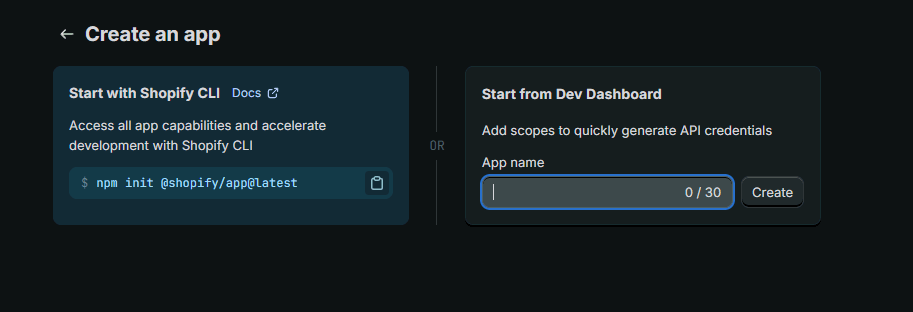
- Click Create app and enter a name (e.g., "ChatLab Integration")
- Once created, scroll to the Access section and click Select scopes
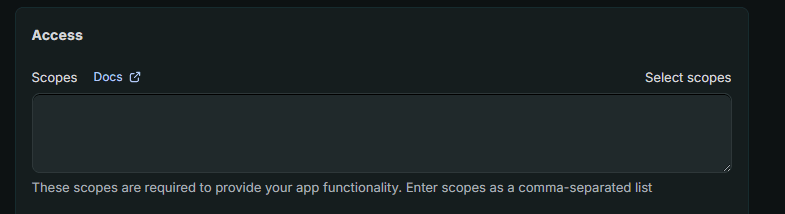
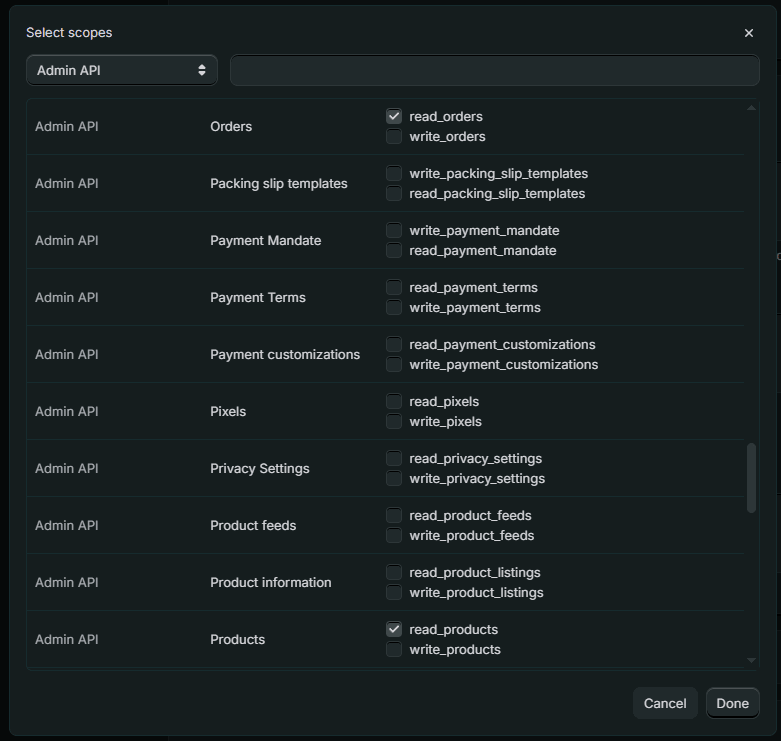
- Under Admin API access scopes, find and enable these permissions:
read_productsread_orders
- Click Done
- Click the Release button to release your app
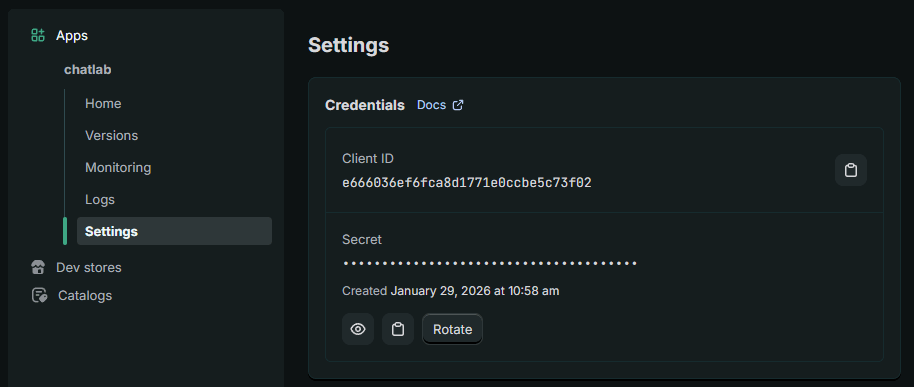
- Go to App settings and copy the Client ID and Secret - store these securely, you will need them to connect with ChatLab
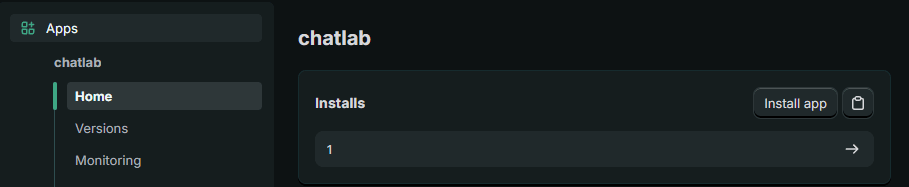
- Go to the Home section and click to install the application in your store
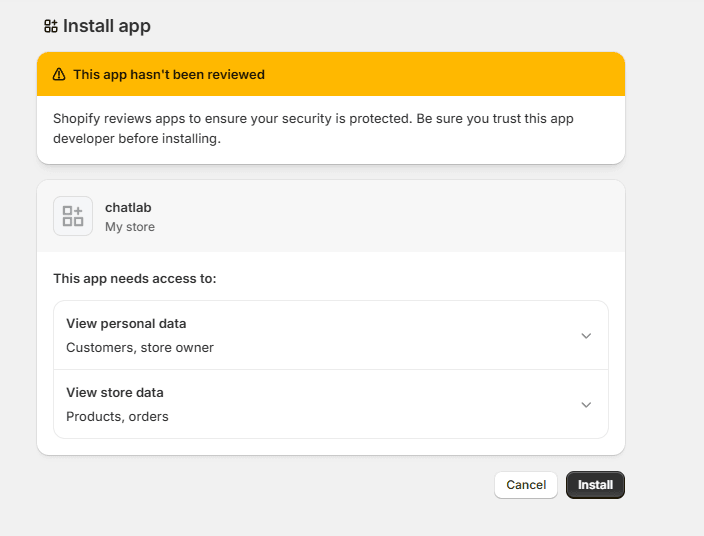
- Select your store and confirm by clicking Install
Step 2: Find Your Store Subdomain
Find the store's myshopify.com domain in Settings > Domains in Shopify, then enter only the part before .myshopify.com. For pizza-delicious.myshopify.com, enter pizza-delicious, not your custom storefront domain or the admin.shopify.com dashboard URL. See Shopify's domain guide.
Step 3: Connect Shopify in ChatLab
- Log in to ChatLab and select your bot
- Go to the Connect tab
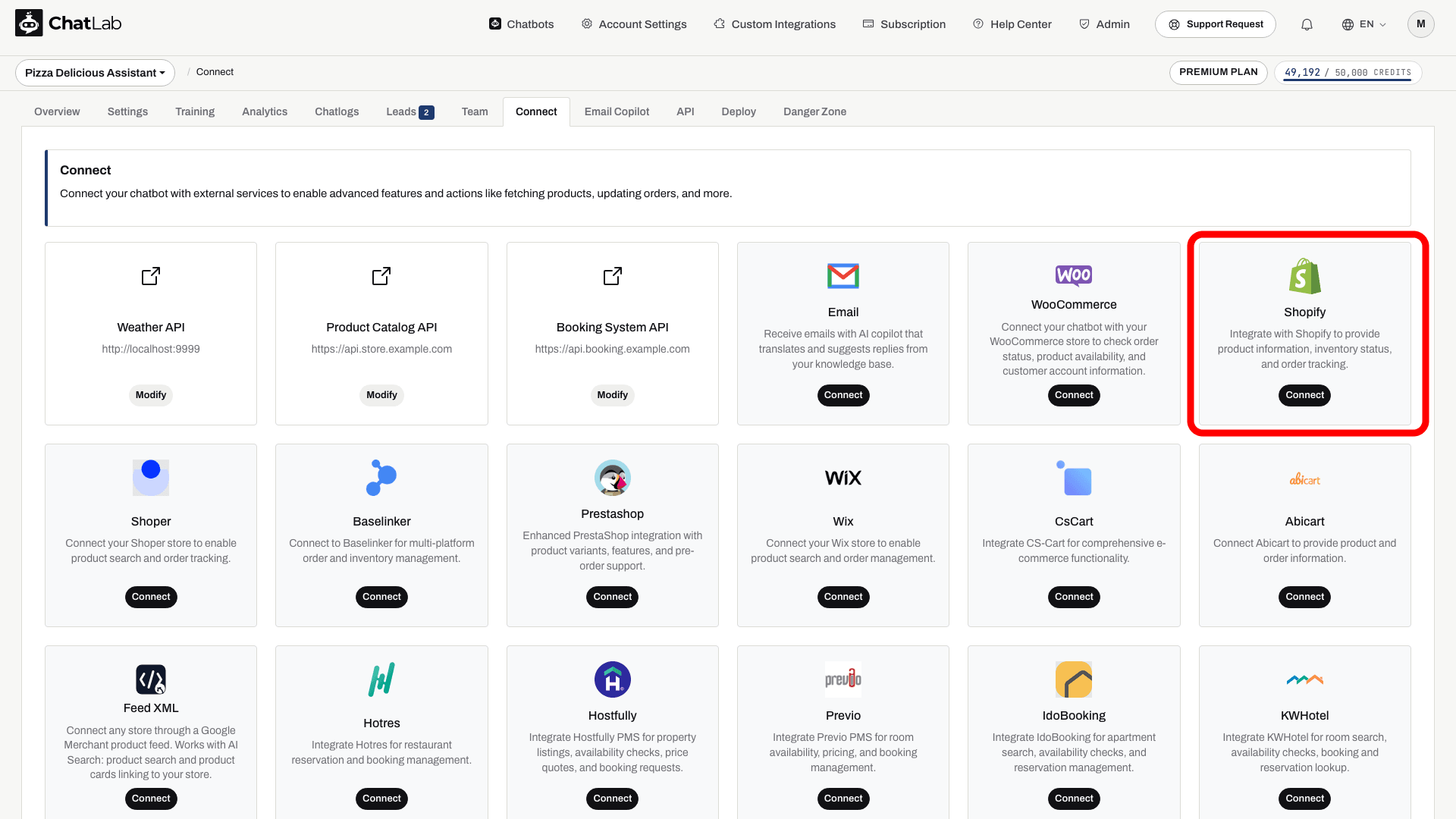
- Click Connect on the Shopify tile
- Enter your Client ID (from Step 1)
- Enter your Secret (from Step 1)
- Enter your Shopify subdomain (from Step 2)
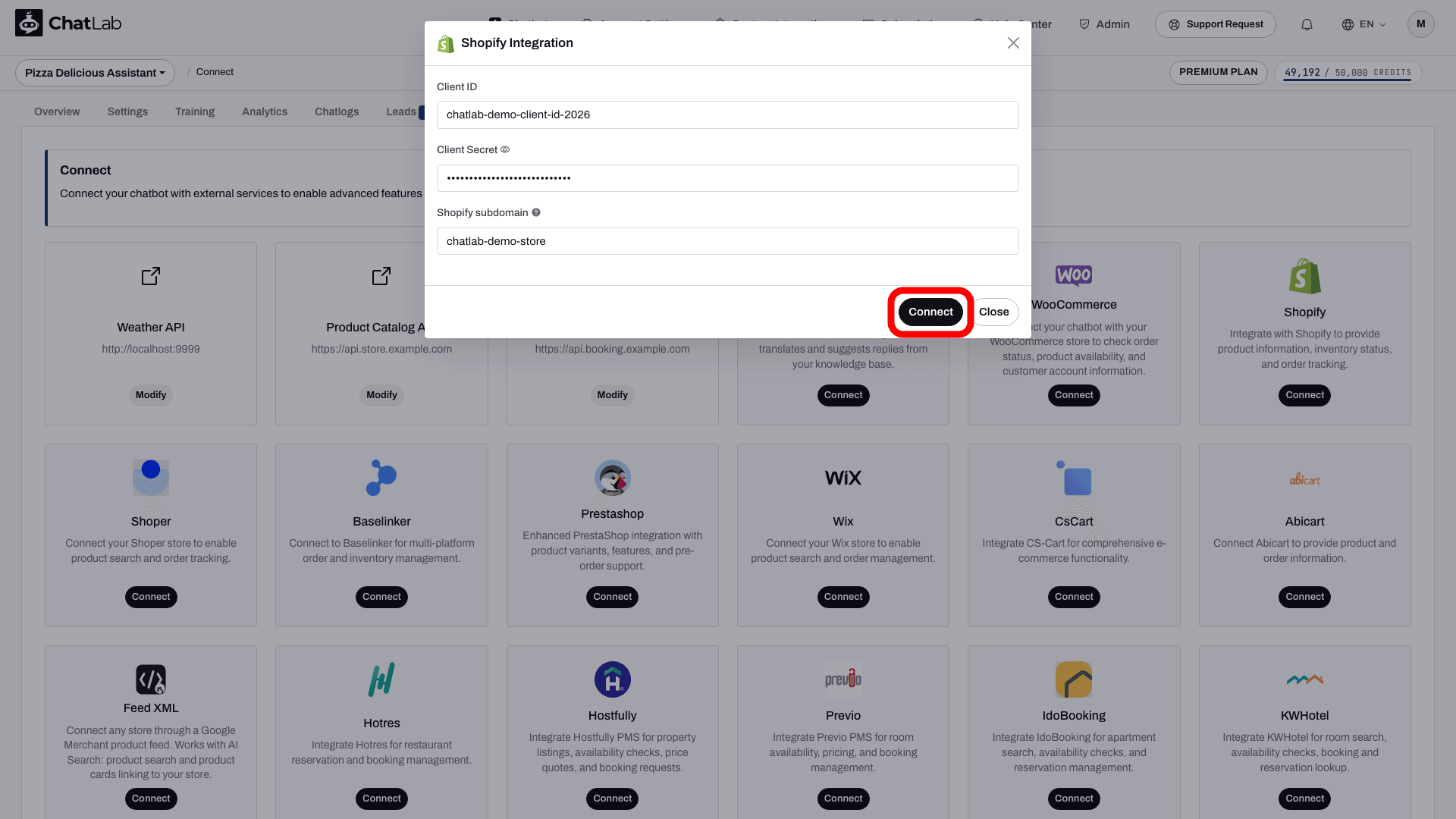
- Click Connect
ChatLab automatically tests the connection by verifying that your API credentials have the required access scopes. If successful, you will see a confirmation message.
Step 4: Configure Shopify Actions
After connecting, you can enable and customize individual AI actions. Navigate to Settings > Actions and filter by the Shopify platform.
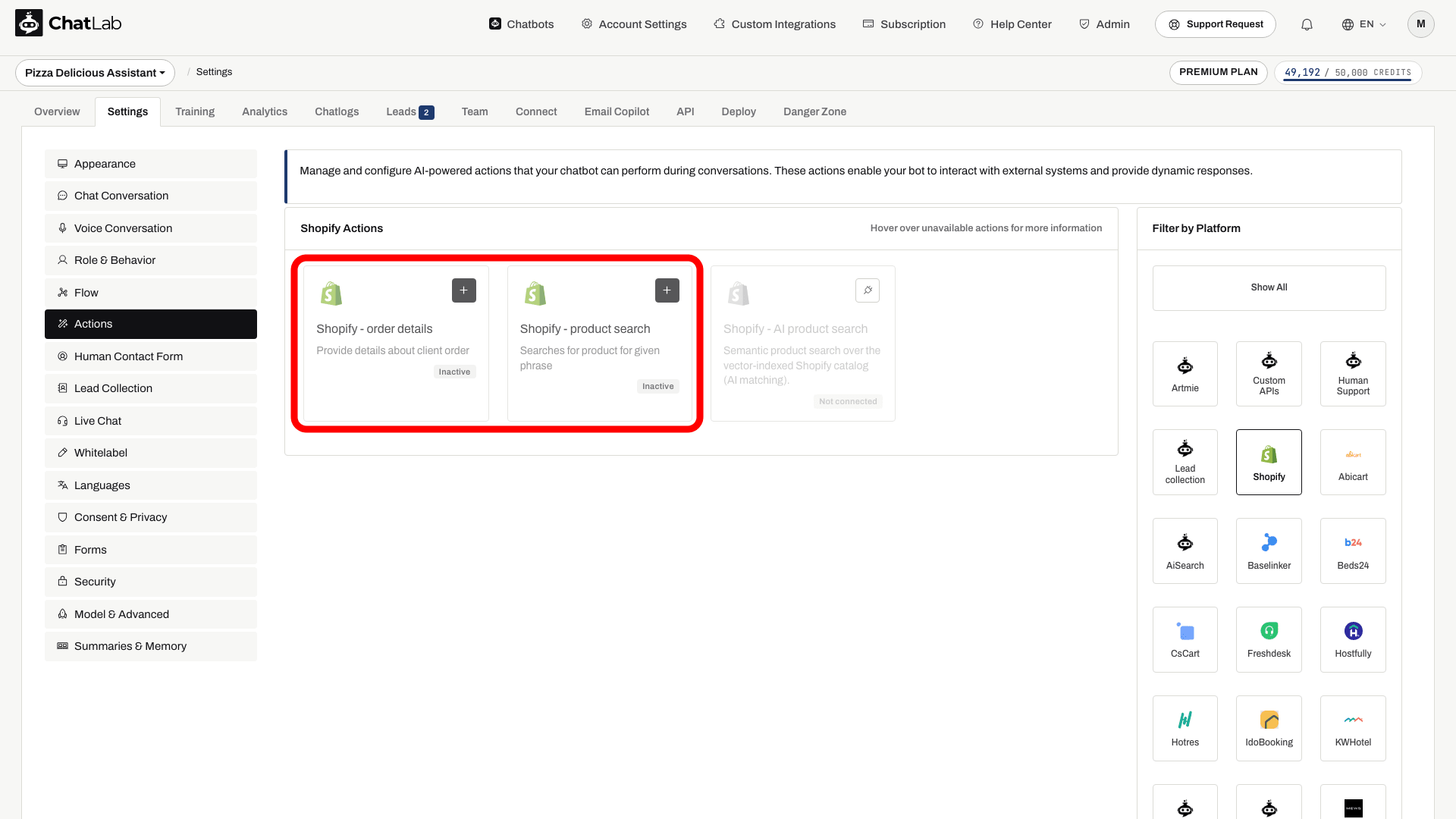
The standard actions include:
- Shopify - product search - enables the chatbot to search your product catalog
- Shopify - order details - enables the chatbot to look up order information
Connection setup enables the standard actions. Review their status and disable any you do not want customers to use. Open an action to edit it, then use Enable or Update in its dialog. You can also customize the action label (the message shown to users while the action runs) and the instructions that guide how the AI uses each action.
Product Search - Inventory Settings
The product search action includes inventory filtering options in its Product Search Settings tab:
- Products in stock only - When enabled, the chatbot only returns products that are currently in stock. Out-of-stock products are excluded from search results.
- Show products available for pre-order - This option appears when "Products in stock only" is enabled. When active, products that are out of stock but configured to continue selling (pre-order) in Shopify will still appear in search results, marked as available for pre-order.
Order lookup privacy
In the order action's Order Lookup Configuration, Allow order lookup without email verification and Allow order lookup by email address only are both off by default. The email-only mode returns 1 recent order by default, configurable from 1 to 3. Enabling ID-only lookup disables email-only mode. Anyone who knows the selected lookup identifier may obtain order information, so review your access controls and PII masking before enabling either option.
AI Search for Shopify: Catalogue, Re-indexing and Settings
On an E-commerce plan, or on a Universal plan when an AI Search product pack is assigned to the chatbot, AI Search is on and replaces live store search. Indexing starts by itself when the store is connected.
- Check the catalogue - open Training > E-commerce catalog and review the Products and Categories tabs. Shop > Products shows the Product catalog panel and the AI Search packs on this chatbot card.
- Schedule re-indexing - use Schedule auto-retrain in Training > E-commerce catalog. Re-indexing can run as often as daily and is available on every E-commerce plan and with every product pack. Train now or Retrain runs it on demand. Refreshes are incremental: unchanged products are skipped and removed products are deleted from the index.
- Review the action - in Settings > Actions, open Shopify - AI product search. Its options are Include product card, Products in stock only and Number of products to return.
- Show product cards - turn on Enable Offer Cards in Settings > Model & Advanced. See Offer Cards.
When the catalogue is bigger than the product limit, indexing stops at the limit and the chatbot owner gets an e-mail. Options of the live store search action described above do not necessarily apply to AI Search.
Testing Your Integration
After activating the actions, open Overview and try:
- "Show me running shoes" (tests product search)
- "What's the status of my order #1001?" (tests order details; supply the matching email for an order you are authorized to access)
Verify that the responses match data from your Shopify store and that product links open correctly.
Install Chatbot on Your Shopify Store
To add the chat widget to your Shopify storefront:
- In ChatLab, go to the Deploy tab for your bot
- Select the Shopify platform tab
- Select Widget and copy the code snippet
- In your Shopify admin, go to Online Store > Themes
- Click the three-dot menu on your active theme and select Edit code
- Open the
theme.liquidfile under Layout - Paste the code snippet inside the
<head>section - Click Save
Open the published storefront to confirm the widget loads. The API connection and storefront installation are separate; review the enabled actions in Settings > Actions.