Connect your ChatLab chatbot with your KWHotel property management system to provide real-time room availability, booking, and reservation lookup to your website visitors. The integration uses the GuestSage booking engine for room and availability data, and the KWHotel Integrations API for reservation lookup.
Example conversation
From travel dates to room offers
Requires a supported accommodation integration and enabled availability action. An offer or enquiry does not confirm a reservation.

Visitor: A room for two adults, 14 to 16 August.
Play the example or read it below. No real customer data is used.Collect the stay requirements.
Playback pauses when this example leaves the screen. This is a simulation, not a live chat. Widget controls inside the playback are not interactive.Read the complete example
- Collect the stay requirements.
Visitor: A room for two adults, 14 to 16 August.
- Ask for missing date details before searching.
Assistant: Which year would you like to stay?
- The guest supplies the year.
Visitor: 2027.
- Query the connected accommodation system.
Checking room availability...
- Present the offers returned for that stay.
Sea-view double, €280 / stay. Example offer for two adults, two nights.
- Continue using the booking route supported by your integration.
Assistant: Review the booking page for the final price and conditions. No reservation has been made in this demonstration.
The example illustrates the customer experience. The available actions and returned information depend on this integration and your configuration.
What the Integration Provides
With the KWHotel integration enabled, your chatbot can:
- List room types with descriptions, capacity, area, and photos
- Find available rooms for a given date range with pricing
- Check availability for a specific room and date range
- Create new reservations with guest details
- Look up existing reservations
Prerequisites
Before setting up the integration, make sure you have:
- A KWHotel account with the GuestSage booking engine enabled
- Your Hotel ID (UUID) from the GuestSage booking engine
- For reservation lookup: your Integrations Hotel ID (numeric) and Integrations API Key issued by KWHotel
- A ChatLab subscription that includes the KWHotel integration feature
Finding Your Hotel ID (UUID)
The Hotel ID is a UUID assigned to your property in the GuestSage booking engine.
- Log in to cloud.kwhotel.com
- Navigate to Modules > Booking Engine
- In the General tab, locate the Booking engine link field
- Copy the UUID from the URL
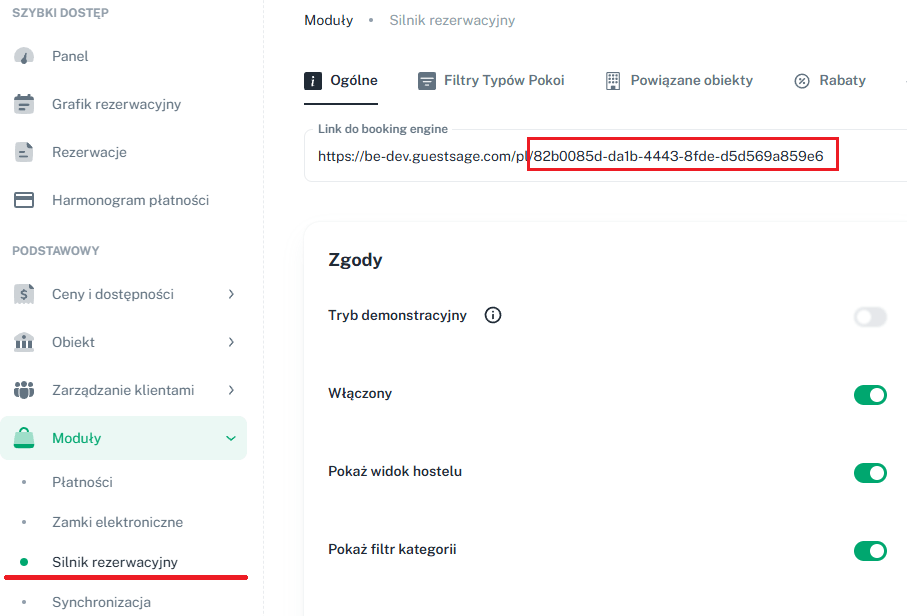
For example, in the link https://be.guestsage.com/en/82b0085d-da1b-4443-8fde-d5d569a859e6 the Hotel ID is 82b0085d-da1b-4443-8fde-d5d569a859e6.
Finding Your Integrations API Credentials
The KWHotel Integrations API uses a different identifier than the GuestSage UUID:
- Integrations Hotel ID - a numeric ID (for example
292) - Integrations API Key - a secret key you generate in KWHotel
Numeric Hotel ID
You can find the numeric Hotel ID in the top right corner of the KWHotel admin panel.

Generating the API Key
You generate the API key yourself inside KWHotel:
- Log in to KWHotel and open the Synchronization module
- Click the Reset API key button
- Copy the generated key and paste it into the ChatLab connection form
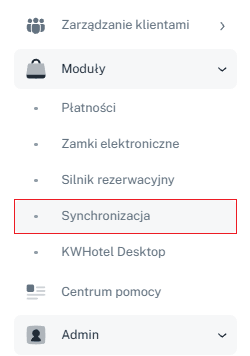
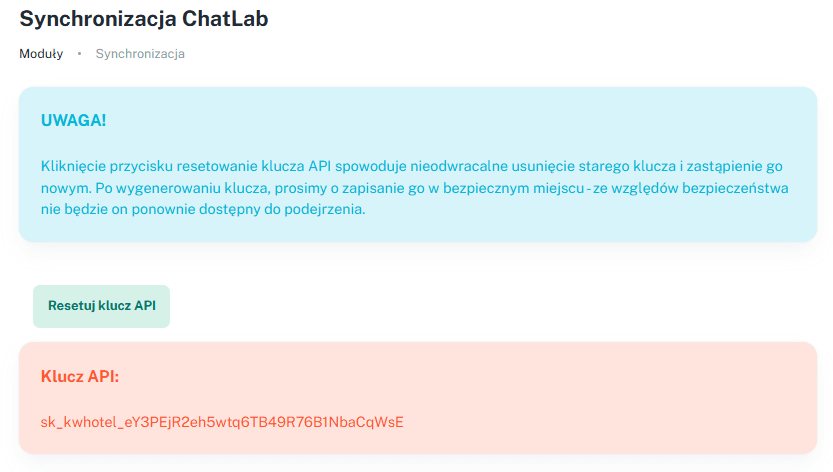
Clicking Reset API key removes the previous key (if one was already generated) and creates a new one. Any other system using the previous key will stop working until you update it with the new value.
Setting Up the Integration in ChatLab
Step 1: Navigate to the Connect Tab
- Log in to your ChatLab admin panel
- Select the bot you want to configure
- Go to the Connect tab
- Find and click on KWHotel in the integrations list
Step 2: Enter Connection Details
Fill in the connection form:
- Hotel ID (UUID) - your KWHotel hotel GUID from the GuestSage booking engine configuration
- Default Currency - the currency used for pricing returned to chat users (defaults to PLN)
- Default Language - the language used for room descriptions and offer text (defaults to Polish)
- Integrations Hotel ID - the numeric hotel ID for the KWHotel Integrations API (different from the UUID above)
- Integrations API Key - the secret API key issued by KWHotel
- Discount bot channel - optional. When set, offers are fetched for this KWHotel discount channel and sorted by the AI. Leave empty to use the default channel.
Step 3: Connect
- Once the fields are filled in, the Connect button becomes active
- Click Connect to save the configuration. ChatLab tests the GuestSage connection and the Integrations API connection.
- On success you will see a confirmation toast.
After a successful connection, the Connect button changes to Update Chatbot, and a Disconnect button appears so you can disable the integration later.
If the Integrations API check fails on save, the Get reservation action is automatically disabled. Re-enter correct credentials and click Update Chatbot to enable it.
Additional connection options
Suggest alternative dates when nothing is available for the requested dates is enabled by default: the search may return nearby dates when the requested stay is unavailable. Check the dates on each returned offer.
For several properties, enable the multi-hotel option and add each hotel with a clear display name, its UUID and any optional property-specific settings. Add the corresponding Integrations API credentials if reservation lookup is needed. Save with Connect or Update Chatbot, then test each property separately.
Configuring AI Actions
Connecting enables room browsing and availability actions. Reservation lookup also needs working Integrations API credentials. Creating reservations is not enabled automatically; review which actions should be active before making the bot public.
Available AI Actions
- KWHotel - get rooms - Lists room types with descriptions, bed configuration, area, capacity, and photos
- KWHotel - find available rooms - Searches for available rooms for a given date range and returns offers with pricing
- KWHotel - check room availability - Checks availability for a specific room type and date range
- KWHotel - create reservation - Creates a new reservation with guest details and booking information
- KWHotel - get reservation - Looks up existing reservations
Enabling and Customizing Actions
- After connecting, click Configure AI Actions in the success modal, or go to Settings > Actions and find the KWHotel category
- Toggle the actions you want to enable
- Customize the action label (the text displayed to users while the action is running) and the prompt instructions as needed
- Confirm the action dialog with Enable or Update, as shown.
Test the completed setup
Open Overview and ask for a room for future dates and a specific guest count. Check the property, dates, currency, price and booking link against GuestSage. Test reservation lookup using a booking you are authorized to inspect. Enable Create reservation only if you want the chatbot to create real bookings, and arrange any booking test with your property team.
Best Practices
Optimizing Chatbot Responses
- Train your bot with property information - Add descriptions of your rooms and hotel facilities to the knowledge base, including amenities, location, nearby attractions, and check-in/check-out policies
- Set clear conversation flows - Configure welcome messages that guide guests to ask about availability, and use suggested questions like "Check room availability" or "View rooms"
- Add room-specific pages - Create dedicated pages for each room type on your website and train the chatbot with their URLs for richer responses
Booking Engine Integration
- The KWHotel integration works through the GuestSage booking engine for inventory and pricing
- For direct reservation completion outside chat, embed the GuestSage booking widget on your website alongside the ChatLab chatbot - the chatbot can guide guests to the booking page when they are ready to reserve
Troubleshooting
- Connection fails - Verify that your Hotel ID is the GuestSage UUID (not the numeric Integrations ID), and that your property is active in the GuestSage booking engine
- Get reservation action stays off - If the Integrations API connection test fails on save, the action is auto-disabled. Re-enter the Integrations Hotel ID and Integrations API Key and click Update Chatbot.
- No room data returned - Check that your room types are properly configured in KWHotel with descriptions and that availability is published in GuestSage
- Incorrect pricing or no offers - Pricing comes from GuestSage. Update rates and offer settings in KWHotel to reflect current pricing. If you set a Discount bot channel, make sure it has active offers.
- Integration not available in admin panel - The KWHotel integration requires the corresponding feature in your subscription; follow the upgrade or contact prompt
Room Catalog and Hotel Overview
If your account shows the Hotel tab, use Hotel > Rooms to review the room catalog and training status. AI room search is separate from date-based availability checks: it matches room descriptions, while availability actions check a requested stay. Automatic room indexing depends on catalog auto-indexing and assigned room capacity; otherwise, use Train rooms when available. Review the enabled actions and wait for training to finish before relying on AI room search.