Connect your ChatLab chatbot with your CS-Cart store to give customers real-time access to product information and order tracking directly in the chat.
Example conversation
Check an order
Requires a connected store and its enabled order action. Available fields depend on the integration. Matching an email address is not proof of identity.

Visitor: Where is my order?
Play the example or read it below. No real customer data is used.The customer asks about an existing order.
Playback pauses when this example leaves the screen. This is a simulation, not a live chat. Widget controls inside the playback are not interactive.Read the complete example
- The customer asks about an existing order.
Visitor: Where is my order?
- The default lookup needs both identifiers.
Assistant: Please give me your order number and the email address used at checkout.
- Use fictional data in this example.
Visitor: 41982, anna@example.com
- The action queries the connected store.
Checking order 41982...
- Report only information returned by the store.
Assistant: Order 41982 is marked as shipped. The carrier is DPD. Please check the tracking page for delivery updates.
The example illustrates the customer experience. The available actions and returned information depend on this integration and your configuration.
Before you start
Create or select a chatbot first. You need permission to manage its integrations and access to the external account's connection settings. If the Connect tile shows an upgrade or contact prompt, check that your subscription includes this integration. Keep API credentials private; never paste them into website embed code.
Important: E-Commerce Best Practices
After completing the integration below, read the comprehensive guide on optimizing your chatbot for e-commerce: How to set up ChatLab for your E-commerce store
What the Integration Provides
Product Search - Customers can search your CS-Cart catalog by entering a phrase. The chatbot returns matching products with:
- Product name and description
- Price
- SKU (product code)
- Direct link to the product in your store
- Product image
- Available variants (sizes, colors, etc.)
You can configure which product fields are searched (name, short description, full description, keywords) and how many results to return.
Order Details - Customers can check order status by providing their order ID and email address. The chatbot returns:
- Order status
- Ordered items with names, prices, quantities, product images, and chosen variants
- Order total and shipping cost
- Shipping carrier, tracking number, and shipment status
- Recipient name and full delivery address
- Customer phone
Step 1: Enable API Access in CS-Cart
- Log in to your CS-Cart administration panel
- Navigate to Customers > Administrators
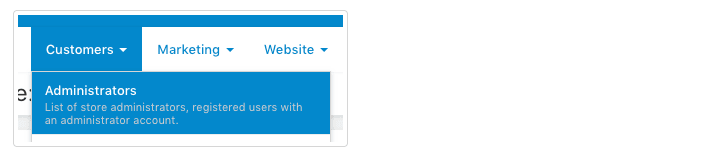
- Click on the administrator account that will be used for the API connection
- Switch to the API access tab
- Check "Yes, allow this user to use the API"
- Click Save
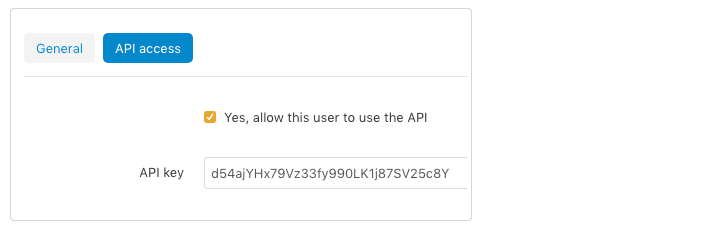
- Copy the API key displayed after saving - store it securely
- Note the email address associated with this administrator account
Step 2: Connect CS-Cart in ChatLab
- Log in to ChatLab and select your bot
- Go to the Connect tab
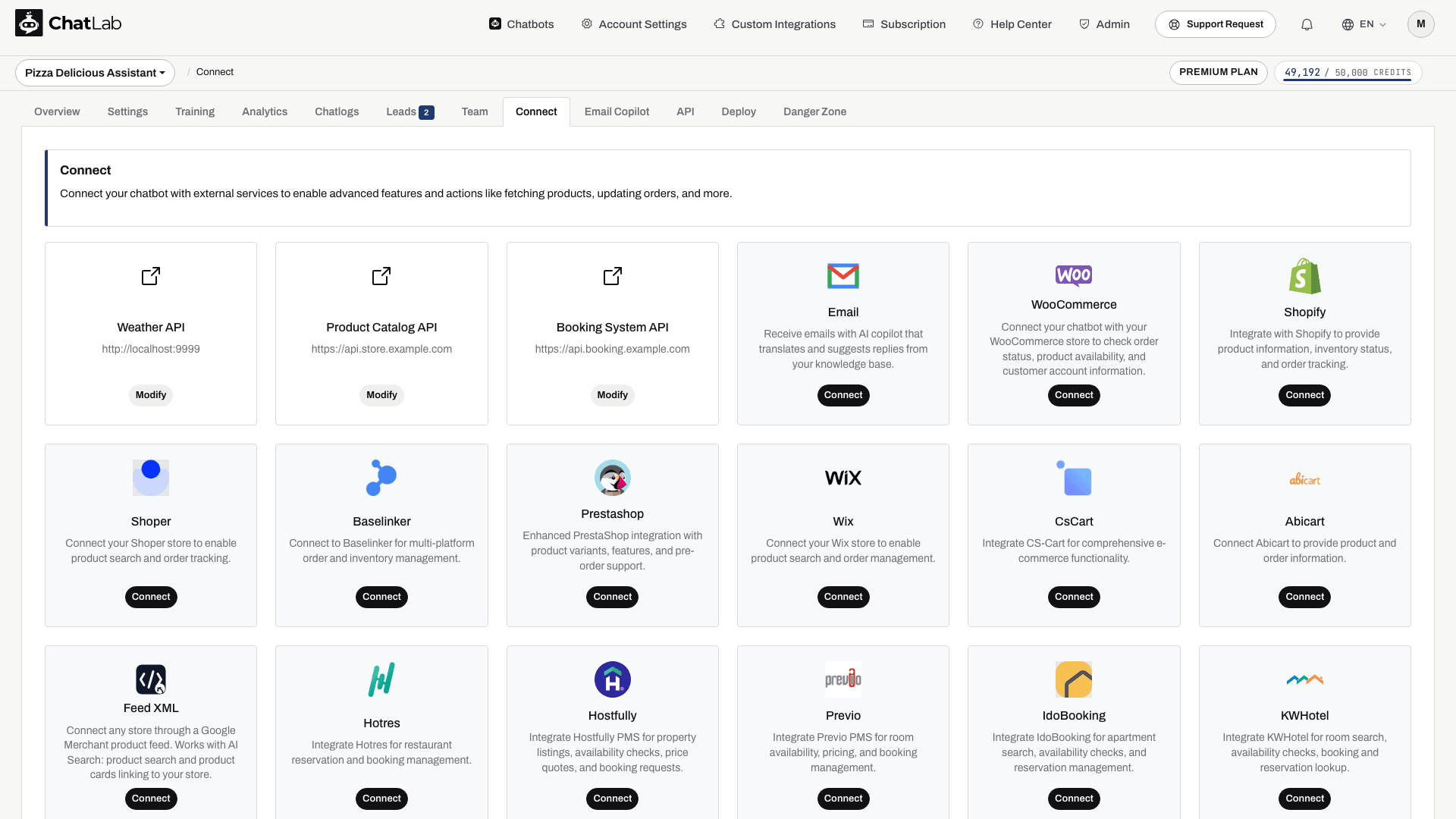
- Click Connect on the CS-Cart tile
- Enter your API Key (from Step 1)
- Enter your Account Email (the administrator email with API access)
- Enter your Shop Url (e.g.,
https://yourstore.com)
You can also configure search options:
- Searchable fields - toggle which product fields the chatbot searches through (product name, short description, full description, keywords)
- Number of search results - how many products to return per query (default: 5)
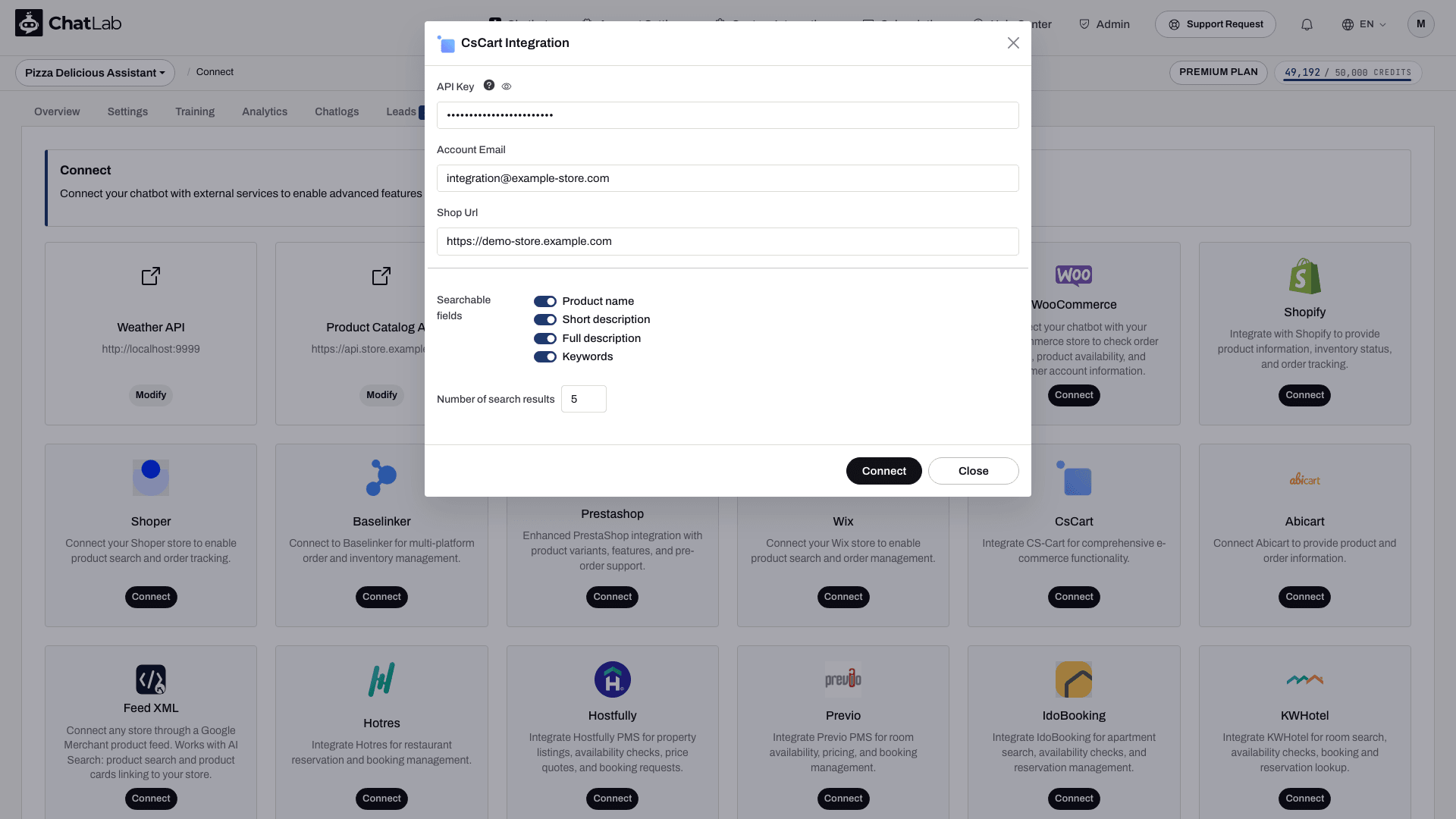
- Click Connect
After a successful connection, you will see a confirmation message with the option to configure AI actions.
Step 3: Configure CS-Cart Actions
After connecting, enable and customize individual AI actions. Navigate to Settings > Actions and filter by the CsCart platform.
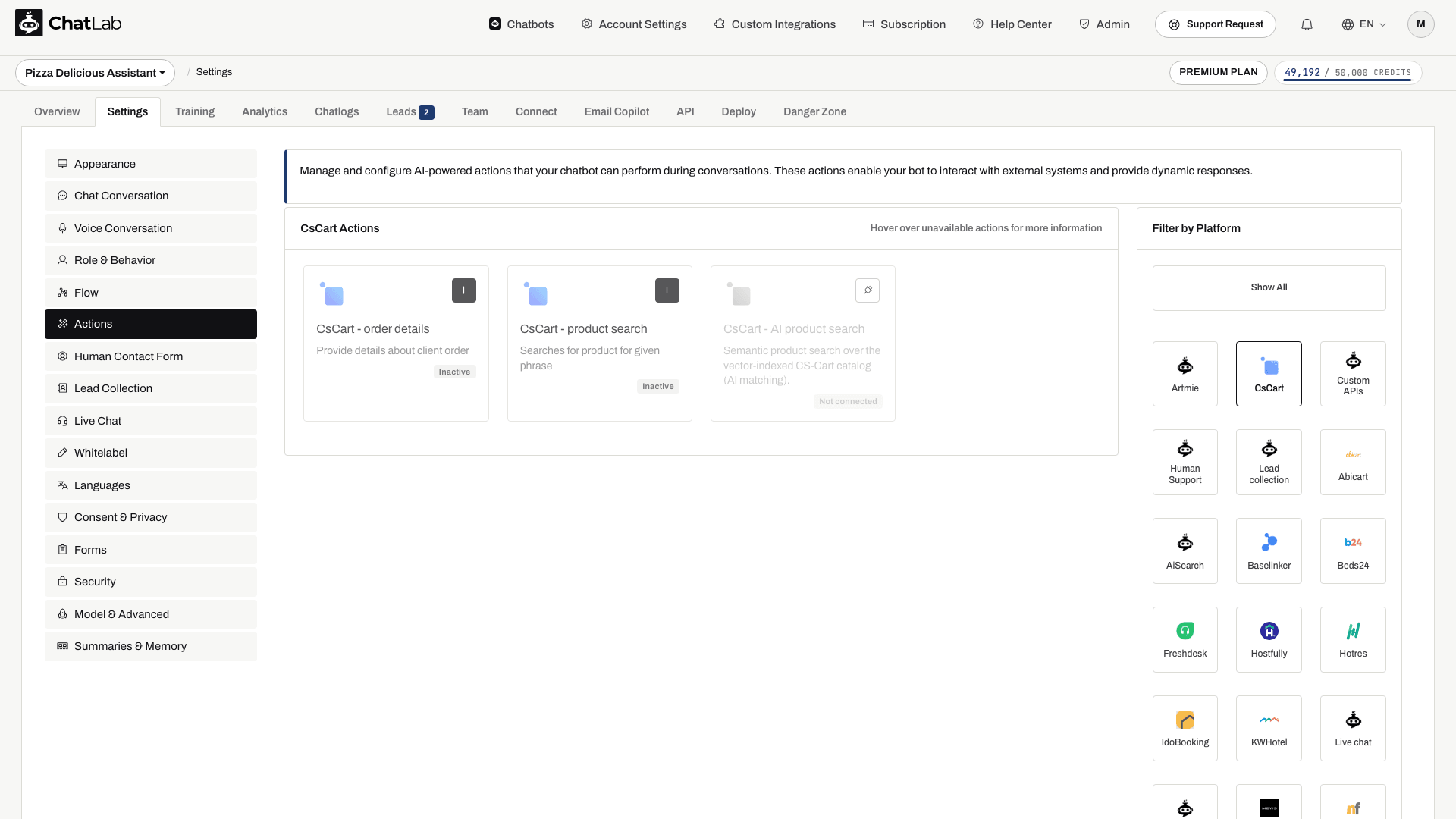
The standard actions include:
- CsCart - product search - enables the chatbot to search your product catalog
- CsCart - order details - enables the chatbot to look up order information
Connection setup enables the standard actions. Review their status and disable any you do not want customers to use. Open an action to edit it, then use Enable or Update in its dialog. You can also customize the action label (the message shown to users while the action runs) and the instructions that guide how the AI uses each action.
AI Product Search and the Shop Tab
For semantic product matching, review AI product search in Settings > Actions. On supported bots, connection setup can enable AI search instead of keyword search and start catalog indexing when auto-indexing is enabled and the required access and capacity are available. Older bots may require manual training. Review Shop > Products or Training > E-commerce catalog, wait for training to finish, and check errors before testing. Keyword-search options do not necessarily apply to AI search.
Testing Your Integration
After activating the actions, open Overview and try:
- "Show me training gloves" (tests product search)
- "What's the status of my order 12345?" (tests order details; supply the matching email for an order you are authorized to access)
Verify the responses match data from your CS-Cart store.
Tips for Search Configuration
- Enable Product name and Short description for best balance of speed and accuracy
- Add Keywords if your products have rich keyword metadata
- Only enable Full description if shorter fields don't return good results - it may slow down searches
- Start with 5 results per query and adjust based on your catalog size
Install Chatbot on Your CS-Cart Store
To add the chat widget to your CS-Cart storefront:
- In ChatLab, go to the Deploy tab for your bot
- Select the CS-Cart platform tab
- Copy the code snippet
- In your CS-Cart admin, go to Design > Layouts
- Add an HTML block in the default layout and paste the widget snippet into its Content tab
- Save the block and layout changes. Check pages with separate layouts, such as checkout, and all storefront languages
If you use an HTML block with Smarty support, wrap the snippet in {literal} and {/literal}. See CS-Cart's custom-code instructions. Open the published storefront and check the widget on desktop and mobile.