Connect your ChatLab chatbot with the Hotres booking system to provide real-time apartment availability information and booking links directly in the chat.
Hotres requires the corresponding integration feature. Select your chatbot and open Connect > Hotres; if access is not included, follow the contact or upgrade prompt.
Example conversation
From travel dates to room offers
Requires a supported accommodation integration and enabled availability action. An offer or enquiry does not confirm a reservation.

Visitor: A room for two adults, 14 to 16 August.
Play the example or read it below. No real customer data is used.Collect the stay requirements.
Playback pauses when this example leaves the screen. This is a simulation, not a live chat. Widget controls inside the playback are not interactive.Read the complete example
- Collect the stay requirements.
Visitor: A room for two adults, 14 to 16 August.
- Ask for missing date details before searching.
Assistant: Which year would you like to stay?
- The guest supplies the year.
Visitor: 2027.
- Query the connected accommodation system.
Checking room availability...
- Present the offers returned for that stay.
Sea-view double, €280 / stay. Example offer for two adults, two nights.
- Continue using the booking route supported by your integration.
Assistant: Review the booking page for the final price and conditions. No reservation has been made in this demonstration.
The example illustrates the customer experience. The available actions and returned information depend on this integration and your configuration.
What the Integration Provides
Get Apartments - Customers can ask about your property's rooms and apartments. The chatbot retrieves a full list from Hotres including:
- Apartment/room name and description
- Image and direct link to the apartment page
Check Apartment Availability - Customers can check whether a specific apartment is available for given dates. The chatbot returns:
- Availability status and pricing
- Special offer indicator when the rate differs from your main pricelist
- Alternative apartments with suggested date ranges if the requested one is unavailable or has minimum stay requirements
- Booking link with pre-filled dates
Find Available Apartments - Customers can search for available apartments by providing a date range and number of guests. The chatbot returns:
- Matching apartments available for the specified dates with pricing
- Special offer indicator for discounted rates
- Booking links for each available apartment
- If no apartments are available for the exact dates, alternative options with suggested date ranges that meet minimum stay requirements
Prerequisites
Before you begin, gather the following from your Hotres account:
-
API Key - Your Hotres API authentication key
-
Object ID - The identifier for your Hotres property
-
Main Pricelist Name - The exact name of your primary pricelist in Hotres
-
Booking URL Format - The URL pattern for your booking page, using these placeholders:
{DATE_FROM}- Check-in date{DATE_TO}- Check-out date{TAG}- Apartment/room identifier
Example format:
https://yourdomain.com/booking?checkin={DATE_FROM}&checkout={DATE_TO}&apt={TAG}
Step 1: Connect Hotres in ChatLab
- Log in to ChatLab and select your bot
- Go to the Connect tab
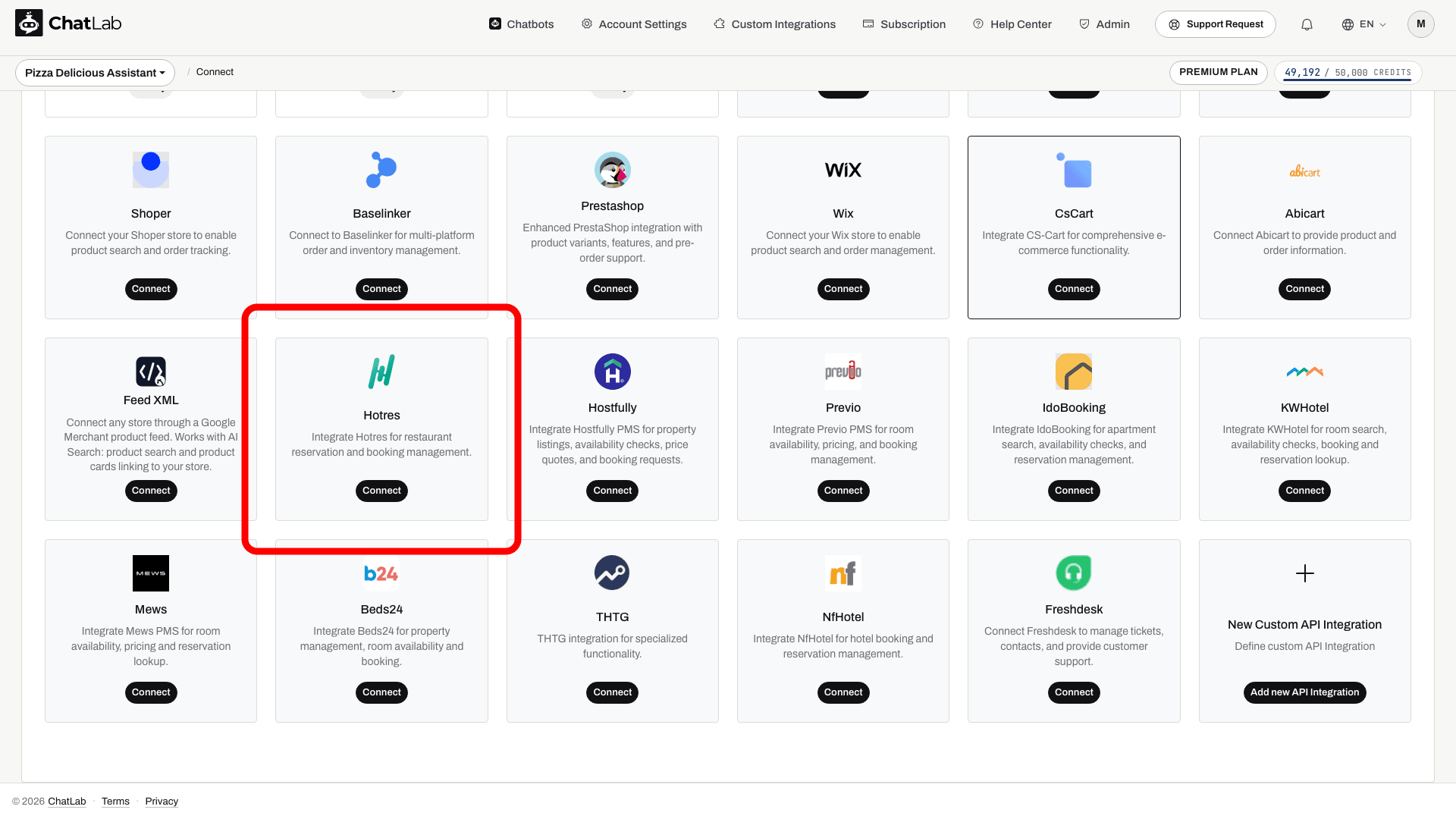
- Click Connect on the Hotres tile
- Enter API Key, Object ID, Main Pricelist Name, and Booking URL format. If Hotres supplied an additional Auth value, enter it in that field too.
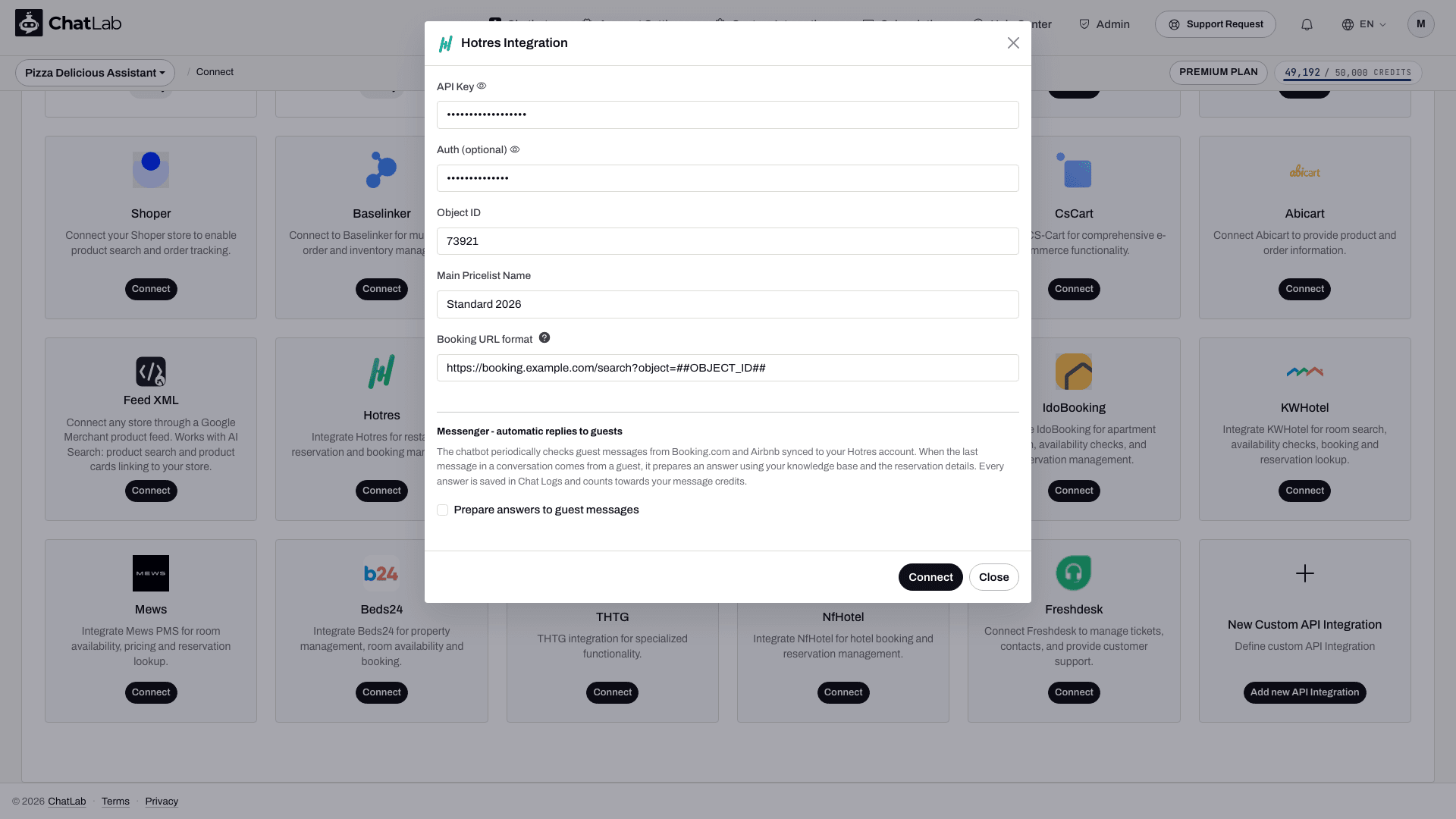
- Click Connect
ChatLab automatically tests the connection by querying your Hotres property. If the API key or Object ID is incorrect, you will see an error message. On success, a confirmation dialog appears with the option to configure AI actions.
Step 2: Configure Hotres Actions
After connecting, enable and customize individual AI actions. Navigate to Settings > Actions and filter by the Hotres platform.
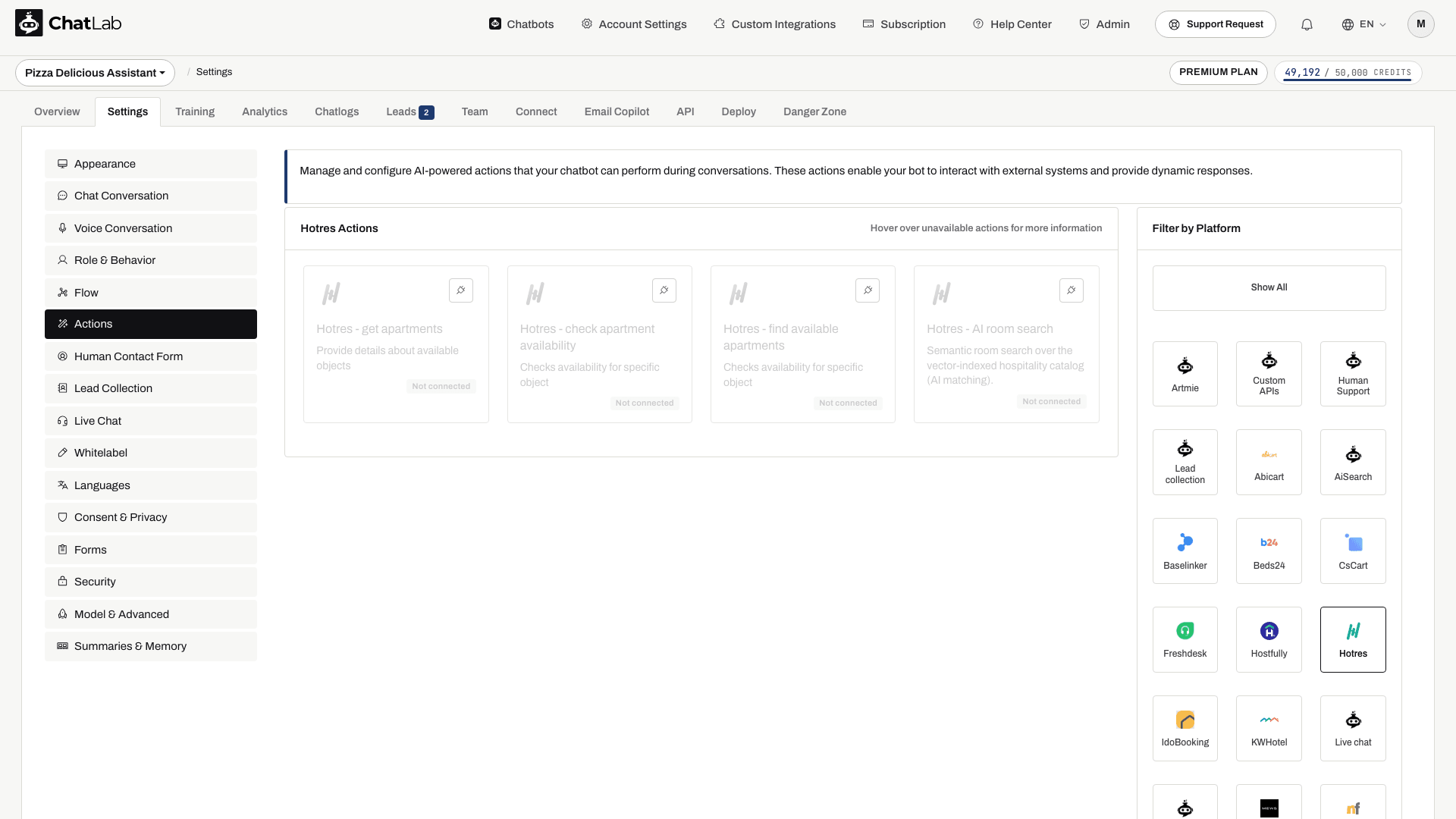
The three booking actions are:
- Hotres - get apartments - lists all rooms and apartments in your property
- Hotres - check apartment availability - checks a specific apartment for given dates
- Hotres - find available apartments - searches available apartments by date range and guest count
The three booking actions are enabled when you connect. Review their Active status, edit them as needed, and enable any inactive action you want to use. You can customize:
- Action Label - the message shown to users while the action runs (e.g., "Checking availability...")
- Instructions - guides the AI on when and how to use the action
- User Instructions - additional business rules or preferences for the AI
Testing Your Integration
The availability-search action has a result-count setting from 1 to 10, with 5 as the default. The returned list is therefore not necessarily every matching apartment. Check dates on alternative offers before recommending them.
After activating the actions, open Overview and try:
- "What apartments do you have?" (tests Get Apartments)
- "Is apartment 101 available from December 15-20 next year?" (tests Check Apartment Availability)
- "What's available from December 15-20 next year for 2 guests?" (tests Find Available Apartments)
Verify that the responses match your Hotres data and that booking links open correctly with pre-filled dates.
Managing the Integration
Updating Settings - Click the Hotres tile in the Connect tab, update any field, and click Update Chatbot.
Disconnecting - Click the Hotres tile and then click Disconnect. This deactivates all Hotres AI actions. Your configuration is saved and can be reconnected later.
Tips
- Train your bot with detailed property descriptions, amenities, and location information so the AI can provide context alongside availability data.
- Add suggested questions like "Check availability" or "Show apartments" to guide visitors.
- If you have booking policies (minimum stay, cancellation rules), add them to the action instructions so the AI mentions them automatically.
Room Catalog and Hotel Overview
If your account shows the Hotel tab, use Hotel > Rooms to review the room catalog and training status. AI room search is separate from date-based availability checks: it matches room descriptions, while availability actions check a requested stay. Automatic room indexing depends on catalog auto-indexing and assigned room capacity; otherwise, use Train rooms when available. Review the enabled actions and wait for training to finish before relying on AI room search.