What are AI Actions?
Check an order
Requires a connected store and its enabled order action. Available fields depend on the integration. Matching an email address is not proof of identity.

Visitor: Where is my order?
Play the example or read it below. No real customer data is used.The customer asks about an existing order.
Playback pauses when this example leaves the screen. This is a simulation, not a live chat. Widget controls inside the playback are not interactive.Read the complete example
- The customer asks about an existing order.
Visitor: Where is my order?
- The default lookup needs both identifiers.
Assistant: Please give me your order number and the email address used at checkout.
- Use fictional data in this example.
Visitor: 41982, anna@example.com
- The action queries the connected store.
Checking order 41982...
- Report only information returned by the store.
Assistant: Order 41982 is marked as shipped. The carrier is DPD. Please check the tracking page for delivery updates.
AI Actions are things your chatbot can DO during a conversation - not just say. An action can show a contact form, search your product catalog, check an order, start a live chat, or call your own API. For AI-driven actions, the model decides when to request the action based on your instructions and the conversation. Actions named "after X messages" use a message-count trigger instead. Enabling an action does not guarantee it will run on every matching question.
Reach for AI Actions when you want to automate what happens in chat beyond answering questions - for example collecting a lead when a visitor shows buying interest, or handing over to a human when the bot cannot help.
If you do not have a bot yet, create your first chatbot. Configure the relevant lead collection, human contact form, or live chat feature before enabling its action.
Where to Find AI Actions
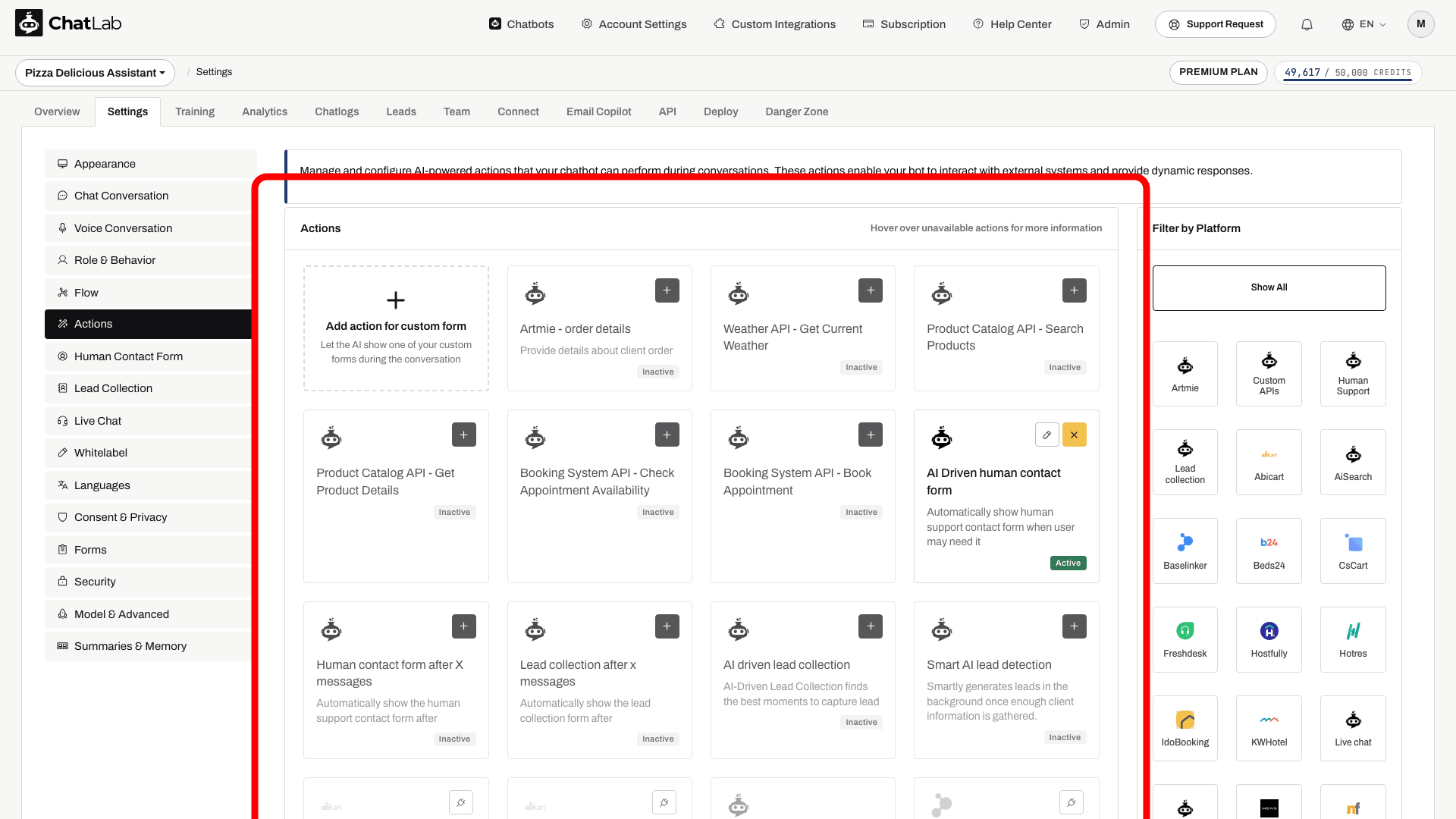
Select your chatbot and navigate to Settings > Actions.
Understanding Action Tiles
Each action is displayed as a tile showing its name, a short description, and its current status. Actions appear in three states:
-
Active (green badge) - The action is enabled and the chatbot can use it during conversations. Active actions show an Edit (pencil) button and a Remove (X) button.
-
Inactive (grey badge) - The action is available but not currently enabled. Click the plus (+) Add icon on the tile to enable it.
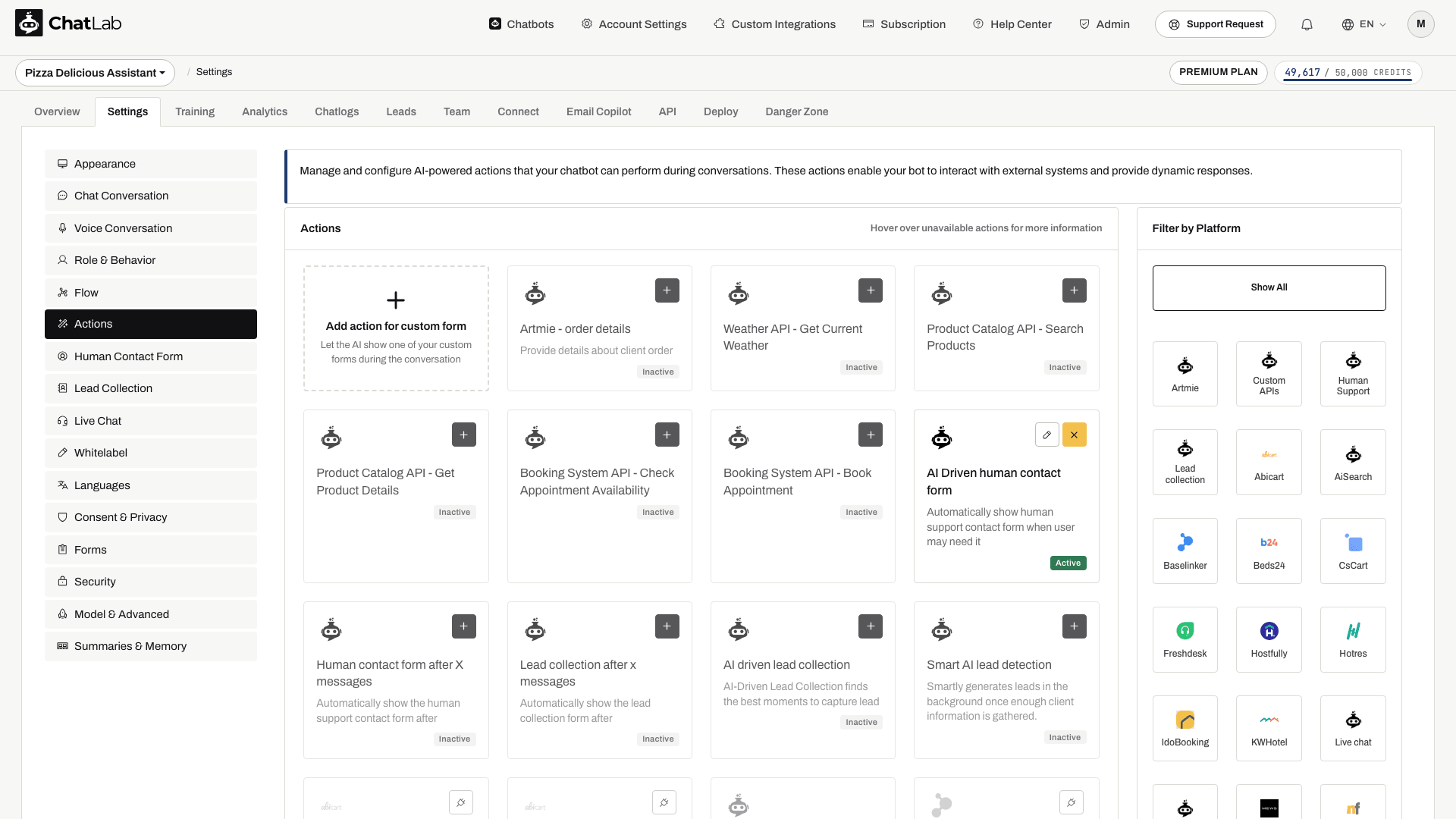
- Not connected (greyed-out tile) - The action needs something that is not set up yet, such as a connected integration or a plan that includes the feature. Hover over the tile to see exactly what it requires, and click the Connect/Setup (plug) button to go to the page where the missing piece is configured - for e-commerce and business platforms that is the Connect tab.
Filtering by Platform
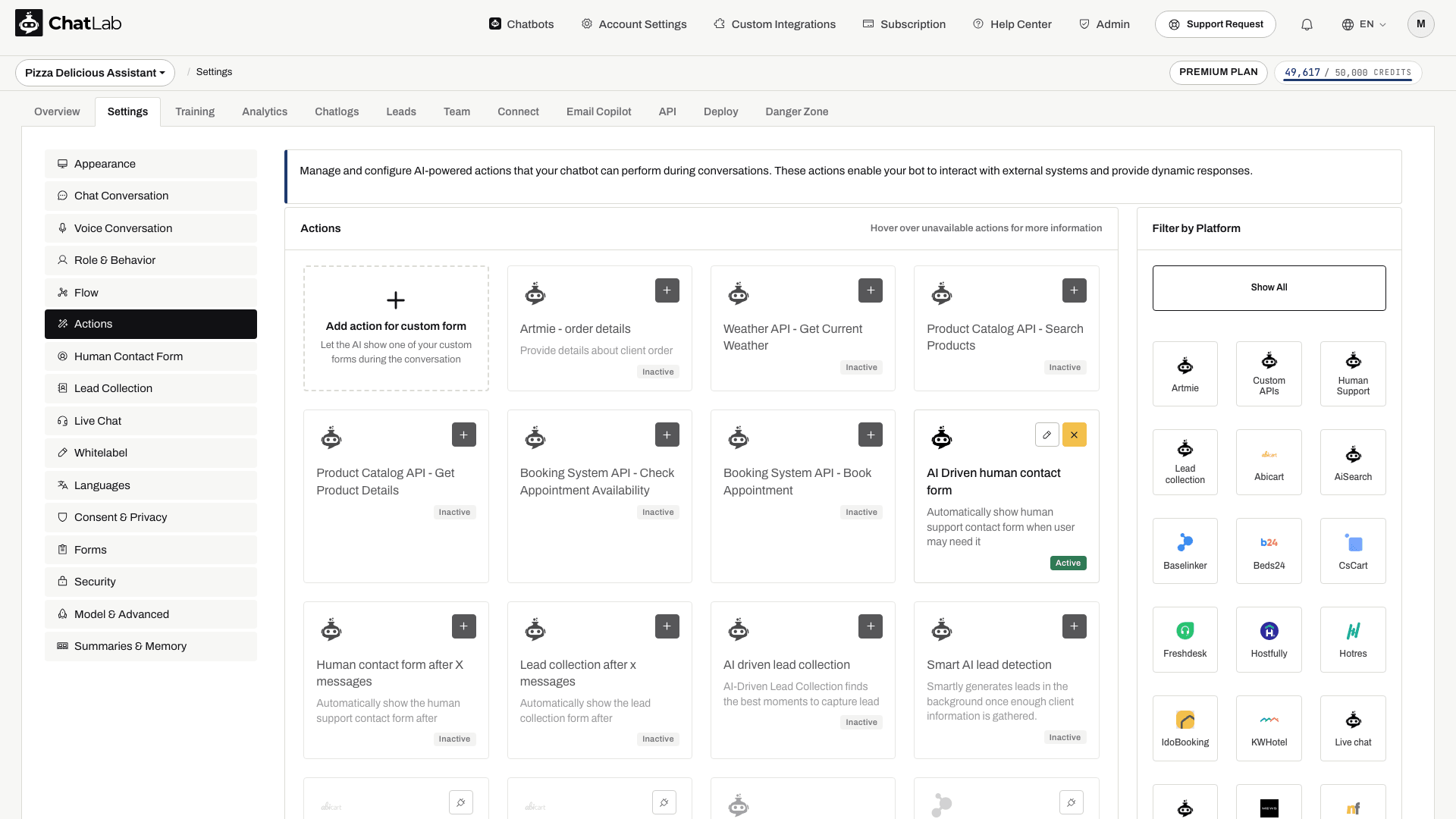
The Filter by Platform sidebar on the right lets you narrow the list of actions to a specific platform or category. Available filters depend on your integrations and features. Examples include:
- AI Search, Hospitality, and Feed XML - Product and room search actions where configured
- Custom forms - Actions that display your forms
- Custom APIs - Your custom API integration actions
- Human Support - Human contact form triggers
- Lead collection - Lead capture actions
- Live chat - Live chat escalation triggers
- E-commerce platforms - Shopify, WooCommerce, Prestashop, Shoper, CsCart, Wix, Abicart
- Business platforms - Baselinker, Beds24, Freshdesk, Hostfully, Hotres, IdoBooking, KWHotel, Mews, NFHotel, Previo, THTG
Click Show All to display every action.
Enabling and Configuring an Action
Step 1: Activate the Action
Find the action you want to use and click the plus (+) Add icon on its tile. A configuration dialog opens.
Step 2: Configure the Action
The configuration dialog contains several sections, depending on the action type.
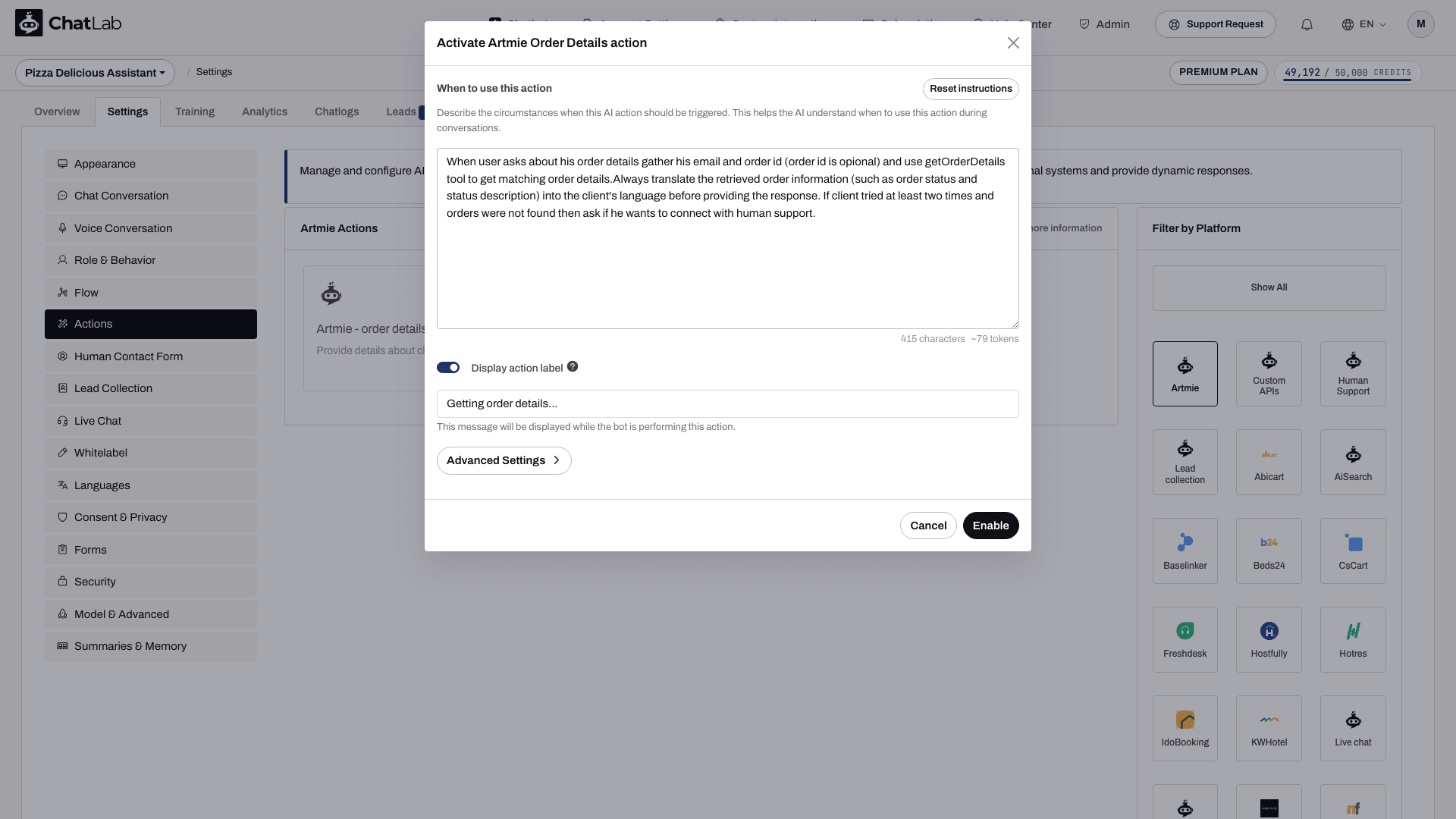
When to use this action - Describes the circumstances when the AI should trigger this action. Pre-built actions come with sensible defaults. For custom actions, write clear instructions explaining the conversation scenarios that should activate the action.
Example:
Use this action when the customer asks about product availability, pricing, or specifications. Trigger phrases include "do you have...", "how much is...", or "tell me about a product".
Display action label - A toggle that controls whether a status message appears in the chat while the action runs. When enabled, enter a short label such as "Searching products..." or "Checking availability..." that the visitor sees during execution.
Advanced Settings (expandable section):
-
AI Action Definition - Defines the technical behavior of the action. Pre-built actions have this configured automatically. For custom API actions, describe the function's purpose and reference the parameters the chatbot needs to collect from the conversation. Do not include integration details like URLs or HTTP methods - only describe what the function does and which parameters it needs.
-
AI Action internal name - A read-only identifier used internally by the AI model. Useful for referencing in trigger prompts (e.g., "Use the
getProductDetailsaction when...").
Click Enable (for new activations) or Update (for edits) to save your changes.
Pre-Built Action Categories
Human Support
- AI Driven human contact form - Automatically shows the human support contact form when the AI detects the visitor needs human help
- Human contact form after X messages - Shows the contact form after a set number of messages
Lead Collection
- Lead collection after X messages - Displays the lead collection form after a set number of messages
- AI driven lead collection - AI picks the best moment to ask for contact details
- Smart AI lead detection - Quietly detects lead information from the conversation text
Live Chat
- AI triggered live chat - Requests a handoff when the AI determines the visitor needs real-time help. Live Chat must be configured and available; an operator still needs to join.
E-Commerce Integrations
Product search and order tracking actions for Shopify, WooCommerce, Prestashop, Shoper, CsCart, Wix, and Abicart. These require the corresponding integration to be connected first (Connect).
Business Platform Integrations
Actions for Baselinker, Beds24, Freshdesk, Hostfully, Hotres, IdoBooking, KWHotel, NFHotel, Previo, and THTG. These include order details, ticket management, room and apartment search, booking availability checks, and reservation lookups.
Custom API Actions
You can create your own actions that call external APIs.
-
Go to Custom Integrations in the main menu to define your API endpoint, HTTP method, headers, and parameters (see Custom API Integrations for a full walkthrough)
-
Return to your bot's Settings > Actions - your custom API actions appear in the action list under the Custom APIs filter
-
Activate and configure them the same way as pre-built actions
When writing the AI Action Definition for custom actions, focus on describing what the function does and which parameters the chatbot should collect from the conversation. Do not repeat integration details (URL, headers, authentication) that are already configured in the Custom Integrations page.
Custom form actions and action limits
To show a form during a conversation, first create it in Settings > Forms, then use Add action for custom form in Settings > Actions. Choose the form and describe when it should appear. See Custom forms for the complete setup.
Some action dialogs also include security and privacy settings. Where available, Rate limiting caps attempts per conversation or per visitor time window; Personal data masking masks supported personal fields in action results before the AI receives them. Availability and defaults depend on the action. These options do not replace authorization in your connected API.
Best Practices
- Be specific in trigger prompts - Clearly describe the exact scenario and include example user phrases
- Avoid trigger overlap - Make sure different actions have distinct trigger conditions so the AI picks the right one
- Keep action labels short - Use present continuous tense ("Searching products...", "Checking order status...") and stay under 50 characters
- Enable only what you need - Too many active actions can confuse the AI about which one to use
- Test in Overview - Start a fresh test conversation, ask for the action using realistic wording, provide the required details, and check both the bot's response and the result in the connected system. Tests can perform real API operations.
- Use Reset instructions - If your custom prompt is not working well, click Reset instructions to restore the default and start fresh