The Summaries & Memory feature lets your chatbot generate a short AI-written summary of every conversation, build a profile of each client over time, and use this information in future conversations. This allows the chatbot to recognize returning visitors and recall topics from previous interactions - without you reading every chat.
Enabling conversation summaries costs 5 message credits per conversation. The cost is charged once when the summary is first generated, even if the summary is later updated while the conversation remains active.
Where to find these settings
Select your chatbot, open the Settings tab, then select Summaries & Memory in the left sidebar.
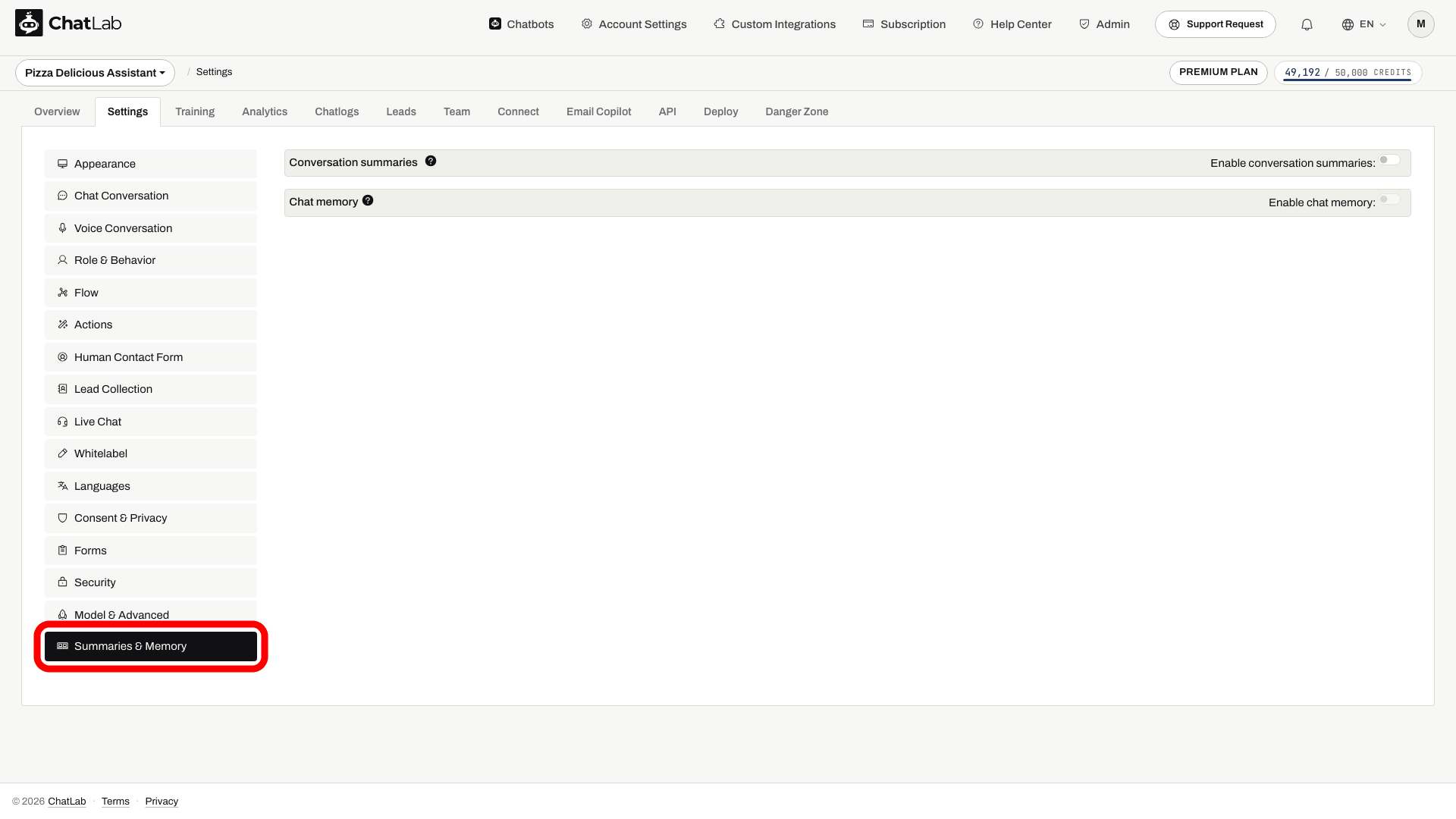
Conversation summaries
Conversation summaries are AI-generated overviews created automatically after each conversation ends (about 2 minutes after the last message). They capture key topics, client needs, and significant details from the conversation. Only conversations that happen after you enable the feature are summarized - older conversations are not processed retroactively.
To enable them, turn on the Enable conversation summaries toggle (Settings > Summaries & Memory) and click Save.
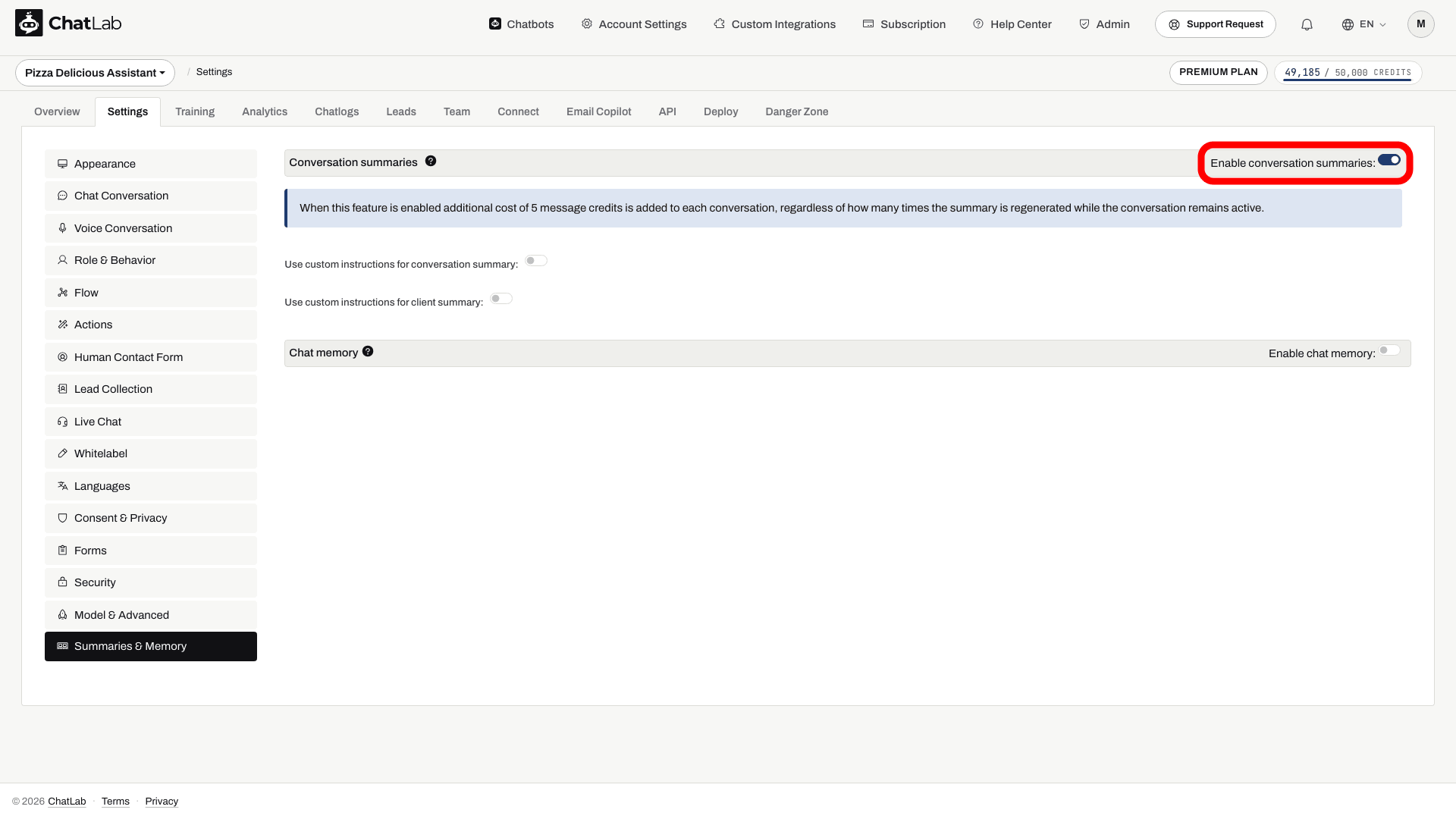
Once enabled, two additional options become available:
- Use custom instructions for conversation summary - control what information the AI captures about each conversation.
- Use custom instructions for client summary - control how the AI builds an overall profile of each client across all their conversations.
Turn either option on to reveal a text field where you can write your own instructions (up to 6,000 characters each). Default instructions are provided as a starting point.
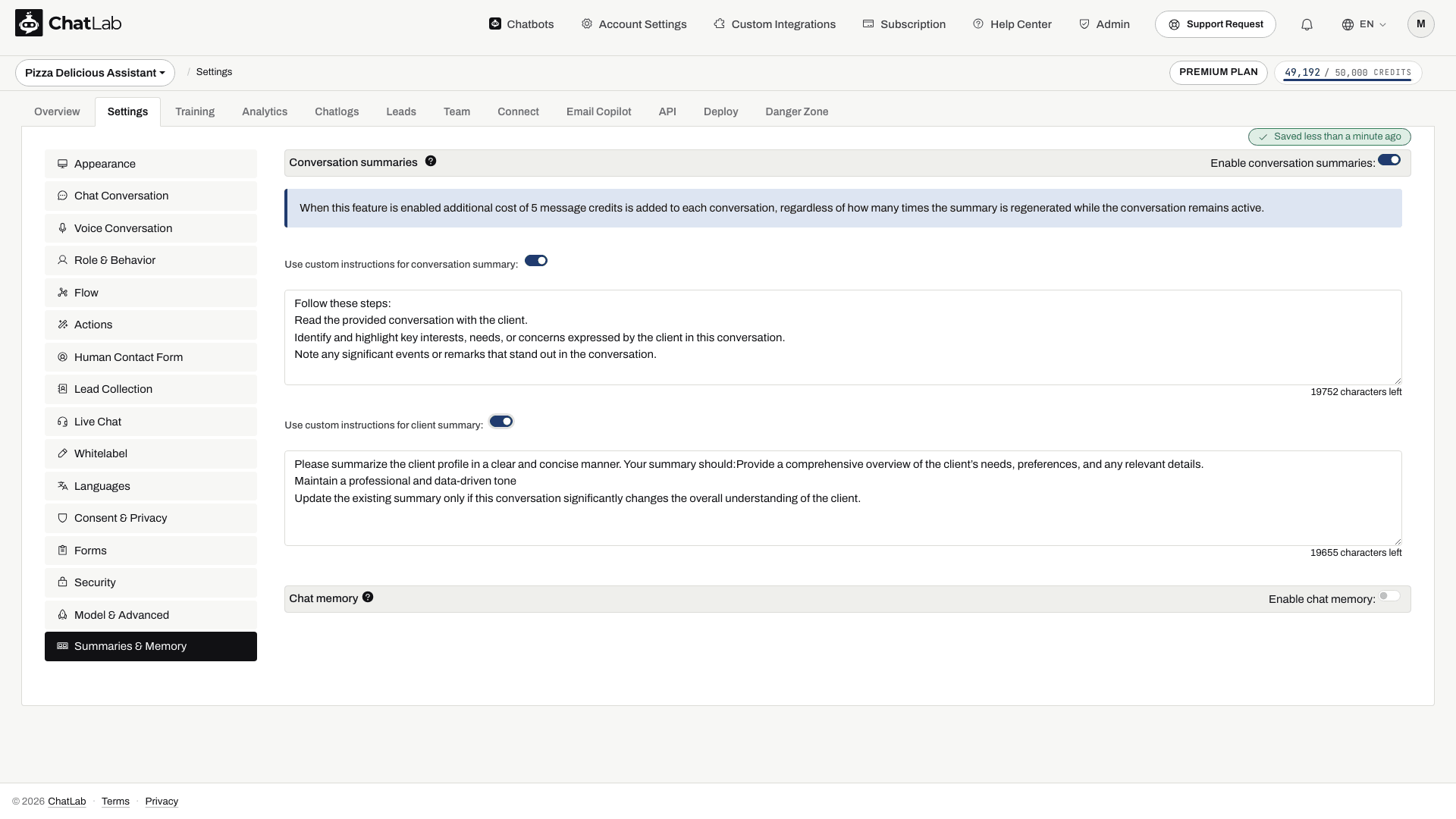
Custom instructions let you focus the summaries on what matters to your business, for example:
- Capture only identified client needs or product interests
- Track specific preferences or requirements mentioned across conversations
- Record sentiment or satisfaction indicators
Summaries are processed after a conversation has been inactive for at least two minutes, so they do not appear immediately. You can continue configuring or using the bot while processing runs. After a test conversation, wait a few minutes, reopen Chatlogs and check the summary and client profile.
Returning-visitor memory is tied to the same visitor identity. A different browser, cleared browser storage or a new identity may be treated as a new client; matching email text alone is not a promise of cross-device recall.
Where to see summaries and client profiles
Both appear in the Chatlogs tab - see the Chatlogs article for a general tour of this view.
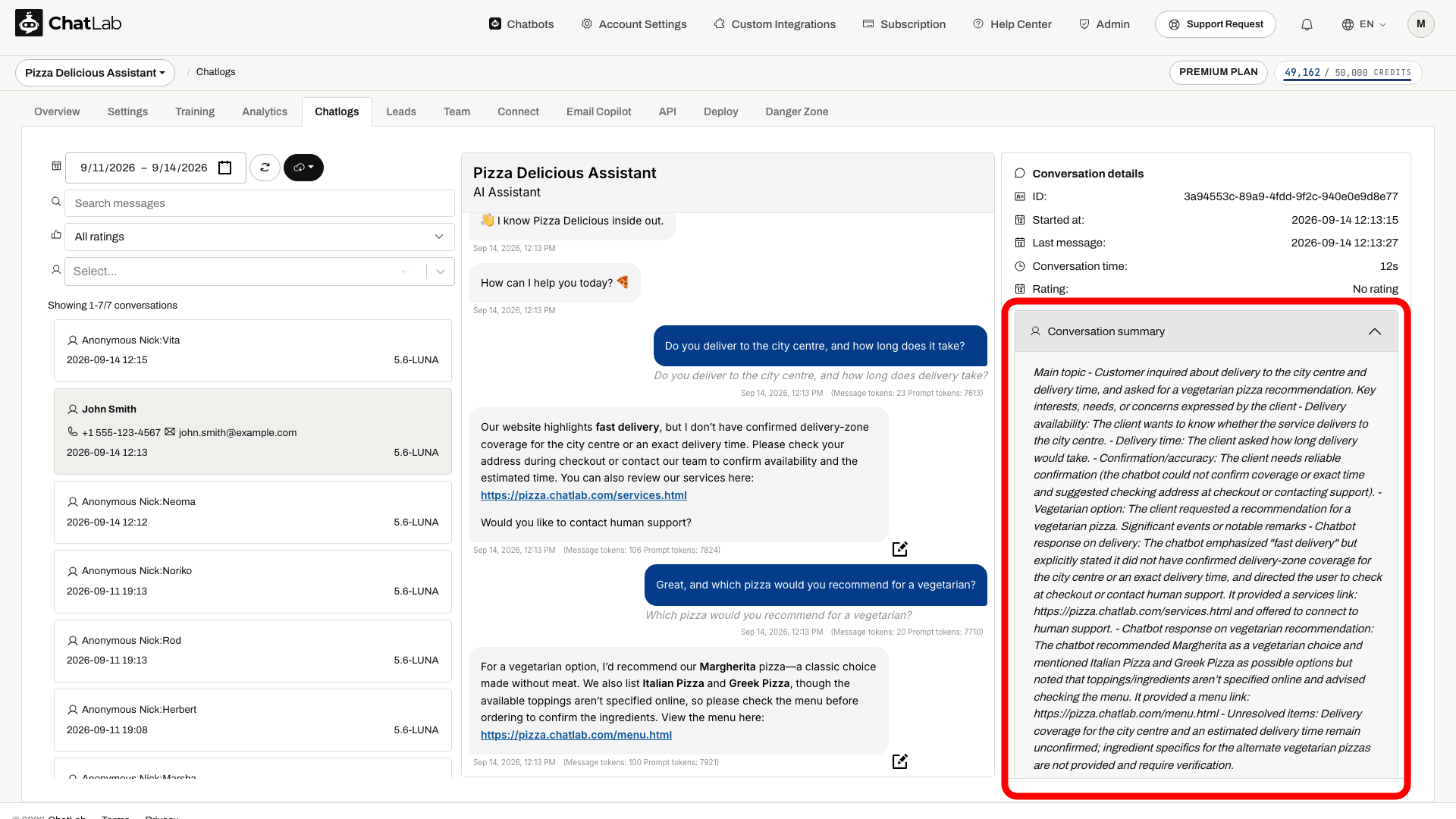
Conversation summary
Open Chatlogs and select a conversation. The Conversation summary section appears in the details panel on the right, under Conversation details. It describes what was discussed and how the chatbot helped.
Client profile summary
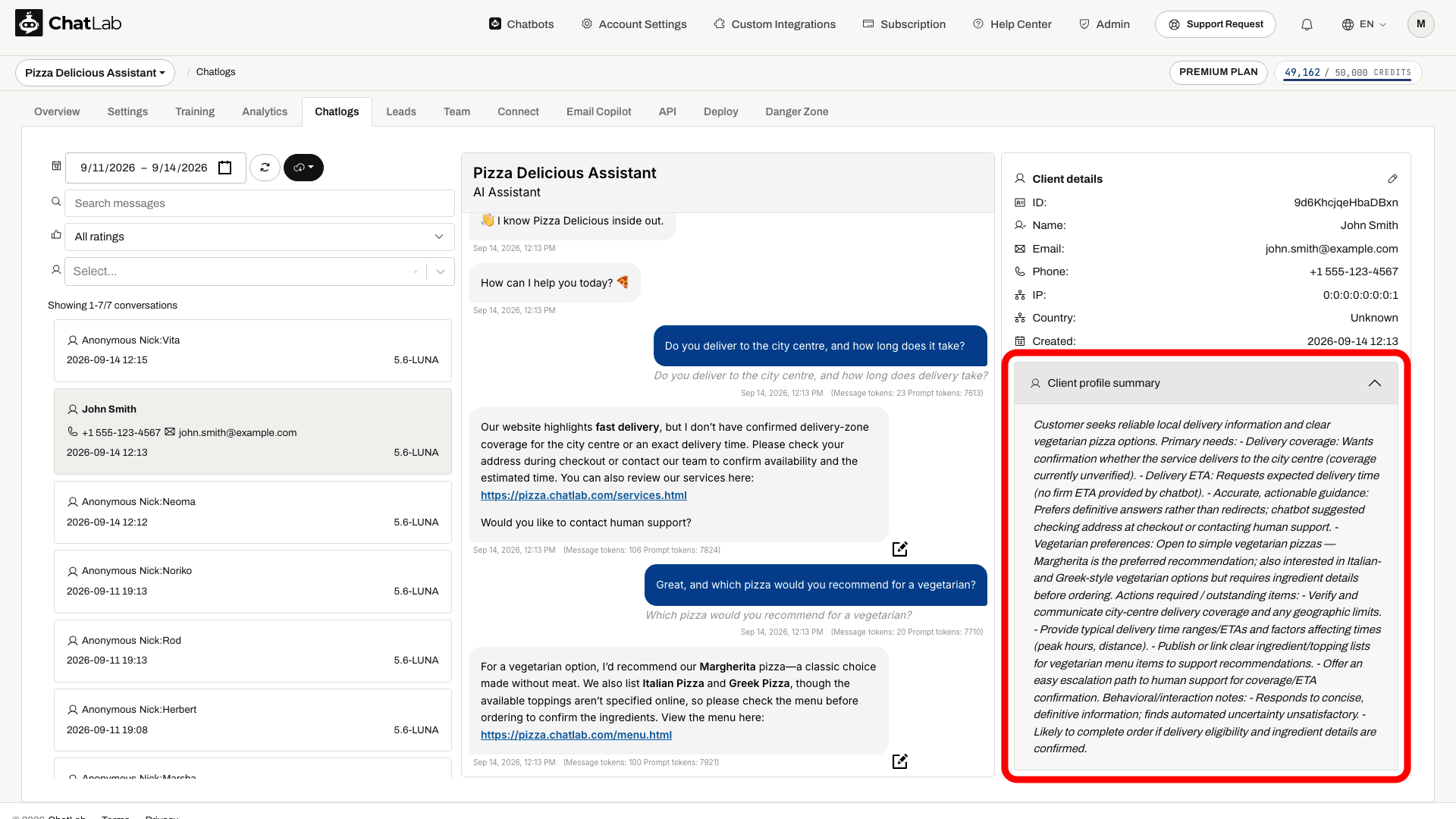
The client profile is a cumulative summary built from all conversations with the same client. It tracks needs, preferences, and relevant details over time, and is updated after each new conversation with that client. In Chatlogs, scroll the right panel down to the Client details section - the profile appears in the Client profile summary section below the client's contact data.
Chat memory
Use earlier conversation context
Enable the applicable memory settings. Context depends on retained history and visitor identification; it is not authentication or permission to access orders.

Visitor: I am looking for a green dress under $100.
Play the example or read it below. No real customer data is used.The visitor provides a preference.
Playback pauses when this example leaves the screen. This is a simulation, not a live chat. Widget controls inside the playback are not interactive.Read the complete example
- The visitor provides a preference.
Visitor: I am looking for a green dress under $100.
- The bot answers in context.
Emerald wrap dress, $79. Viscose, midi length.
- A later message refers to the earlier preference.
Visitor: Show me another option in that colour.
- Retained context helps interpret the reference.
Assistant: You were looking for green dresses under $100. I can search for another option.
Chat memory lets the chatbot actually use the conversation summaries and client profile when responding to a returning visitor. Without chat memory, summaries are generated for you to read, but the chatbot does not consult them during conversations.
To enable chat memory:
- Enable Conversation summaries first (the chat memory toggle stays disabled until you do).
- Turn on the Enable chat memory toggle (Settings > Summaries & Memory).
- Adjust Memory size and wait for the automatic Saved confirmation.

Memory size
The Memory size slider (10% to 90%, in steps of 10; default 10%) controls the share reserved for historical summaries within the available knowledge-and-memory budget. It is not a percentage of the entire context window: instructions and the recent conversation also need space. At the default 8k context, previous conversation summaries are not allocated space; an existing client profile can still be supplied. Choose 16k or 32k for recall of previous conversation summaries, subject to your plan. Higher values give the chatbot more access to past context but reduce the space available for knowledge base retrieval, so increase the value gradually if you need deeper recall. Larger context sizes benefit memory the most - see Understanding Chat Context Size for how the context window works and how to extend it.
Activity reports by email
ChatLab can send you regular email summaries of your chatbot's activity. Reports include information about leads, messages, credits, and duration of conversations, along with AI-generated Conversation Insights that summarize your conversations, highlight the most frequent questions, and surface other key insights.
Two report types are available:
- Daily report - a summary of chatbot activity from the past 24 hours, sent every day.
- Weekly report - a weekly conversation summary digest, sent on a day of your choice.
To configure reports, go to Account Settings > Reports and switch between the Daily and Weekly tabs. See Daily Summary Email for details.
Summaries in your language
You can choose the language used for conversation summaries, client profiles, and AI insights. Go to Settings > Languages and set the Reporting language for your chatbot.