AI Conversation Insights analyze your chatbot's recent conversations with AI and turn them into a short, actionable report: what your chatbot could not answer, what visitors ask most often, and other patterns worth acting on. This saves you from reading every chatlog yourself.
AI Insights is available as a premium feature - if your plan does not include it, the panel shows a sample preview with an upgrade prompt. If you have not created a chatbot yet, start with creating your first chatbot.
Where to find this feature
Select your chatbot and open Analytics > AI Insights. This is a separate tab beside Chatbot analytics.
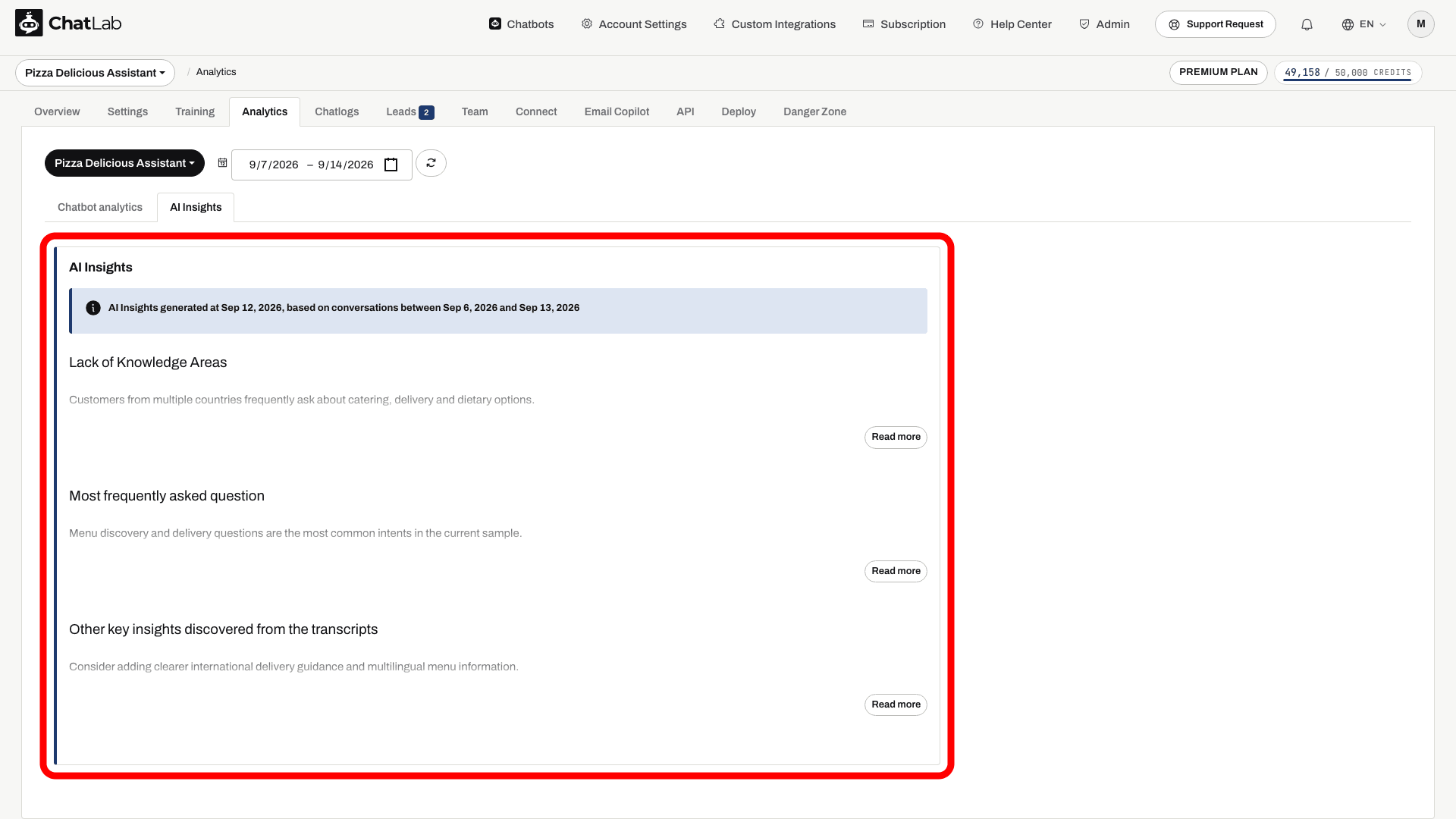
Note: AI Insights are generated for a single chatbot. If you switch the chatbot selector on the Analytics page to "All chatbots", the panel reminds you to select one chatbot.
What the insights contain
Each report is based on the conversations from the last 7 days and includes three sections. Use Read more where a section is shortened to expand its text.
- Lack of Knowledge Areas - questions your chatbot could not answer well. Use this list to add the missing information in the Training tab.
- Most frequently asked question - the most common questions and topics, in order of frequency. Good candidates for suggested questions or website content.
- Other key insights discovered from the transcripts - other patterns from the transcripts, such as user sentiment, recurring issues, or signs of frustration or satisfaction.
An info banner above the sections shows when the insights were generated and which date range of conversations they cover.
When insights are generated
- New active chatbots become eligible for an initial report after about five days. A report requires recent conversations and the AI Insights feature; it is not guaranteed to appear at an exact time.
- After that, insights refresh automatically once a week, always based on the conversations from the last 7 days.
- If the chatbot had no conversations in the last 7 days, the previous report stays in place until new conversations arrive.
You do not need to trigger anything - just check the Analytics tab after your chatbot has been talking to visitors.
Changing the language of AI Insights
AI Insights are written in your chatbot's Reporting language. To change it:
- Select your chatbot and navigate to Settings > Languages.
- In the AI language card, pick a language in the Reporting language field.
- Wait for the saved indicator before leaving the page. The new language applies to future generated insights; it does not translate an existing report immediately.
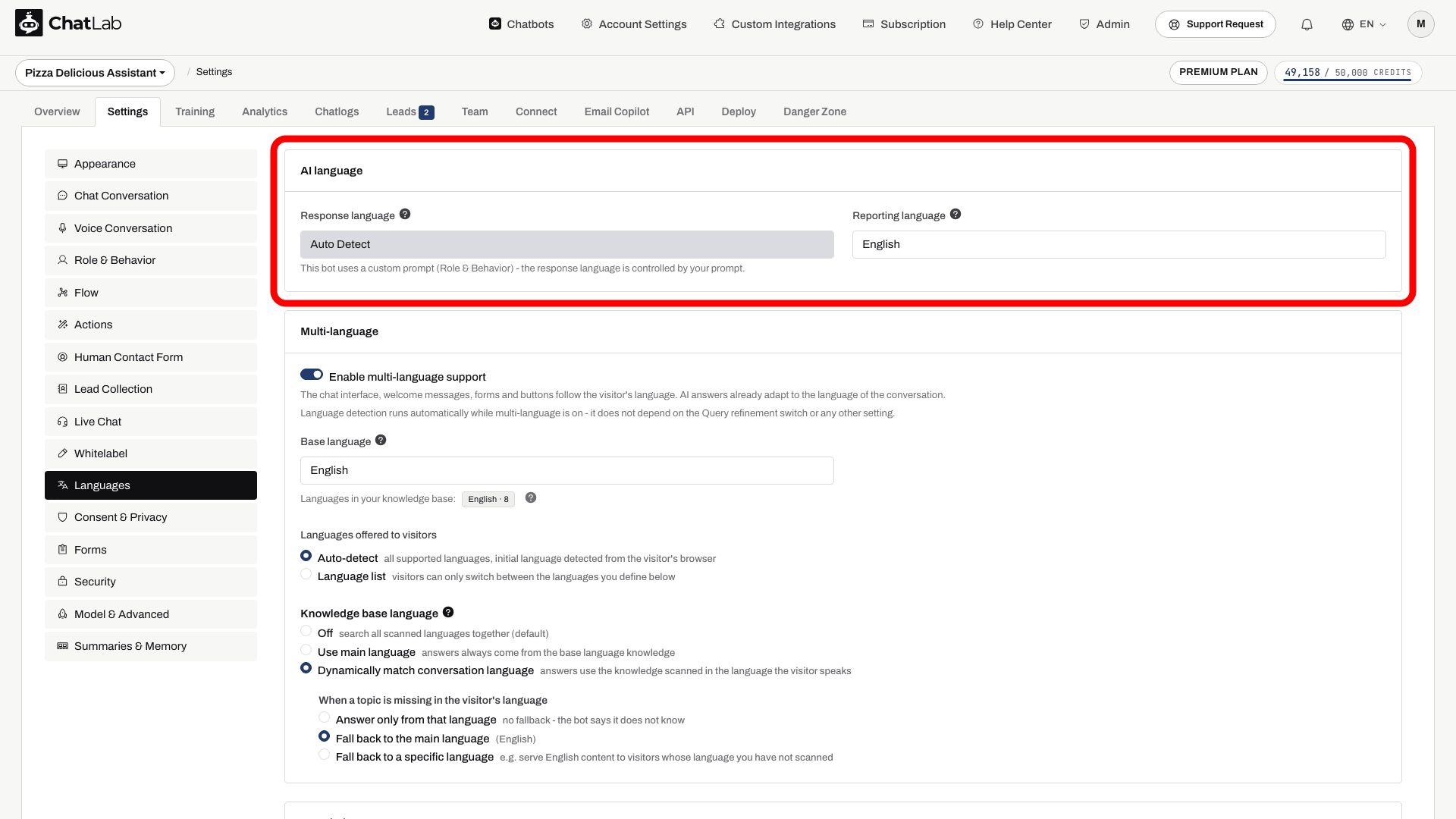
The Reporting language only affects content you see in the admin panel (AI Insights, conversation summaries, client summaries) - it does not change what your visitors see in the chat. This setting was previously called Internal language and lived under Settings > Model & Advanced. More about language settings: Chatbot language setup.
Receiving AI Insights by email
You can also receive AI Conversation Insights via email. Go to Account Settings > Reports, where you have two options:
- Daily reports - a daily email covering the previous complete UTC day, including the latest available AI insights
- Weekly reports - an email on your preferred day covering the previous seven complete UTC days, with chatbot activity and available AI insights
Both report types can be enabled per chatbot and sent to multiple email addresses. You choose the preferred day for weekly reports on the Weekly tab.