Conversation tags tell you at a glance what happened in a conversation: the chatbot did not know the answer, the customer wanted a person, the customer was unhappy. AI adds the automatic ones when a conversation goes quiet, and you can add or remove any tag by hand. Tags let you filter Chatlogs, and chosen tags open a ticket in the Inbox, so a conversation that needs a person does not get lost.
Conversation tags are available on every ChatLab plan.
Where to find tags
Select your chatbot and open Chatlogs. Select a conversation: the Tags line under it shows its tags and the + Add tag button. The question mark next to Tags explains them in short.
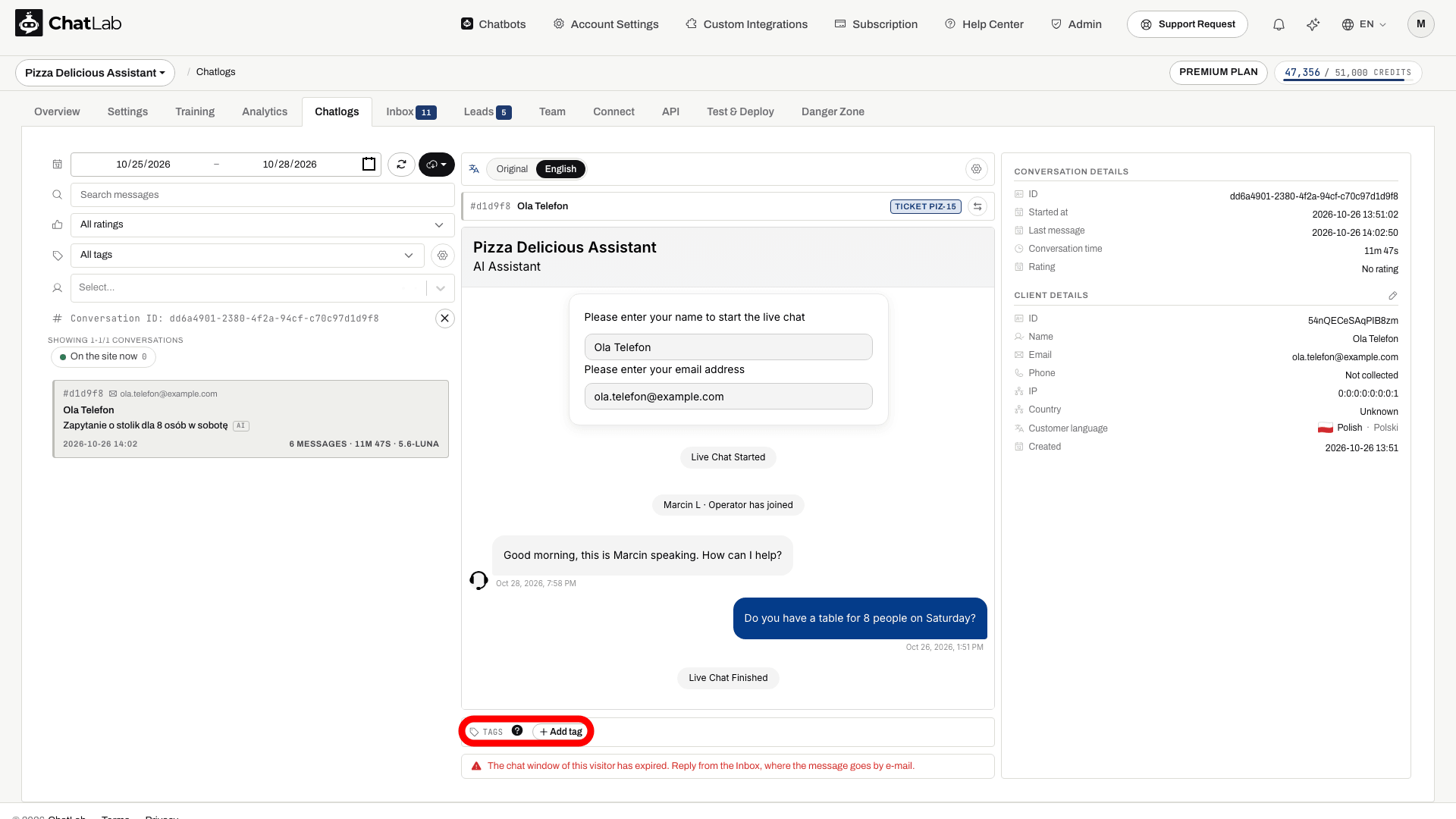
Add a tag to a conversation
- Click + Add tag under the conversation.
- Type to search the list and click a tag, or press
Enterto take the first match. - To create a new tag on the spot, type its name and click Create "name". It is added to this conversation at once and is a manual tag without an AI rule; you can make it automatic later in the tag catalog.
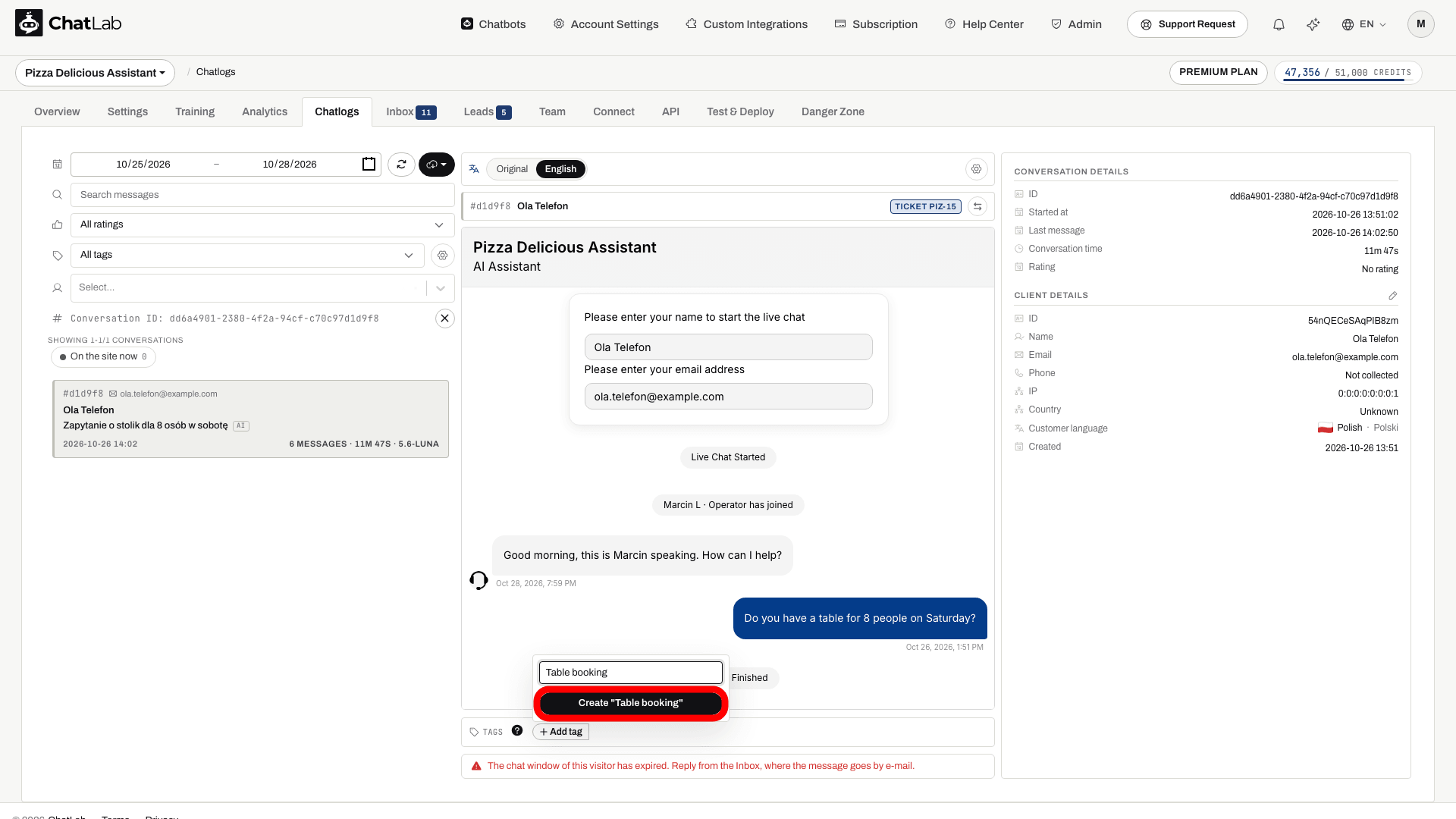
To remove a tag, click the small x on it. To see only conversations with a given tag, click that tag on a conversation in the list, or pick it in the tag filter in the left column.
The tag catalog
Click the gear next to the tag filter in the left column of Chatlogs. The Conversation tags window lists every tag of the chatbot, with how many conversations got it in the last 7 days.
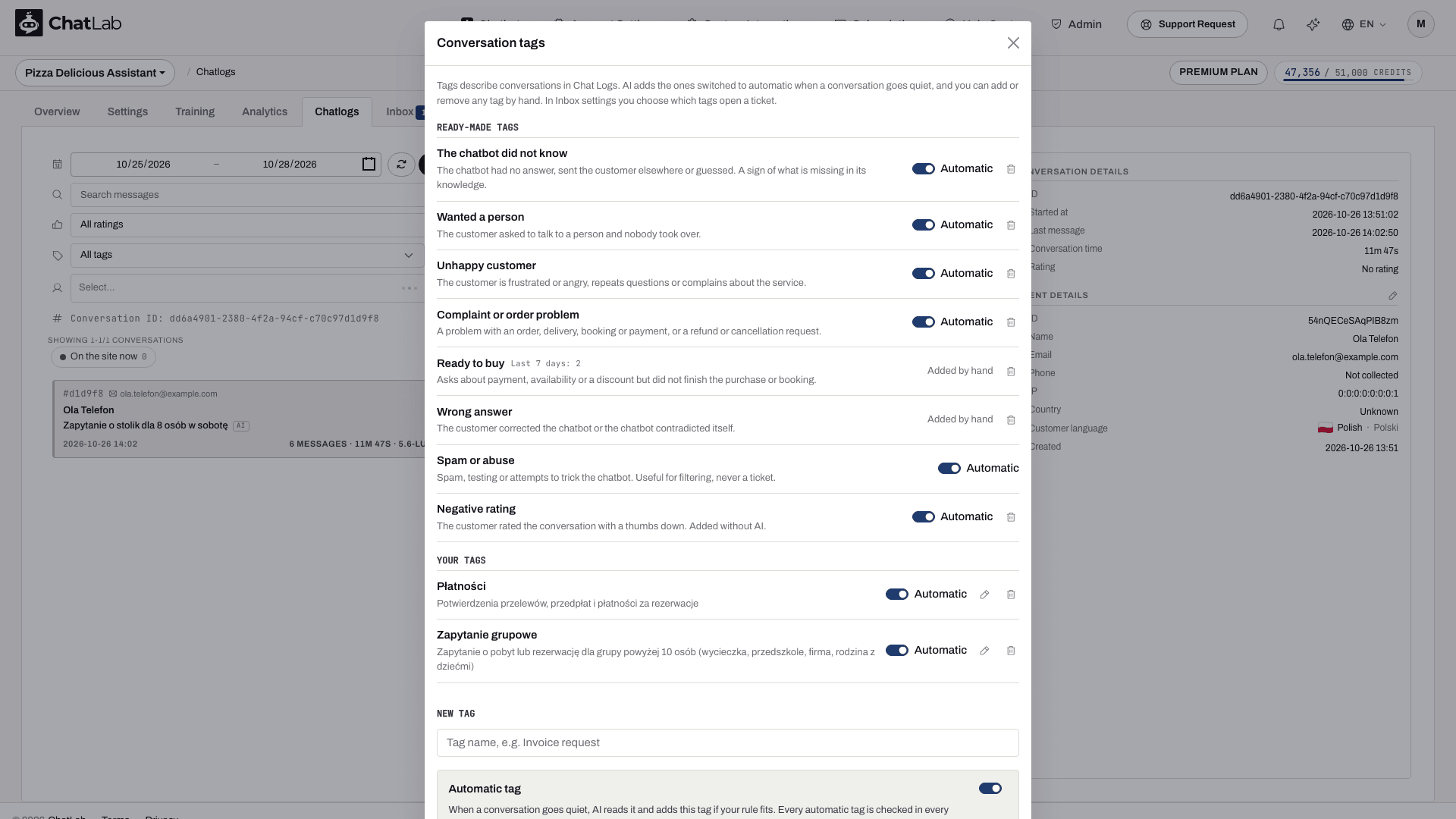
Ready-made tags come with every chatbot:
- The chatbot did not know - the chatbot had no answer, sent the customer elsewhere or guessed. A sign of what is missing in its knowledge.
- Wanted a person - the customer asked to talk to a person and nobody took over.
- Unhappy customer - the customer is frustrated or angry, repeats questions or complains about the service.
- Complaint or order problem - a problem with an order, delivery, booking or payment, or a refund or cancellation request.
- Spam or abuse - spam, testing or attempts to trick the chatbot. Useful for filtering, never a ticket.
- Negative rating - the customer rated the conversation with a thumbs down. Added without AI.
The Automatic switch next to a tag decides whether AI adds it by itself; switched off, the tag is added only by hand. The bin icon removes a ready-made tag from this chatbot: it disappears from every list and from the conversations that had it. Spam or abuse cannot be removed, because the Inbox uses it to close spam. Bring back removed ready-made tags under the list restores them.
Your tags are the ones you create. The pencil edits the name, the Automatic tag switch and the rule; the bin deletes the tag and removes it from every conversation.
Create your own tag
- In the catalog, type a name under New tag, for example Invoice request.
- Leave Automatic tag on if AI should add it, and describe under When should AI add it? when it applies, for example the customer asks for a VAT invoice. Keep the rule short and concrete: it can be up to 200 characters, and AI checks every automatic tag in every conversation.
- Switch Automatic tag off for a tag you only want to add by hand.
- Click Add tag.
A chatbot can have up to 5 automatic tags of its own and up to 30 tags of its own in total. When all 5 automatic places are taken, switch one off to make another one automatic.
Open a ticket from a tag
A tag can turn a conversation into a ticket in the Inbox. Open the Inbox, click the gear button next to the search box and go to Tickets from conversations. Switch Open a ticket on for the tags that need a person, for example Wanted a person or Complaint or order problem.
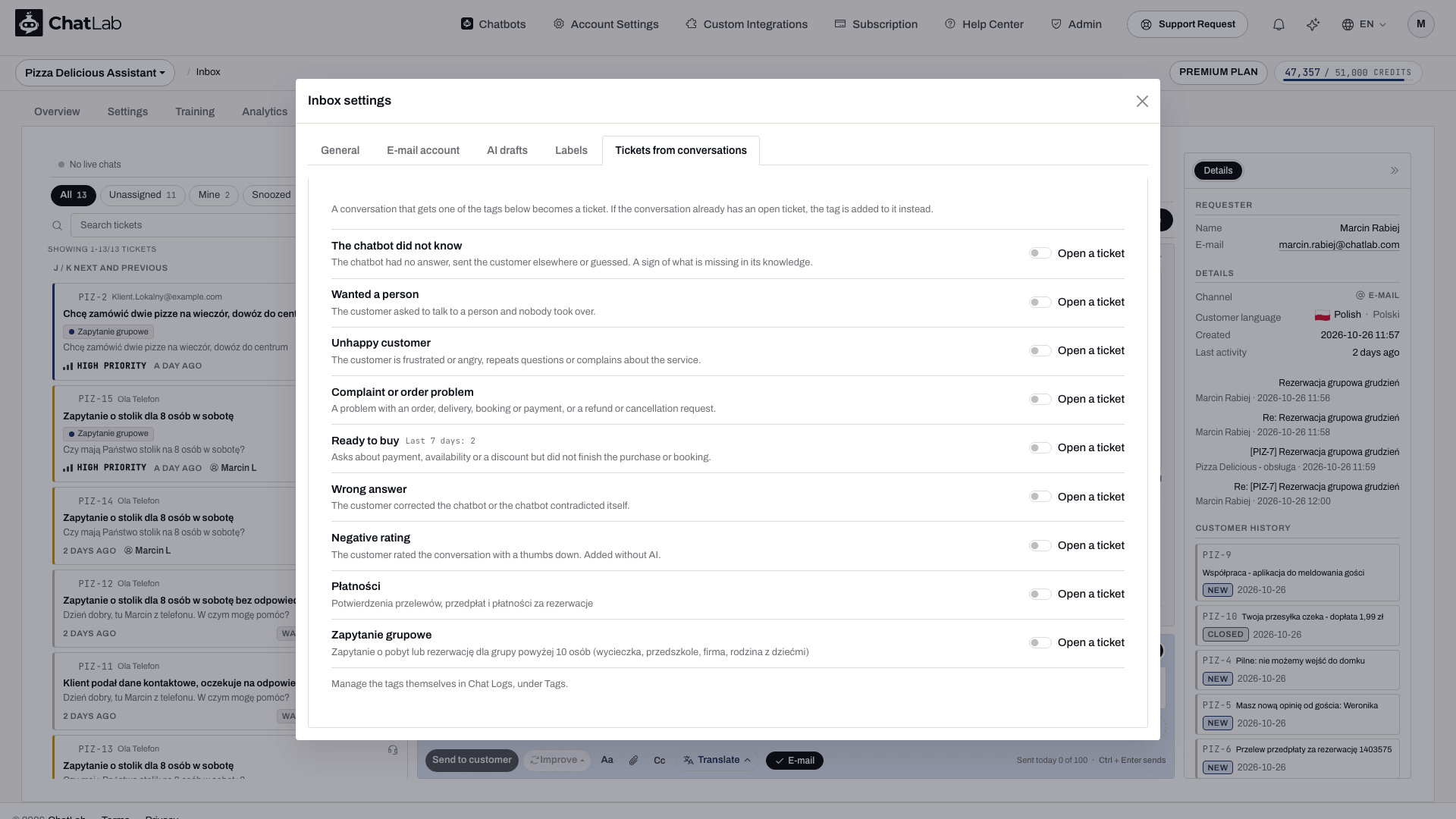
A conversation that gets such a tag becomes a ticket, and the tag is put on the ticket as a label, so you see why it was opened. If the conversation already has an open ticket, the tag is added to that ticket instead of opening a second one.
Tags and Inbox labels
Tags and Inbox labels are one list. On a conversation it is called a tag, on a ticket a label. In the Inbox, + Add label offers your tags and the ready-made tags, and labels you create in Inbox settings > Labels appear here too. See Inbox.
Related articles
- Chatlogs - where conversations and their tags live
- Inbox - tickets, labels and Inbox settings
- What is a message credit - which AI features use credits