When you start a website training, ChatLab processes everything on the server. You can navigate to other pages, close the browser tab, or log out entirely -- training continues until it finishes.
How it works
Background training is always on. There is nothing to enable. Every user on every plan gets it automatically.
When you click Start scanning the website in the new training dialog, the system begins scanning and processing your website content on the server side. A confirmation dialog confirms that training has started and you can safely leave.
If you stay on the page, real-time progress updates appear on the training card -- including the number of links scanned and the total training characters collected so far.
Email notifications
Enable the Email me when training is finished or needs my attention toggle when creating a new website training. When enabled, enter the email address where you want to receive notifications.
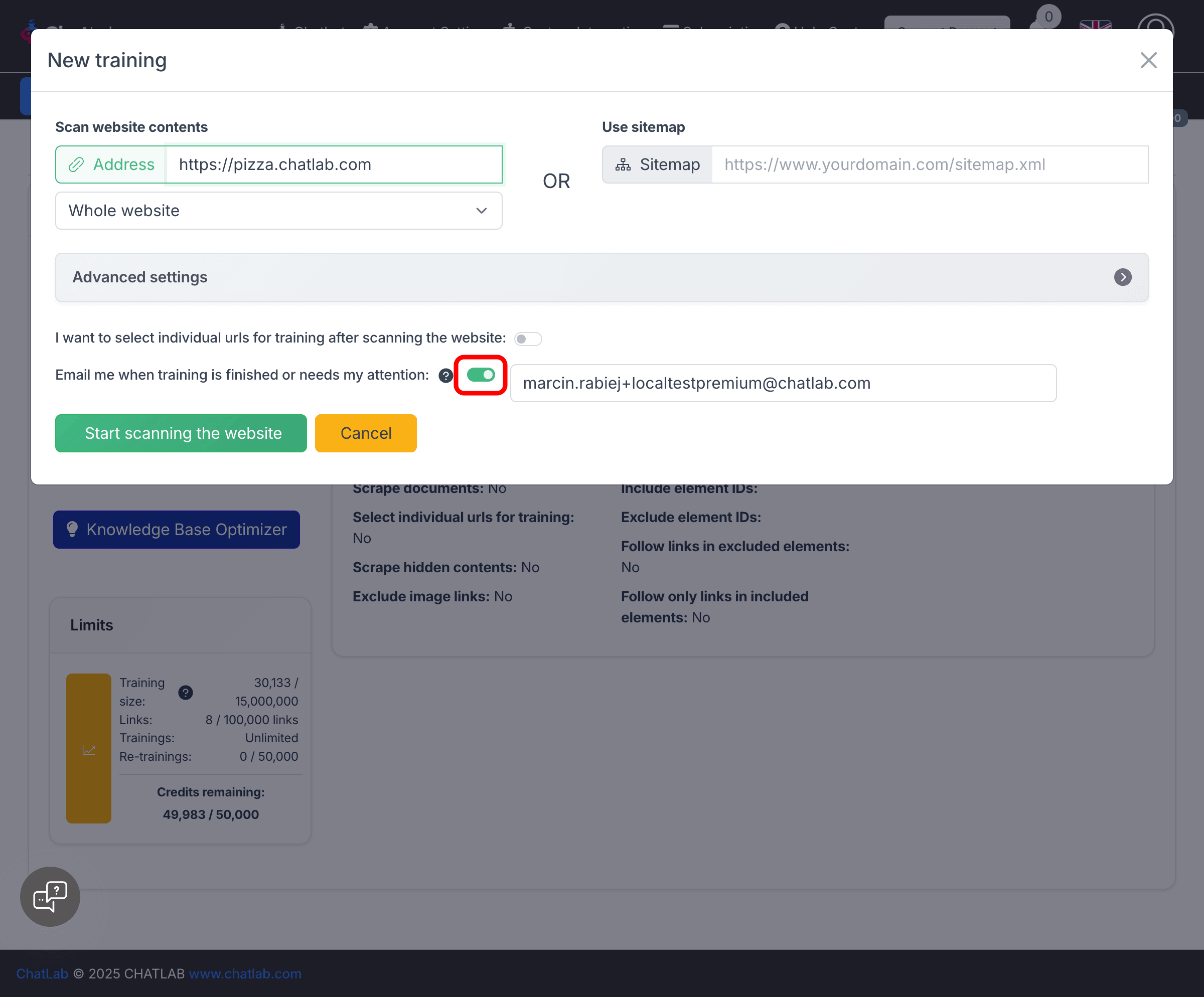
You will receive an email when:
- Training completes successfully
- The system needs your attention (for example, if you chose to select individual URLs)
- An error occurs during training
The toggle is enabled by default and pre-filled with your account email.
Selecting individual URLs
By default, ChatLab trains on all pages it discovers during scanning. If you prefer to review and pick specific pages first, enable the I want to select individual urls for training after scanning the website toggle.
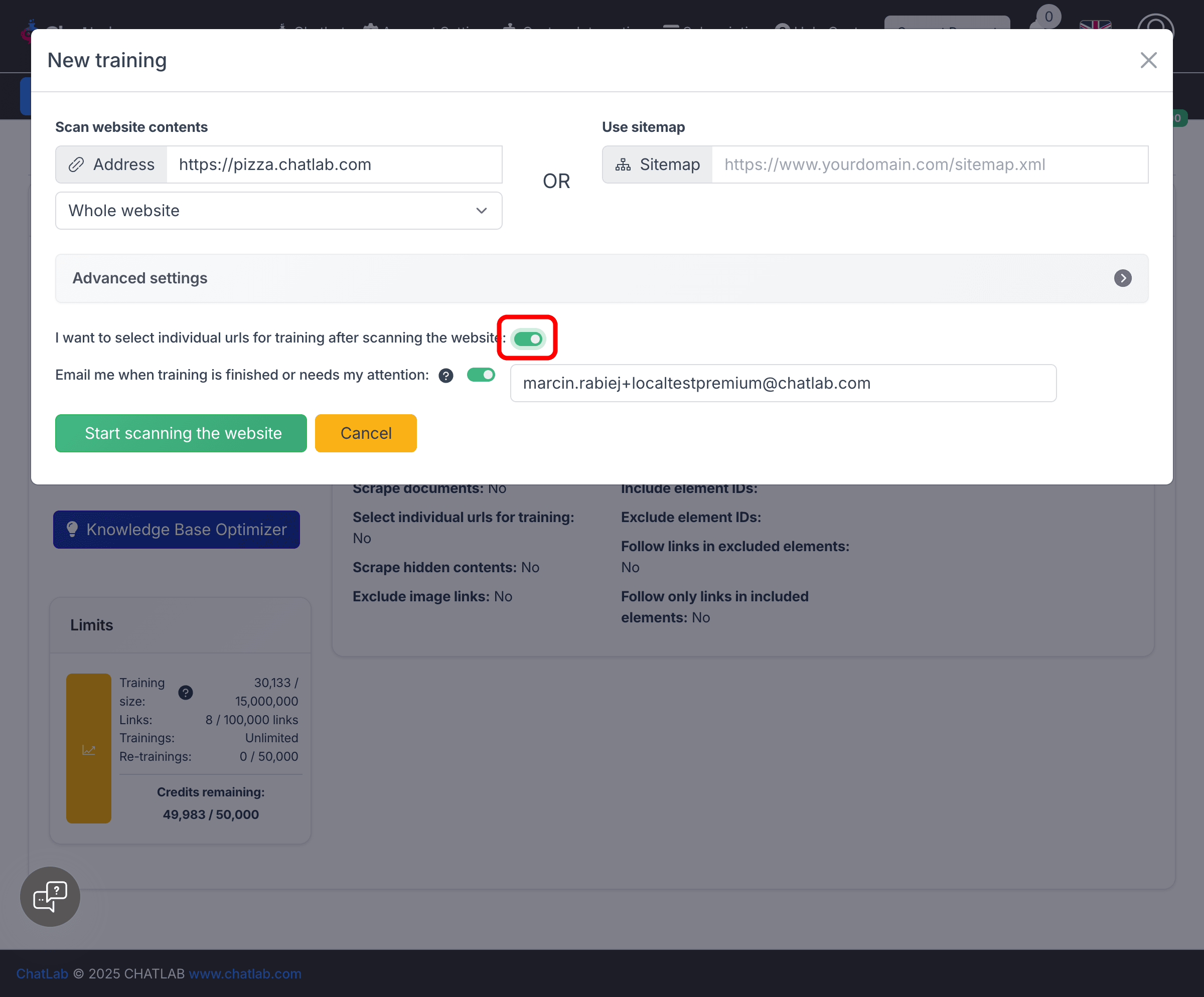
When this option is enabled:
- The system scans the website and collects all discovered pages
- Training pauses at the Awaiting links selection stage
- You receive an email notification (if enabled) that your attention is needed
- Return to the training page and select which URLs to include
- Click Start the Training to proceed with only the selected pages
Monitoring training progress
Navigate to Training > Links and switch to the Trainings tab to see all your website training jobs.
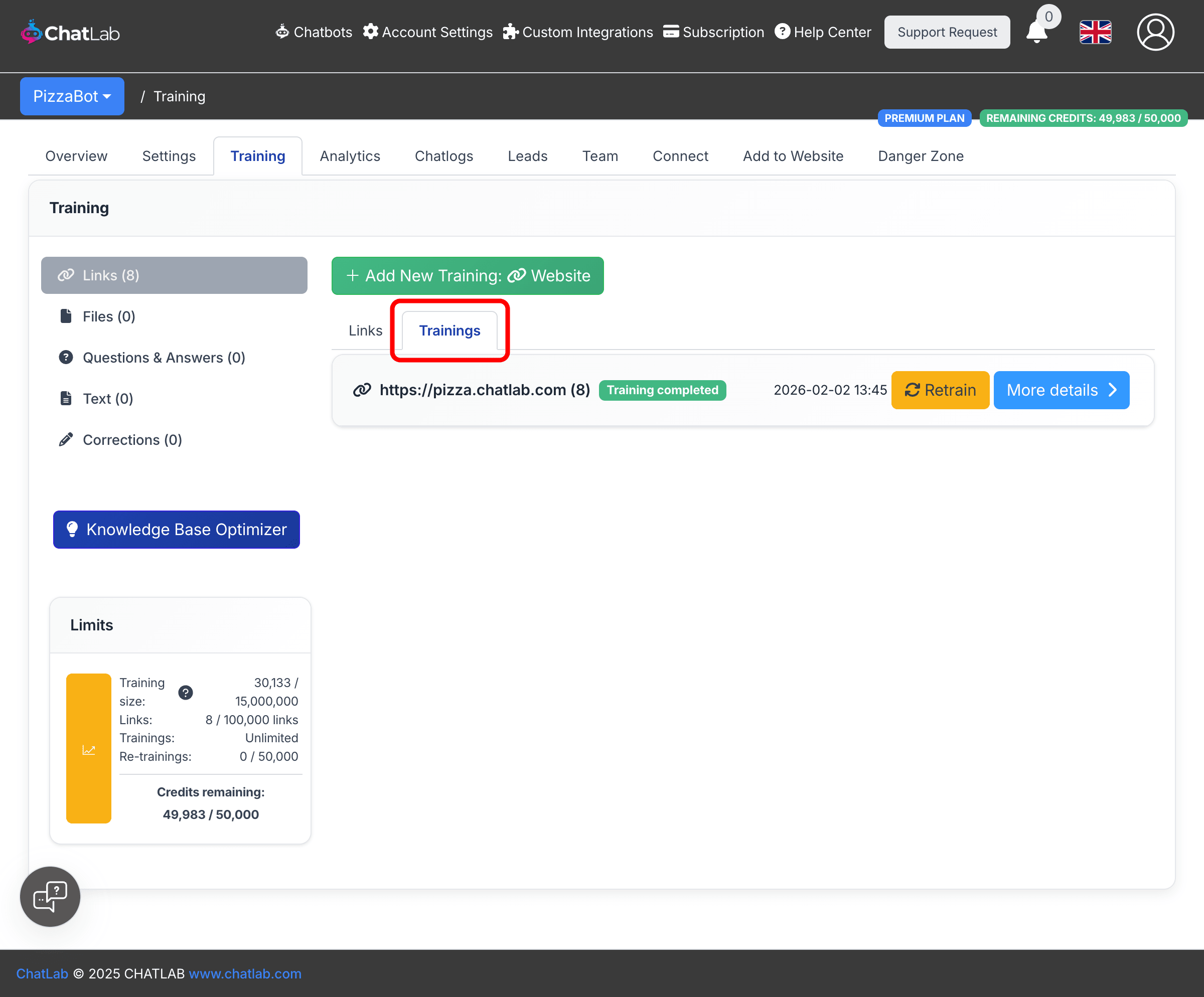
Each training card shows:
- Website URL and number of trained pages
- Status badge -- Scanning links, Awaiting links selection, Training, or Training completed
- Progress bar -- visible during active scanning or training
- Timestamp of the last update
Viewing training details
Click the More details button on any training card to expand the full configuration panel.
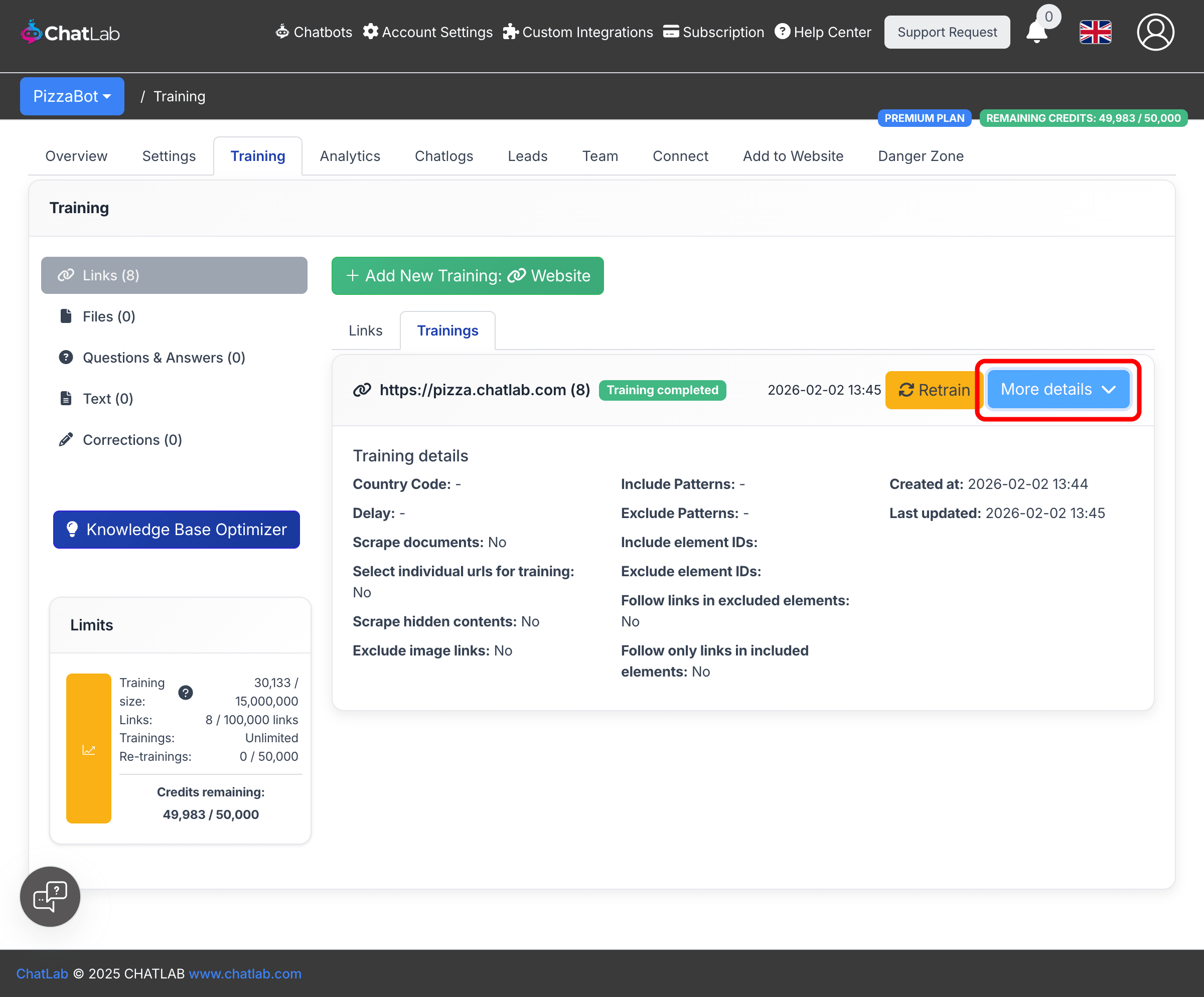
The details panel shows all parameters used for that training, including URL filtering patterns, content filtering settings, element inclusion/exclusion rules, and creation timestamps.
Canceling a training
A red Cancel button appears on every training card that is currently in progress (during the scanning or training stage). Click it to stop the process immediately. Any data already collected up to that point is discarded and the training card is removed.