Add plain text directly to your chatbot's knowledge base. This is useful for quick additions, custom content that does not exist in a file or on a website, or when you want to type specific knowledge for your chatbot without creating a document first.
Where to find text training
Select your chatbot, then navigate to the Training tab. In the left sidebar, choose Text. This is where you manage all text-based training sources.
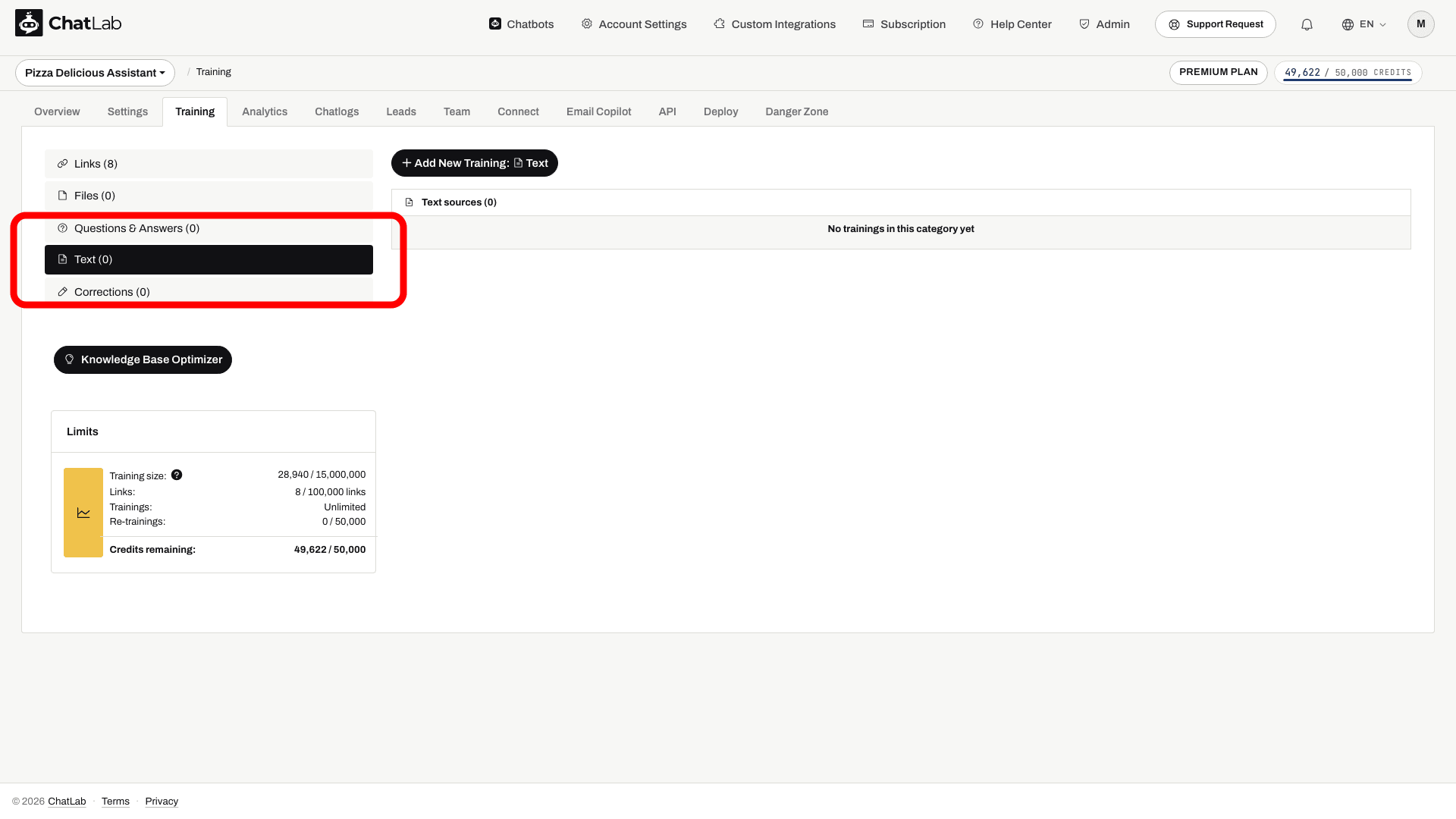
First create a chatbot and check its training capacity. Only add information the chatbot may use in visitor-facing answers.
How to add text
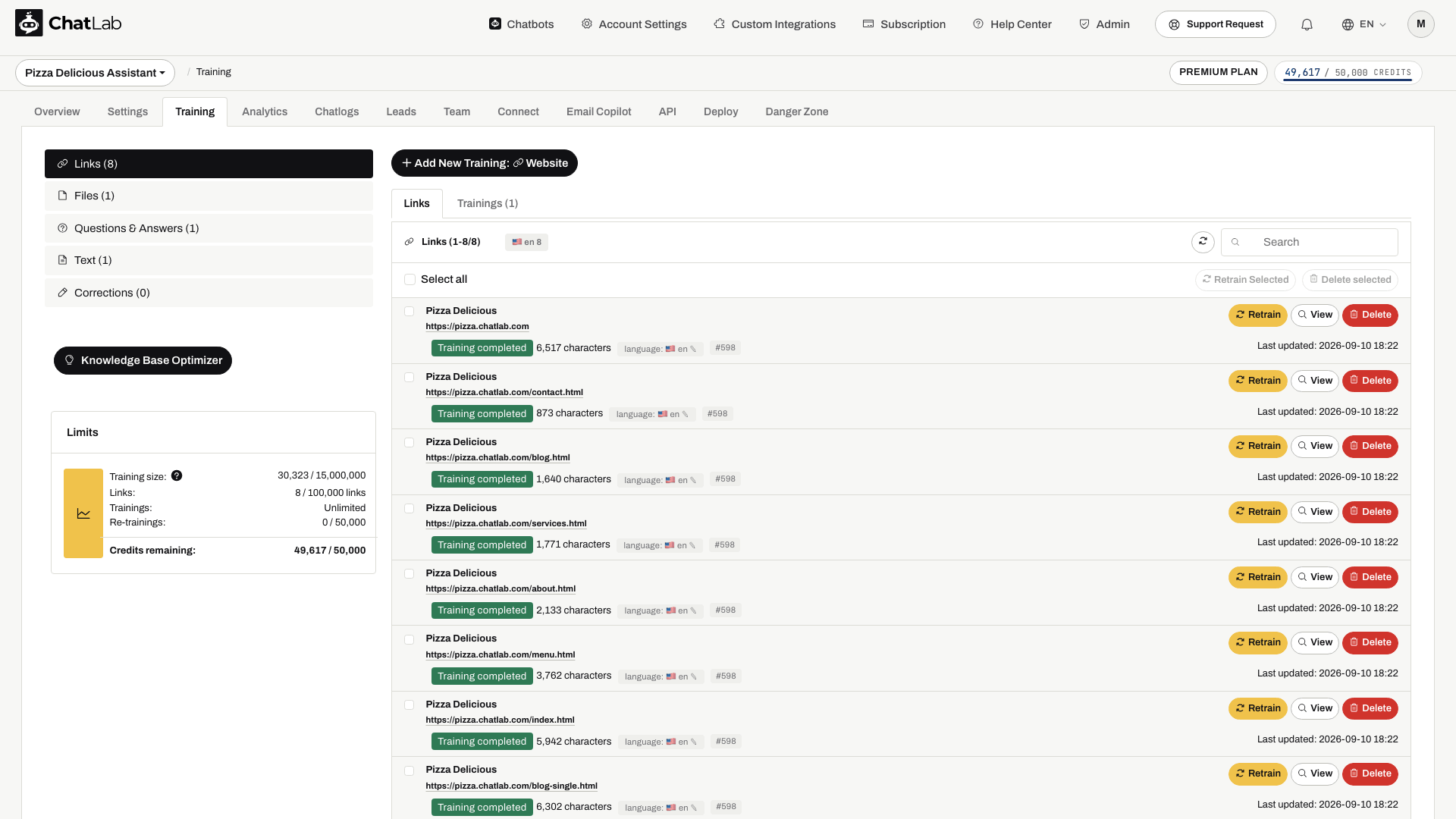
- Click the Add New Training: Text button at the top of the page.
-
Fill in the form fields:
- Label - A required name of 1 to 100 characters to help you identify this text entry. The label is not used for training and will not affect chatbot responses. It is only for your own reference.
- Text - The content you want your chatbot to learn from. Minimum length is 5 characters, maximum length is 100,000 characters.
-
Click Start Training to begin the training process.

How text processing works
After you click Start Training, ChatLab processes your text in the background:
- Processing - ChatLab splits the text into chunks optimized for retrieval.
- Training - The chunks are converted into embeddings and indexed into your chatbot's knowledge base.
Once training is finished, your text entry appears in the Text sources list with a green "Training completed" status. Each entry shows the character count and the date it was last updated.

Editing existing text
To update a text entry, click the Edit button next to it. The edit form opens inline with the current label and text pre-filled. Make your changes and click Update to retrain with the new content.

After Start Training or Update, wait for Training completed. Processing time depends on the amount of text; you can leave the page once the source is accepted. Open Overview and test a question about the new content in a fresh conversation. If it fails, check the source status and remove conflicting information from other sources.
When to use text training
- Unpublished information intended for customers - Policies or guidelines that visitors are allowed to receive, even if they are not on your website
- Quick updates - Time-sensitive information like holiday hours, temporary promotions, or event details
- Custom responses - Specific phrasing or answers you want the chatbot to use for particular topics
- Supplementary content - Additional context to complement what was already trained from website pages or uploaded files
Related articles
- Training your chatbot: basics and limits - Understanding training data limits
- Adding new files - Upload PDF, Word, Excel, and other files
- Adding questions and answers - Define exact Q&A pairs for precise responses
- Advanced training using Markdown syntax - Format training data with Markdown