Create Q&A pairs to train your chatbot with precise answers to specific questions. This is useful when you want the chatbot to respond in a particular way to certain topics, or when you need to provide exact information that may not exist on your website.
Where to find Q&A training
Select your chatbot, then navigate to the Training tab. In the left sidebar, choose Questions & Answers. This is where you manage all Q&A-based training sources.
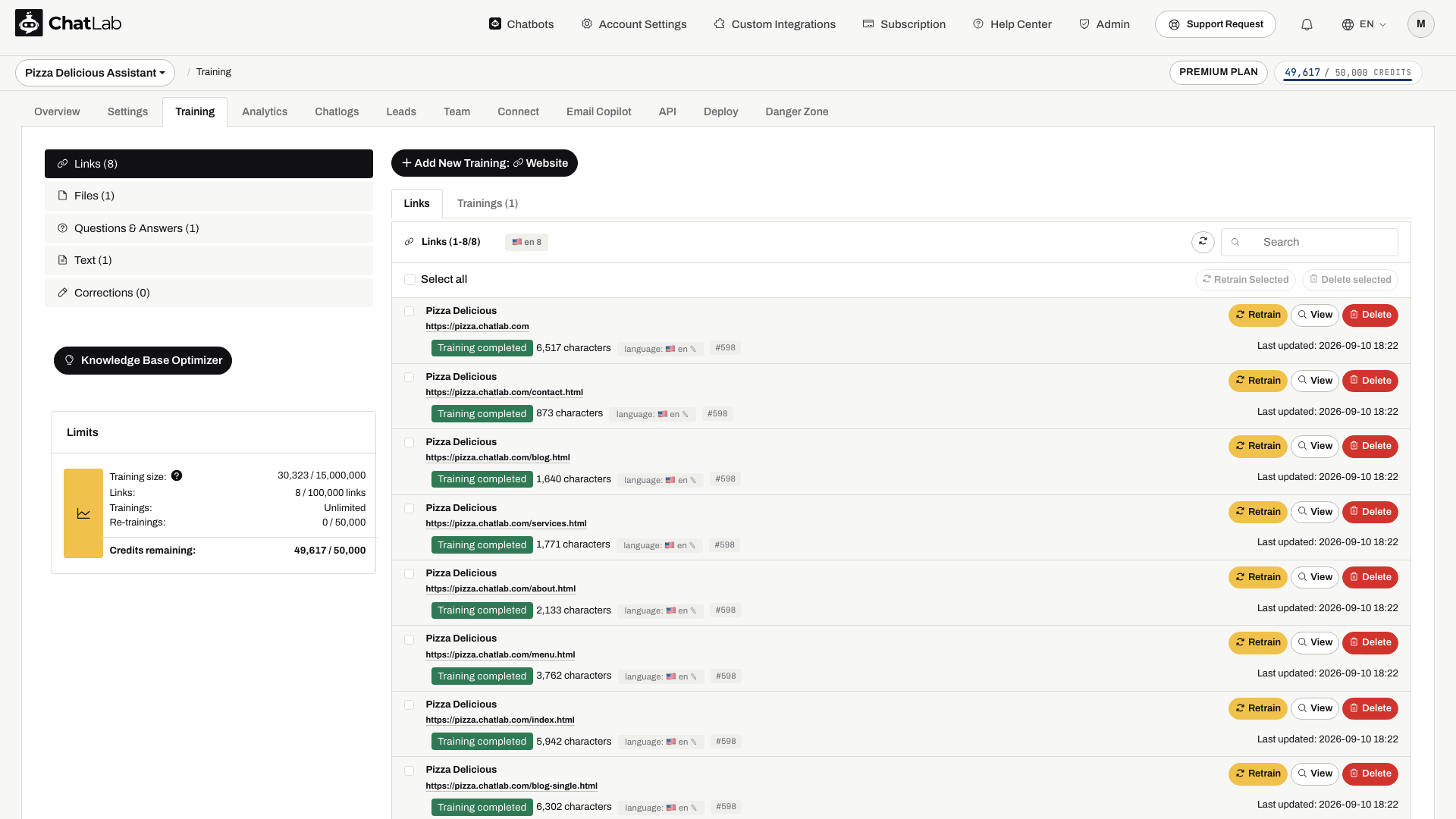
First create a chatbot and check its training capacity. Q&A entries provide reference information; they do not guarantee a verbatim answer or automatically override conflicting sources.
How to add questions and answers
- Click the Add New Training: QA button at the top of the page.

-
Fill in the form fields:
- Label - A name to help you identify this Q&A set. The label is not used for training and will not affect chatbot responses. It is only for your own reference. A label is required and must be 1 to 100 characters.
- Question - The question a user might ask. Minimum 5 characters, maximum 1,000 characters.
- Answer - The response your chatbot should give. Minimum 5 characters, maximum 1,000 characters.
-
To add more Q&A pairs under the same label, click Add another question and answer. This groups related questions together, making it easier to manage your training data. You can remove additional pairs by clicking the trash icon in the top-right corner of each pair.
-
Click Start Training to begin the training process.

How Q&A processing works
After you click Start Training, ChatLab processes your Q&A pairs in the background:
- Processing - ChatLab converts your questions and answers into chunks optimized for retrieval.
- Training - The data is transformed into embeddings and indexed into your chatbot's knowledge base.
Once training is finished, your Q&A set appears in the QA sources list with a green "Training completed" status. Each entry shows the label, character count, and the date it was last updated.

Editing existing Q&A
To update a Q&A set, click the Edit button next to it. The edit form opens inline with the current label, questions, and answers pre-filled. You can modify existing pairs, add new ones, or remove pairs you no longer need. Click Update to retrain with the new content.

After adding or updating a set, wait for Training completed, then open Overview and test both the original question and a natural rephrasing in a fresh conversation. Processing time varies with the set's size; once accepted, training continues if you leave the page. If an answer conflicts with your Q&A, review and update the other sources about that topic.
When to use Q&A training
- Precise answers - When you need the chatbot to respond to a specific question with an exact answer, such as business hours, pricing, or policies
- Frequently asked questions - Common questions that customers ask repeatedly, where you want consistent and accurate responses
- Information not on your website - Details approved for customer-facing answers that have not been published on your website
- Clarify or supplement - Add missing details, and correct any contradictory website or file sources rather than relying on Q&A to override them
Related articles
- Training your chatbot: basics and limits - Understanding training data limits
- Adding plain text - Add custom text content directly
- Adding new files - Upload PDF, Word, Excel, and other files
- Advanced training using Markdown syntax - Format training data with Markdown