Training is how your chatbot learns about your business. You provide content -- from your website, documents, or custom text -- and ChatLab processes it into a knowledge base the chatbot uses to answer questions.
Where to find training
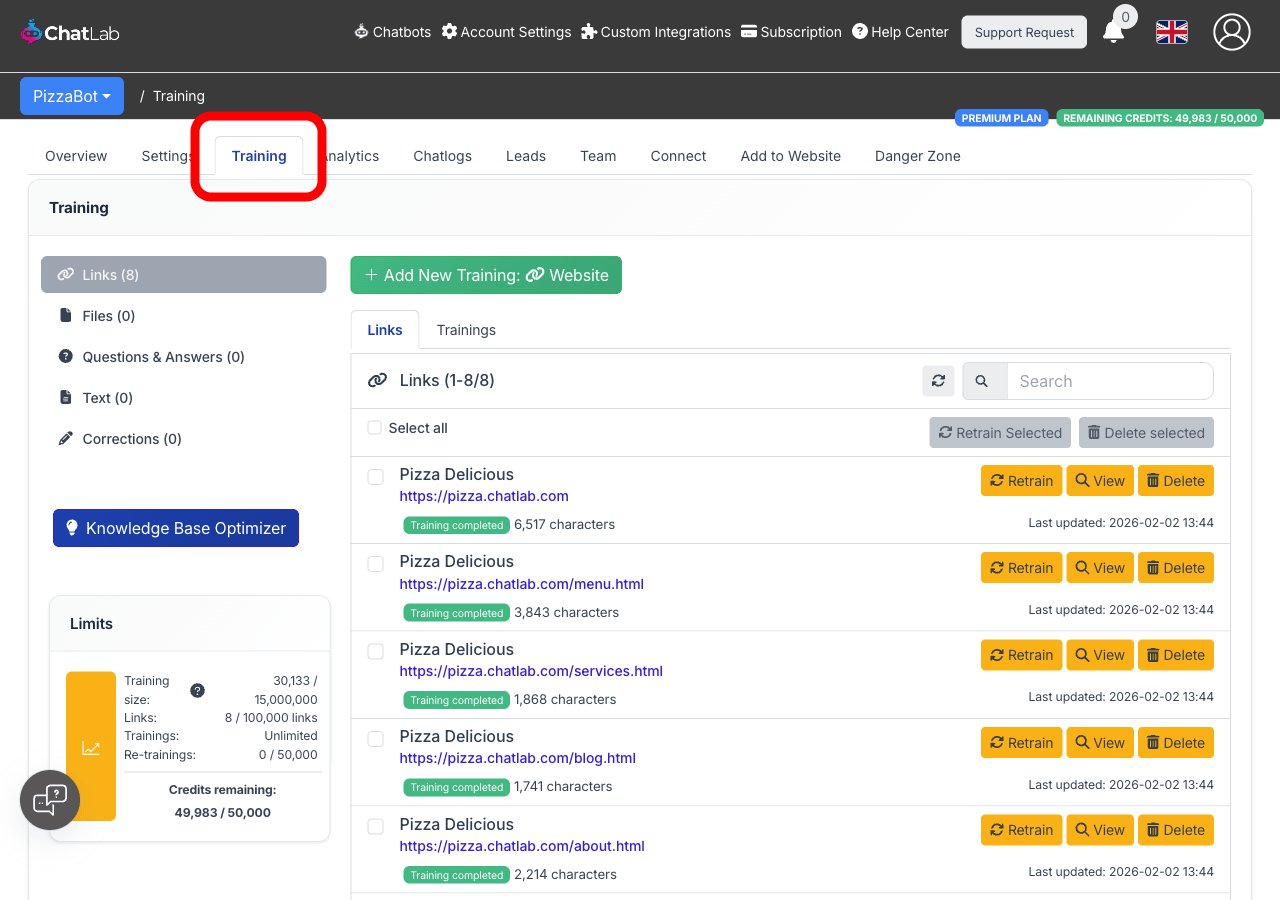
Select your chatbot from the main dashboard, then click the Training tab in the horizontal navigation bar.
Training sources
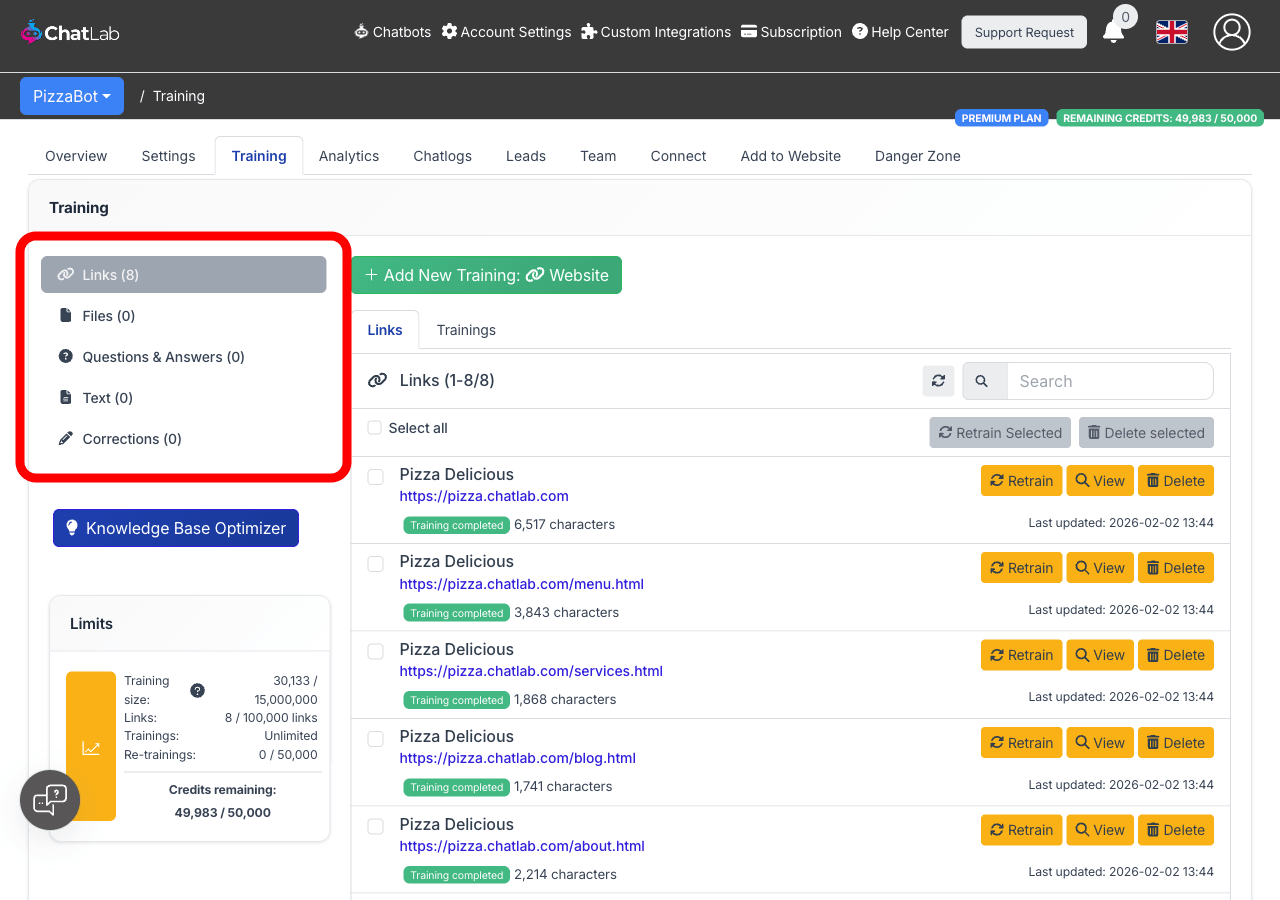
The left sidebar in the Training tab lists all available training source categories. Each source type adds content to the same knowledge base for your chatbot.
Website URLs (Links)
Point your chatbot to your website and it will crawl pages, extract text content, and train on what it finds. You can scan an entire website, a single page, or use your sitemap for precise control. Advanced settings let you filter URLs, exclude page elements, and configure scraping behavior.
Learn more about adding website sources
Files
Upload documents directly to your chatbot's knowledge base. Supported formats: PDF, TXT, DOC, DOCX, CSV, XLS, XLSX. You can upload up to 20 files at once, with a maximum of 20 MB per file. ChatLab extracts the text content and processes it for training.
Questions & Answers
Create Q&A pairs to give your chatbot precise answers to specific questions. This is useful for FAQs, company policies, or any topic where you want a consistent response. You can group related Q&A pairs under labels for easier management.
Learn more about adding questions and answers
Text
Add plain text directly to your chatbot's knowledge base. Use this for quick additions, internal knowledge, or content that does not exist in a file or on your website. Each text entry can be up to 100,000 characters.
Learn more about adding plain text
Corrections
Fine-tune your chatbot by correcting its previous mistakes. You can add corrections from the Chatlogs tab when you spot an incorrect response, or create them manually in the Training section.
Learn more about adding and editing corrections
Training limits
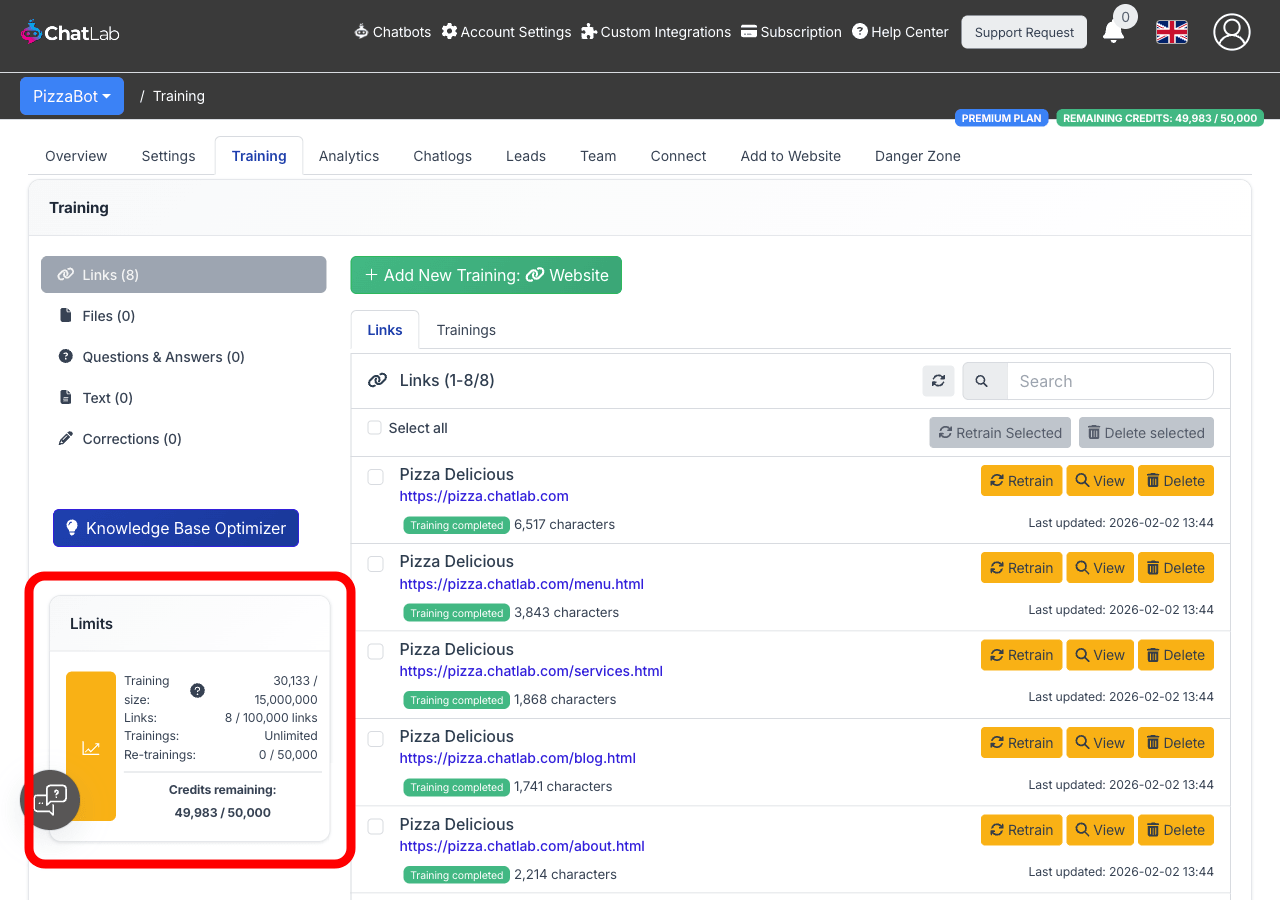
The Limits panel at the bottom of the left sidebar shows your current usage for the selected chatbot.
What counts as a training character
A training character is one character of visible text extracted from your sources. ChatLab does not count HTML tags, CSS, JavaScript, images, or other media. Only the actual readable content counts toward your limit.
For example, actual text typically makes up only about 8% of a web page's total size:
- 400,000 characters ≈ 5 MB page
- 11,000,000 characters ≈ 140 MB page
- 15,000,000 characters ≈ 190 MB page
If these limits are not sufficient, you can purchase an add-on package: "+10 MB of training characters for all your chatbots". This increases each chatbot's limit (for example, from 15 MB to 25 MB).
Per-bot limits
Each chatbot has its own independent training data limit. One chatbot reaching its limit does not affect your other chatbots. All training sources within a single chatbot (website content, files, Q&A, text, corrections) count toward the same cumulative character total.
Monitoring your usage
The Limits panel displays:
- Training size -- Characters used vs. your limit (e.g. 30,133 / 15,000,000)
- Links -- Number of trained URLs vs. your link limit
- Trainings -- Number of training operations performed
- Re-trainings -- Automatic re-training operations used vs. monthly limit
- Credits remaining -- Message credits available for the billing period
For a deeper understanding of how limits work, including per-plan quotas, smart re-training, and optimization tips, see Understanding training data limits.
How training works
When you add a training source, ChatLab processes it in the background:
- Content extraction -- Text is extracted from your source (web page, file, or manual input)
- Chunking -- The text is split into smaller pieces optimized for retrieval
- Embedding generation -- Each chunk is converted into a numerical representation (embedding)
- Indexing -- Embeddings are stored in the knowledge base for fast similarity search
When a user asks your chatbot a question, the system searches the knowledge base for the most relevant chunks and uses them to generate an accurate answer.
Monitoring training progress
Training progress updates in real time - you do not need to refresh the page. As your training job moves through each stage (scanning, extracting, training), the status badge, progress bar, and link counts update automatically. When training completes, the page refreshes the training data on its own so you always see the latest results.
You can leave the page while training is in progress. Training continues in the background and you can optionally receive an email notification when it completes. Learn more about training in background.
Managing website training jobs
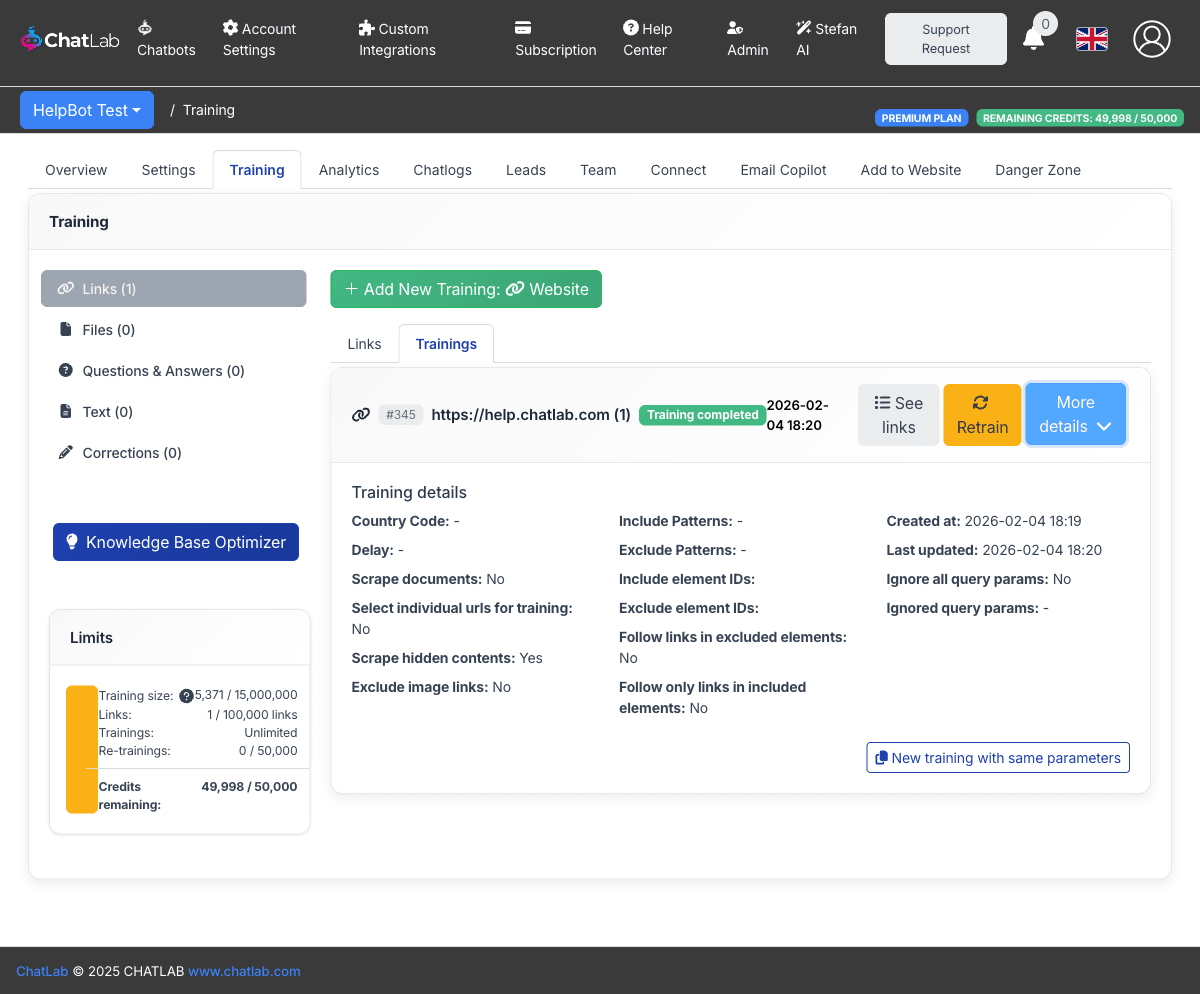
When you train your chatbot from website URLs, each scan creates a training job listed under the Trainings sub-tab (Training > Links > Trainings). These jobs include several features to help you track and manage your training data.
Training ID badges
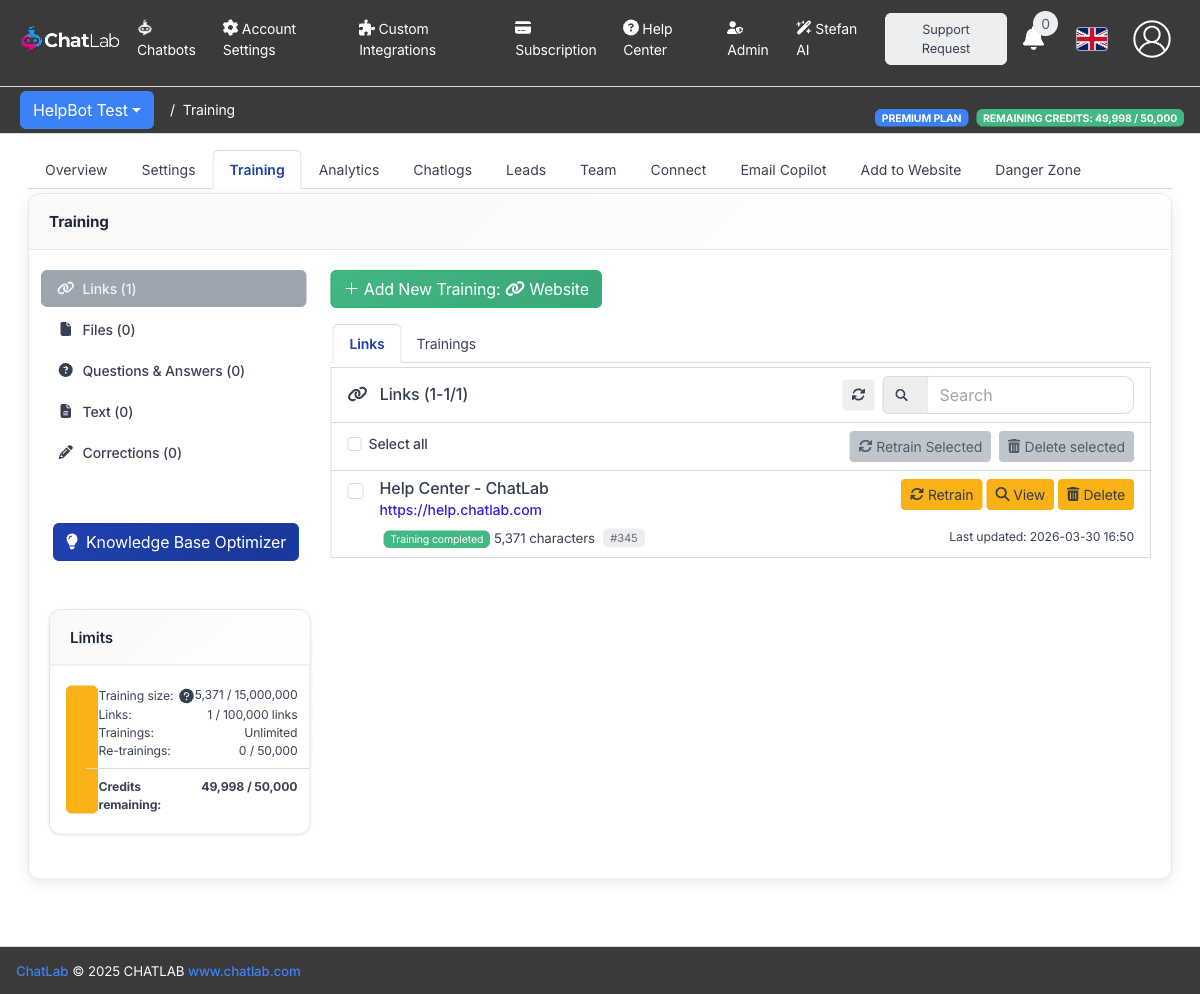
Every training job displays an ID badge (for example, #42) next to the website URL. This makes it easy to identify and reference specific training jobs, especially when you have multiple scans for the same website.
Filtering links by training job
When your chatbot has more than one website training job, a dropdown filter appears above the links list. Use it to show only the links that belong to a specific training job, or select All trainings to see every link. This is helpful when you want to review or manage links from a particular scan.
Links reassigned or removed
If a completed training job shows Links reassigned or removed, it means the links originally scanned by that job have been moved to a newer training or were deleted. The training job itself is kept for reference but no longer has active links associated with it. You can archive these jobs to keep your training list clean.
Viewing scraping parameters
Click More details on any training job to see the full set of parameters used for that scan. This includes URL patterns, element filters, country code, and the query parameter handling settings (whether all query parameters were ignored or specific ones were excluded). You can also start a new training with the same parameters by clicking New training with same parameters.
Re-training
Website content changes over time. You can re-train individual pages manually or set up automatic scheduled re-training (daily, weekly, or monthly) to keep your chatbot's knowledge current.
When re-training existing content, ChatLab uses net quota calculation -- only the difference between old and new content counts toward your limit, not the entire page again.
Tips for effective training
- Quality over quantity -- Focus on content that directly helps answer customer questions (FAQs, product details, support articles, policies)
- Avoid noise -- Exclude irrelevant pages like login screens, image galleries, or news archives. Use advanced URL filtering when scanning websites
- Combine sources -- Use website scanning for broad coverage, then supplement with Q&A pairs for topics that need precise answers
- Review and correct -- Check your chatbot's responses in Chatlogs and add corrections when needed
- Use the Knowledge Base Optimizer -- This tool analyzes which sources are referenced most, helping you refine your training data
For more strategies, see How to improve chatbot responses.
Related articles
- Adding new website sources -- Scan websites, sitemaps, or single pages
- Adding new files -- Upload PDF, Word, Excel, and other documents
- Adding questions and answers -- Create precise Q&A pairs
- Adding plain text -- Add custom text content directly
- Adding and editing corrections -- Fix chatbot mistakes
- Understanding training data limits -- Per-plan quotas and optimization
- Re-training -- Schedule automatic content updates
- How to reduce training characters when scanning a website -- Advanced filtering techniques
- Advanced training using Markdown syntax -- Format training data with Markdown