Adding website sources allows your chatbot to learn directly from your website content. Whether it is product details, FAQs, or blog posts, scanning your website ensures the chatbot can provide accurate and up-to-date responses based on your actual site content.
Where to find website training
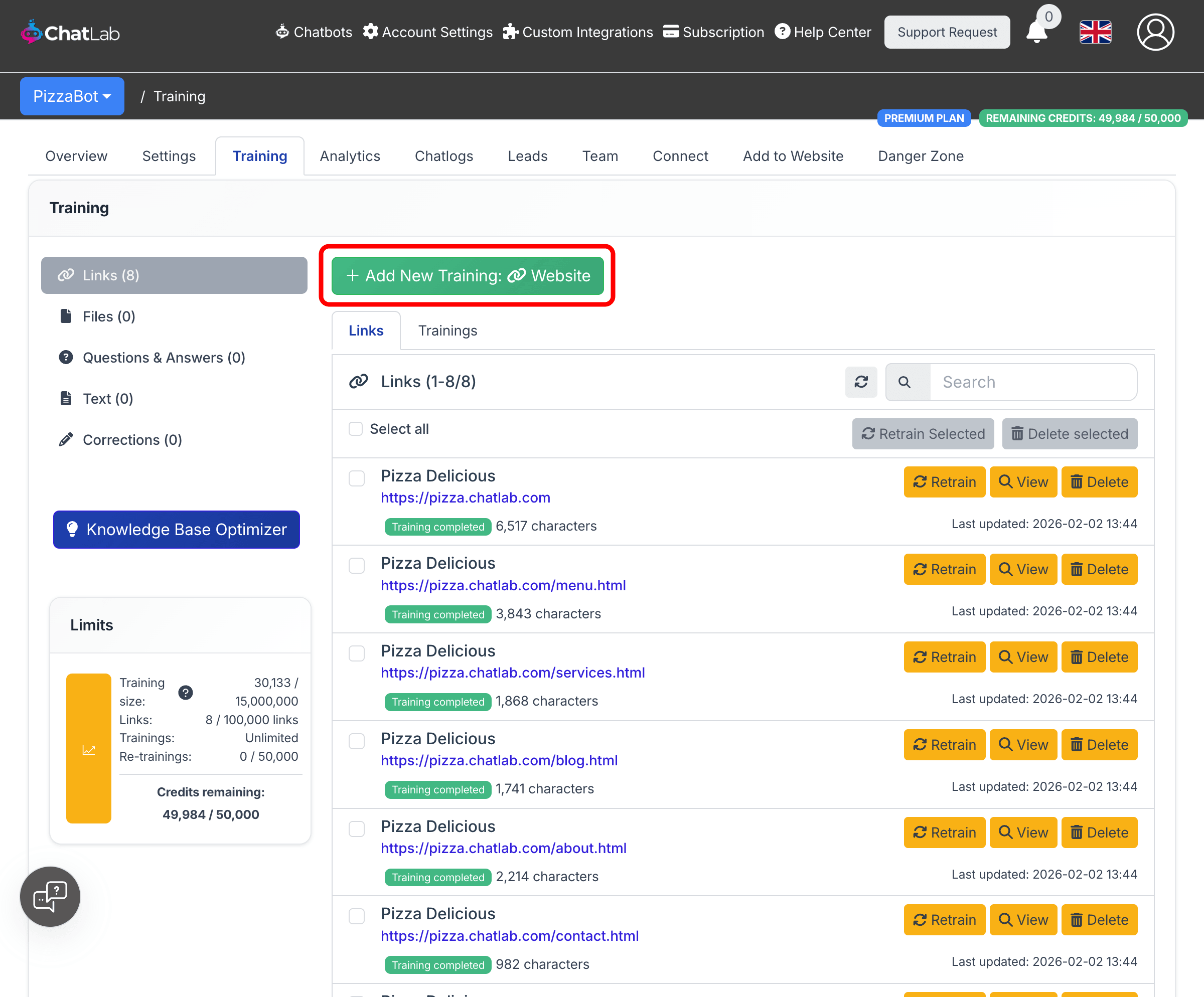
Select your chatbot, then navigate to the Training tab. In the left sidebar, choose Links. This is where you manage all website-based training sources.
Click Add New Training: Website to open the training form.
Scanning options
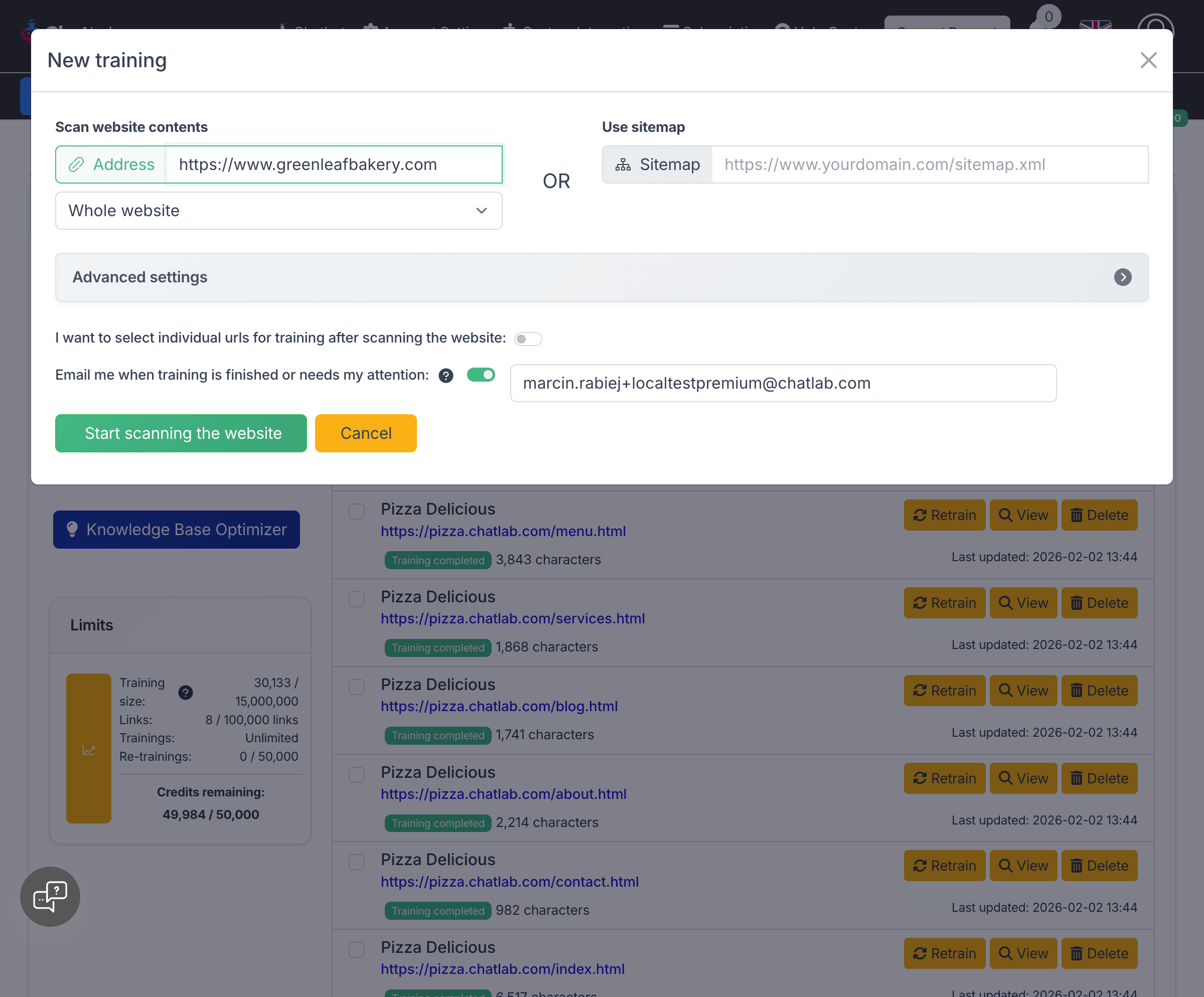
The training form gives you two ways to add website content, separated by an OR divider.
Scan website contents -- Enter a URL in the Address field and choose between:
- Whole website -- Crawls all discoverable pages starting from the URL you provide
- Single address -- Scans only the specific page you enter
Use sitemap -- Enter your sitemap URL (e.g. https://www.yourdomain.com/sitemap.xml) in the Sitemap field. This scans only the pages listed in your sitemap file.
When using a sitemap, the Address field is automatically disabled (and vice versa) since you can only use one method per training job.
Train on whole website
- Enter your website root URL in the Address field (e.g.
https://www.yourdomain.com) - Select Whole website from the dropdown below the address field
- Click Start scanning the website
The system will crawl your website, following links to discover all pages. You can monitor progress in the Trainings tab, where you will see the number of links scanned and training characters collected in real time.
Train on a single page
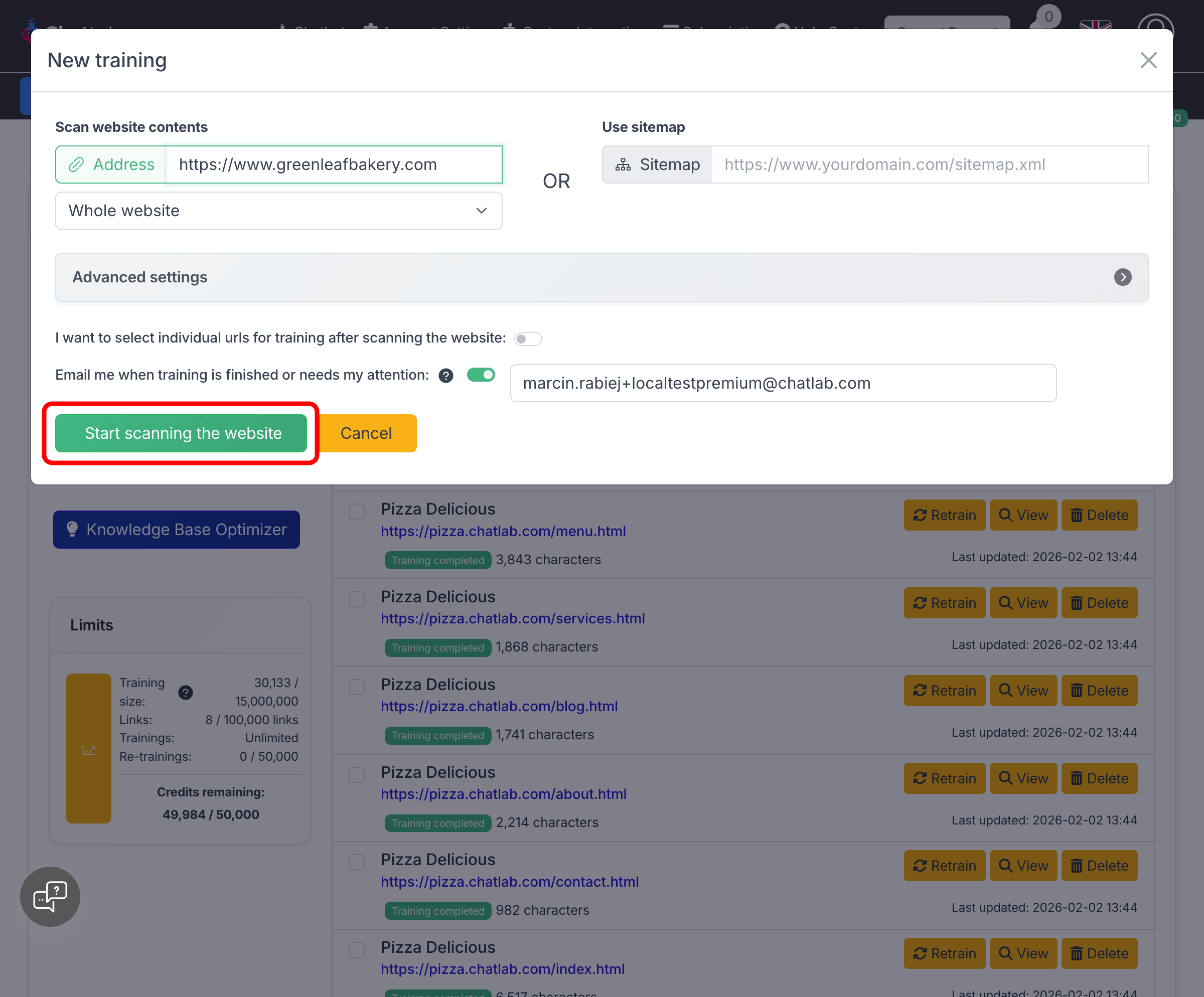
- Enter the specific page URL in the Address field (e.g.
https://www.yourdomain.com/pricing) - Select Single address from the dropdown
- Click Start scanning the website
This is useful when you only need to add one specific page to your chatbot's knowledge base, for example a newly published article or an updated FAQ page.
Train on sitemap
- Enter your sitemap URL in the Sitemap field (e.g.
https://www.yourdomain.com/sitemap.xml) - Click Start scanning the website
Sitemap scanning gives you precise control over which pages are included since it only processes URLs listed in your sitemap file.
Selecting individual pages for training
Before starting a scan, you can enable the toggle I want to select individual urls for training after scanning the website. This option is available only when scanning a whole website (not for single address mode).
When enabled:
- The system scans your website and discovers all pages
- After scanning completes, you see a tree view of all discovered pages with their character counts
- Check or uncheck pages to include or exclude them from training
- Click Start the Training to begin training on your selected pages
This is helpful when your website contains pages you do not want the chatbot to learn from, such as login pages, admin areas, or irrelevant sections.
Advanced settings
Click the Advanced settings button in the training form to access fine-grained scanning controls.
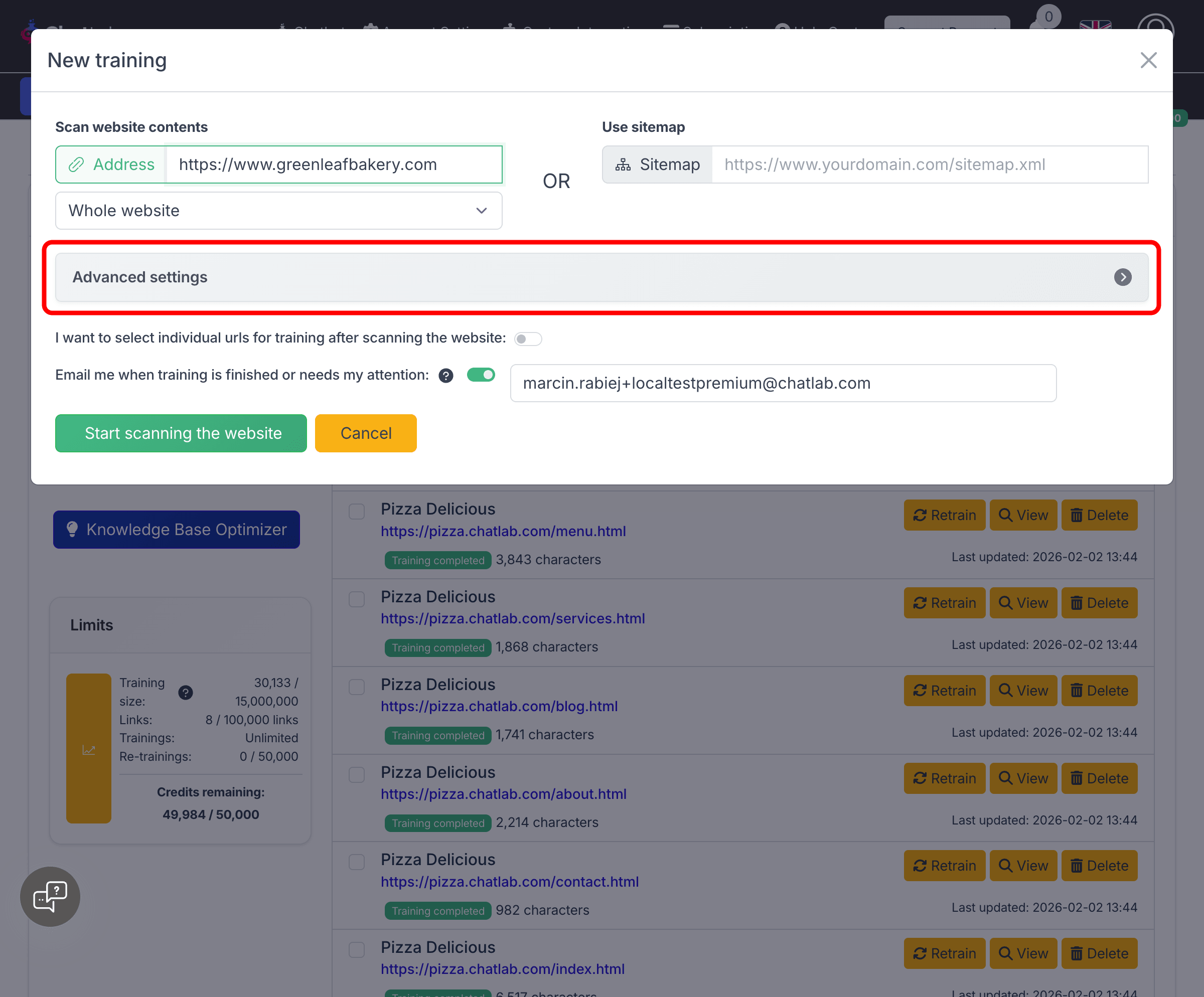
The advanced settings are organized into four sections:
URL Filtering
- Include only URLs that contain -- Only scan URLs matching these patterns (semicolon-separated, e.g.
/en;/help) - Exclude URLs that contain -- Skip URLs matching these patterns (e.g.
/news;/pictures). Common patterns like/wp-admin/,/feed/, and cart pages are excluded by default
Query Parameters
- Ignore all query parameters -- Treat URLs with different query parameters as the same page (e.g.
/page?id=1and/page?id=2both become/page) - Ignore specific query parameters -- Ignore only certain parameters (common tracking parameters like
utm_source,fbclid,gclidare automatically ignored)
Content Filtering
- Include element IDs -- Only extract content from specific HTML elements (use
#idfor IDs,.classnamefor classes, separated by semicolons) - Exclude element IDs -- Skip content from specific HTML elements (e.g.
footer;header;#navigation) - Conditional toggles appear when include/exclude elements are set, letting you control whether the crawler follows links found within those elements
Scraping Behavior
- Scrape documents -- Also extract content from PDF files found on the website
- Exclude image links -- Skip image URLs from the training dataset
- Scrape hidden contents -- Include content from hidden HTML elements (enabled by default)
- Delay between pages -- Add a delay in seconds between page requests to reduce server load
- Country code -- Route scraping through a proxy server in a specific country (two-letter code, e.g.
us)
Email notifications
The toggle Email me when training is finished or needs my attention is enabled by default. When active, you receive an email notification when:
- Training completes successfully
- The system needs your input (e.g., selecting pages after a scan)
- Any issues arise during training
You can change the notification email address in the field next to the toggle.
Monitoring training progress
After starting a scan, switch to the Trainings tab to monitor progress. Each training job shows:
- The source URL
- Current status (Scanning links, Awaiting links selection, Training, Training completed)
- A progress bar during active scanning or training
- The date of the last update
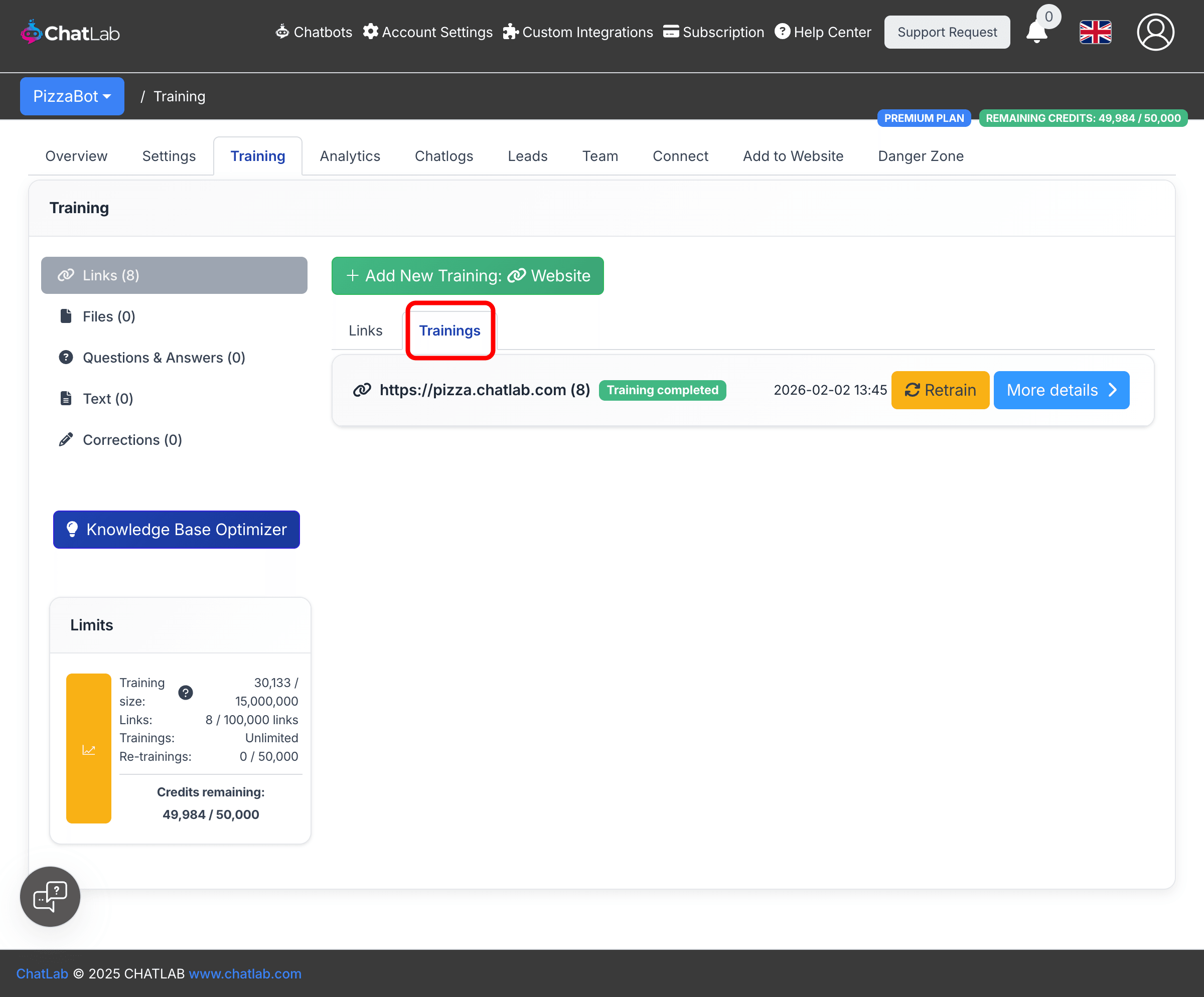
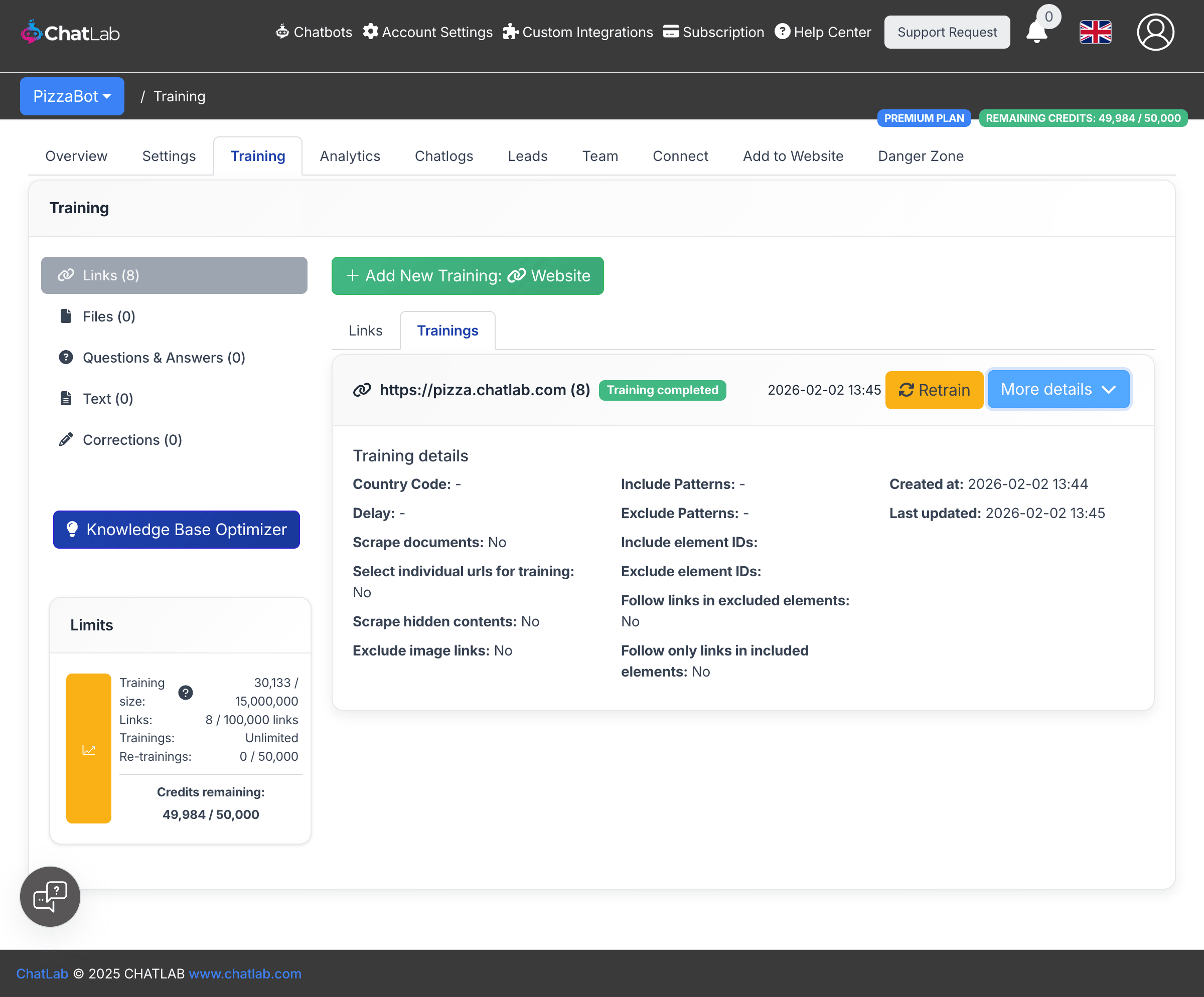
Click More details to see all the parameters used for a specific training job, including any advanced settings that were configured.
Managing trained links
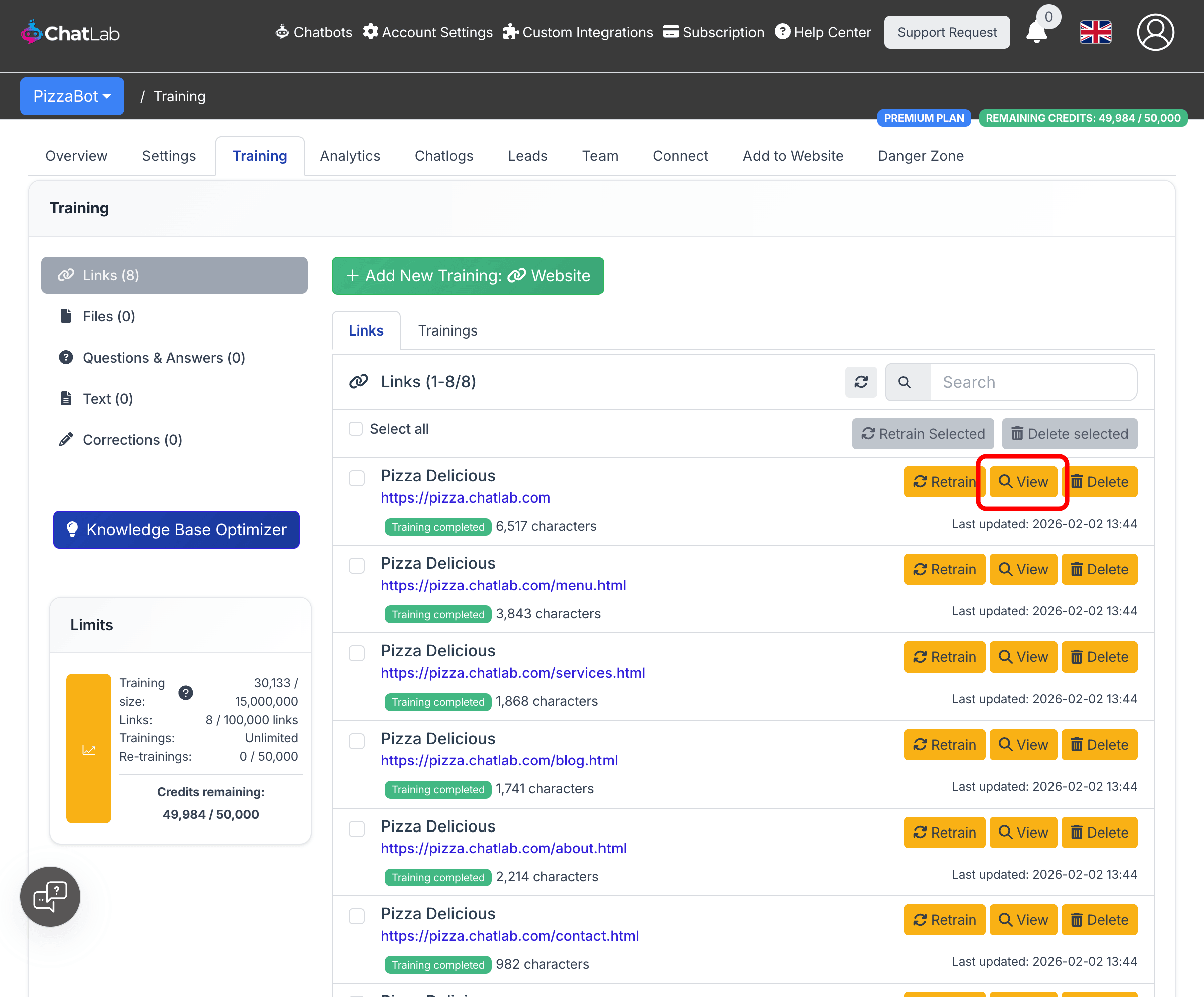
After training completes, all scanned pages appear in the Links tab. Each link shows:
- Page title and URL
- Character count (training data size)
- Training status
- Last updated date
For each link you can:
- Retrain -- Re-scan and update the content for this specific page
- View -- See the exact content that was extracted from the page
- Delete -- Remove this page from your chatbot's knowledge base
Use the Select all checkbox and bulk action buttons to retrain or delete multiple links at once.
Viewing scanned content
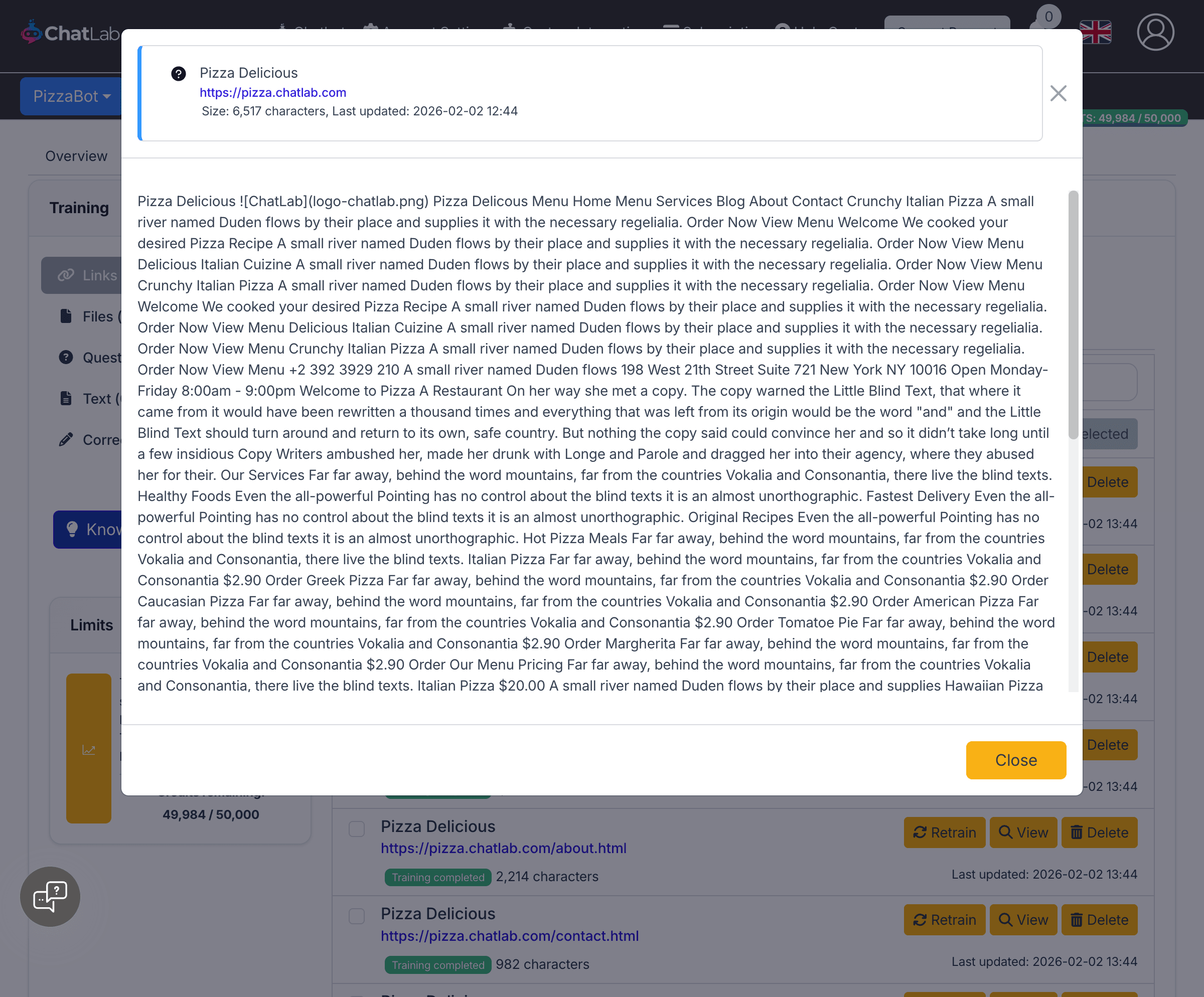
Click the View button next to any trained link to see exactly what content was extracted from that page.
The view source modal shows the page title, URL, character count, last updated date, and the full text content that your chatbot was trained on. This helps you verify that the right content was captured and understand your chatbot's knowledge base.
Related articles
- Training in background -- Learn how training works in the background
- Re-training your chatbot -- How to update your chatbot with fresh content
- How to reduce training characters when scanning a website -- Tips for optimizing your training data size
- Training your chatbot: basics and limits -- Understanding training data limits