This guide walks you through creating an AI chatbot using ChatLab. New users receive a 7-day trial to explore all features. There are two ways to create a chatbot:
- Quick Setup Wizard (Recommended) - Let AI analyze your website and automatically configure your chatbot
- Manual Setup - Create a blank chatbot and configure everything yourself
Option 1: Quick Setup Wizard (Recommended)
The Quick Setup Wizard analyzes your website and automatically configures your chatbot - name, welcome message, suggested questions, colors, and logo are all set up for you.
Step 1: Start the Wizard
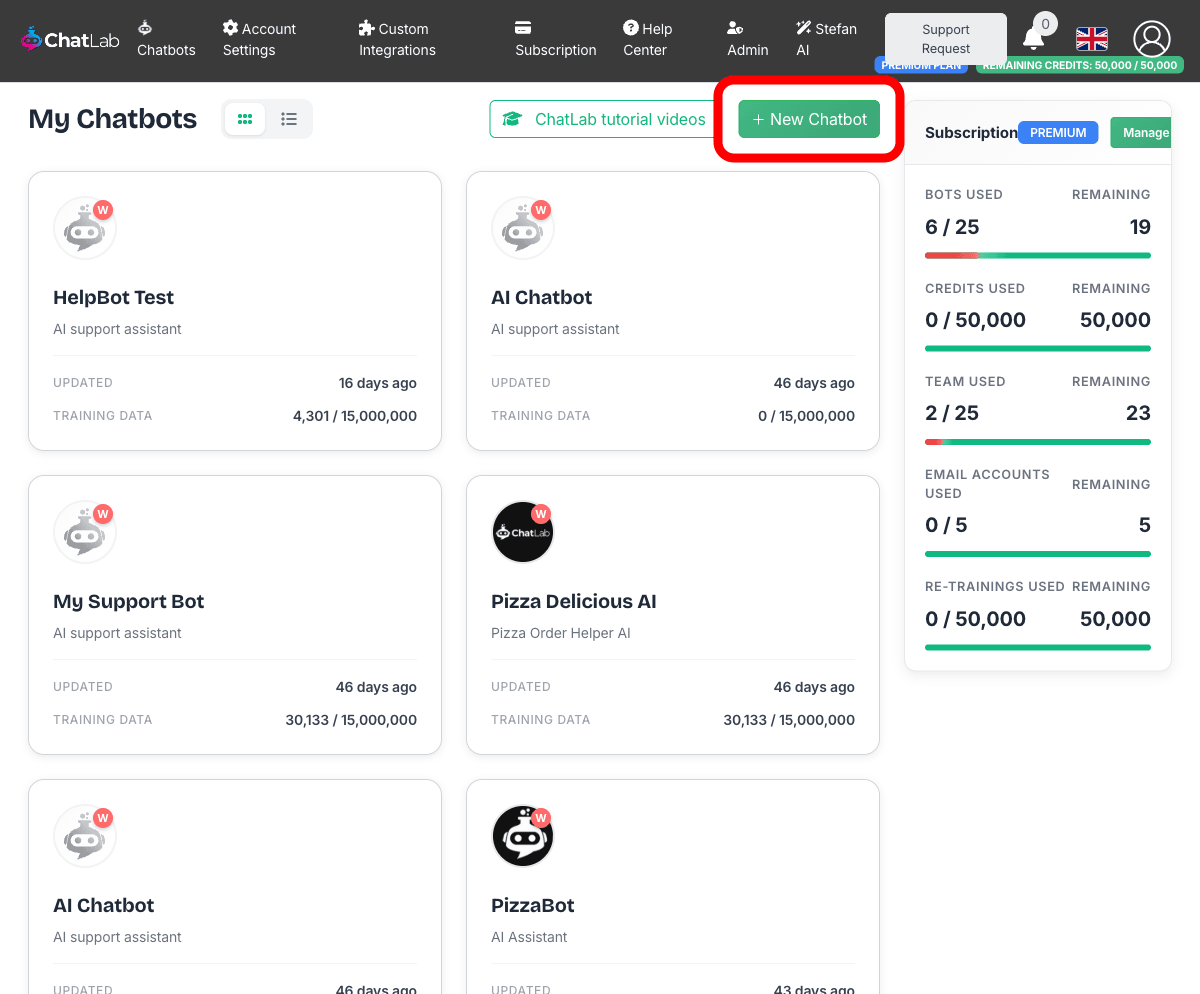
After signing in, you'll see the main Chatbots screen. Click the New Chatbot button.
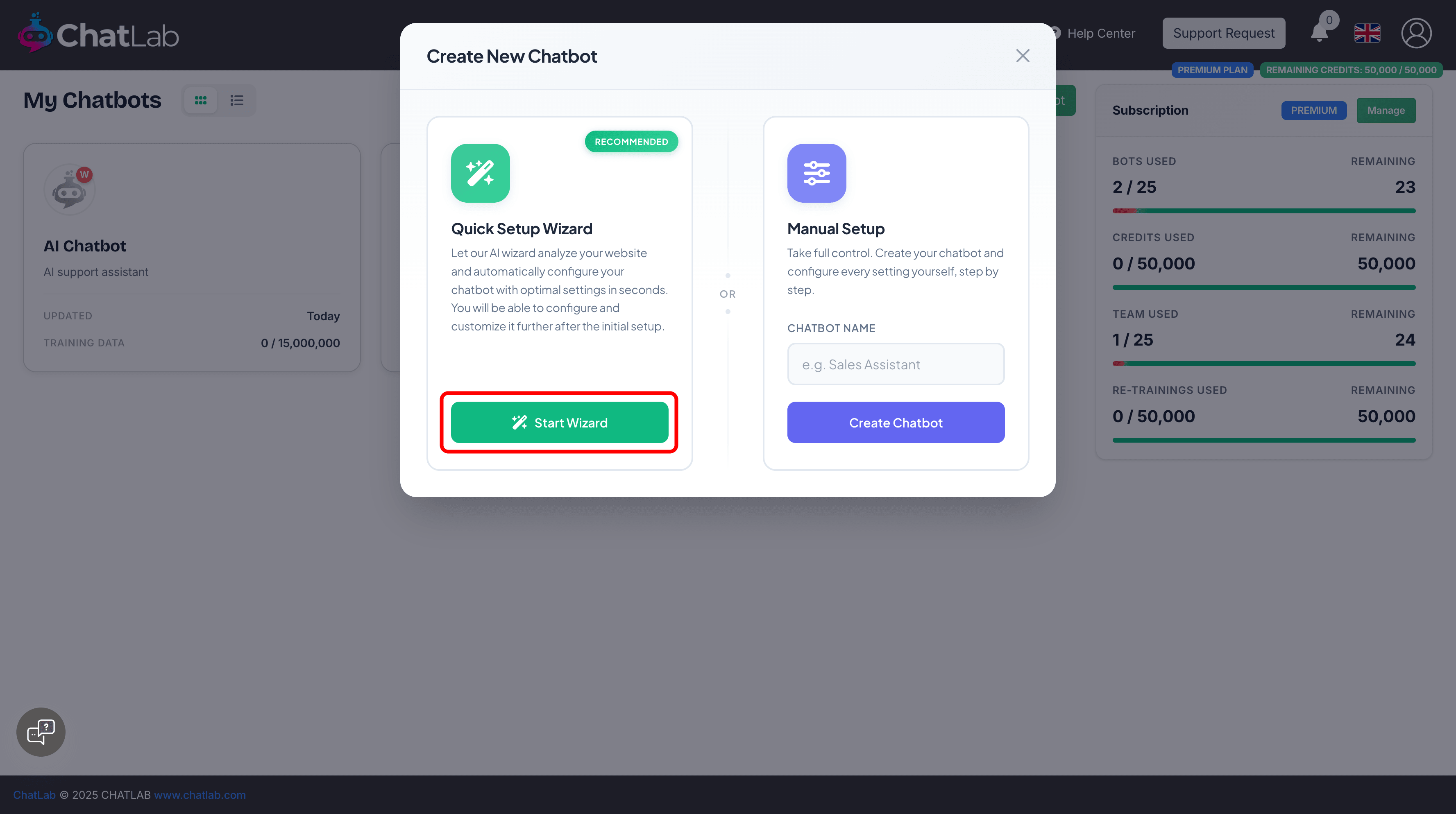
In the modal that appears, you'll see two options. Click Start Wizard to use the Quick Setup Wizard.
Step 2: Enter your website URL
Enter your website URL (or sitemap URL) and click Analyze & Continue. The wizard will analyze your website to detect your branding and content for training.
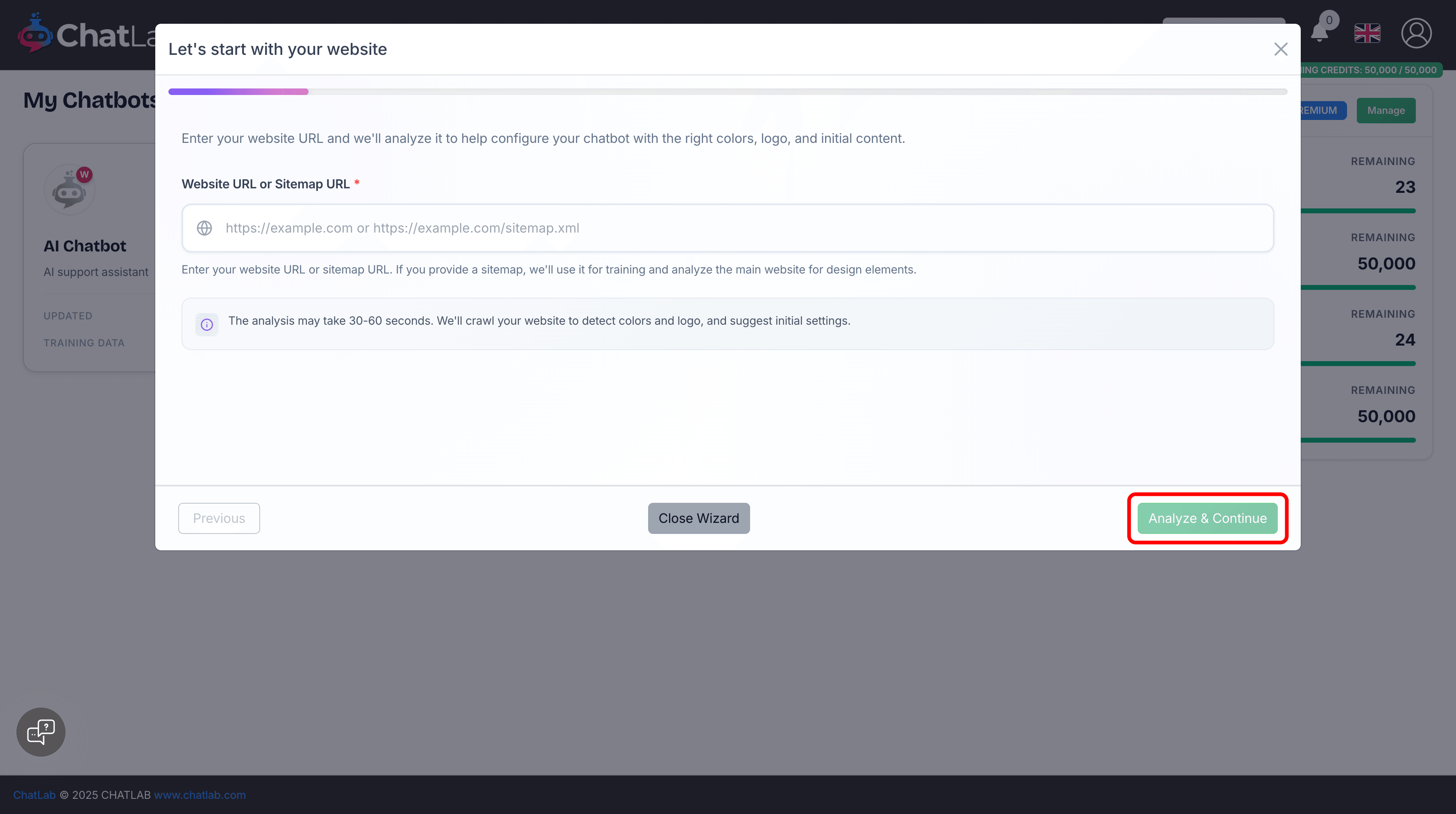
The analysis may take 30-60 seconds. The wizard crawls your website to detect colors, logo, and initial training content.
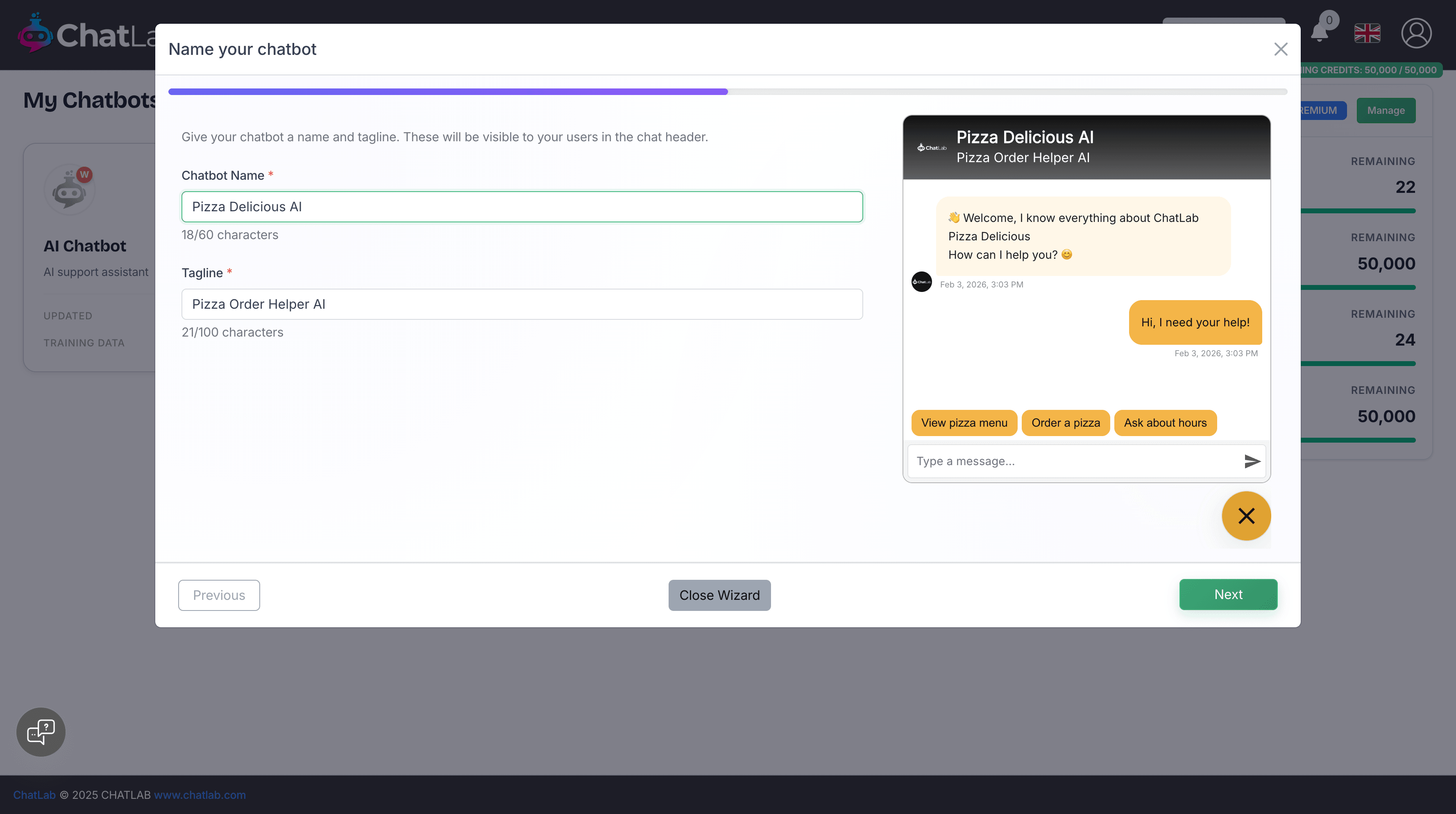
Step 3: Name your chatbot
Enter your chatbot's name and tagline. These appear in the chat header and help users identify your chatbot.
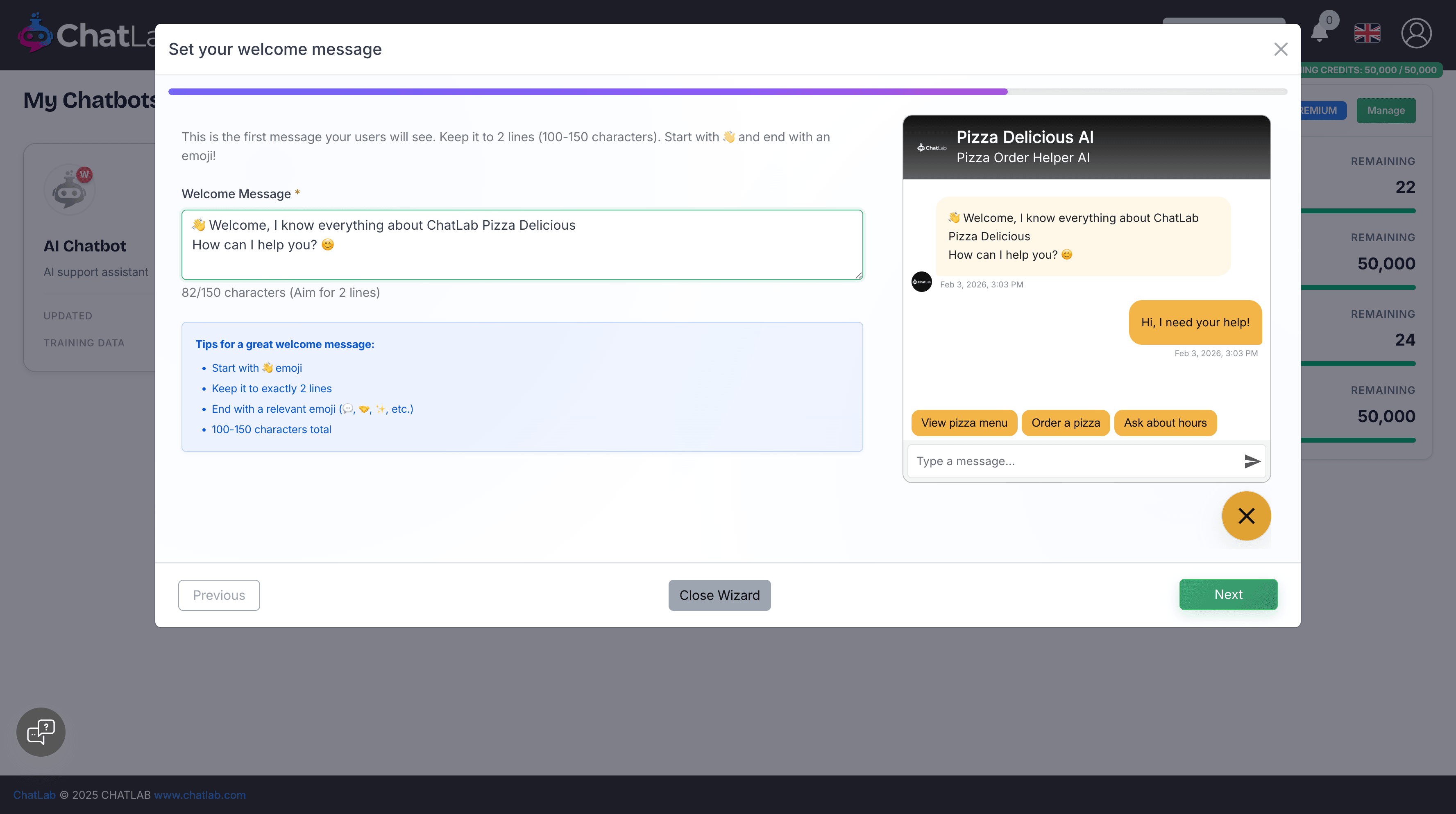
Step 4: Set welcome message
Customize the first message your users will see. Tips for a great welcome message:
- Start with a wave emoji
- Keep it to 2 lines (100-150 characters)
- End with a relevant emoji
Step 5: Add conversation starters
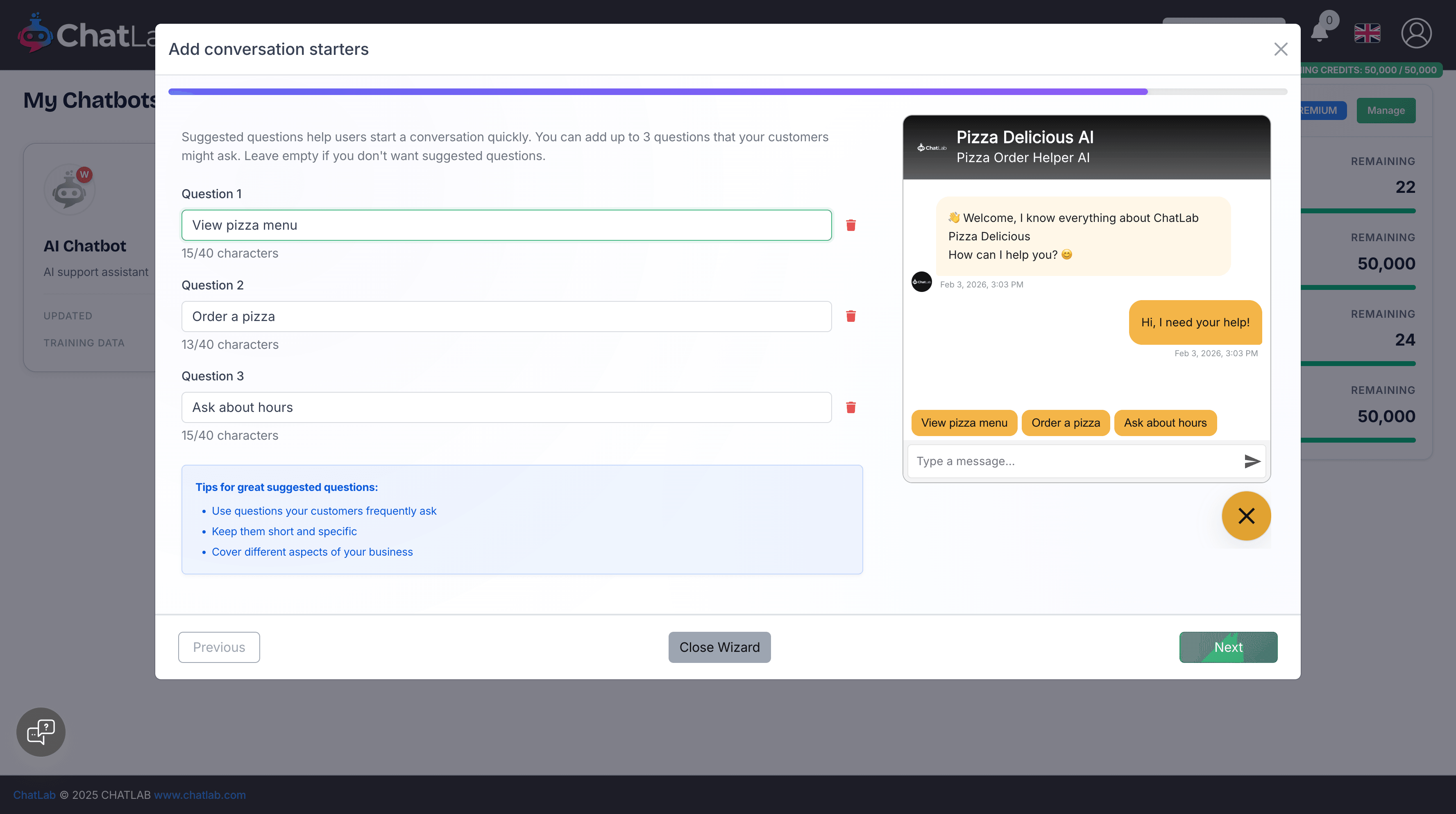
Suggested questions help users start a conversation quickly. Add up to 3 questions that your customers might ask.
Step 6: Customize colors
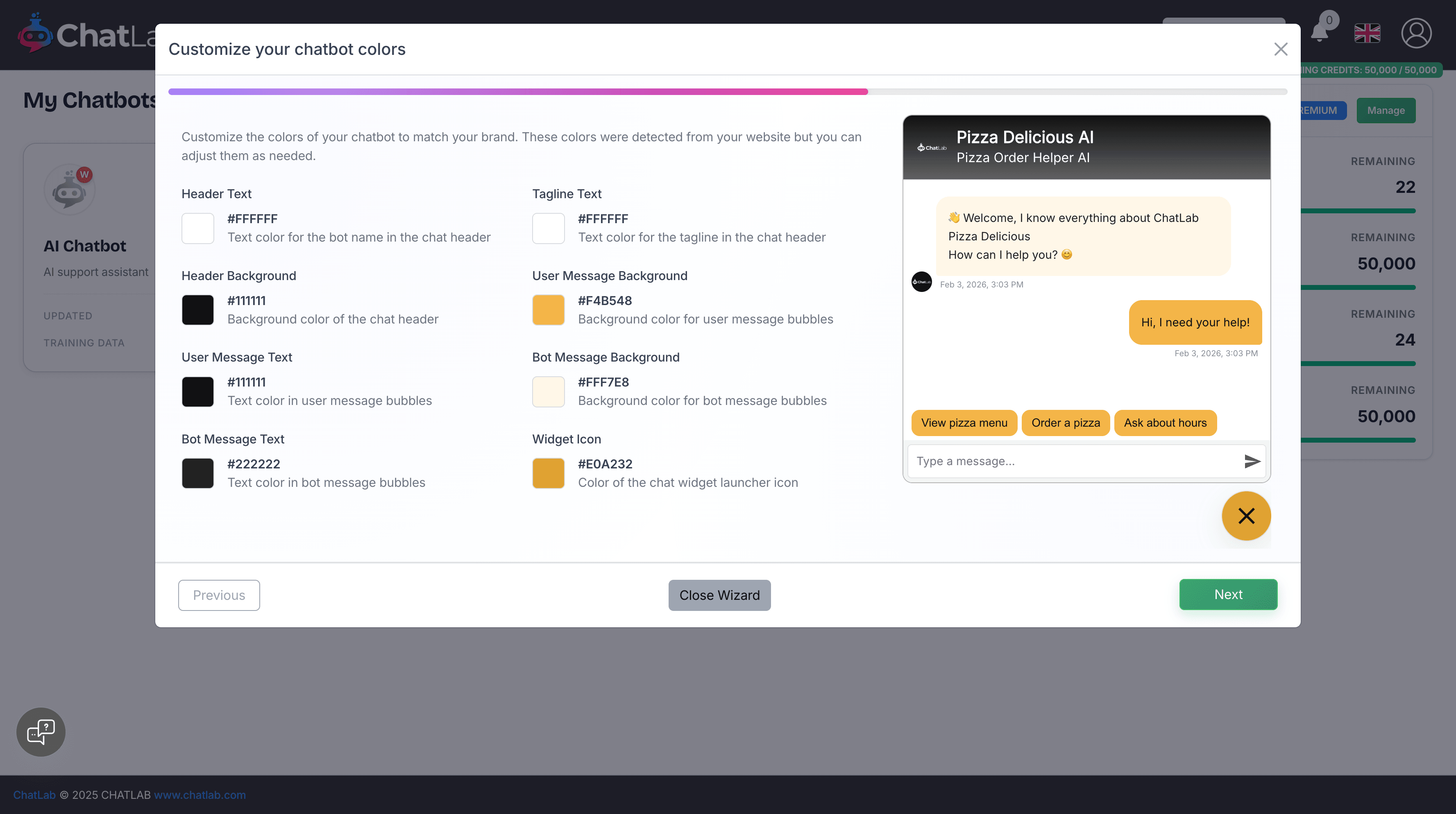
The wizard detects colors from your website. You can adjust:
- Header text and background colors
- User message colors
- Bot message colors
- Widget icon color
The preview updates in real-time as you make changes.
Step 7: Choose your logo
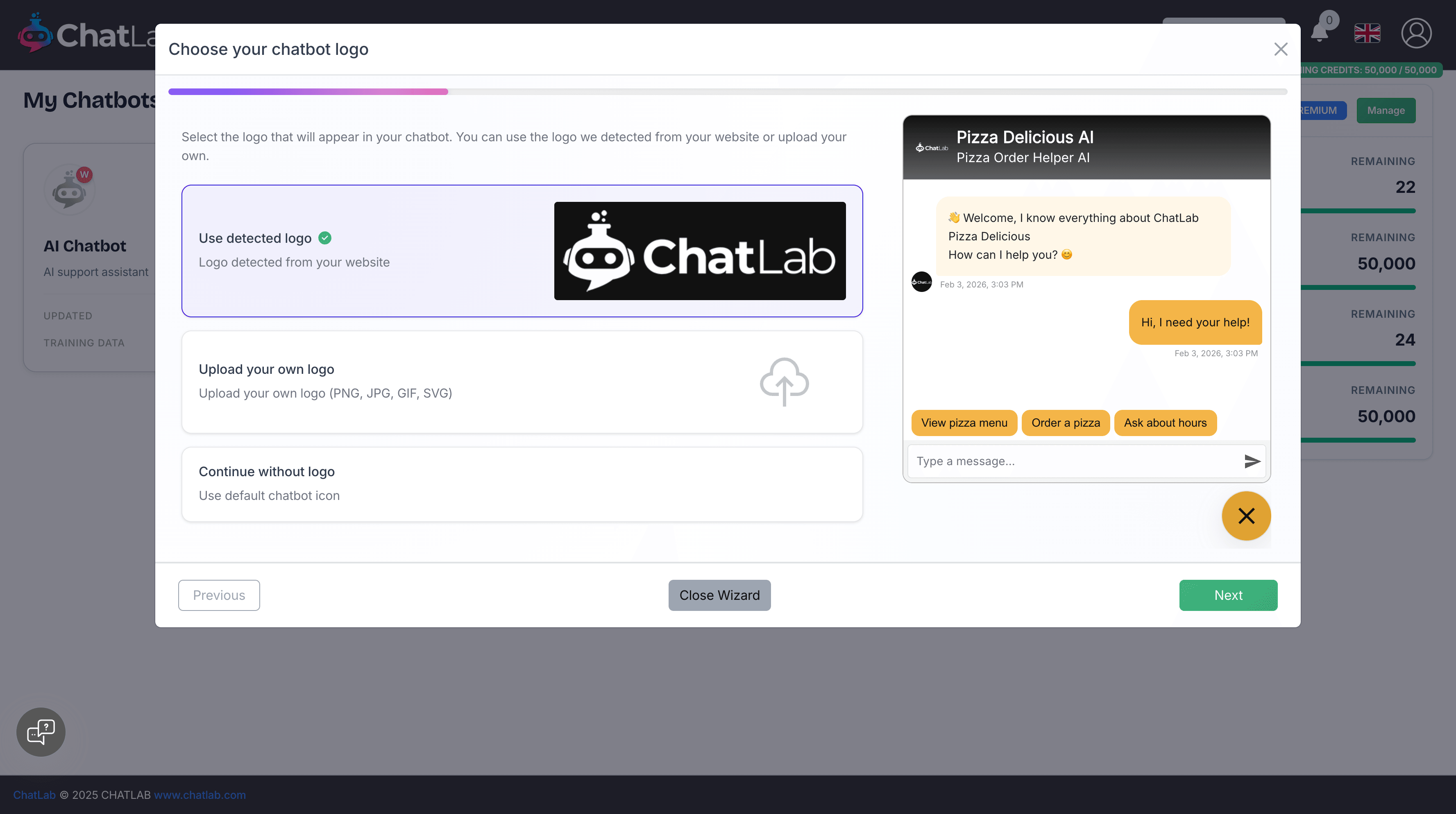
The wizard will detect a logo from your website. You can:
- Use detected logo - Use the logo found on your website
- Upload your own logo - Upload a custom image
- Continue without logo - Use the default chatbot icon
A live preview of your chatbot appears on the right side of the screen.
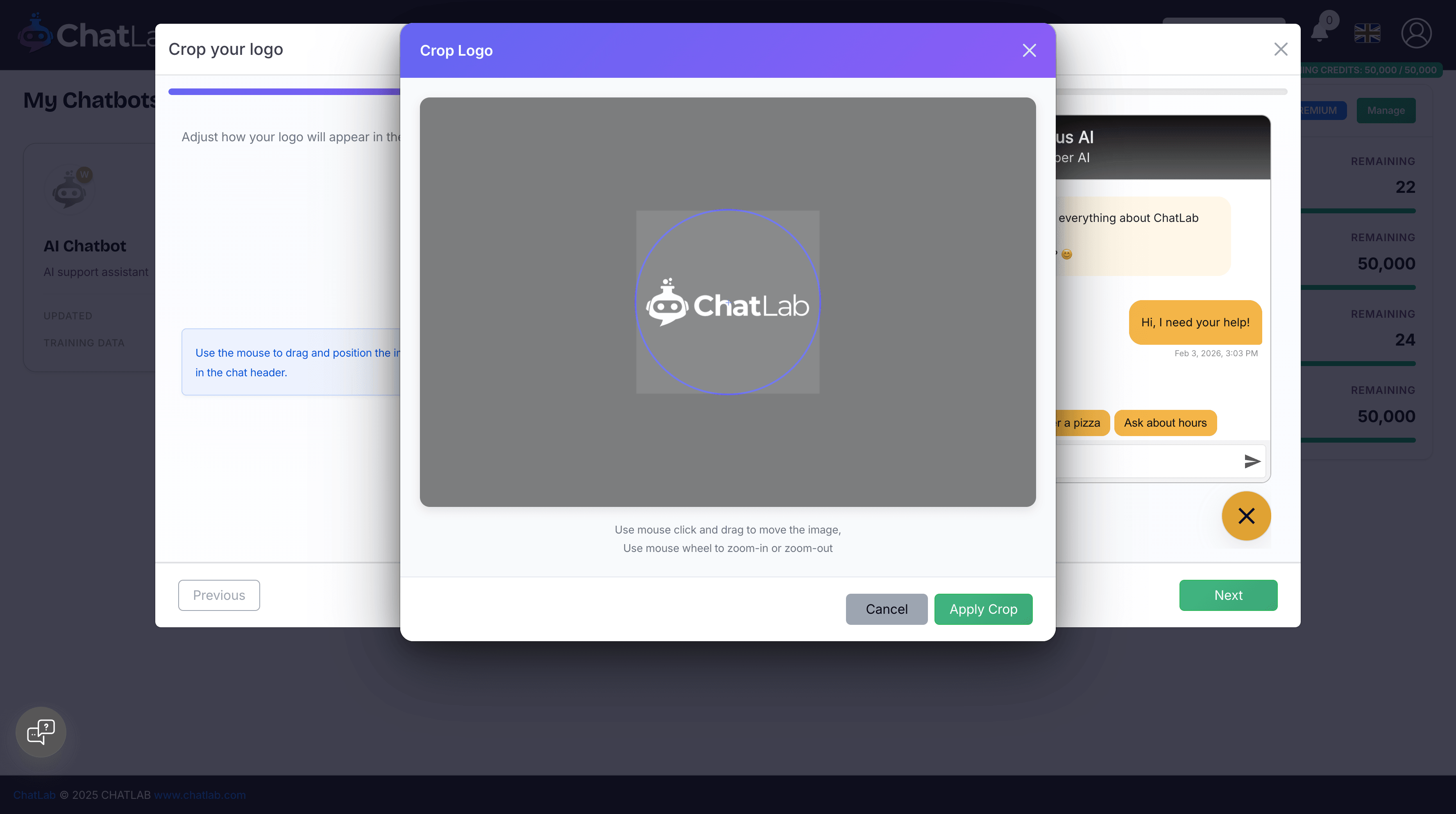
Step 8: Crop your logo
Adjust how your logo appears in the chat widget. The logo displays as a circular avatar in the chat header. Use your mouse to drag and position the image, and the scroll wheel to zoom.
Step 9: Training completes
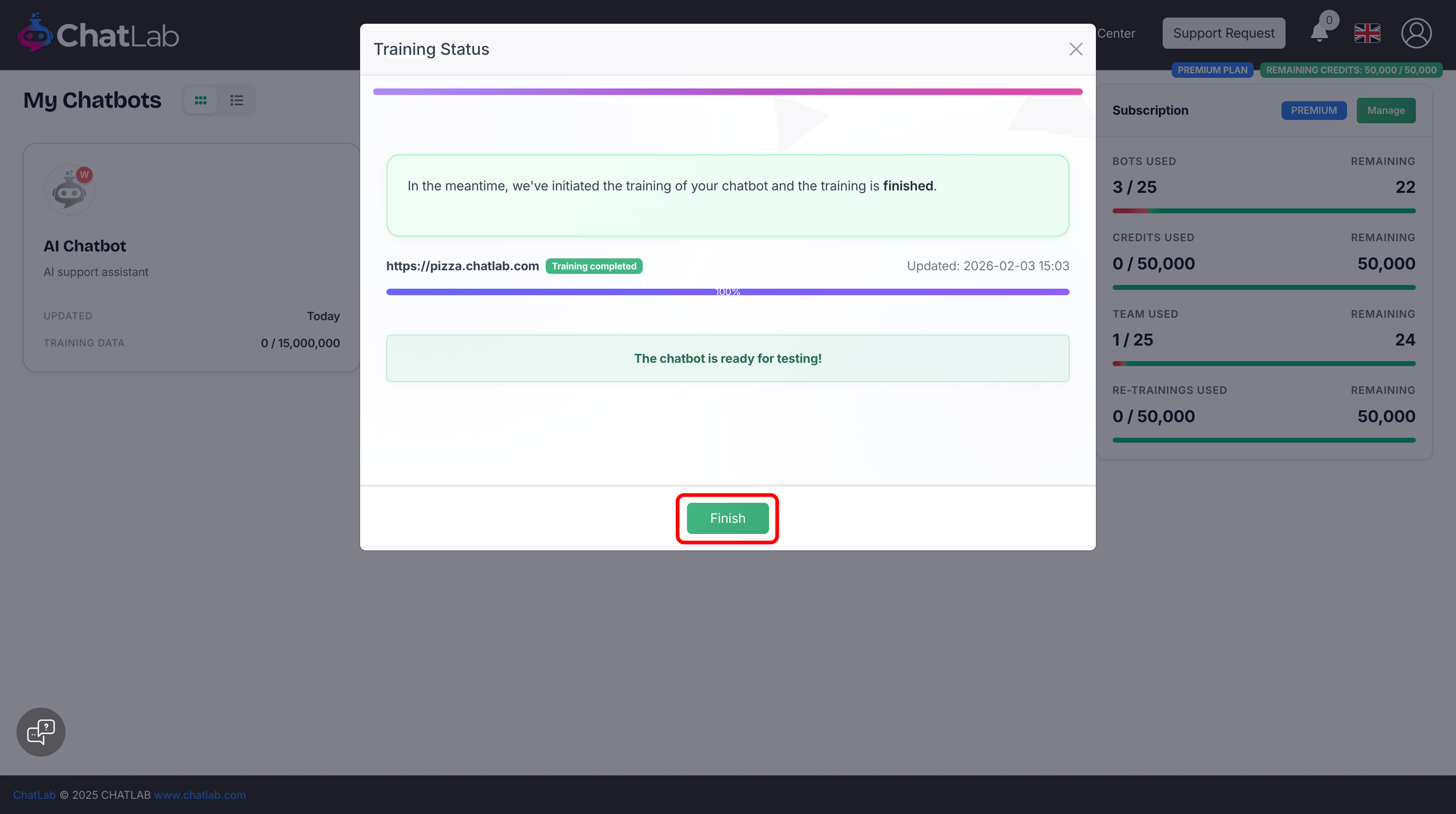
The wizard automatically trains your chatbot on your website content. When training is complete, click Finish.
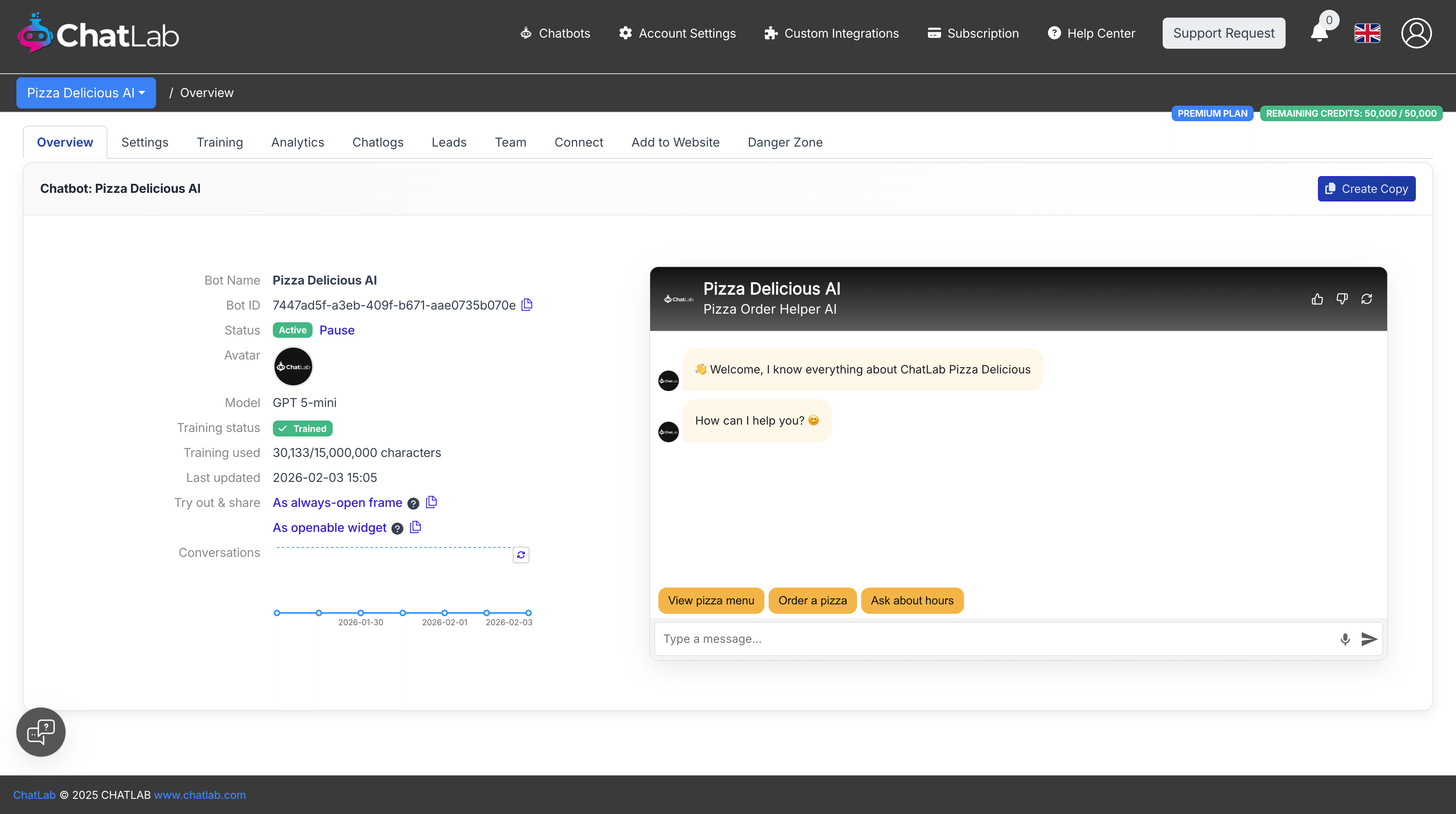
Done! Your chatbot is ready
You're taken to the bot overview page where you can test your chatbot and see its configuration.
Option 2: Manual Setup
Manual setup gives you full control over your chatbot configuration. You create a blank chatbot and configure each setting yourself.
Step 1: Create the chatbot
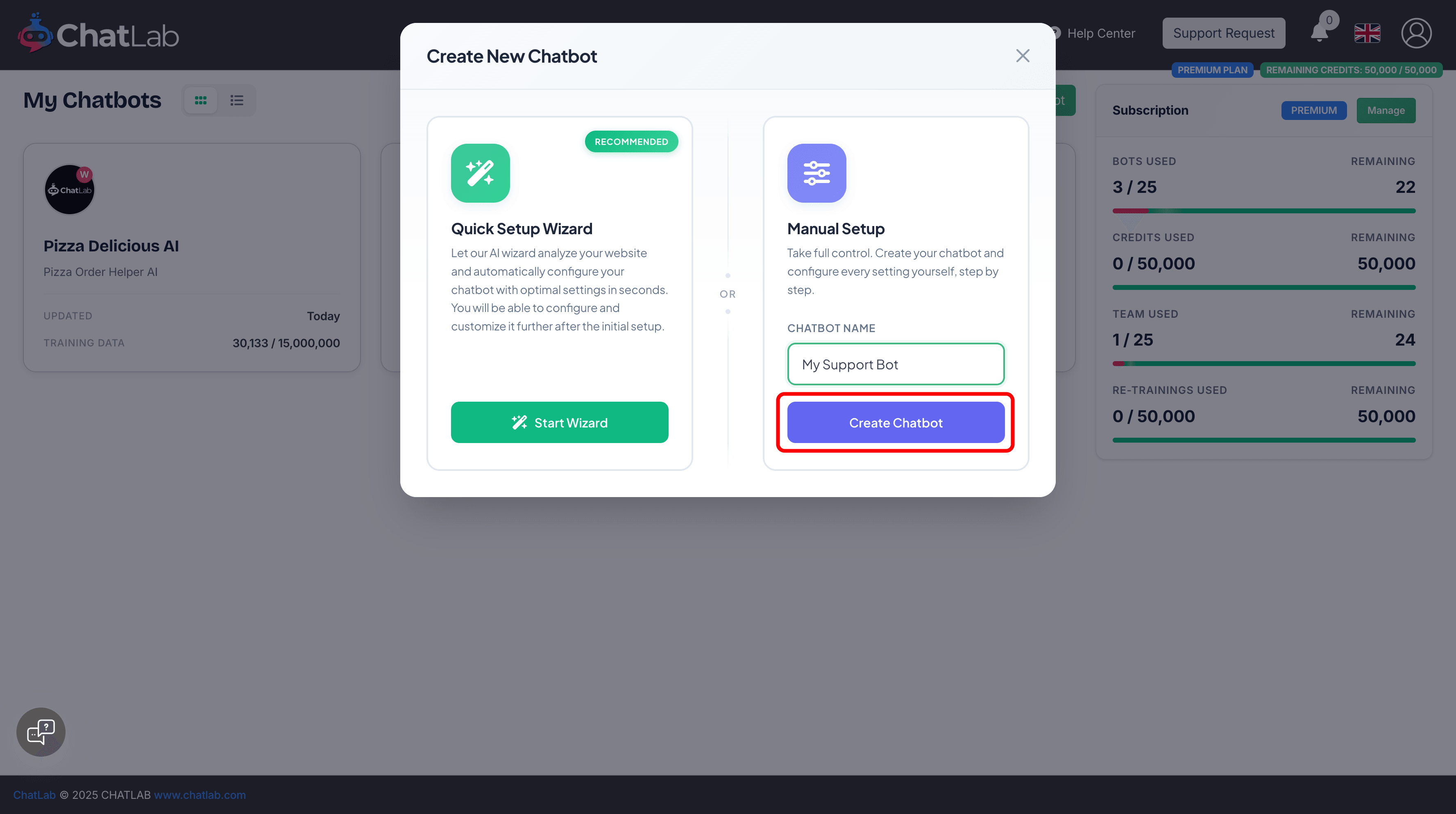
Click New Chatbot from the main dashboard. In the modal, under Manual Setup, enter a name for your chatbot and click Create Chatbot.
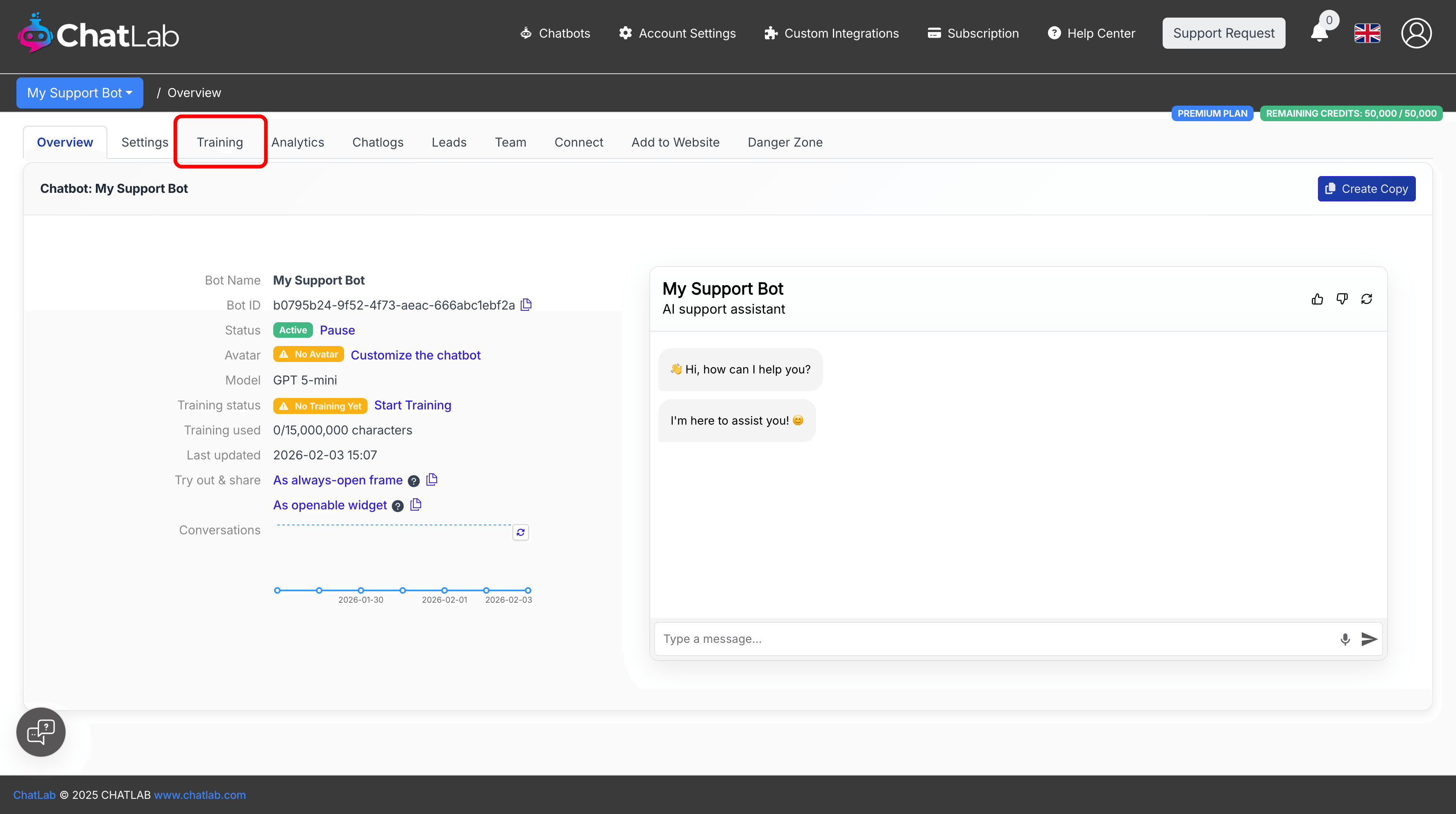
Step 2: Bot overview
Your chatbot is created and you're taken to the overview page. Notice that:
- Training status shows "No Training Yet"
- Avatar shows "No Avatar"
Step 3: Go to Training
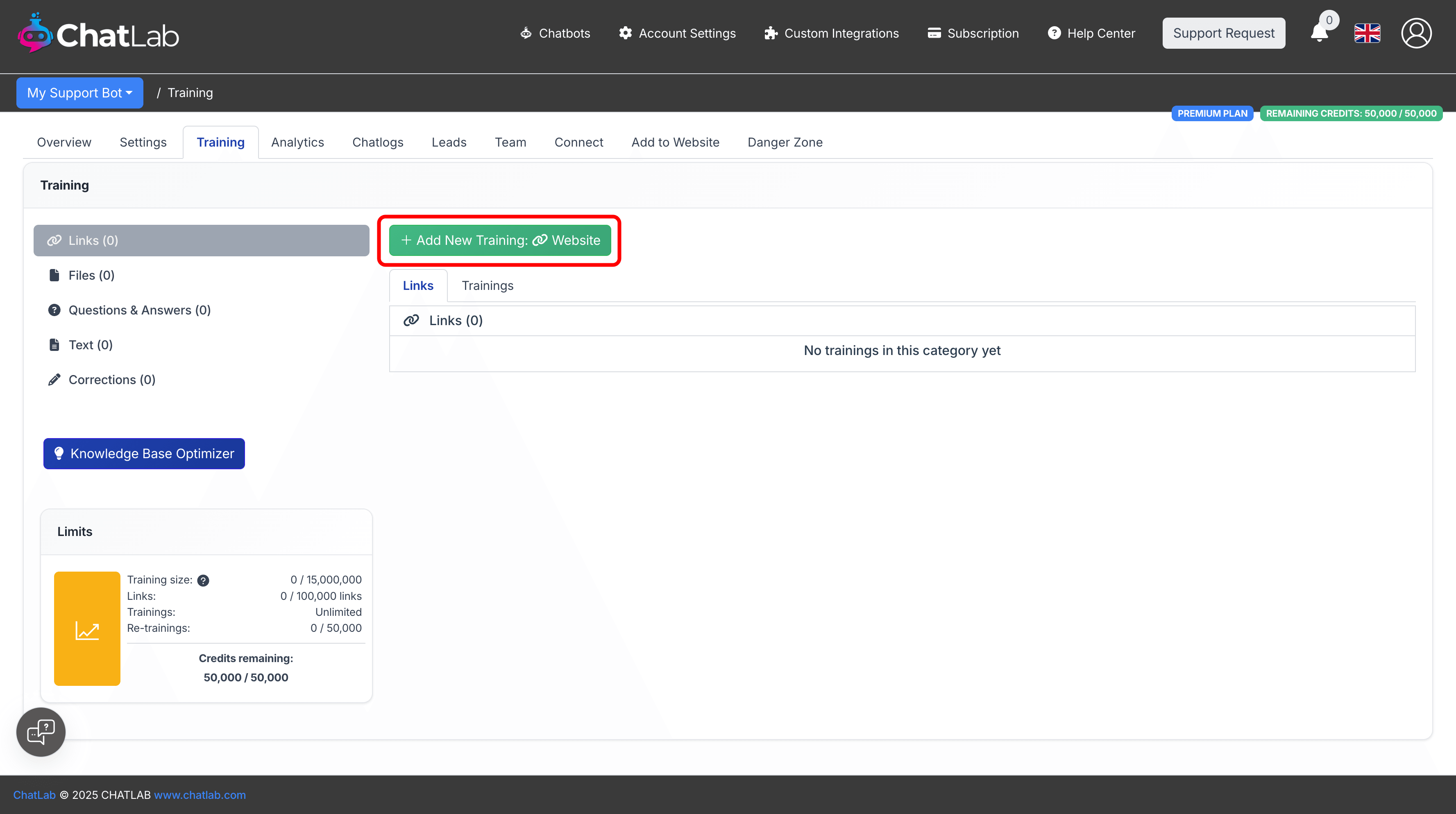
Click the Training tab to add training data. The Training page shows different data sources you can use:
- Links - Train from website content
- Files - Upload PDF, Word, Excel files
- Questions & Answers - Add specific Q&A pairs
- Text - Add plain text content
- Corrections - Add response corrections
Step 4: Add website training
Click Add New Training: Website to train your chatbot from a website.
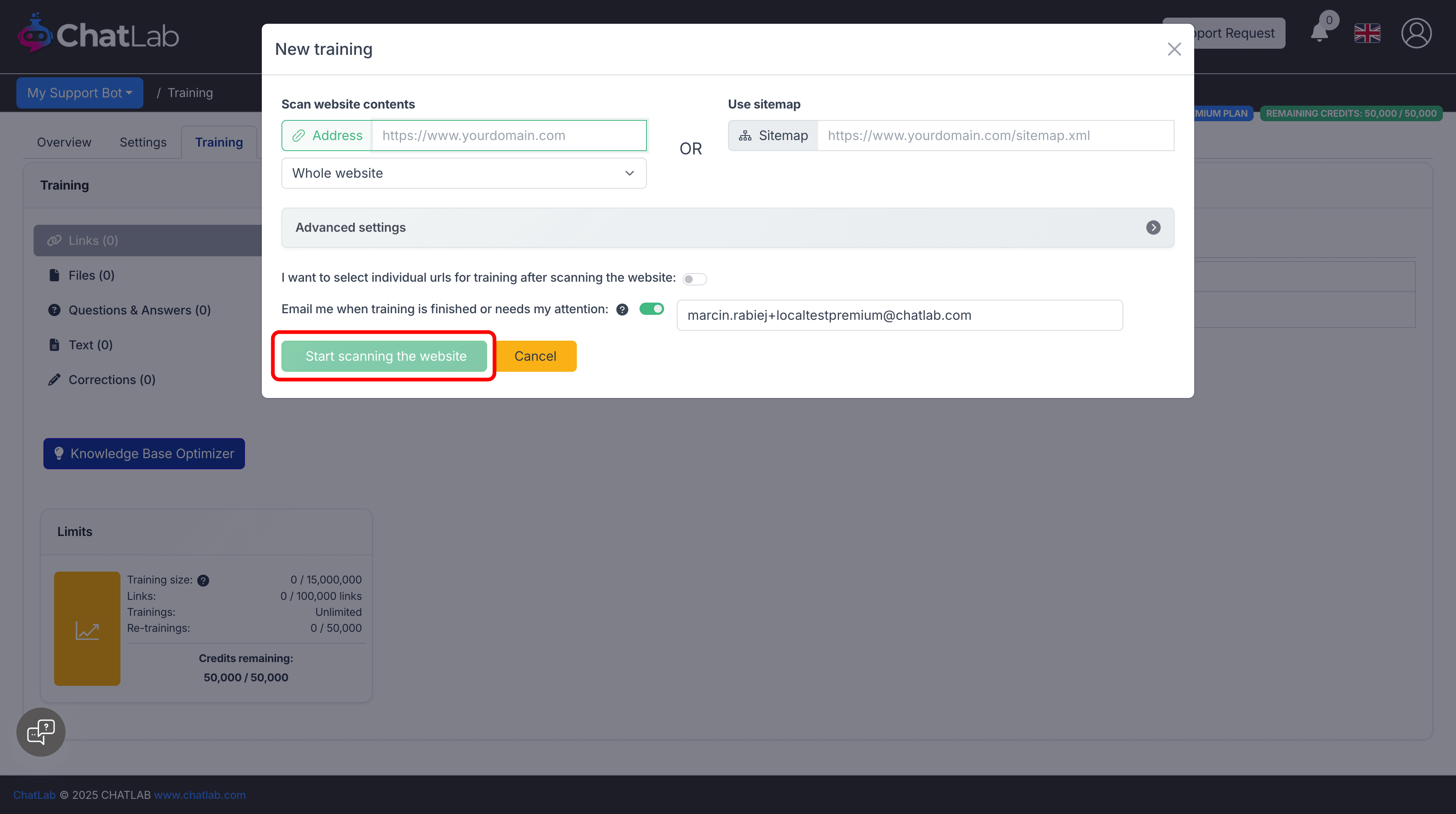
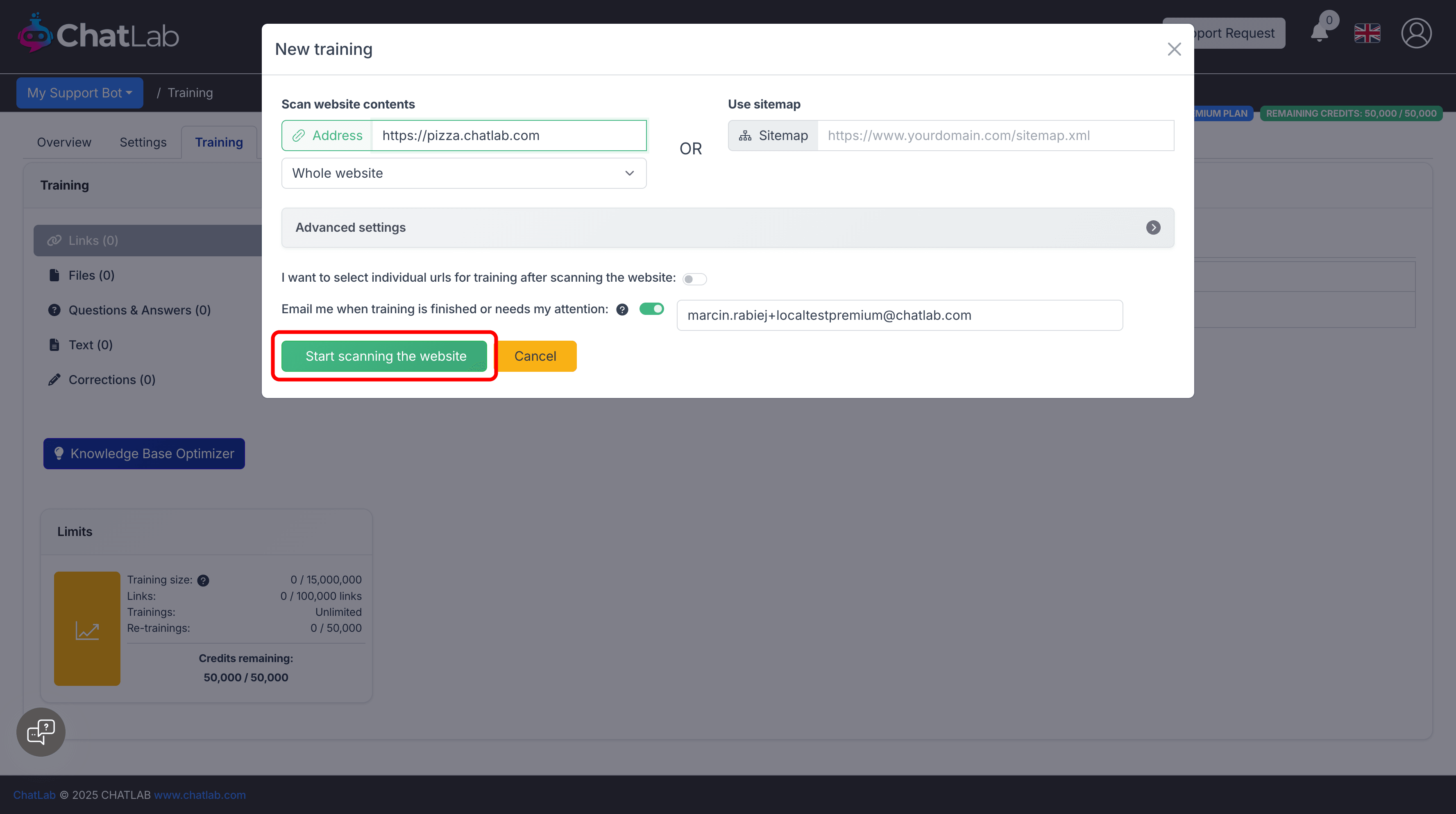
Enter your website URL in the Address field and click Start scanning the website.
Step 5: Training starts
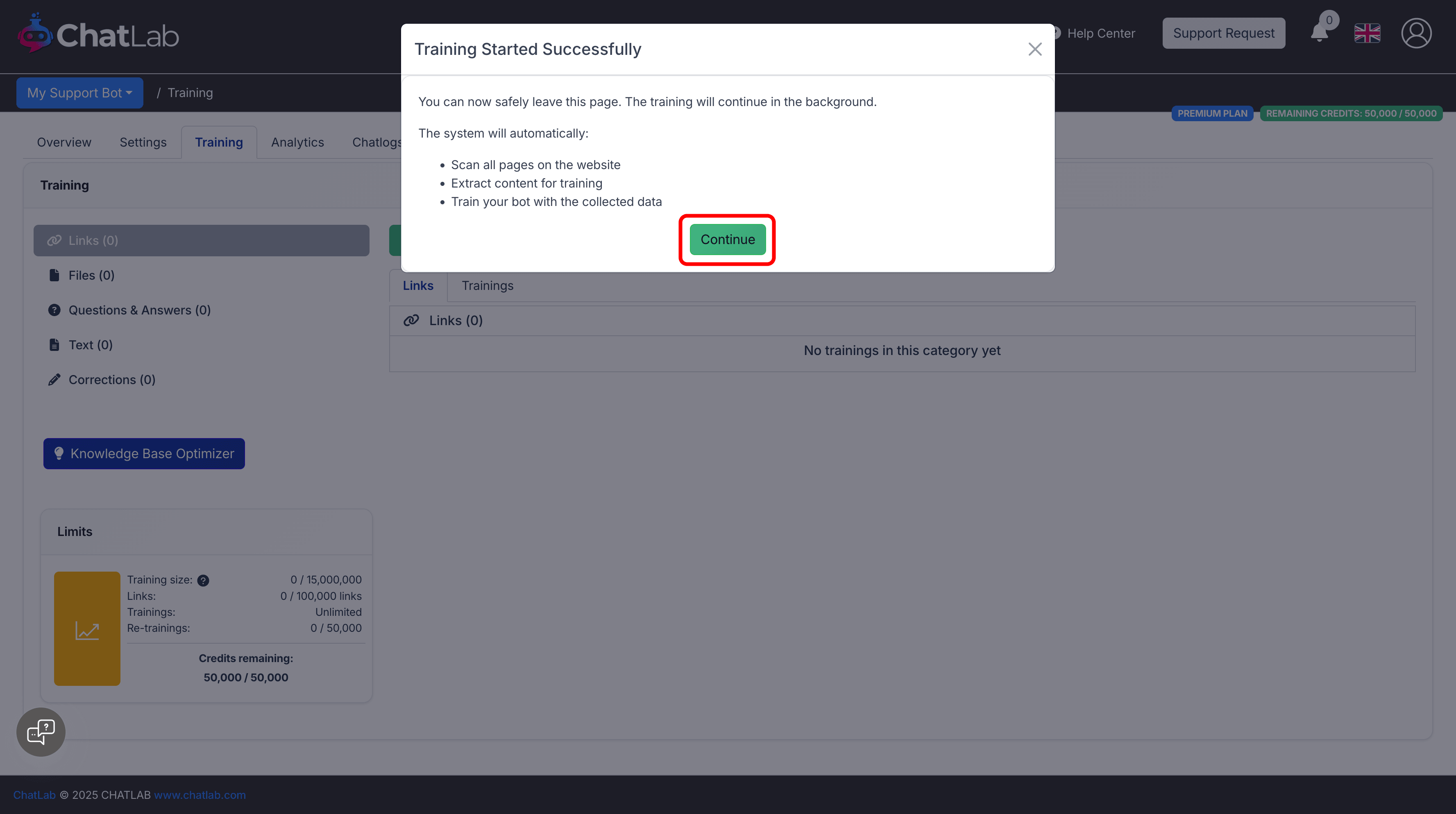
A confirmation dialog appears. The training will continue in the background - you can safely leave this page. Click Continue to monitor progress.
Step 6: Training completes
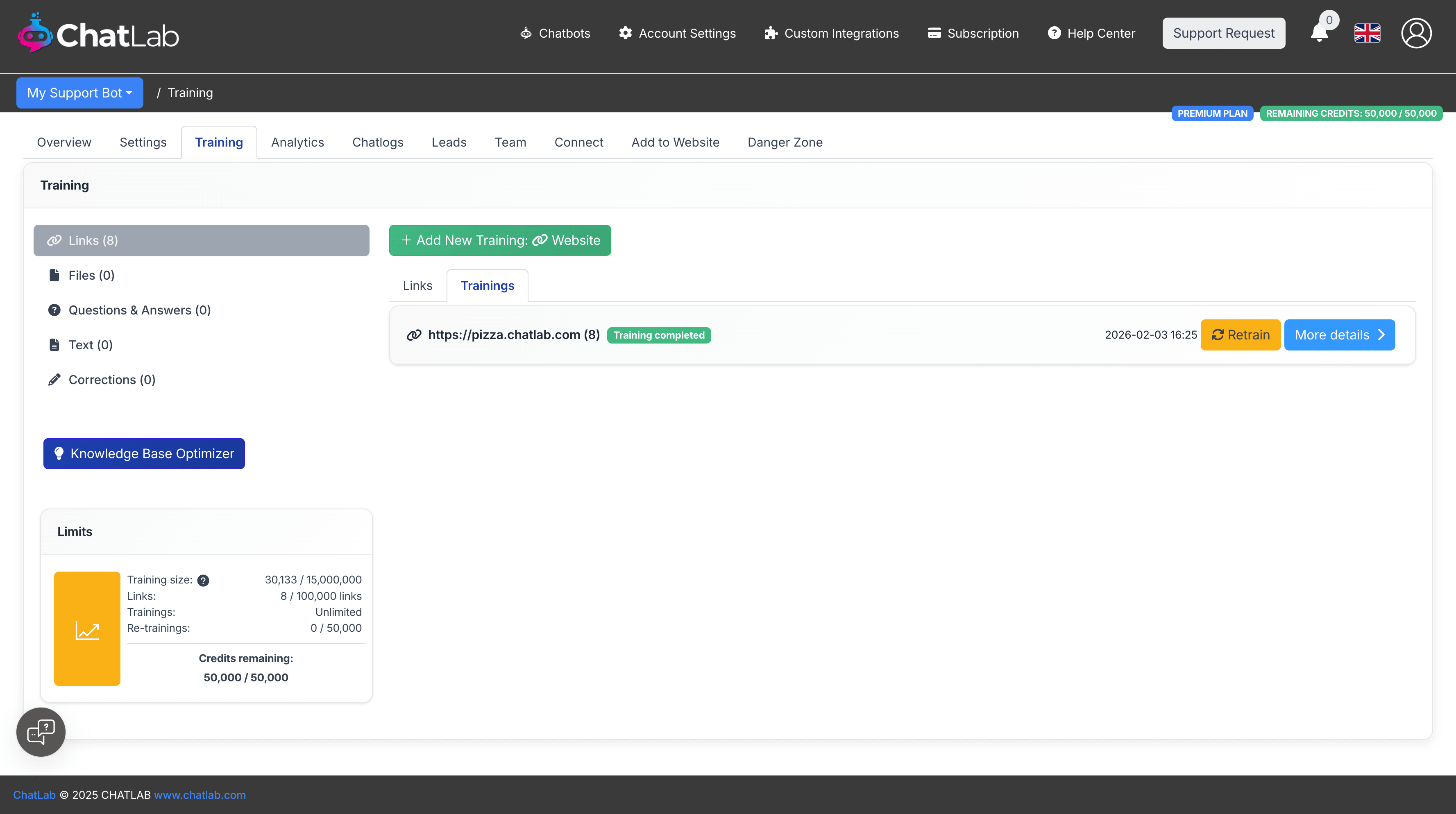
Once training finishes, you'll see "Training completed" status. The sidebar shows your training data size and number of links processed.
Step 7: Customize your chatbot
Now customize your chatbot in the Settings tab:
- Appearance - Logo, colors, fonts
- Conversation - Welcome message, suggested questions
- Role & Behavior - AI personality and instructions
For detailed customization guides, see:
What's next?
After creating your chatbot:
- Test it - Use the chat preview to ask questions and see how it responds
- Customize appearance - Match your brand colors and style in Settings > Appearance
- Add to your website - Get the embed code from Add to Website
- Review chatlogs - Monitor conversations in the Chatlogs tab
- Improve responses - Add corrections when the bot gives incorrect answers
More training options
- Adding new website sources - Add more URLs to train from
- Adding files - Upload PDF, Word, Excel documents
- Adding Q&A pairs - Create specific question-answer pairs
- Training basics and limits - Understand training data limits