To use Email Copilot, you first need to connect your email account. ChatLab supports any email provider that offers IMAP or POP3 access.
Connect your email account
- Select your chatbot and click the Connect tab
- Find the Email tile and click Connect (or Modify if already connected)
- Enter your email address -- the system auto-detects your provider and pre-fills server settings
- If your provider is not auto-detected, select it from the provider picker or click Other / Custom to enter settings manually
- Enter your username and password (for Gmail, use an App Password)
- Click Test Connection to verify the settings work
- Click Save
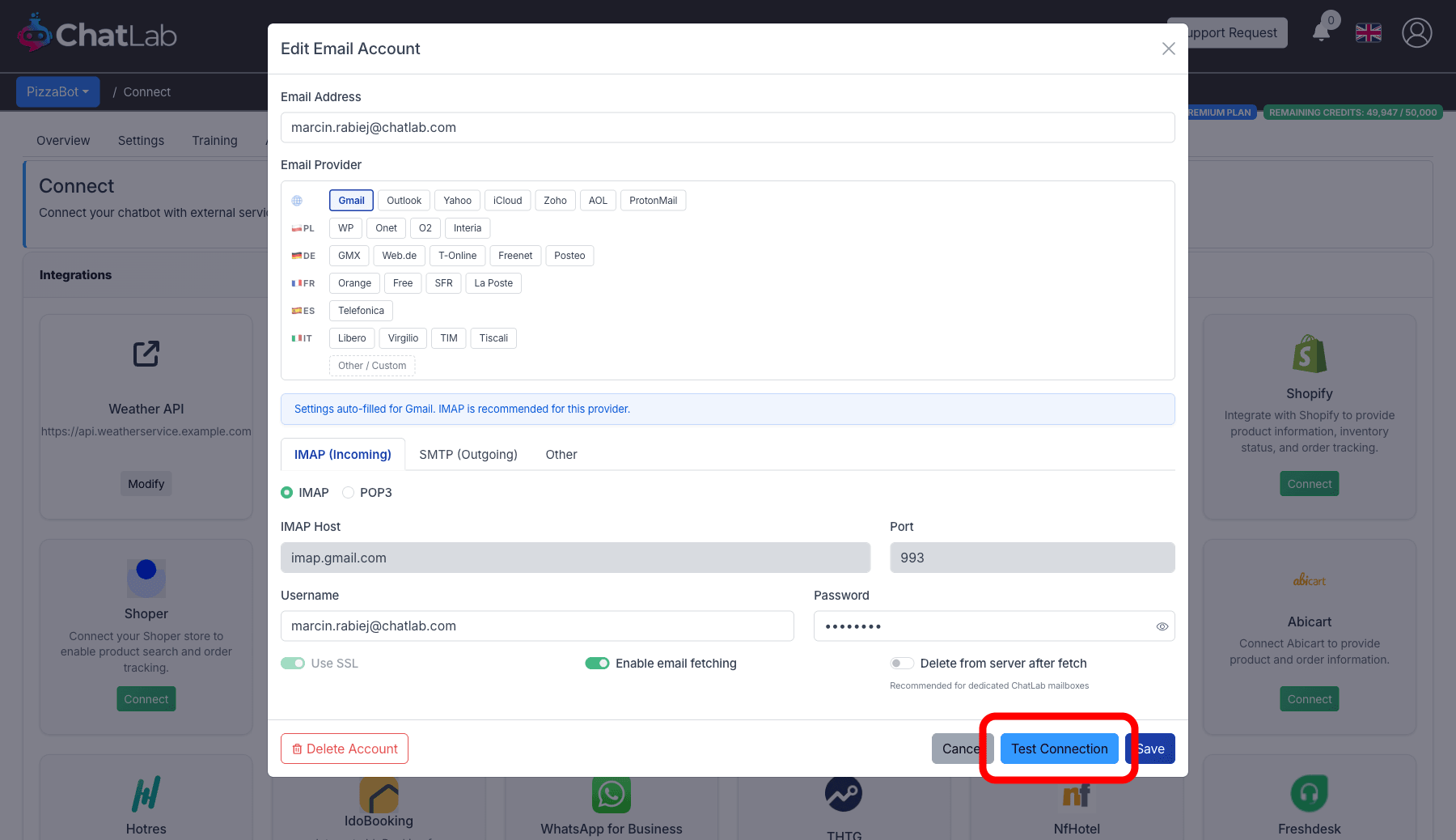
Supported providers include Gmail, Outlook, Yahoo, iCloud, Zoho, AOL, ProtonMail, and many regional providers (WP, Onet, GMX, Web.de, T-Online, Orange, Libero, and more).
Incoming mail settings
On the IMAP (Incoming) tab:
- IMAP / POP3 -- choose the protocol. IMAP is recommended for most providers
- Host and Port -- auto-filled when you select a provider
- SSL -- always enabled for security
- Enable email fetching -- toggle on to have ChatLab automatically check for new emails every 30 minutes
- Delete from server after fetch -- enable only if this is a dedicated ChatLab mailbox. This removes emails from the mail server after fetching them
Outgoing mail settings
On the SMTP (Outgoing) tab, configure the SMTP server, port, and credentials for sending replies. These are also auto-filled for known providers.
Daily send limit
On the Other tab, set the maximum number of emails you can send per day (1--300, default is 100). This prevents accidental mass sending.