The reply editor lets you reply, reply to all recipients, or forward a received message. First connect your email account. To use the reply editor, select your chatbot and navigate to Email Copilot, then open an email from the inbox.
From the email viewer, click Reply, Reply All, or Forward to open the reply editor. You can also click Suggest Response to have the copilot draft a reply for you, then click Insert into Reply to move that suggestion into the editor.
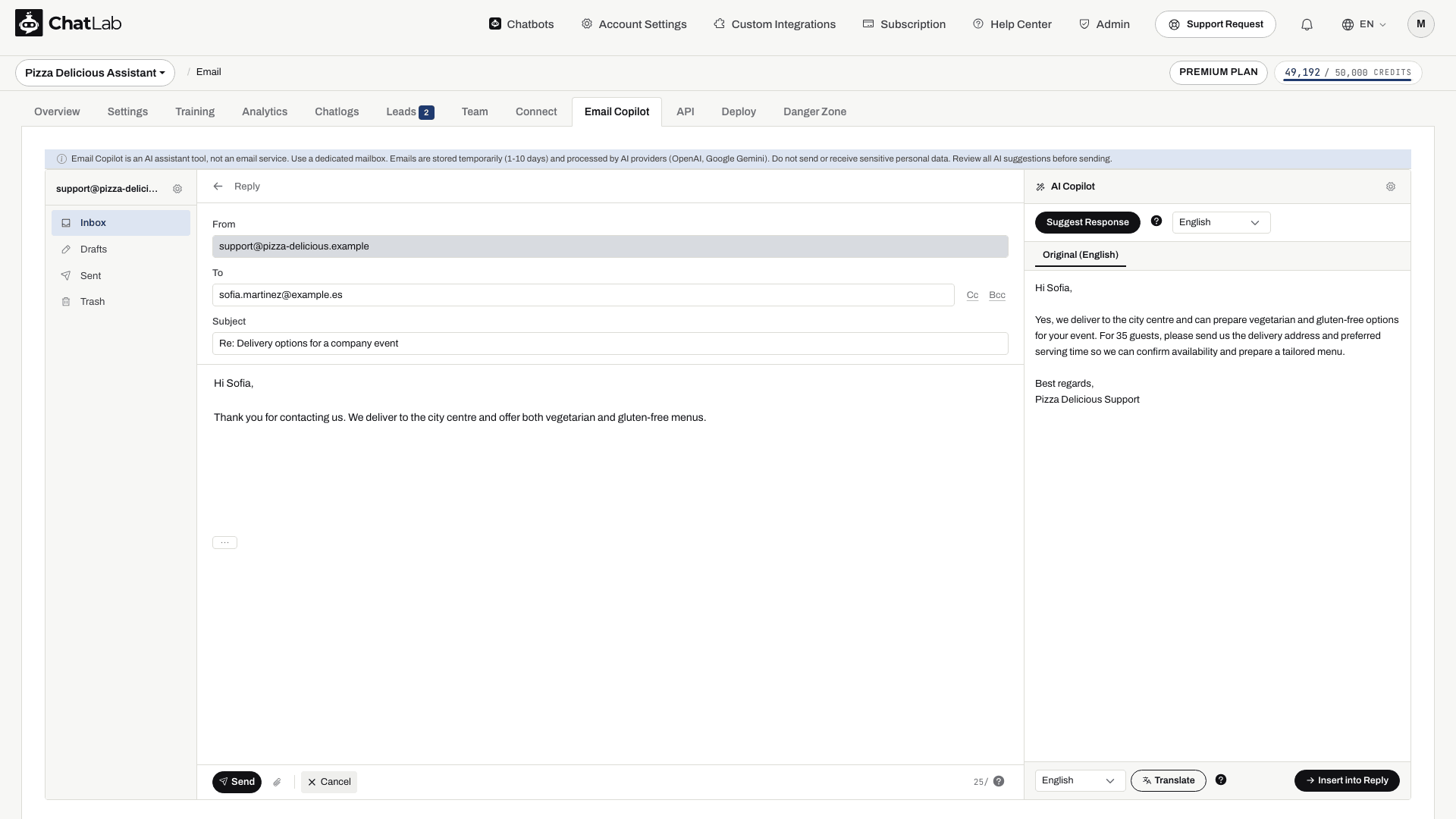
Reply editor fields
- From - your connected email address (read-only)
- To - pre-filled with the sender's address for replies. You can add or remove recipients
- Cc / Bcc - click the Cc or Bcc buttons to reveal additional recipient fields
- Subject - pre-filled with "Re:" or "Fwd:" prefix
- Message body - plain text editor for your response
- Original message - the quoted original message is available in the body; use the ... control to expand or collapse it
Use the paperclip attachment control to select files. Wait for uploads to finish before sending; the combined attachment limit is 10 MB. Remove an unwanted attachment using its remove control. Check forwarded messages for the attachments you actually want to include.
Sending and controls
At the bottom of the editor:
- Send - sends the email to the addresses in To, Cc and Bcc. Check those fields, the subject, body and attachments first
- Cancel - returns to the email viewer without sending
- Daily send counter - shows remaining sends out of your daily limit (e.g., "98/100")
- Discard Draft - permanently deletes the draft
Drafts
Drafts are auto-saved after a short pause in typing. Wait for the saving indicator to finish before leaving the editor, then check Drafts. Drafts are temporary and are deleted under the same retention rules as other emails; keep important work elsewhere if you need it longer.
After a successful send, the editor closes and the message appears in Sent. A sent copy confirms the send operation, not delivery to the recipient's inbox. If sending fails, read the error and check the SMTP settings or daily limit before retrying.