Email Copilot is a built-in email client inside ChatLab that connects to your mailbox and uses your chatbot's trained knowledge base to help you draft email replies. It reads incoming messages, suggests professional responses, handles translations between languages, and lets you send replies - all from the same dashboard where you manage your chatbot.
Why use Email Copilot
If your chatbot is already trained on your business knowledge (product details, FAQs, policies), Email Copilot puts that same knowledge to work for your email communication. Instead of switching between your inbox and your knowledge base, the copilot reads the incoming email, searches your trained data, and drafts a response grounded in accurate information.
This is especially useful when:
- You receive support emails in languages you do not speak fluently - the copilot translates both incoming emails and outgoing responses
- You want consistent, professional replies based on your actual product/service data
- You need to respond quickly to common questions your chatbot already knows the answers to
Important information
- Email Copilot is an AI assistant tool, not an email service. Use a dedicated mailbox - do not connect your primary inbox.
- AI suggestions and translations send email content for AI processing. Review ChatLab's subprocessors and the Email Copilot terms before connecting a mailbox.
- Emails, drafts and sent copies are temporary: retention is 1 to 10 days, default 1 day, with nightly cleanup and a 500-message account cleanup threshold. See retention details.
- Do not send or receive sensitive personal data (health records, government IDs, financial data) through Email Copilot.
- You must accept the Email Copilot terms of use before connecting your first email account.
- Always review AI-generated suggestions before sending.
Before using suggestions, train your chatbot on the information you want to use in replies. Your account needs an available email account allowance; the bot and mailbox must be active.
The Email Copilot interface
After connecting your account, click the Email Copilot tab on your chatbot to open the email client.
The first time you open the tab without a connected mailbox, you see an empty state that reads "No email account connected" with a Set up in Connect tab button. Follow it to connect your account and the inbox appears here.
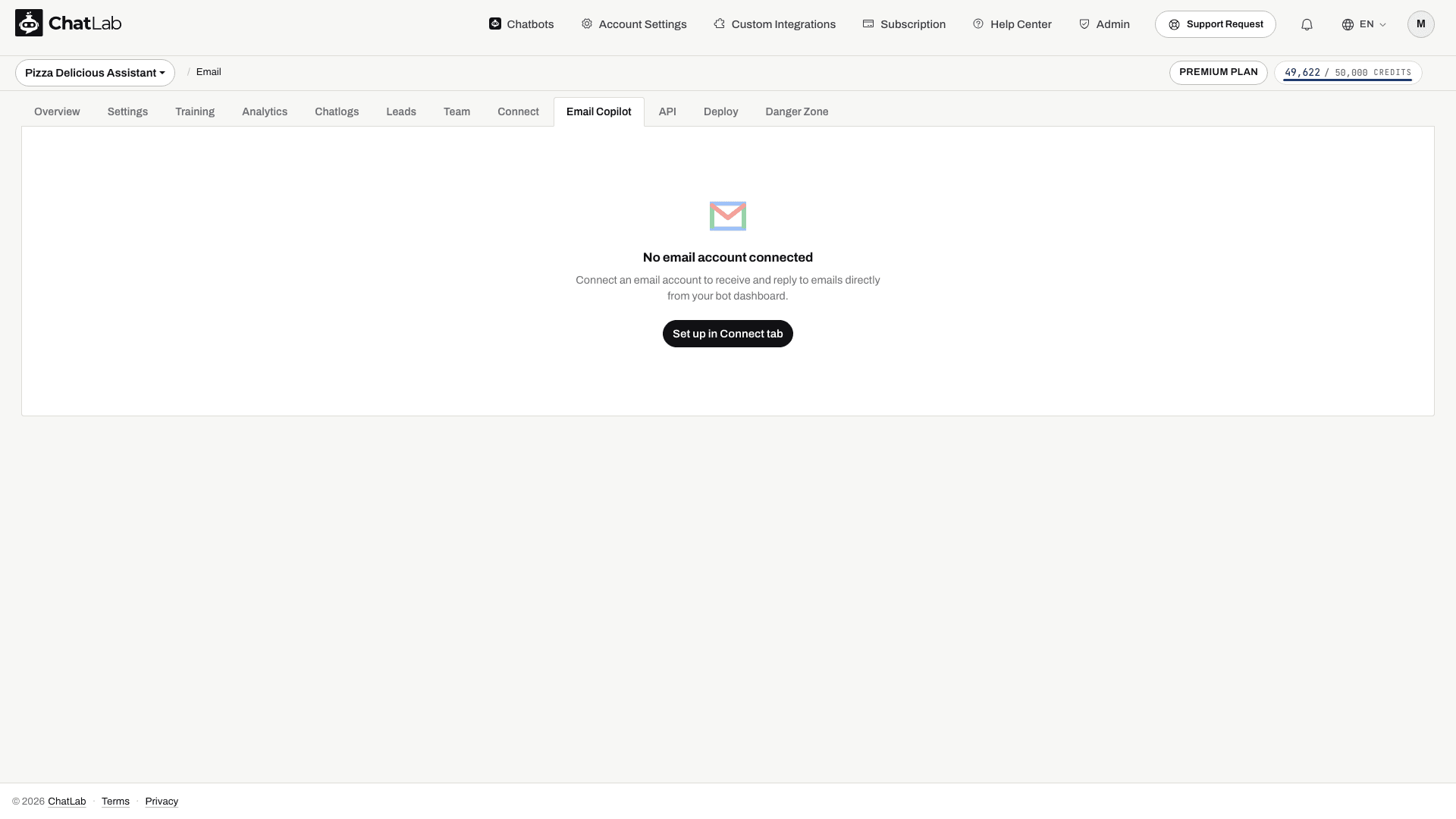
The interface has three areas:
- Folder sidebar (left) - navigate between Inbox, Drafts, Sent, and Trash. The Inbox shows an unread count badge. A gear icon opens your email account settings
- Email list / viewer (center) - browse your inbox or view individual emails. Supports pagination for large mailboxes
- AI Copilot panel (right) - appears when viewing an email or composing a reply. Contains the AI suggestion tools
To complete your first reply, open an email, click Suggest Response, review the text, and click Insert into Reply. Check the recipient and subject in the editor before Send, then check Sent for the saved copy. See Composing and sending replies for attachments and draft handling.
Learn more
- Connecting Your Account - set up your email provider, IMAP/SMTP settings, and daily send limit
- Reading and Managing Emails - navigate folders, read emails, and translate incoming messages
- AI Response Suggestions - use the AI copilot to draft replies based on your knowledge base
- Composing and Sending Replies - write, edit, and send email replies with attachments
- Configuring Copilot Behavior - customize greeting, closing, system prompt, and AI model settings
- Limits, Credits and Retention - understand message credits, storage limits, and email retention rules