Click Reply, Reply All, or Forward from the email viewer, or click Insert into Reply from the copilot panel to open the reply editor.
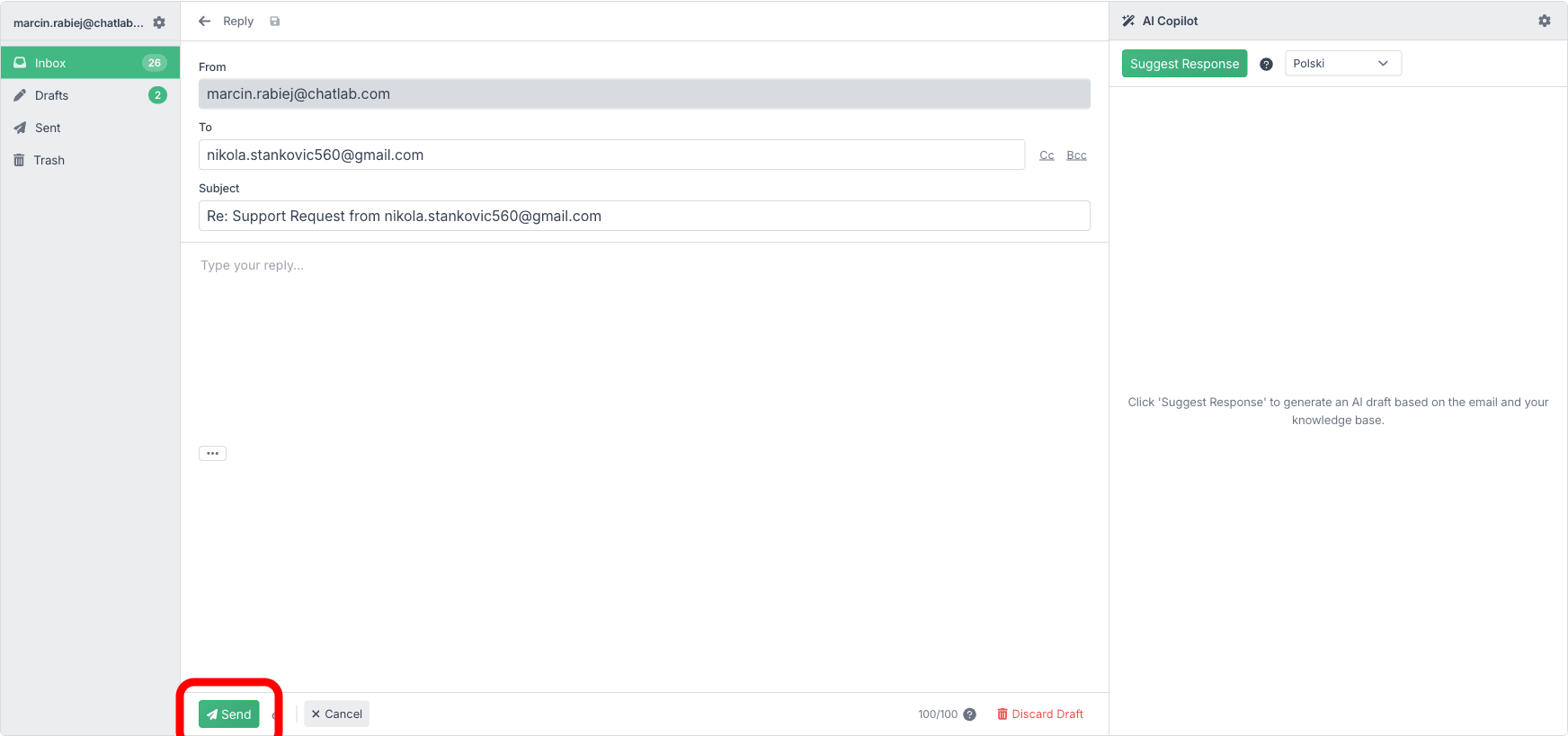
Reply editor fields
- From -- your connected email address (read-only)
- To -- pre-filled with the sender's address for replies. You can add or remove recipients
- Cc / Bcc -- click the Cc or Bcc buttons to reveal additional recipient fields
- Subject -- pre-filled with "Re:" or "Fwd:" prefix
- Message body -- plain text editor for your response
- Attachments -- click the paperclip icon to attach files (maximum 10 MB total per email)
- Show original -- expand the quoted original message
Sending and controls
At the bottom of the editor:
- Send -- sends the email
- Cancel -- returns to the email viewer without sending
- Daily send counter -- shows remaining sends out of your daily limit (e.g., "98/100")
- Discard Draft -- permanently deletes the draft
Drafts
Drafts are auto-saved as you type. You will see them in the Drafts folder. You can return to a draft at any time to continue editing.