Email Copilot operations consume message credits from your monthly quota.
Message credit usage
- Suggest Response - the current implementation records 1 credit per successful new suggestion
- Translate incoming email - 1 credit per translation
- Translate response draft - 1 credit per translation
- Sending emails - does not cost message credits
The question mark next to Suggest Response displays an estimate based on Copilot Settings > Model and Context Size. That estimate currently differs from the 1-credit recording described above. These are separate settings from the chatbot's conversation model. Reopening a cached suggestion or translation does not make a new request.
Limits and quotas
- Account message cleanup threshold: 500, across all folders
- Default email retention: 1 day
- Maximum email retention: 10 days
- Daily send limit: 1 - 300 (configurable, default 100)
- Maximum recipients per email (To + Cc + Bcc): 20
- Maximum attachment size per email: 10 MB total
- Maximum email body size: 2 MB
- Trash folder capacity: 50 emails
- Email fetch interval: every 30 minutes (automatic)
Email retention and cleanup
Emails are automatically cleaned up based on two rules:
- Age-based cleanup - emails older than the configured retention period are deleted nightly. Default is 1 day, adjustable from 1 to 10 days
- Count-based cleanup - the same nightly job removes older stored messages when the account exceeds its 500-message threshold, across all folders
Retention is measured from when the message or draft was stored in ChatLab, not from the sender's original email date. Drafts, sent copies and attachments are also subject to cleanup. Keep anything you need long term in your normal mail system. Deleting ChatLab's stored copy is separate from Delete from server after fetch, which removes mail from the provider when fetching is enabled.
Adjusting the retention period
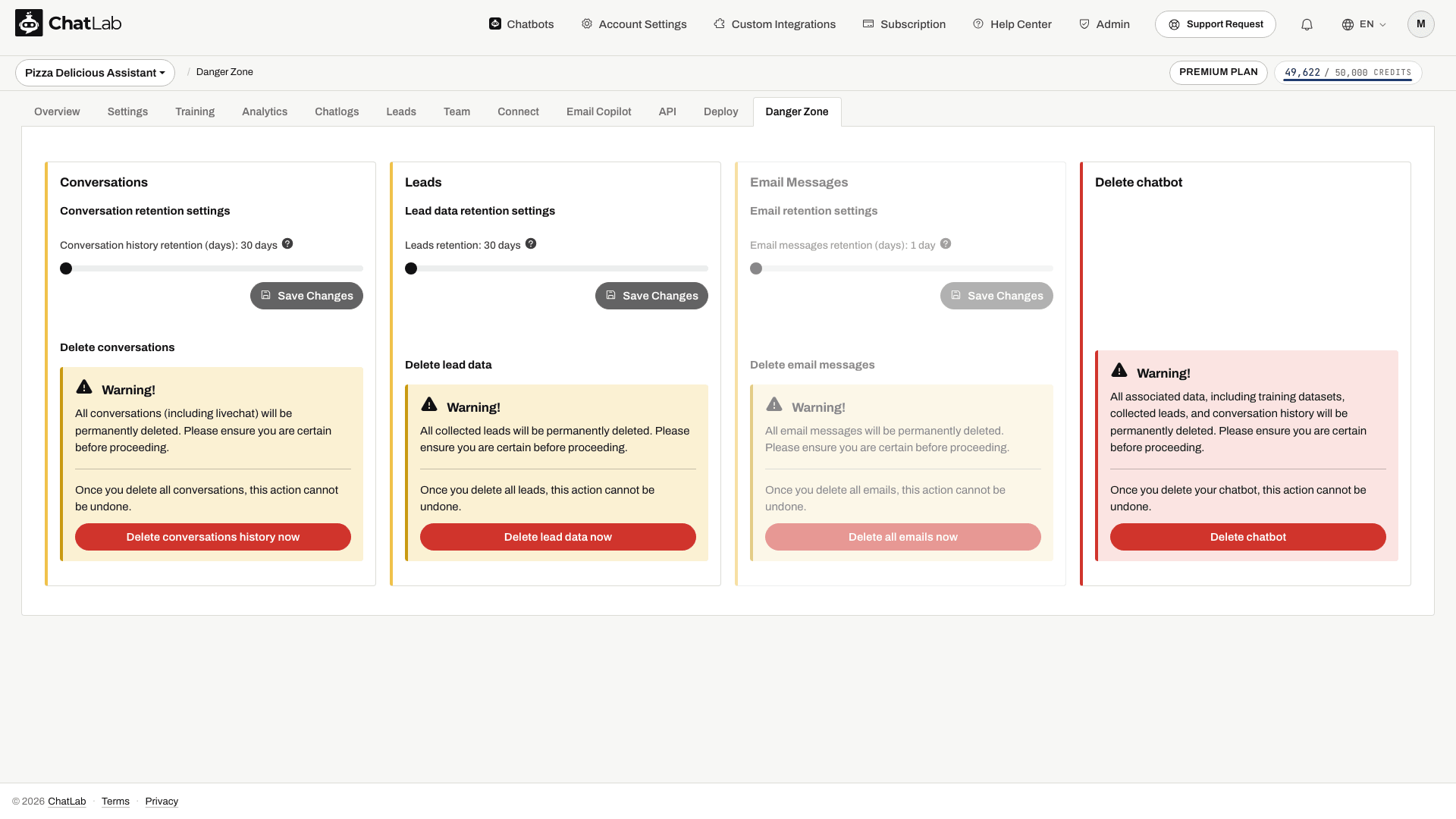
Select your chatbot and navigate to Danger Zone, then scroll to the Email Messages section. Use the slider to set the retention period between 1 and 10 days, then click Save Changes.
Deleting all emails
In the same section, click Delete all emails now to permanently remove all stored emails. This action cannot be undone. Check the selected chatbot and confirm the deletion only if you intend to remove its stored emails and attachments.