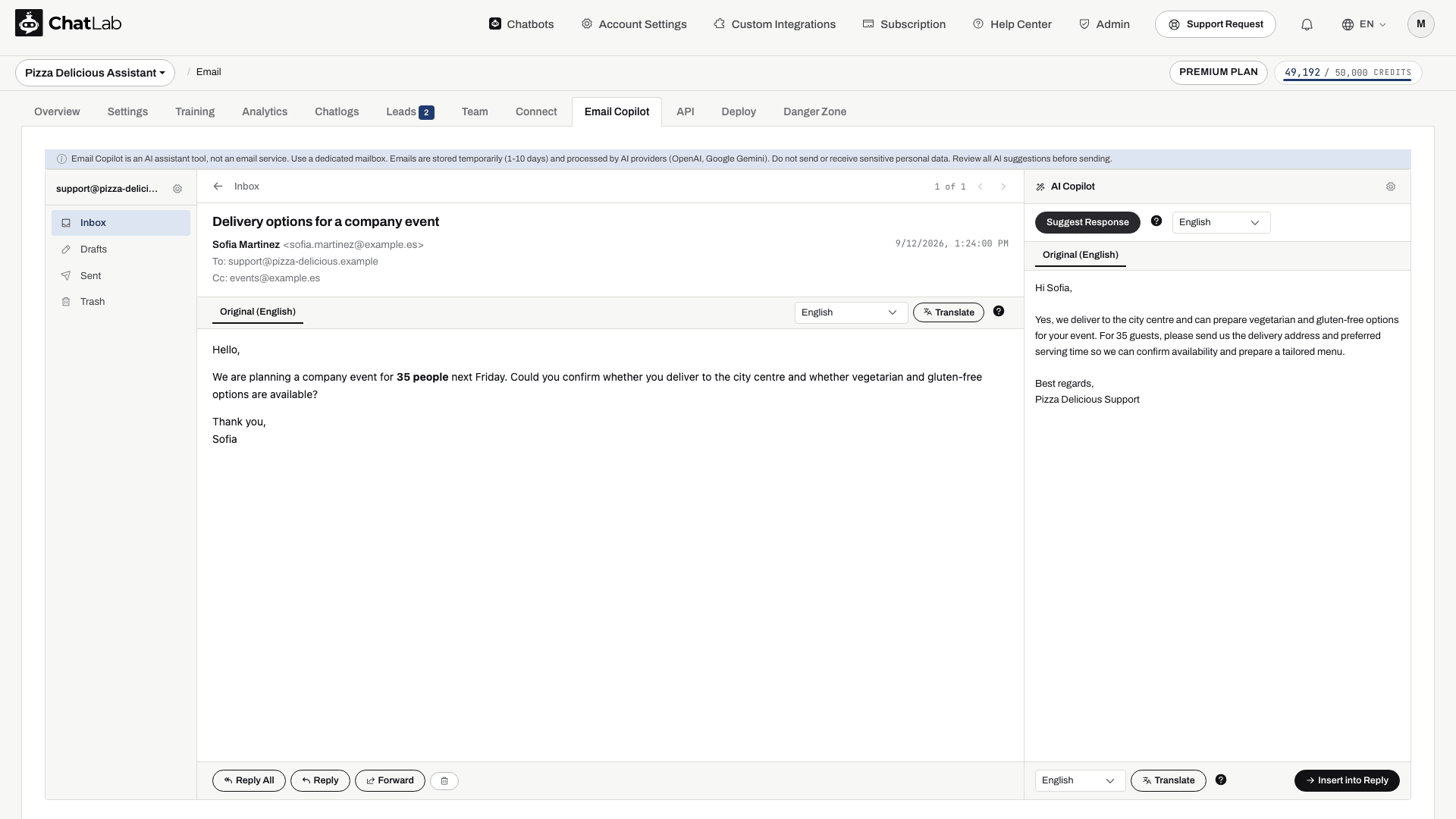
The AI Copilot panel appears on the right side whenever you view an email. It uses your chatbot's trained knowledge base to draft professional reply suggestions.
How to access
First connect your email account and train your chatbot. Select your chatbot and navigate to Email Copilot. Open any email in the inbox, and the copilot panel appears on the right side of the screen.
Suggesting a response
- Open an email you want to reply to
- Select the language for the AI draft from the dropdown (defaults to your chatbot's language)
- Click Suggest Response
The copilot will:
- Read the incoming email content
- Use quoted history included in the incoming message when it can be extracted; this is not a guarantee that every separate email in the thread is read
- Search your chatbot's trained knowledge base for relevant information
- Draft a professional reply using the configured greeting, closing, and system prompt
The suggested text appears in an editable text area in the copilot panel. You can modify it before using it.
Translating the response
If you need to reply in a different language than the one the copilot drafted in, select the target language from the dropdown below the suggestion and click Translate. This translates your draft to the selected language. Each translation costs 1 message credit.
Inserting into the reply editor
Once you are satisfied with the suggested (or translated) text, click Insert into Reply. This opens the reply editor with the text pre-filled. Check the recipient and subject too, because the suggestion can propose these fields. It does not send the message; review the finished reply before Send and check Sent afterward. If the reply editor already contains text, a confirmation dialog asks whether to overwrite it.
What knowledge does the copilot use
The copilot searches the same knowledge base your chatbot uses for website visitor conversations. This includes:
- Website pages you have trained the bot on
- Uploaded files (PDFs, documents, spreadsheets)
- Manual text entries and Q&A pairs
- Other content already indexed in that knowledge base
Suggestions do not run the chatbot's live store or order-status actions, and attachments are not read as part of the suggestion. Supply relevant facts in the trained sources or review them yourself.
The more thoroughly your chatbot is trained, the better the copilot's email suggestions will be. If relevant information is missing, verify the draft carefully and supply the answer yourself or improve the knowledge base. Prompt instructions guide the AI but cannot guarantee it will never invent a fact.