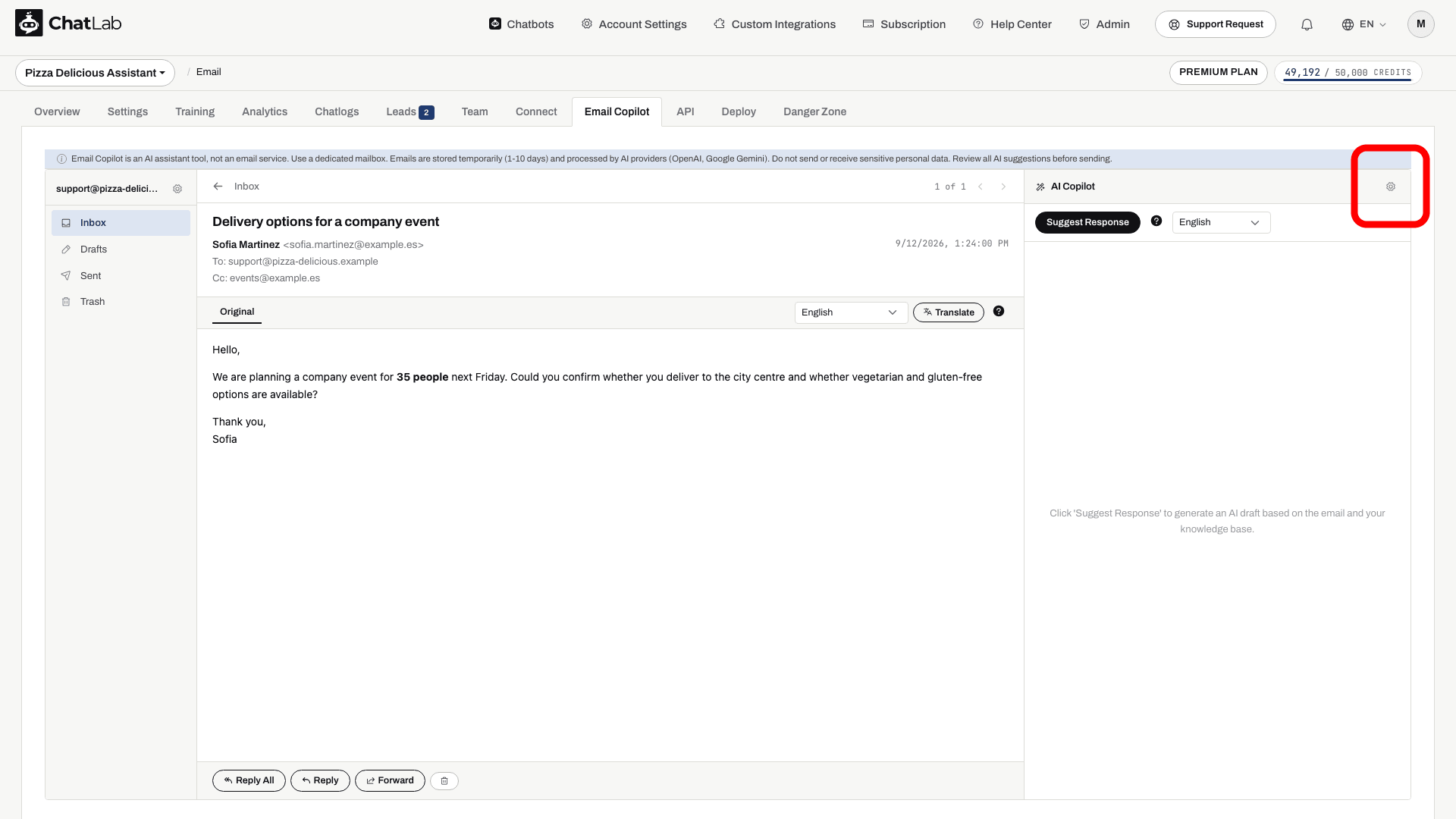
Copilot Settings control the style and model used to draft email replies. First connect your account and select your chatbot. Open Email Copilot, then open an email and click the gear icon next to AI Copilot. The settings control is available to users with full access to the bot.
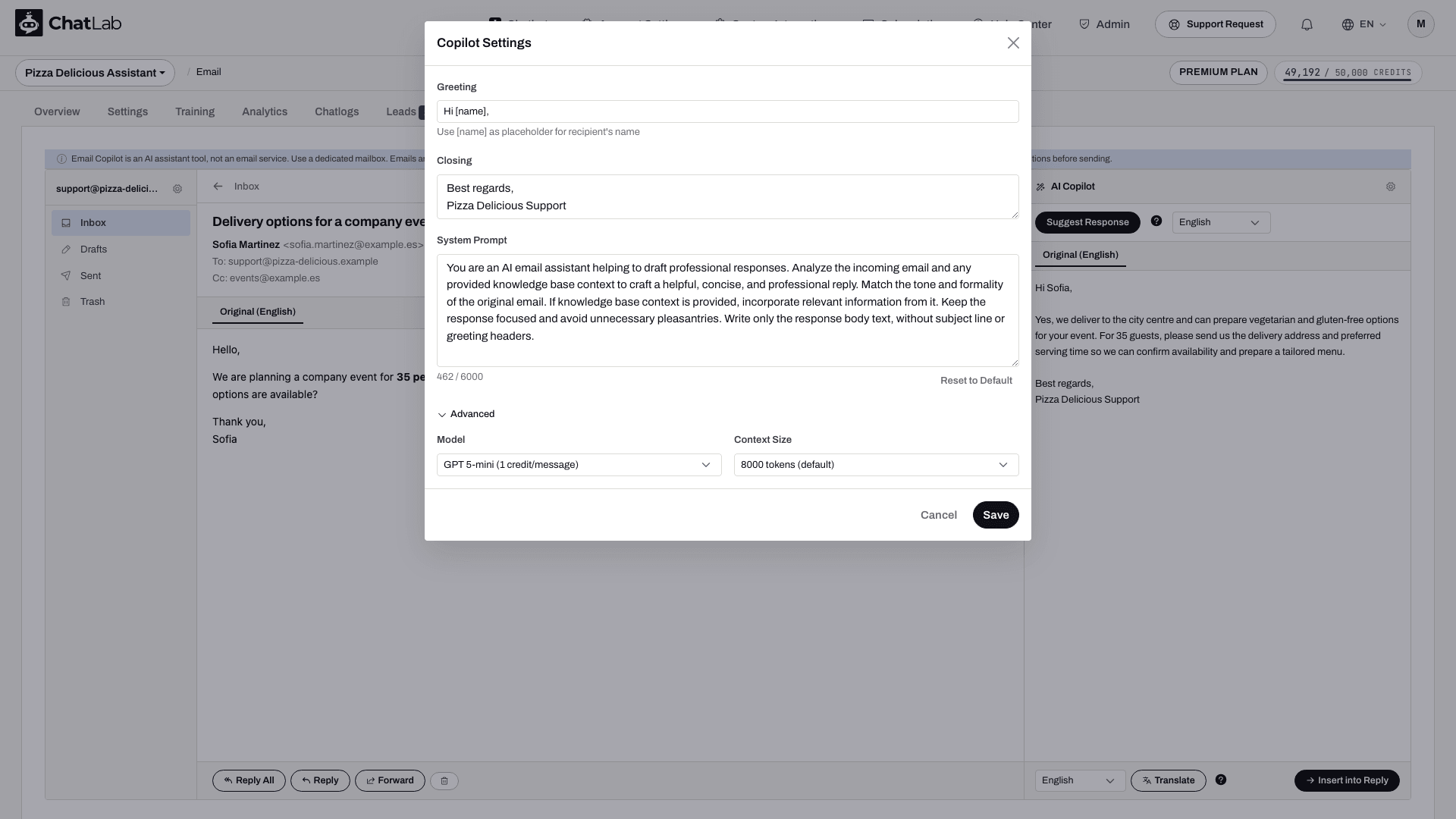
Greeting
The opening line the copilot adds to every suggested response. Default: Hi [name],
Use [name] to ask the AI to address the sender by name. Review the generated greeting before sending.
Closing
The sign-off appended to every suggestion. By default it spans two lines:
Best regards,
[Your Name]
Replace the [Your Name] placeholder with your actual name or team name, for example Best regards, ChatLab Support. Review the resulting sign-off along with the rest of the draft before sending.
System Prompt
Instructions that guide how the copilot drafts responses. The stored prompt can differ from the text filled by Reset to Default. Read it before changing it. Useful instructions include:
- Draft professional, concise replies in plain text
- Use knowledge base content as the source of truth
- Match the sender's tone and formality
- Not invent facts beyond what the knowledge base contains
- Decline unrelated questions politely
- Append source URLs when knowledge base content is used
You can customize this prompt up to 6,000 characters. Click Reset to Default to fill the prompt with the dialog's built-in reset text and reset both greeting and closing. This does not restore an earlier custom prompt or change the selected model and context size. Review the fields and click Save to apply.
Advanced settings
Expand the Advanced section to configure:
- Model - select the AI model used for email suggestions. This setting is separate from the chatbot's conversation model.
- Context Size - how much knowledge base context to include with each suggestion. Options:
- 8,000 tokens (default)
- 16,000 tokens
- 32,000 tokens
A larger context size permits more knowledge context; it does not guarantee a better answer. See Limits, credits and retention for recorded credit usage.
Click Save, reopen the settings to confirm your choices, and review a suggestion on another email to check the new behavior. Existing drafts do not change automatically.