Once your email account is connected, click the Email Copilot tab on your chatbot to open the email client and start reading your emails.
Reading emails
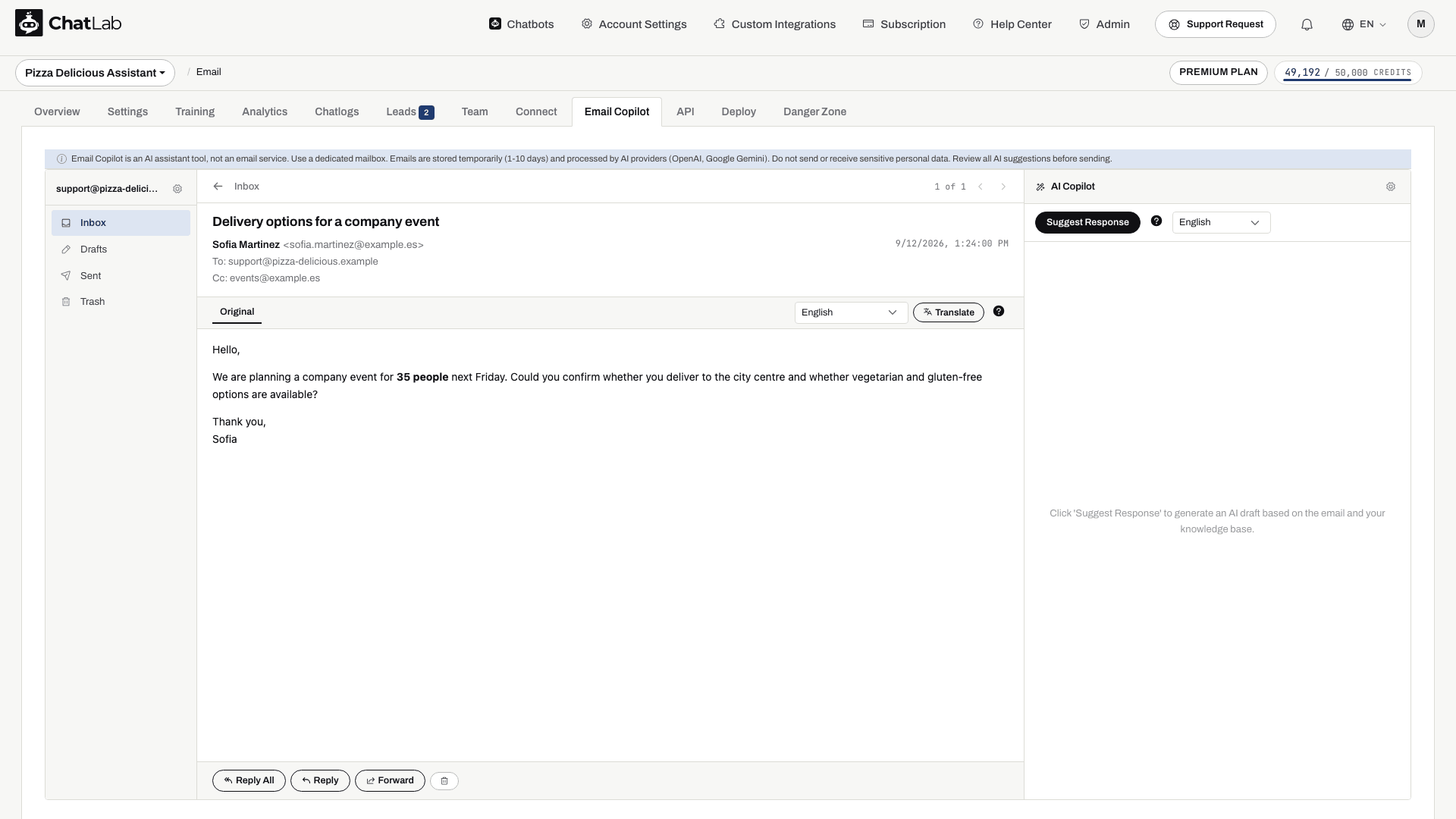
Click any email in the list to open it. The viewer shows the sender, recipients, date, subject, and full email body. Action buttons at the bottom let you Reply All, Reply, or Forward, and the trash icon deletes the email.
Translating incoming emails
Above the email body you will find a translation bar. Select a target language from the dropdown and click Translate to translate the email into that language. The default target language is set to your chatbot's internal language (configured in Settings > Model & Advanced).
After translating, you can switch between the Original tab and the translated version.
Folders
- Inbox - received emails, with unread count badge
- Drafts - saved drafts, with count badge; drafts are temporary and subject to retention cleanup
- Sent - successfully sent emails
- Trash - deleted emails (maximum 50; oldest are removed when full)
Fetching behavior
- New emails are fetched automatically every 30 minutes when Enable email fetching is turned on
- Click the Refresh button in the inbox toolbar to manually trigger a fetch
- If multiple consecutive fetch attempts fail (e.g., due to incorrect credentials), automatic fetching is paused. Open the account gear icon, correct the credentials or server settings, re-enable Enable email fetching, test and save. Also check that the bot is active and the mailbox has not been paused by an account limit
- When Delete from server after fetch is enabled, emails are removed from the original mail server after being downloaded to ChatLab
After fetching, open a message to verify its contents. If you translate it, check the original before acting on names, numbers or commitments. Use Reply, Reply All, or Forward to continue; review the recipients and send the reply. The folders here contain ChatLab's stored messages, not a full mirror of every folder in your provider's mailbox.