Once your email account is connected, click the Email Copilot tab on your chatbot to open the email client and start reading your emails.
Reading emails
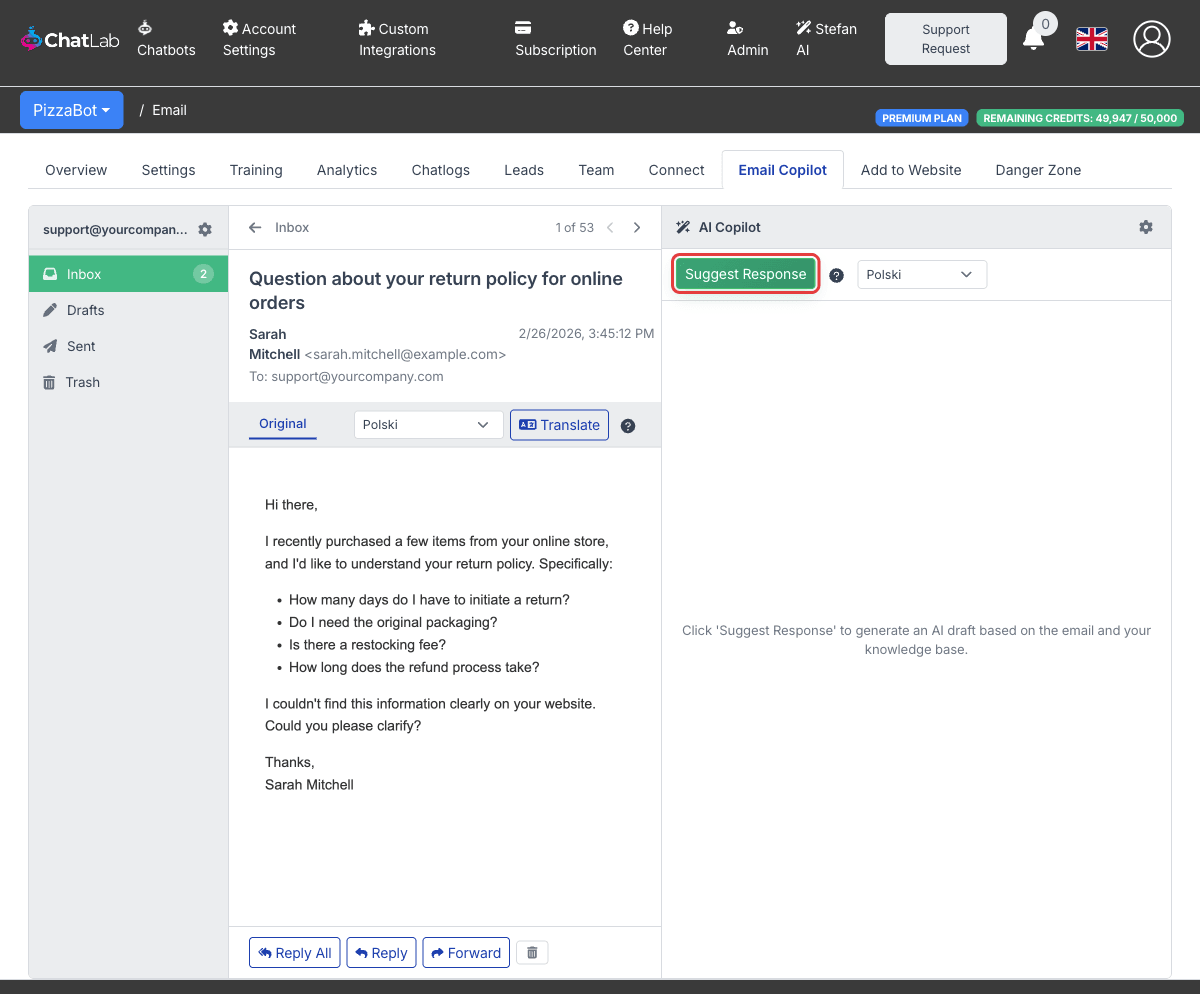
Click any email in the list to open it. The viewer shows the sender, recipients, date, subject, and full email body. Action buttons at the bottom let you Reply All, Reply, Forward, or Move to Trash.
Translating incoming emails
Above the email body you will find a translation bar. Select a target language from the dropdown and click Translate to translate the email into that language. The default target language is set to your chatbot's internal language (configured in Bot Settings > Conversation). Each translation costs 1 message credit.
After translating, you can switch between the Original tab and the translated version.
Folders
- Inbox -- received emails, with unread count badge
- Drafts -- auto-saved and manually saved drafts, with count badge
- Sent -- successfully sent emails
- Trash -- deleted emails (maximum 50; oldest are removed when full)
Fetching behavior
- New emails are fetched automatically every 30 minutes when Enable email fetching is turned on
- Click the Refresh button in the inbox toolbar to manually trigger a fetch
- If multiple consecutive fetch attempts fail (e.g., due to incorrect credentials), automatic fetching is paused. Re-enter your password in the email account settings to resume
- When Delete from server after fetch is enabled, emails are removed from the original mail server after being downloaded to ChatLab