Adding a ChatLab chatbot to your WordPress website lets visitors interact with your AI assistant directly on your site. There are two installation methods: the WordPress plugin (recommended) or manual code embed.
Step 1 -- Open Add to Website in ChatLab
- Log in to ChatLab and select the chatbot you want to embed
- Click the Add to Website tab, then select WordPress from the platform panel on the right
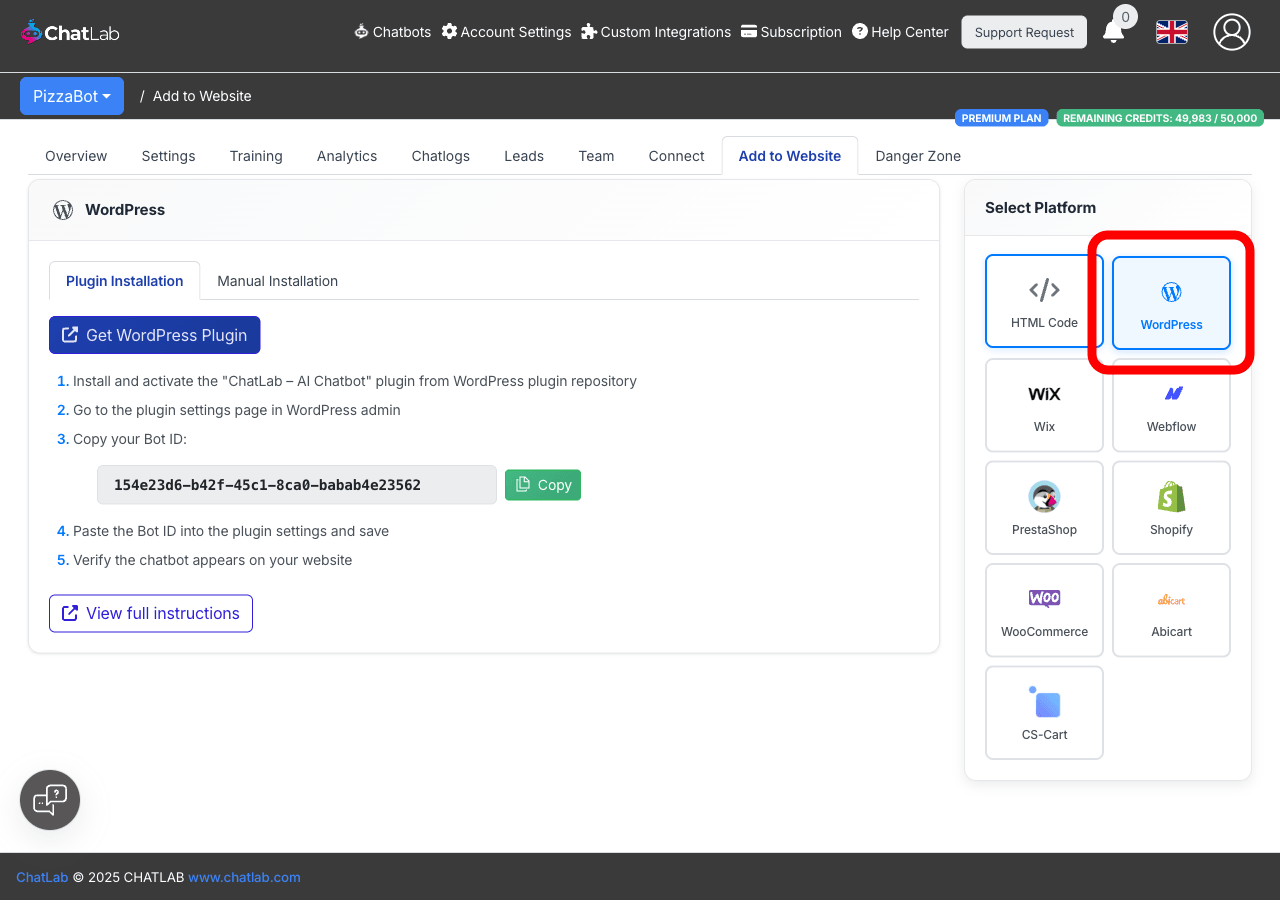
The WordPress panel shows two tabs: Plugin Installation and Manual Installation.
Method 1: WordPress Plugin (recommended)
The plugin method is the simplest way to add ChatLab to WordPress -- no code editing required.
- Click Get WordPress Plugin to open the plugin page on wordpress.org
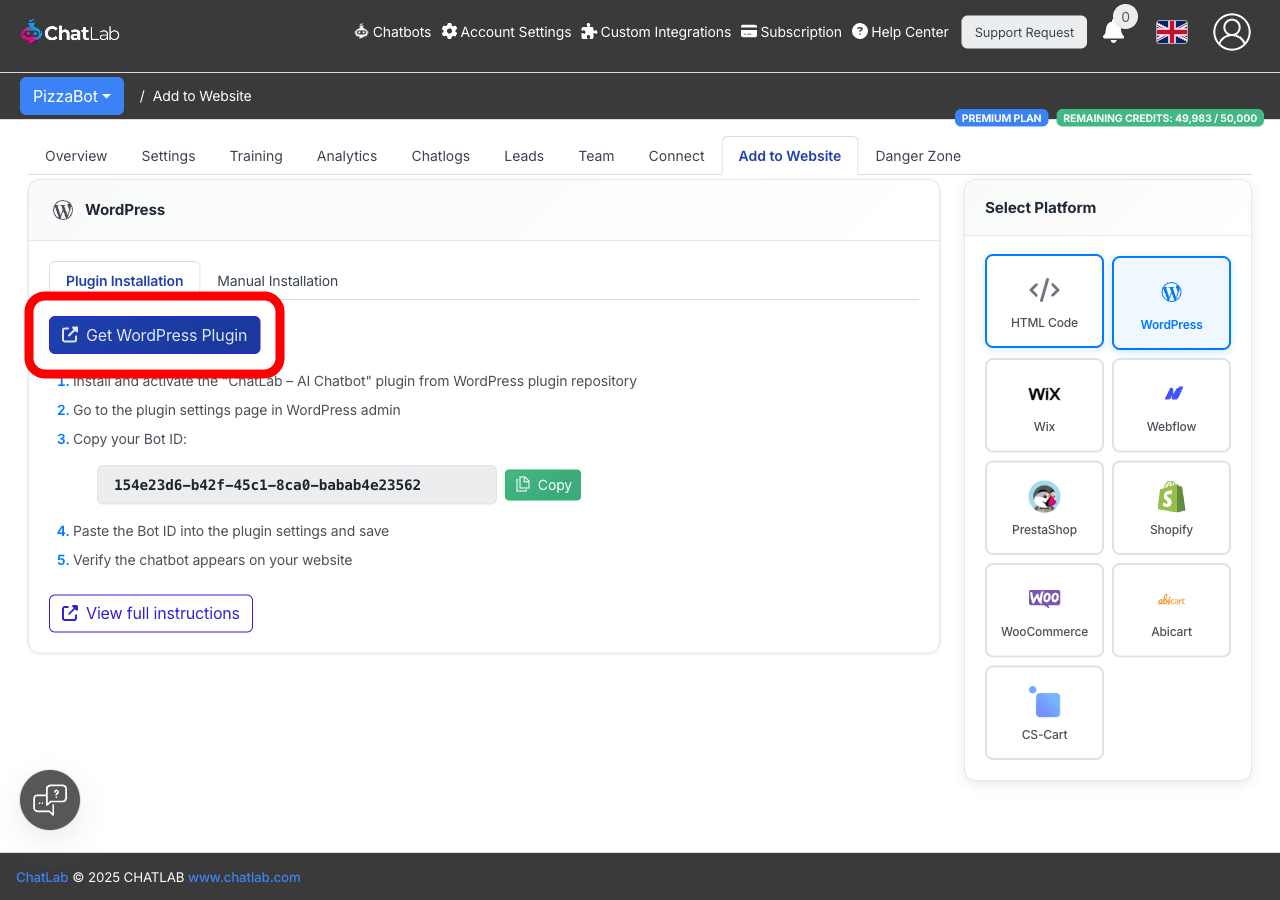
- Install and activate the "ChatLab -- AI Chatbot" plugin from the WordPress plugin repository
- In your WordPress admin, go to the plugin settings page
- Back in ChatLab, click Copy next to your Bot ID to copy it to the clipboard
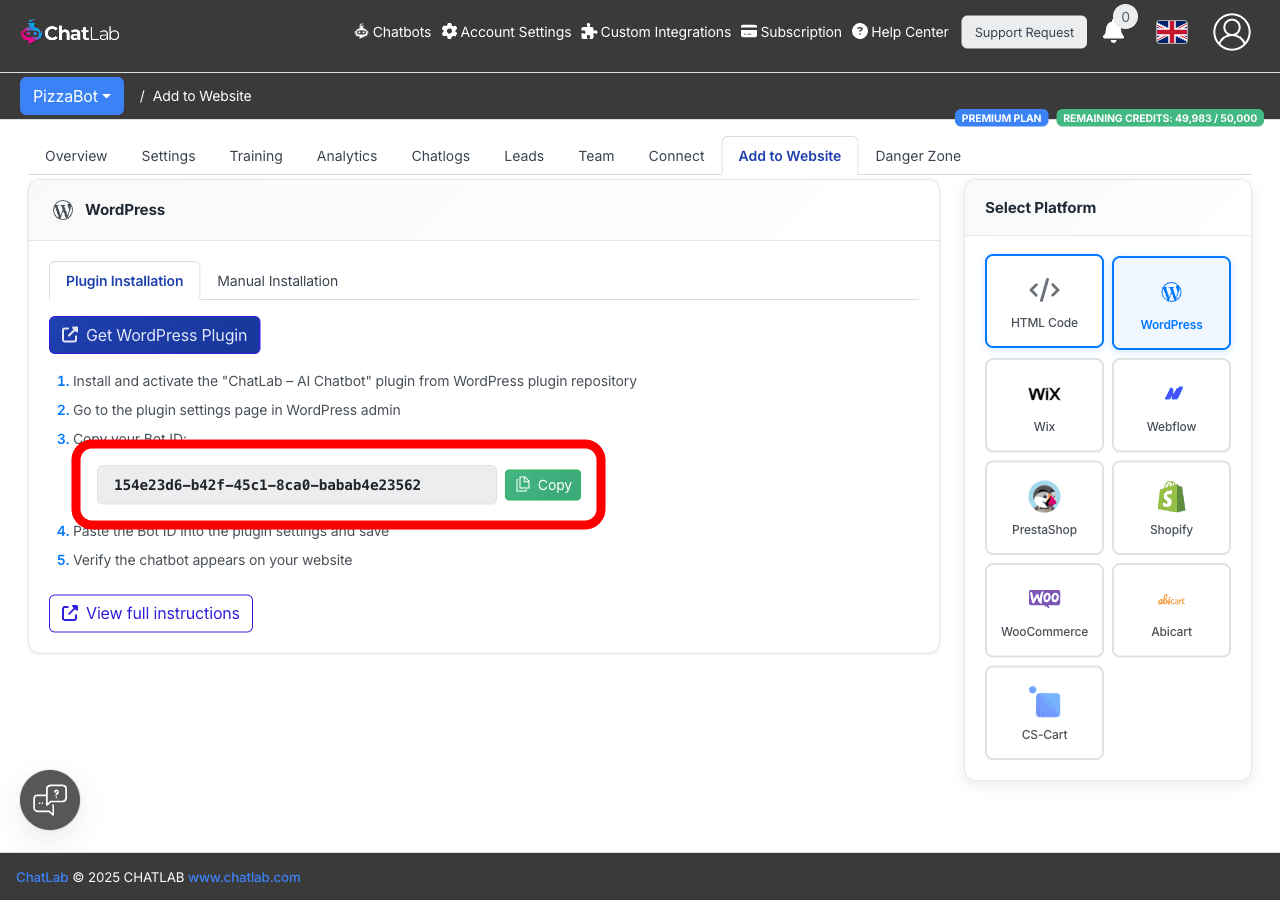
- Paste the Bot ID into the plugin settings in WordPress and save
- Open your website in a browser to verify the chatbot icon appears
Method 2: Manual Installation
If you prefer to embed the code manually, click the Manual Installation tab.
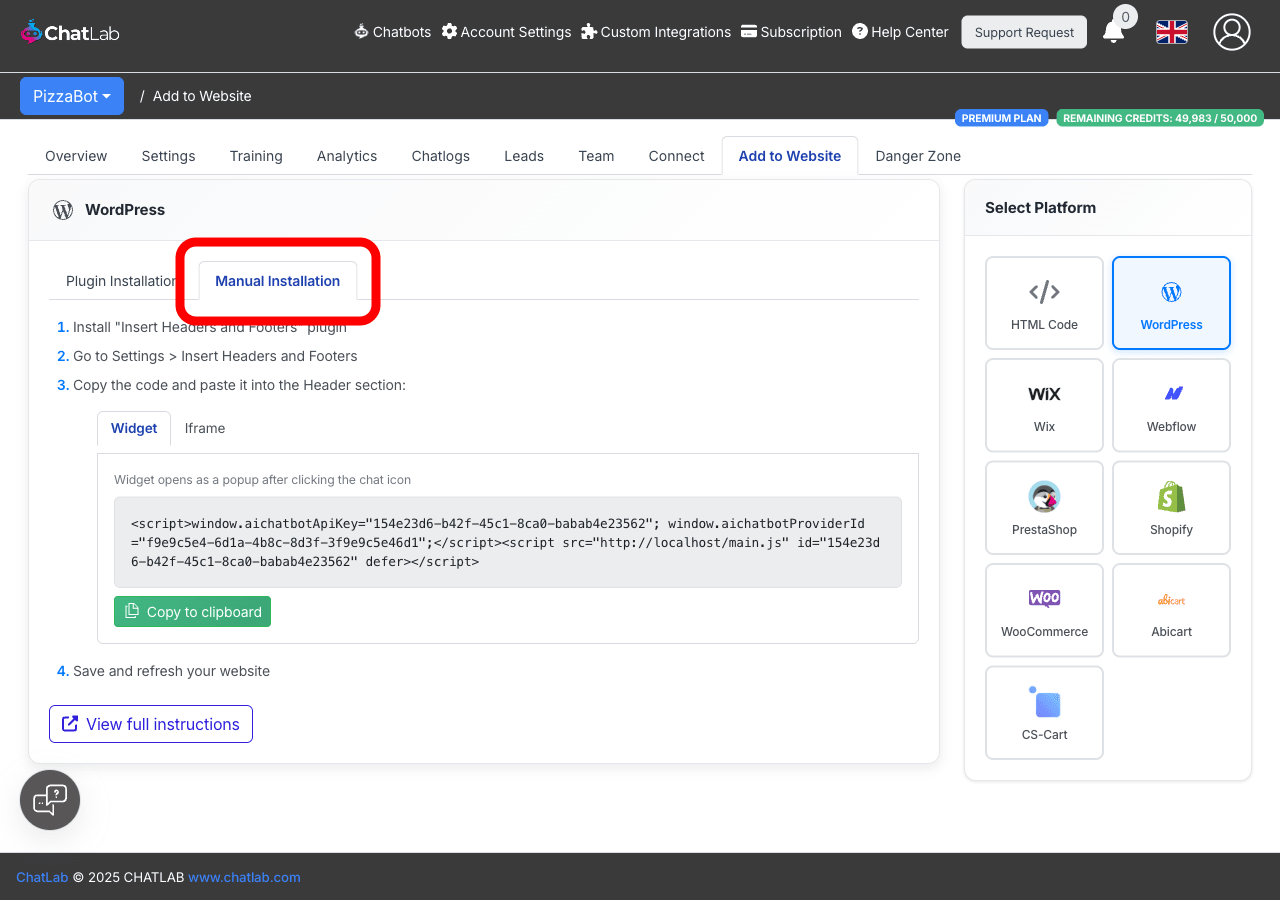
- Install and activate the "Insert Headers and Footers" plugin in WordPress (or any plugin that lets you add code to the
<head>section) - In WordPress admin, go to Settings > Insert Headers and Footers
- In ChatLab, choose between Widget (chat popup triggered by a chat icon) or Iframe (always-visible chat embedded in the page). See What is the difference between widget and Iframe? for a comparison
- Click Copy to clipboard to copy the code
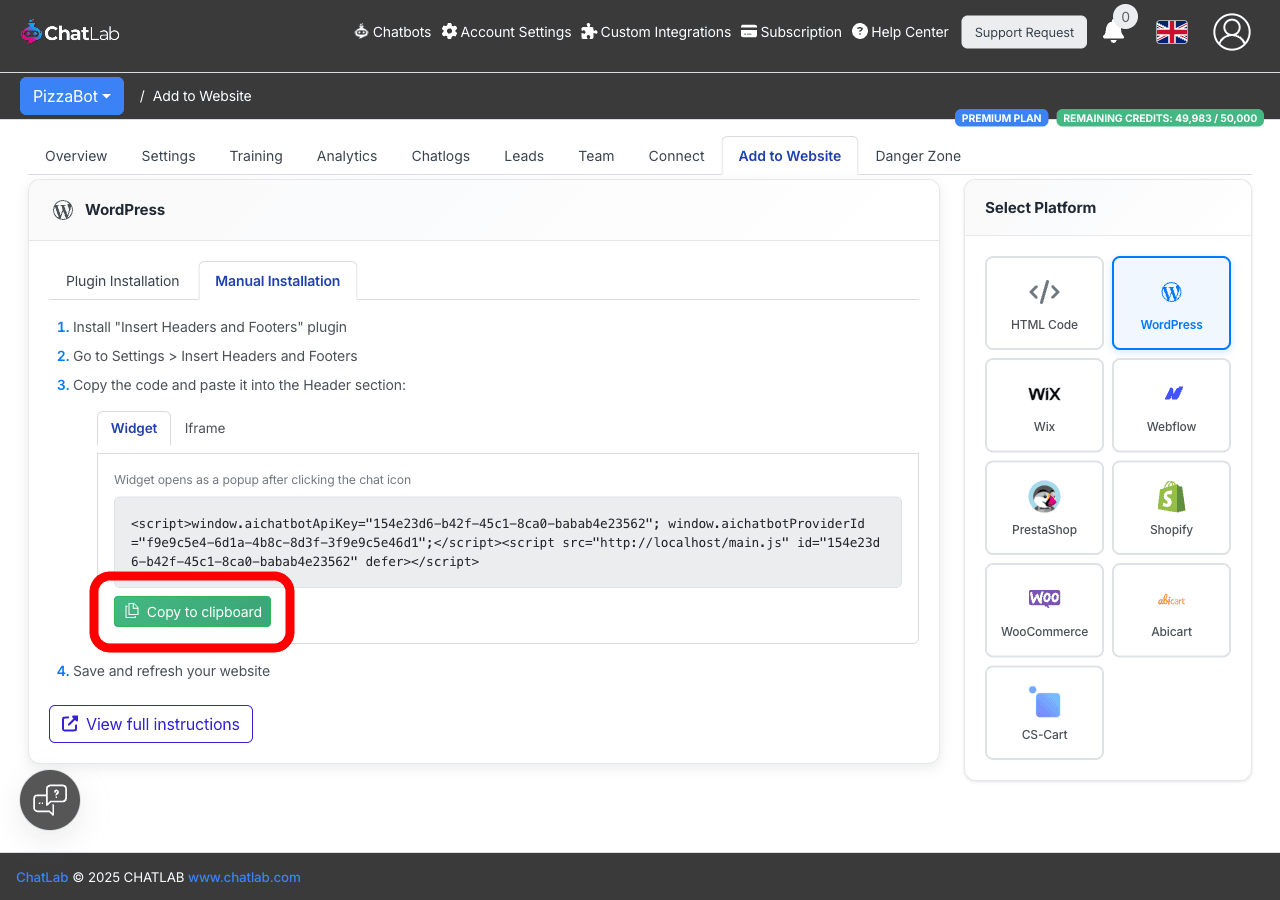
- Paste the code into the Header section in WordPress and save
- Refresh your website to verify the chatbot appears
Verifying the installation
After completing either method, open your WordPress site in a browser. You should see the chat icon in the corner of the page (widget mode) or the chat window embedded on the page (iframe mode). Click the icon to open the chat and send a test message to confirm everything is working.