Adding a ChatLab chatbot to your Wix website lets visitors interact with your AI assistant directly on your site. This guide walks through the steps to get your embed code from ChatLab and paste it into Wix.
Before you start
Before you start, create your chatbot and make sure your Wix site is published with a connected domain. Wix documents these requirements in Embedding custom code on your site. You also need permission to edit and publish the website.
Step 1 - Copy the embed code from ChatLab
- Log in to ChatLab and select the chatbot you want to embed
- Click the Deploy tab, then select Wix from the platform panel on the right
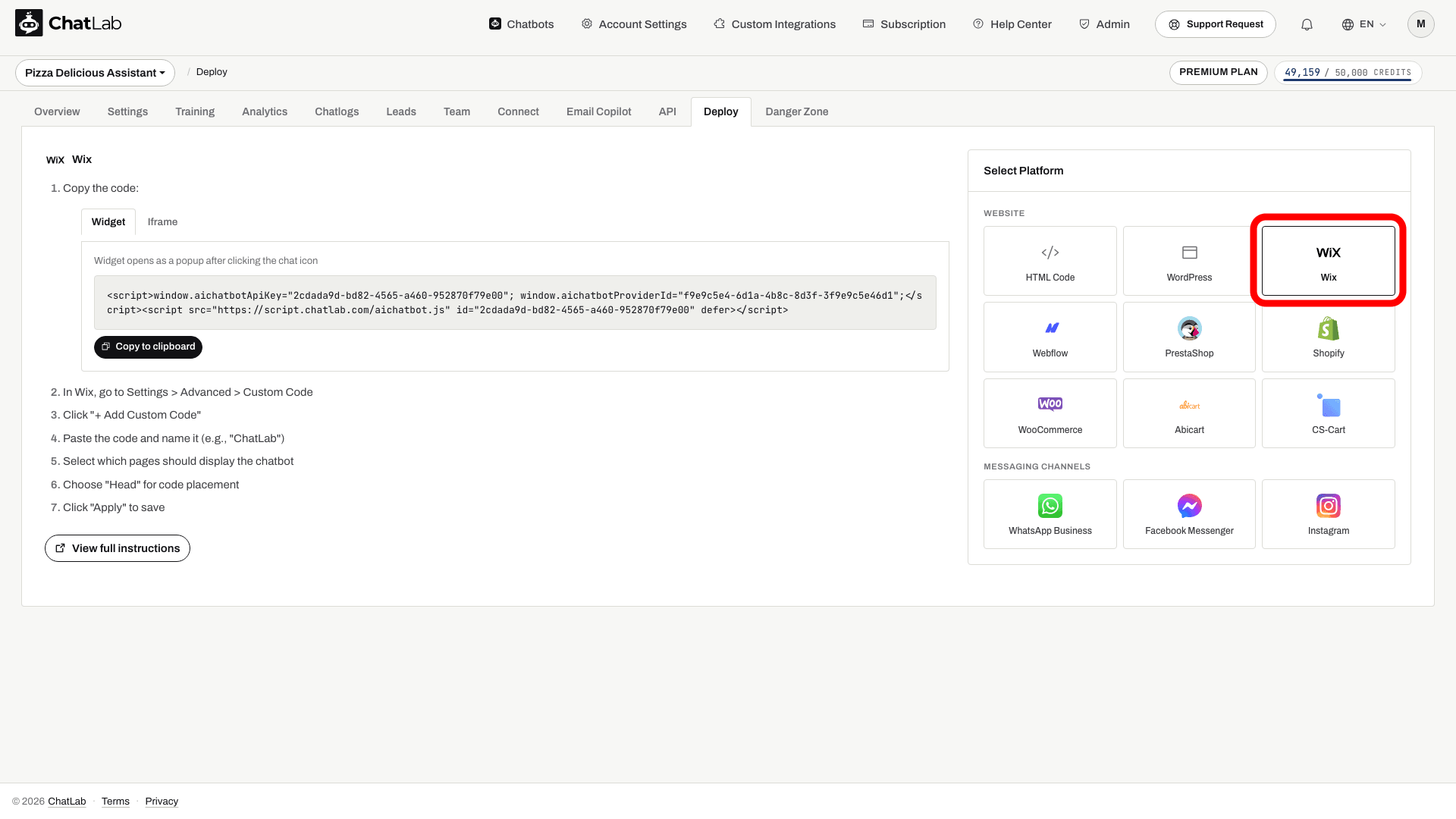
- Choose Widget for the custom-code steps below. For an always-visible chat, choose Iframe and use the separate page embed instructions below. See What is the difference between widget and Iframe? for a comparison
- Click Copy to clipboard
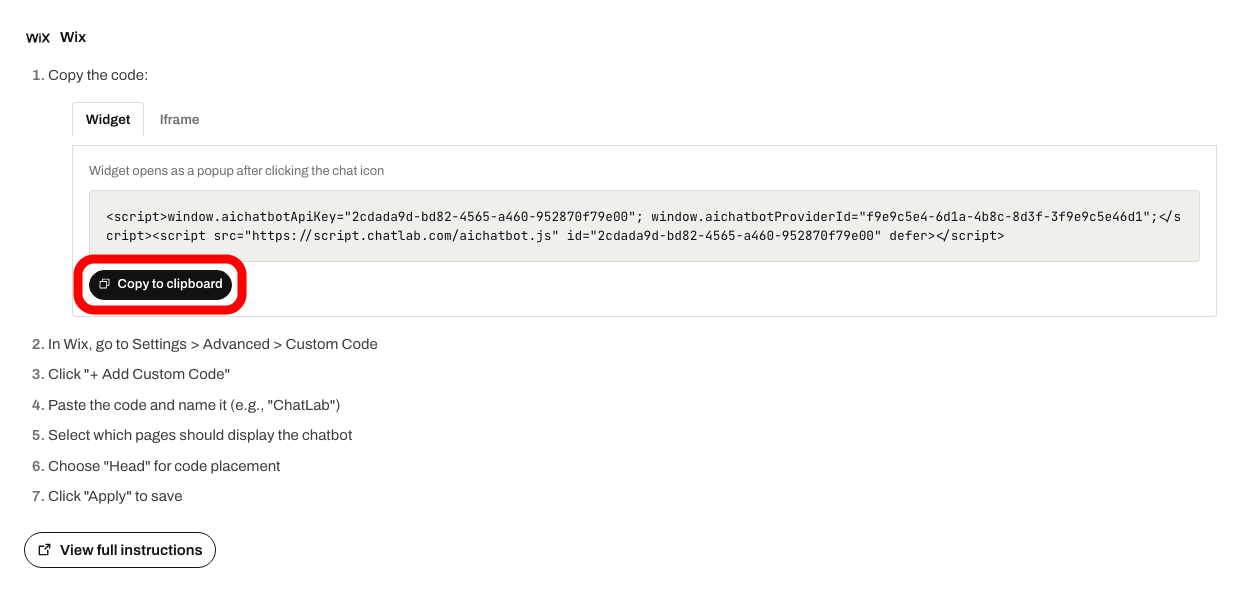
Step 2 - Add the code to Wix
- In your Wix dashboard, go to Settings
- Under Development & integrations, click Custom Code. Older Wix dashboards may group this under Advanced.
- Click + Add Custom Code at the top right
- Paste the copied code into the text box
- Enter a name for your code (e.g., "ChatLab")
- Under Add Code to Pages, select which pages should display the chatbot - choose All pages to show it everywhere
- Under Place Code in, select Head
- Click Apply
Adding an always-visible iframe
In the Wix Editor, add an HTML iframe/embed element to the page, paste ChatLab's Iframe snippet, and resize the element so the chat is usable on desktop and mobile. Publish the page. An iframe must be placed in the visible page layout, not in Head custom code. See Wix's guide to visible embedded content.
Verifying the installation
After saving, open your Wix site in a browser. You should see the chat icon appear in the corner of the page (for widget mode) or the chat window embedded on the page (for iframe mode). Click the icon to open the chat and send a test message to confirm everything is working.